
Are you ready to take your WordPress website to the next level? Adding a custom layout to your WordPress theme can drastically change the way your site looks and functions, giving it a unique edge that sets it apart from the rest.
Whether you’re looking to enhance user experience, improve site navigation, or just give your website a fresh new look, mastering the art of layout design is key. But don’t worry—it’s not as complicated as it sounds. In this guide, you’ll discover simple, effective ways to add a layout to your WordPress theme that will captivate your audience and keep them coming back for more.
Ready to dive in and give your site the makeover it deserves? Let’s get started.
Choosing A Suitable Layout
Layouts come in many types. Each has its own style and purpose. Some layouts are simple. Others are more complex. A single-column layout is easy to read. A two-column layout can show more content. Grid layouts are popular too. They are neat and organized. Choosing the right layout is important.
Think about your audience first. What do they like? Also, consider the type of content. Text-heavy content may need more space. Images and videos need a different setup. Mobile-friendliness is key too. Many people use phones to browse. The layout must look good on small screens. Check the speed of the layout. Some layouts load slowly. Fast-loading sites keep visitors happy.

Credit: wordpress.org
Preparing Your WordPress Environment
Check if your theme supports custom layouts. Review the theme documentation. Test layout features on a demo site. Ensure compatibility with WordPress version. Avoid themes without regular updates. Seek help from theme forums if needed.
Create a child theme. Preserve changes safely. Copy the parent theme’s files. Modify layout without losing updates. Use a simple code editor. Upload the child theme to WordPress. Activate it under themes section. Check if your site looks fine.
Installing A New Layout
Many WordPress themes come with built-in options. These options help you change the layout easily. First, go to your WordPress dashboard. Then, click on Appearance and choose Customize. Here, you will find different settings. Use these to change the layout. You can adjust colors, fonts, and more. Remember to click Save when you finish. Now, your site has a new look!
Plugins can add new layouts to your site. Start by going to the Plugins section in your dashboard. Click on Add New and search for layout plugins. Popular choices include Elementor and WPBakery. Click Install and then Activate. Now, you can use the plugin to change your layout. Explore and find what you like best!
Customizing Layout Settings
To modify the header and footer in your WordPress theme, access the theme customizer. This tool lets you change the look of your site. Select Header & Footer options for adjustments. You can add a logo, change background colors, or update text. These changes make your site unique and personal. Ensure your website looks great on all devices.
Adjusting the sidebar and widgets is easy too. Find the Widgets section in the customizer. Drag and drop elements to arrange them. Add or remove widgets as needed. This feature helps organize your content. A clean sidebar improves user experience. Make sure widgets fit your site’s theme and style. Keep it simple and neat for better navigation.
Coding Custom Layouts
Many WordPress themes have files for layout. These files are often written in PHP and HTML. To change the layout, you need to edit these files. Use a text editor. Find the file you want to change. Make a copy before editing. This keeps your original safe. Look for the code that controls layout. Change it to what you want. Always save your changes.
PHP is used to add logic to your layout. HTML is used to structure your layout. Together, they make your page look nice. You can add new sections with HTML. Use PHP to show or hide parts. Practice makes perfect. Start with small changes. Test your changes often. This helps find mistakes early. Follow guides online if you get stuck.
Testing And Troubleshooting
Adding a layout to a WordPress theme can be tricky. Start by accessing the theme’s editor. Modify the code carefully to ensure the new layout fits seamlessly. Test changes thoroughly to identify any errors or inconsistencies. Troubleshoot issues by checking compatibility with plugins and other theme features.
Checking For Responsiveness
Ensure your WordPress theme looks good on all devices. Use a browser’s developer tools to see your site in different sizes. This helps you catch any design issues early. Try resizing the browser window and check how the layout adjusts. A good layout will change smoothly on phones and tablets. Make sure buttons are easy to tap on small screens. Text should be readable without zooming. Images need to fit well and not overflow.
Resolving Common Layout Issues
Layout problems can break your site’s look. Common issues include overlapping text or images. Sometimes, parts of a page may not appear. Fix these by checking your CSS styles. Ensure you’re using correct HTML tags. Validate your code with online tools. If a problem persists, deactivate plugins one by one. This checks if a plugin is causing trouble. Remember, a clean and simple layout is usually the best.
Optimizing For Performance
Enhancing your WordPress theme involves adding a layout for better performance. Start by navigating to your WordPress dashboard, selecting ‘Appearance,’ then ‘Editor. ‘ Locate the theme files, and integrate a new layout by adjusting the code or using a layout plugin.
This approach ensures a seamless and efficient design.
Improving Load Times
Fast websites make users happy. Slow websites can make them leave. Make sure your theme loads quickly. Use lightweight images. Big files take longer to load. Compress images to make them smaller. Use tools like TinyPNG. Look at image formats too. JPEGs and PNGs are good choices. Choose the right format for your needs.
Minimizing Http Requests
Each file request slows down the site. Reduce these requests. Combine CSS and JavaScript files. Fewer files mean faster loading. Remove unused plugins. They can slow down the site. Use a caching plugin. Cache stores data for faster access. This helps with speed. Make sure your hosting is reliable. Good hosting improves performance.

Credit: developer.wordpress.org
Finalizing And Launching
Adding a layout to a WordPress theme involves selecting a template and customizing it to fit your needs. Ensure the design aligns with your brand by adjusting colors, fonts, and sections. Test the layout on various devices before finalizing and launching to ensure responsiveness.
Reviewing Design Consistency
Check every page. Ensure the design looks the same everywhere. Fonts should match. Colors should be consistent. Images must align well. Buttons should look the same. Links should be easy to find. Consistency is key. It helps the user understand the site better. A well-reviewed design feels smooth and easy to use.
Publishing The Updated Theme
Save your work. Keep a backup. Activate the new theme. Look for changes. Test the site. Make sure all parts work well. Check the mobile view. It should look good on phones too. Publish the theme. Let others see the changes. Get feedback. Listen to what users say. They can help make it better.
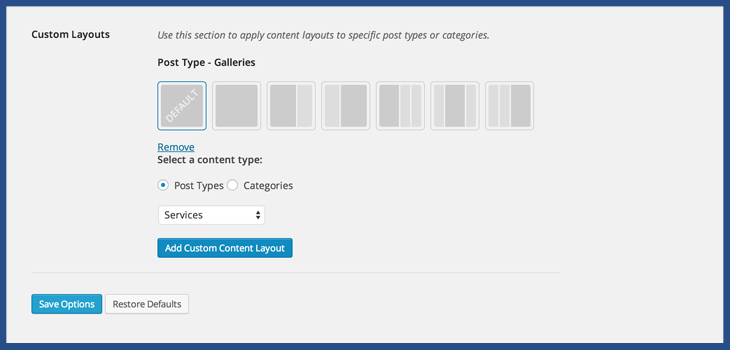
Credit: slocumthemes.com
Frequently Asked Questions
How Do I Add A New Layout In WordPress?
To add a new layout, access the WordPress dashboard. Navigate to Appearance > Customize, then choose Layout. Use the available options to customize your layout. Save changes to apply the new layout to your theme.
Can I Create Custom Layouts In WordPress?
Yes, you can create custom layouts in WordPress using page builders like Elementor or WPBakery. These plugins provide drag-and-drop functionality. They allow you to design unique layouts without coding skills. Install the plugin, select a page, and start designing.
What Are The Benefits Of Using WordPress Layouts?
WordPress layouts improve site organization and user experience. They provide a professional look and enhance navigation. Custom layouts help highlight important content and improve engagement. They also ensure a responsive design for mobile devices.
How Do I Change The WordPress Theme Layout?
To change the theme layout, go to your WordPress dashboard. Click on Appearance > Customize, then select Layout. Choose from the available presets or customize manually. Save your changes to apply them.
Conclusion
Adding a layout to your WordPress theme enhances your site’s appeal. It keeps visitors engaged. Follow the steps outlined above for a smooth process. Customize according to your needs. Experiment with different layouts. Find what suits your content best. Remember, simplicity often works wonders.
A well-structured layout improves user experience. It also boosts your site’s functionality. Keep practicing these tips. Your WordPress site will stand out. Happy designing and creating!


