
Have you ever found yourself wondering how to make your WordPress website more accessible to a global audience? Adding multiple languages to your WordPress theme can be the key to unlocking an entirely new world of visitors.
Imagine the possibilities when your content speaks directly to people in their native tongue. It’s not just about expanding reach; it’s about creating a connection and enhancing user experience. This guide will walk you through the steps to effortlessly incorporate additional languages into your WordPress theme.
Ready to captivate audiences from around the globe and boost your site’s engagement? Let’s dive in and make your website truly multilingual.
Choosing The Right Language Files
Language files help change the words in your WordPress theme. These files end with .mo or .po. First, download the right file for your language. Check if your theme supports it. Most themes have a languages folder. Put your file there. This makes the theme speak your language.
You can get these files from many places. Some websites offer them for free. Always use files from trusted sites. This keeps your site safe. If you can’t find the file, ask the theme maker. They might help you. Using the right files is easy. It makes your site friendly for all users.
Credit: www.hostpapa.com
Installing Language Files
First, find the language pack for your theme. Go to the theme’s official site. Download the language files for the desired language. Save them on your computer.
Next, access the WordPress dashboard. Click on Appearance. Choose Theme Editor. Locate the languages folder in your theme’s directory.
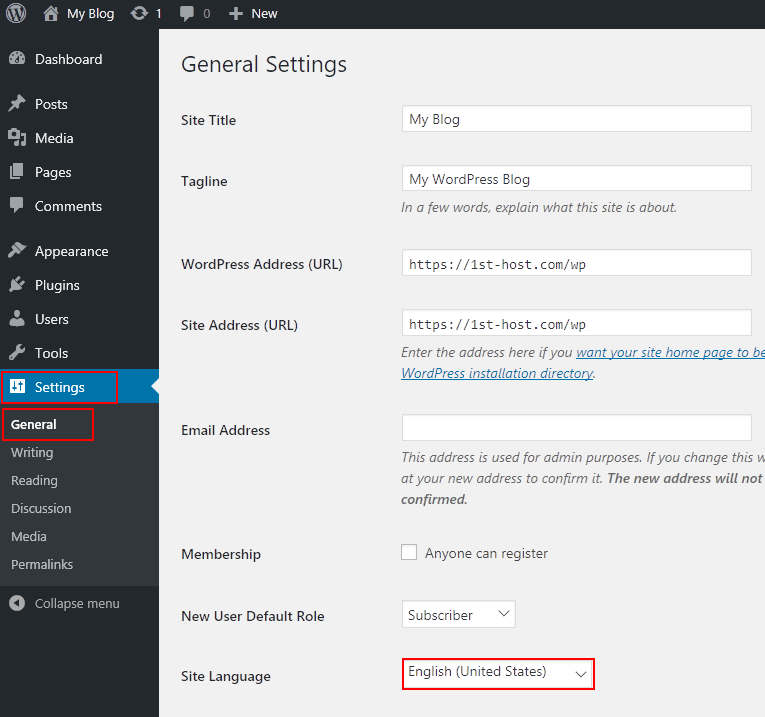
Upload the downloaded language files here. This enables the theme to use different languages. Now, go to Settings. Click on General. Select the new language from the dropdown menu. Save the changes. Your theme now supports the new language.
Using Poedit For Translations
Poedit is a tool for translating WordPress themes. First, download and install Poedit on your computer. Open Poedit and select “Create new translation”. Choose the theme’s .pot file. This file is usually in your theme’s folder. Select your language from the list. Save the file as .po file. Now, you are ready to start translating.
Open the .po file in Poedit. You will see a list of text strings. Click a string to edit it. Write the translation in the box below. Save your changes regularly. After translating, save the file. Poedit will generate a .mo file. Upload both files to your theme’s languages folder. This will apply your translations to the theme.
Configuring WordPress Language Settings
Start by accessing your WordPress dashboard. Click on Settings in the menu. Choose the General tab. You will see a section for Site Language. Click on the dropdown menu. Select your desired language. Save your changes by clicking Save Changes at the bottom. Your website will now use the new language.
Some themes may not support all languages. Check your theme’s documentation. Ensure it supports your chosen language. If not, you might need a translation plugin. Plugins like Polylang or WPML can help. Install and activate them from the Plugins section.
Updating Theme’s Functions.php
Loading text domain helps themes speak other languages. This step is crucial. Add load_theme_textdomain in your functions.php file. It connects your theme with language files. The language files must be in a folder named languages. This folder is inside your theme folder. With this setup, your theme can read translations. It is simple and fast. Don’t forget to use the correct text domain name. This name matches with the one in your translation files.
Strings in themes need translation. Wrap strings with __(‘string’, ‘textdomain’). This function tells WordPress to translate. It finds matching translations in language files. This process is known as localization. Localization makes themes user-friendly. Users can see text in their language. It improves user experience. Always check your translations. Make sure they are correct. Use tools like Poedit for easy editing.
Credit: wpml.org
Testing Language Changes
Start by changing your website’s language in the WordPress settings. This is simple and quick. Go to the dashboard. Find the settings tab. Click on “General”. Look for “Site Language” and select your desired language.
After making changes, check your website. See if the text displays in the new language. Refresh your browser to see updates. If some parts remain unchanged, don’t worry. Plugins and themes may need updates too.
Test different pages. Ensure all content appears correct. Pay attention to menus and widgets. They are important for users. If errors appear, revisit settings. Double-check the language settings. Proper testing ensures a smooth user experience.
Troubleshooting Common Issues
Sometimes, the language file might not load. This could be due to file path errors. Check if the file is in the correct directory. Also, ensure the file name matches the language code. Files like `en_US.mo` should match your settings. Incorrect permissions can also block loading. Set correct read permissions for the file. Make sure the theme supports translations. Some themes do not have language support. If these steps do not work, try re-uploading the file. This can solve hidden errors.
If text does not translate, check the theme’s code. Some themes use hard-coded text. This text will not change with language files. Look for the `__()` or `_e()` functions in the code. These functions help with translation. Ensure the language file has the right strings. Strings must match the theme’s text. Use tools like Poedit to edit language files. This tool helps find missing translations. Sometimes, a plugin might interfere. Disable plugins one by one to find the issue. This method helps identify the cause.
Best Practices For Multilingual Sites
Enhancing your WordPress theme with multiple languages boosts accessibility. Installing plugins like Polylang or WPML simplifies this process. Customize the theme files to support language-specific content, ensuring a user-friendly experience. Multilingual sites can attract a global audience, improving engagement and expanding reach.
Maintaining Language Files
Keep all language files up to date. Always use the latest versions. Organize them in folders. This helps with easy updates. Name the files clearly. This avoids confusion. For example, use “en_US” for English. Or “fr_FR” for French. Store them in the theme’s languages folder. This keeps your site organized.
Optimizing For User Experience
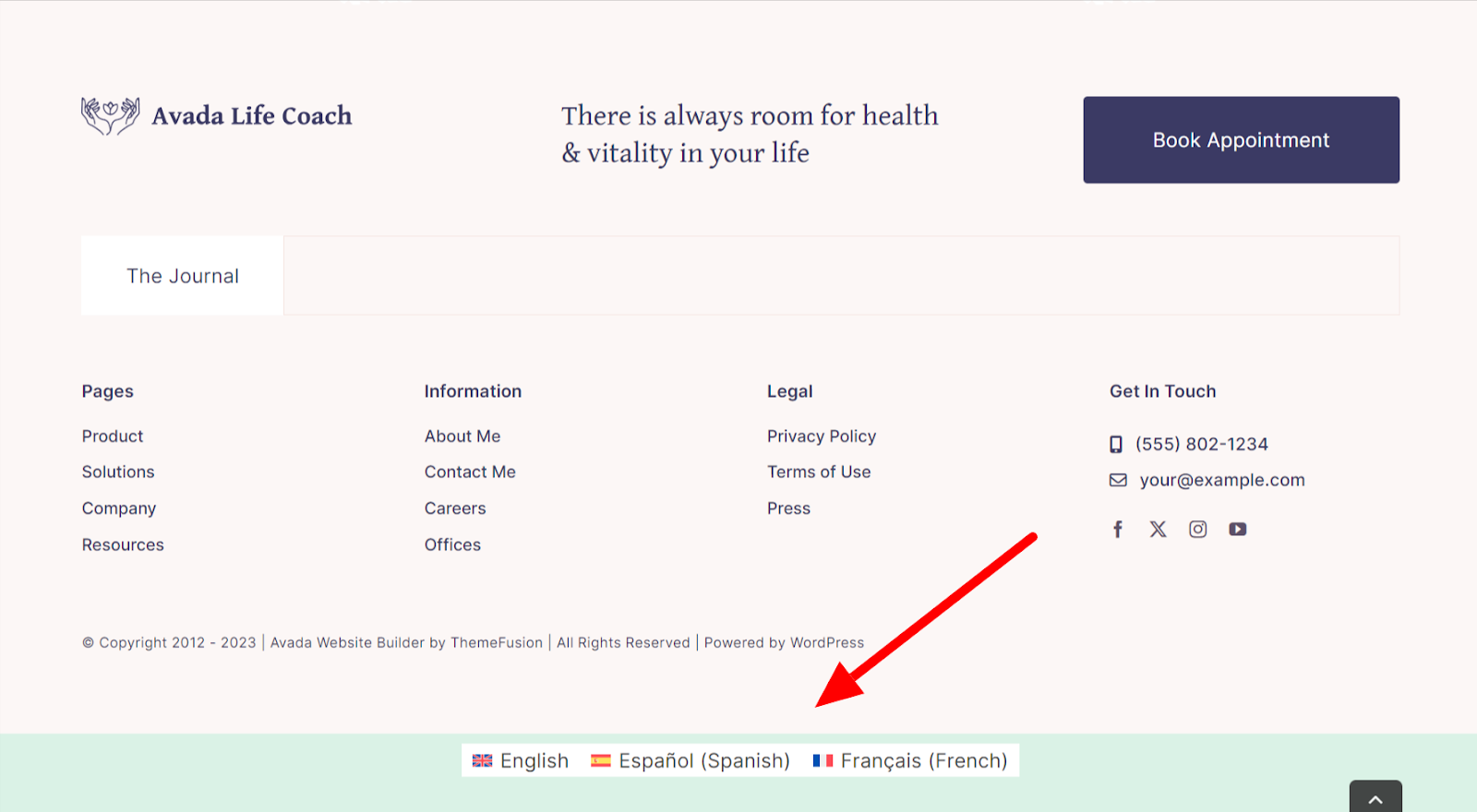
Ensure the language switcher is easy to find. Place it on the top menu. Or in the footer. Test the site in different languages. Check for any broken links. Ensure the text displays correctly. Fast loading is important too. Users do not like to wait. A good user experience keeps visitors happy.
Credit: www.wpzoom.com
Frequently Asked Questions
How To Change Language In WordPress Theme?
To change the language, go to Settings > General. Select your preferred language from the ‘Site Language’ dropdown menu. Ensure your theme supports translations. You might need a language pack or a translation plugin like WPML or Polylang for more complex changes.
Can I Add Multiple Languages To WordPress?
Yes, you can add multiple languages using plugins. WPML and Polylang are popular options. They allow you to create multilingual content easily. Ensure your theme is compatible with these plugins for seamless integration.
What Plugins Help In Language Addition?
Several plugins facilitate language addition, like WPML and Polylang. These plugins allow easy translation of your site’s content. They support multiple languages and offer user-friendly interfaces. Check compatibility with your theme before installation.
Is Theme Translation Automatic In WordPress?
Theme translation is not automatic. You’ll need to translate manually or use plugins. WPML or Polylang assist in translating theme content. Ensure your theme is translation-ready to simplify the process.
Conclusion
Adding a language to your WordPress theme is simple. It enhances user experience. Following these steps ensures a smoother process. Start by installing a translation plugin. Choose a reliable one. Then, translate your content accurately. Check for errors. Adjust settings to fit your theme.
Test the changes on different devices. Ensure everything displays correctly. Remember, multilingual sites reach a wider audience. They improve engagement and accessibility. Happy blogging!


