
Have you ever wanted to add a touch of interactivity or a unique feature to your WordPress site but felt held back by the technical know-how? You’re not alone.
Understanding how to add JavaScript to your WordPress theme can feel daunting, especially if coding isn’t your forte. But imagine transforming your site into a dynamic, engaging platform that keeps your visitors coming back for more. By learning this simple yet powerful skill, you can elevate your website’s functionality and enhance user experience dramatically.
This guide will walk you through the process step-by-step, using straightforward language and practical tips, ensuring you can confidently integrate JavaScript into your WordPress theme. Stay with us, and discover how you can unlock new possibilities for your site.
Benefits Of Adding Javascript
JavaScript makes websites interactive and fun. It helps in making buttons click and images change. This helps users enjoy the site more. With JavaScript, you can create pop-up messages to show important alerts. It also helps in making forms check for errors. This ensures users fill them correctly.
Adding JavaScript can make pages load faster. This is because it can load some parts of the page first. It can also help in creating animations that move smoothly. These animations make the website look lively. JavaScript can also make menus appear when you hover over them. This makes navigation easier.

Credit: www.youtube.com
Locating Theme Files
First, find the theme folder in your WordPress files. It is located in the wp-content/themes directory. Each theme has its own folder. Choose the active theme folder. Inside, there are many files. Look for the header.php and footer.php files. These files are important for adding JavaScript.
Use a code editor to open them. This helps in editing safely. Be careful while editing. Wrong changes can break your site. Always make a backup of your theme files before changes. Backups save your work and site. Knowing where to find these files is key to adding JavaScript.
Using The WordPress Editor
Easily enhance your WordPress theme by adding JavaScript through the editor. Access the Theme Editor under the Appearance menu. Then, insert your JavaScript code within the header or footer section of your theme files.
Accessing The Editor
First, log into your WordPress dashboard. On the left menu, find Appearance. Click on it. Then select Theme Editor. Now you are in the editor. You can see your theme files on the right side. Be careful here. Any changes will directly affect your site.
Editing Theme Files
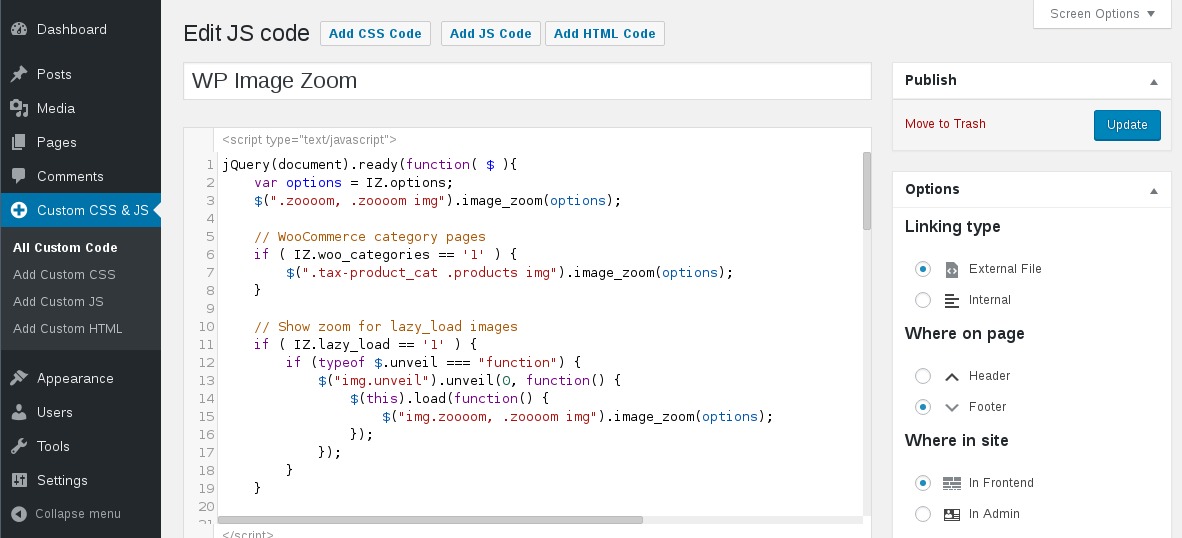
Find the functions.php file. It’s usually in the Theme Files list. Click on it to open. Now you can add your JavaScript code. Use the wp_enqueue_script function. This function helps to add JavaScript safely. Remember to save your changes. Click the blue Update File button. Check your site to see if the code works.
Credit: wordpress.org
Enqueuing Scripts Properly
Adding JavaScript to your WordPress theme is easy. Use the wp_enqueue_script function. This helps to add scripts in the right way. It keeps your website fast and clean. You must give each script a unique name. This helps WordPress know which script is which. You also need to provide the script’s URL or path. This tells WordPress where to find the script. Adding a version number is good too. It helps with browser caching. You can also set dependencies. This ensures scripts load in the right order.
Go to your theme’s folder. Find the functions.php file. Open it. You will add your script there. Use the wp_enqueue_script function. Write this inside a function. Then, hook it to wp_enqueue_scripts. This tells WordPress to load your script. It is important to check your script path. Make sure it is correct. Save your changes. Visit your website. See if your script is working.
Using Child Themes
Child themes offer a safe way to add Javascript to your WordPress theme. They protect your main theme from updates. By using a child theme, you can easily customize without losing changes.
Creating A Child Theme
A child theme is a way to change your website safely. It keeps the original theme safe. Start by making a new folder in wp-content/themes. Name it yourtheme-child. Add a style.css file in the folder. This file is important. It tells WordPress about your child theme.
In the style.css file, write:
/
 Theme Name: Your Theme Child
 Template: yourtheme
/
Add a functions.php file in the same folder. This file will hold your code. Your child theme is ready. Now, you can add JavaScript.
Adding Javascript To A Child Theme
Open the functions.php file. Write a function to load your script. Use wp_enqueue_script() to add the script. This helps load JavaScript in WordPress. First, write:
function my_custom_script() {
    wp_enqueue_script('my-script', get_stylesheet_directory_uri() . '/js/my-script.js', array('jquery'), '1.0', true);
}
add_action('wp_enqueue_scripts', 'my_custom_script');
Make a folder named js. Put your JavaScript file inside it. Name it my-script.js. Your theme now uses JavaScript. The code runs smoothly.
Credit: divilover.com
Utilizing Plugins
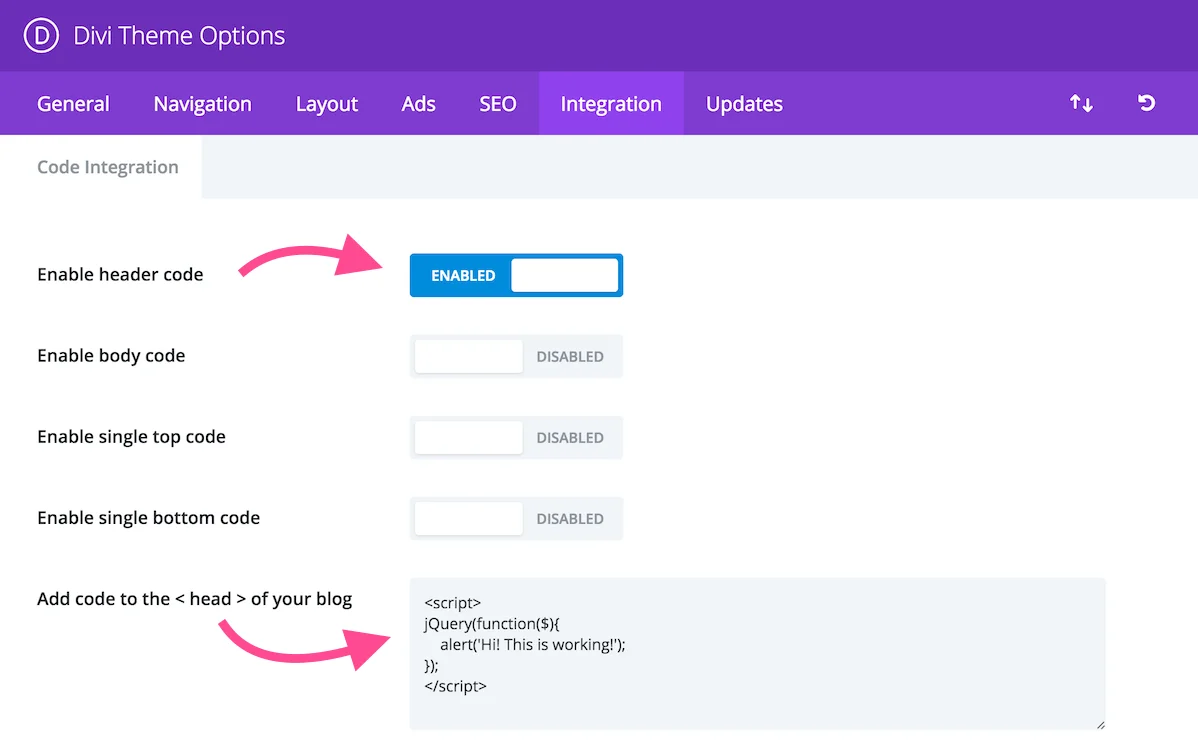
Choosing the Right Plugin for adding JavaScript to your WordPress is easy. Start by visiting the plugin directory. Search for plugins like “Simple Custom CSS and JS” or “Code Snippets.” These plugins help you add code without editing theme files. Check user ratings and reviews. A plugin with high ratings is usually reliable. Make sure the plugin is updated frequently. This ensures compatibility with the latest WordPress version. Once you find the right plugin, download and install it.
Installing and Configuring Plugins is simple. First, go to your WordPress dashboard. Click on “Plugins” and then “Add New.” Search for the plugin you chose. Click “Install Now” and wait. After installation, click “Activate.” The plugin is now ready to use. To configure, go to the plugin settings. Follow the instructions provided. Usually, you can add JavaScript in a text box. Save changes when done. Your code is now live on your site.
Testing And Debugging
Integrating JavaScript into your WordPress theme enhances functionality. Start by enqueuing scripts in the functions. php file. This method ensures proper loading and prevents conflicts. Testing and debugging are crucial to check for errors and ensure smooth performance.
Checking For Errors
Always check your code for errors. Errors can cause issues. Use simple tools to find them. Fixing errors is important. It makes your site work well.
Using Browser Developer Tools
Browser Developer Tools help you see problems. Open them in your browser. You can find errors here. Look at the console. It shows error messages. Fix these messages to improve your site. These tools are very helpful. They help you learn about your code. Use them often to check your work.
Best Practices
Ensure your code runs smoothly. Avoid unnecessary loops that slow down your site. Minimize script size by removing unused code. Use functions to organize repeated tasks. Test your code to find any errors early. Your site will load faster. Visitors will have a better experience.
Check browser support for your JavaScript code. Some features might not work everywhere. Use polyfills for older browsers. Your code should work on all devices. Validate your code with tools. They find issues before users do. Keep your code updated to match new standards. This helps avoid problems later.
Frequently Asked Questions
How Do I Add Javascript To WordPress?
To add JavaScript to WordPress, you can use the functions. php file or a plugin. In functions. php, utilize wp_enqueue_script to load scripts. Alternatively, plugins like Insert Headers and Footers allow easy script addition without coding. Always ensure the script is compatible with your theme to prevent conflicts.
Can I Use External Javascript Libraries?
Yes, you can use external JavaScript libraries in WordPress. Include them using wp_enqueue_script in your functions. php file. Provide the library URL and dependencies to ensure proper loading. Make sure the libraries are compatible with your theme and other plugins to avoid issues.
Is It Safe To Add Javascript To WordPress?
Adding JavaScript to WordPress is safe if done correctly. Use wp_enqueue_script to manage scripts securely. Avoid editing theme files directly; instead, use child themes. Always test scripts in a staging environment first to prevent site issues. Regularly update scripts to protect against vulnerabilities.
What Is The Best Plugin For Adding Javascript?
Insert Headers and Footers is a popular plugin for adding JavaScript. It allows easy script insertion into header and footer areas. This plugin is user-friendly and avoids direct theme file edits. Ensure compatibility with your theme and other plugins for a seamless experience.
Conclusion
Adding JavaScript to your WordPress theme enhances functionality. It’s simple with the right steps. Start by identifying where to place your code. Often, the header or footer works best. Use child themes to keep your changes safe. Test your site after adding JavaScript.
This ensures everything works smoothly. Troubleshooting is essential if issues arise. Regularly update your scripts for security. Always back up your site before making changes. With these tips, your WordPress site will function better. Improved interactivity and user experience await.
Happy coding!


