

Are you looking to make your WordPress site more dynamic and interactive? Adding JavaScript code can help you do just that.
Whether you want to enhance user experience, add custom features, or track visitor behavior, knowing how to insert JavaScript into your WordPress site is essential. You’ll discover simple, step-by-step methods to add JavaScript safely and effectively—no coding expert needed. Keep reading, and by the end, you’ll have the confidence to boost your website’s power with your very own JavaScript code.
Why Add Javascript To WordPress
JavaScript is a powerful tool for websites. It helps make WordPress sites more dynamic and interactive. Adding JavaScript to WordPress lets you customize the site beyond basic themes and plugins. You can create better user experiences and add unique features that fit your needs.
Using JavaScript in WordPress lets you control site behavior in real time. This control helps you keep visitors engaged and improve site functionality. It also allows you to solve specific problems that themes and plugins cannot fix alone.
Benefits Of Custom Scripts
Custom JavaScript scripts improve site speed by reducing heavy plugins. They also add special effects that attract visitors’ attention. Scripts can validate forms, making sure users enter correct data. This reduces errors and improves user experience.
JavaScript can update content without reloading the page. This makes the site feel faster and smoother. You can also track user actions to understand visitor behavior better. Custom scripts give you full control over how your site works.
Common Use Cases
Many sites use JavaScript for interactive menus and sliders. It also helps create pop-up messages and notifications. Some use scripts for live search features that show results instantly. Others add animations to make pages more lively.
JavaScript often manages form submissions and validations on contact pages. It also integrates social media buttons that respond to clicks. These small improvements make a big difference in how visitors see your site.
Methods To Insert Javascript
Adding JavaScript to a WordPress site can improve its functionality and appearance. There are several ways to insert JavaScript code. Each method suits different needs and skill levels. Choose the best way that fits your project.
Using Theme Files
One direct method is editing your theme files. The most common file to add JavaScript is header.php or footer.php. Place your script tags inside these files. This method requires basic knowledge of PHP and HTML. Always use a child theme to avoid losing changes after updates.
Another way is to enqueue scripts in your theme’s functions.php. Use the wp_enqueue_script function. This method is cleaner and helps WordPress manage scripts better. It prevents conflicts and improves site speed.
Through WordPress Plugins
Plugins provide an easy way to add JavaScript without touching code. Many plugins allow you to insert scripts in the header, footer, or body areas. Popular plugins like “Insert Headers and Footers” simplify this task. This method is safe and beginner-friendly.
Using plugins also helps keep your code organized. You can enable or disable scripts quickly. It is a good choice for users who want control without coding.
Adding Via Widgets
Widgets offer a simple way to add JavaScript in sidebars or footer areas. Use a Custom HTML widget to paste your script. This method works well for small scripts or tracking codes.
Be careful to place scripts only in areas that support JavaScript. Some widgets or themes may block scripts for security reasons. Always test your site after adding scripts via widgets.
Adding Javascript In Theme Files
Adding JavaScript directly to your WordPress theme files helps customize your site’s behavior. It allows you to control scripts that run on every page. This method is useful for small changes or when you want scripts to load quickly.
There are two common ways to add JavaScript in theme files. One is editing the header.php and footer.php files. The other is using the functions.php file to enqueue scripts properly. Both methods have specific uses and benefits.
Editing Header.php And Footer.php
You can add JavaScript code directly into the header.php or footer.php files. The header.php file is good for scripts that need to load before the page content. Place your JavaScript inside the section for faster execution.
For scripts that should load after the page content, footer.php is better. Add your JavaScript just before the closing tag. This helps improve page speed by loading scripts last.
Be careful when editing these files. A small mistake can break your site. Always back up your theme files before making changes. Use a child theme to avoid losing changes after updates.
Using Functions.php To Enqueue Scripts
Adding JavaScript via functions.php is the recommended way. It uses WordPress functions to load scripts safely. This method avoids conflicts with other plugins and themes.
Use the wp_enqueue_script() function to add your JavaScript files. This function lets you set dependencies and control where the script loads. You can choose to load scripts in the header or footer.
To use this method, open your theme’s functions.php file. Write a function that calls wp_enqueue_script(). Hook this function to wp_enqueue_scripts action. This keeps your code clean and organized.
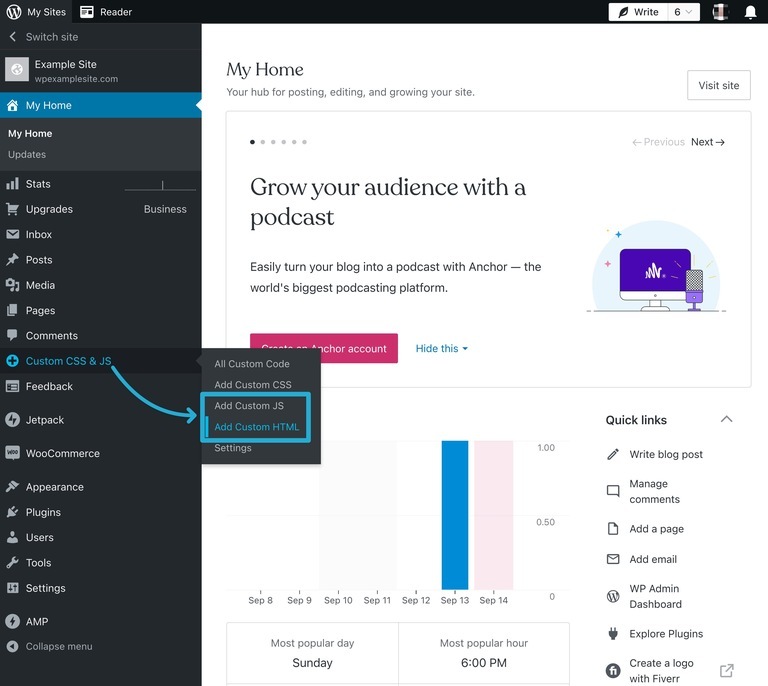
Credit: wordpress.com
Using Plugins For Javascript
Using plugins to add JavaScript in WordPress is simple and safe. Plugins help insert code without editing theme files. This method reduces errors and protects your site from breaking. It suits beginners and those who prefer easy solutions. Plugins also allow managing scripts from the WordPress dashboard. No need for FTP or coding skills.
Popular Javascript Plugins
Several plugins make adding JavaScript easy. “Insert Headers and Footers” allows adding code in header or footer areas. “Simple Custom CSS and JS” lets you add custom JavaScript directly. “WPCode” supports advanced code snippets with conditions. These plugins keep your code organized and separate from themes. They also help with code loading order and site speed.
Step-by-step Plugin Setup
First, go to your WordPress dashboard. Select “Plugins” then “Add New.” Search for a JavaScript plugin like “Simple Custom CSS and JS.” Click “Install Now” and then “Activate.”
Next, open the plugin menu from the dashboard. Choose to add a new JavaScript snippet. Paste your JavaScript code into the box provided. Select where to place the code: header, footer, or specific pages.
Save your changes. Clear any site cache if active. Visit your site to check if the JavaScript works. This method keeps your code safe during theme updates. You can easily edit or remove scripts anytime.
Inserting Javascript With Widgets
Inserting JavaScript into WordPress can be simple using widgets. Widgets let you place code in sidebars, footers, or other widget-ready areas. This method does not require editing theme files or plugins. It is ideal for small scripts or tracking codes.
Using Custom Html Widget
WordPress offers a Custom HTML widget for adding code. Open the WordPress dashboard and go to Appearance > Widgets. Drag the Custom HTML widget to your chosen widget area. Paste your JavaScript code inside the widget content box. Save the widget to apply the changes. This method runs scripts only where the widget appears on your site.
Best Practices For Widgets
Keep JavaScript code short and focused in widgets. Avoid placing large scripts that slow down your site. Test the script on a staging site before adding it live. Use comments to explain the code purpose. Always backup your site before adding new scripts. Widgets do not support external JavaScript files, so inline scripts work best.

Credit: qodeinteractive.com
Testing And Troubleshooting
Testing and troubleshooting are key steps after adding JavaScript to WordPress. These steps ensure your code works well and does not cause issues. Testing helps find problems early. Troubleshooting guides you to fix errors quickly.
Checking Script Functionality
Start by refreshing your WordPress page. Check if the JavaScript runs as expected. Use the browser console to look for errors. Open it with F12 or right-click and select “Inspect.” Click the “Console” tab to see messages.
Test each feature your script should perform. Click buttons, open menus, or interact with elements. Confirm they respond correctly. Use different browsers to verify compatibility. Sometimes scripts work in one browser but fail in another.
Common Errors And Fixes
Syntax errors are common. Missing semicolons or brackets cause problems. The console shows these errors with line numbers. Fix the code by correcting the syntax.
Conflicts with other plugins or themes can break JavaScript. Disable other plugins one by one to find conflicts. Switch to a default theme to check for theme issues.
Loading order matters. JavaScript must load after jQuery or other libraries. Use WordPress functions like wp_enqueue_script to handle dependencies.
Cache can block script updates. Clear your browser and site cache. This step ensures you test the latest code version.
Tips For Managing Javascript In WordPress
Managing JavaScript in WordPress requires care and planning. Good management helps your site run smoothly and stay secure. Follow these tips to keep your scripts clean, fast, and safe.
Keeping Scripts Organized
Organize your JavaScript files in separate folders. Name your files clearly based on their purpose. Use comments inside the code to explain complex parts. Avoid mixing scripts in one file unless they are related. Keep your theme and plugin scripts separate. This makes updates and debugging easier.
Performance Considerations
Load scripts only when needed to reduce page load time. Use WordPress functions like wp_enqueue_script to add scripts properly. Minify your JavaScript files to shrink their size. Combine scripts if possible to reduce HTTP requests. Place scripts at the bottom of the page to improve loading speed.
Security Best Practices
Never trust user input directly in your scripts. Sanitize and validate any data before use. Avoid inline JavaScript to reduce security risks. Keep your WordPress and plugins updated to patch vulnerabilities. Use nonces to protect forms and AJAX requests. Regularly check your code for security issues.

Credit: jetpack.com
Frequently Asked Questions
How Do I Add Javascript To A WordPress Post?
You can add JavaScript directly in the post using a custom HTML block. Paste your script inside the block. Avoid inline scripts for better security.
Can I Add Javascript Via WordPress Theme Editor?
Yes, you can add JavaScript in the theme’s header. php or footer. php files. Be cautious; editing core files can break your site. Always back up before changes.
Is There A Plugin To Add Javascript In WordPress?
Yes, plugins like “Insert Headers and Footers” let you add JavaScript easily. They provide safe, code-free options to insert scripts site-wide or on specific pages.
Where Should I Place Javascript Code For Best Performance?
Place JavaScript before the closing


