

Are you looking to make your WordPress site more engaging and visually appealing? Adding Instagram posts directly to your website can do just that.
Imagine your visitors seeing your latest photos and stories without leaving your page. It’s a simple way to boost interaction and keep your content fresh. You’ll discover easy steps to seamlessly add Instagram posts to your WordPress site—no tech skills needed.
Ready to turn your website into a vibrant social hub? Let’s dive in!
Why Add Instagram To WordPress
Adding Instagram posts to your WordPress site makes your content livelier. It helps connect your social media with your website. Visitors see your latest photos and updates right on your site. This keeps your site fresh and interesting without much effort.
Boost Engagement
Instagram posts catch visitors’ eyes easily. They can like, comment, or share your posts directly. This interaction keeps people longer on your site. More engagement means better chances to build a community around your brand.
Showcase Visual Content
Instagram is all about photos and videos. Adding these visuals to WordPress makes your site look attractive. It tells your story without many words. Visitors understand your message faster through images.
Increase Website Traffic
Instagram can bring more visitors to your site. People who like your posts might visit your website for more. Embedding posts creates a link between your social media and site. This helps grow your audience steadily over time.
Choosing The Right Plugin
Choosing the right plugin for adding Instagram posts to WordPress affects your site’s look and performance. The right plugin shows Instagram content clearly and loads fast. It must work well with your WordPress theme and other tools. This guide helps you pick a plugin that fits your needs and skills.
Popular Instagram Plugins
Some plugins are well-known for showing Instagram feeds on WordPress. Smash Balloon Social Photo Feed is a favorite for many users. It offers easy setup and good customization. Another option is Instagram Feed WD. It supports different layouts and works with Instagram stories. 10Web Social Photo Feed also stands out with its clean design and good support.
Free Vs Premium Options
Free plugins offer basic features like simple feeds and limited customization. They work well for small sites or beginners. Premium plugins add extra options like multiple feeds, advanced layouts, and filtering. Paid versions often come with better support and regular updates. Consider your budget and needs before choosing.
Compatibility Considerations
Check if the plugin works with your WordPress version. Some plugins need the latest WordPress updates. Confirm it fits your theme without breaking the design. Look for plugins that work well with caching or SEO plugins you use. Test the plugin on a staging site to avoid problems on your live site.
Connecting Instagram To WordPress
Connecting Instagram to WordPress lets you show your Instagram posts directly on your website. This connection helps keep your site fresh and engaging. Visitors can see your latest photos without leaving your page. The process involves a few simple steps. Start by generating access tokens, then authorize your account, and finally handle any connection issues.
Generating Access Tokens
Access tokens allow WordPress to access your Instagram content securely. You need to generate this token from Instagram’s developer platform. First, create an Instagram app or use a plugin that guides you. Copy the token and save it safely. This token acts like a key to your Instagram data. Without it, WordPress cannot show your posts.
Authorizing Your Account
Authorization lets WordPress connect with your Instagram account. Use the access token to log in through the plugin or app. Grant permission for WordPress to read your Instagram photos and videos. This step is important for privacy and security. Only approved sites can access your Instagram feed.
Troubleshooting Connection Issues
Sometimes, connection problems happen. Check if your access token is still valid and not expired. Make sure your Instagram account is set to public or business mode. Clear your website cache to refresh the connection. If issues continue, try reconnecting your Instagram account. Follow plugin instructions carefully. This keeps your Instagram feed working smoothly on WordPress.

Credit: profilegrid.co
Customizing Your Instagram Feed
Customizing your Instagram feed on WordPress helps your site look unique. It also matches your brand style well. You can change how posts appear, what shows up, and how visitors interact with the feed. Simple tweaks make the feed fit your site’s design perfectly. Below are key areas to adjust for a great Instagram display.
Layout Options
Choose how your Instagram posts arrange on the page. Common layouts include grid, carousel, and list views. Grid layout shows posts in rows and columns. Carousel lets visitors scroll through images horizontally. List view stacks posts vertically. Pick a style that suits your site’s space and design. Some plugins let you adjust the number of columns and post size.
Display Settings
Control what details appear with each Instagram post. You can show or hide captions, likes, and comments. Decide if posts open in a popup or link to Instagram. Set the feed to update automatically or manually. Adjust spacing between posts for a clean look. These settings help keep your feed neat and user-friendly.
Filter And Moderation Tools
Pick which posts appear using filters. You can include posts by hashtags or user accounts. Block unwanted content or specific posts. Moderation tools help maintain your site’s positive image. Some tools let you approve posts before they show. Filtering and moderation keep your feed relevant and safe for all visitors.
Embedding Instagram Posts Manually
Embedding Instagram posts manually gives you full control over your website content. It lets you show specific posts directly on your WordPress site. This method does not need plugins, which keeps your site light and fast.
You can pick any public Instagram post to embed. This way, your visitors see real-time content from your Instagram feed. It also helps create a more engaging and visual website.
Using Instagram Embed Codes
Start by opening Instagram on a web browser. Find the post you want to embed. Click on the three dots at the top right of the post. Choose “Embed” from the menu. Copy the code that appears in the popup window.
This embed code contains all the necessary HTML to display the post. It includes the image, caption, and link back to Instagram. You can also choose to include or hide the caption.
Adding Posts In WordPress Editor
Open your WordPress editor where you want to add the post. Switch to the “Text” or “HTML” view in the editor. Paste the Instagram embed code directly into the content area.
Return to the “Visual” mode to see how the post looks. You can move or resize it as needed. Publish or update your page to make the embedded post live.
Tips For Responsive Design
Instagram embed codes are not always mobile-friendly. To make posts look good on all screens, add custom CSS. Use max-width: 100% to let the post resize automatically.
Wrap the embed code in a div with a class name. Use CSS to control the width and height within this div. This ensures the Instagram post fits well on phones and tablets.
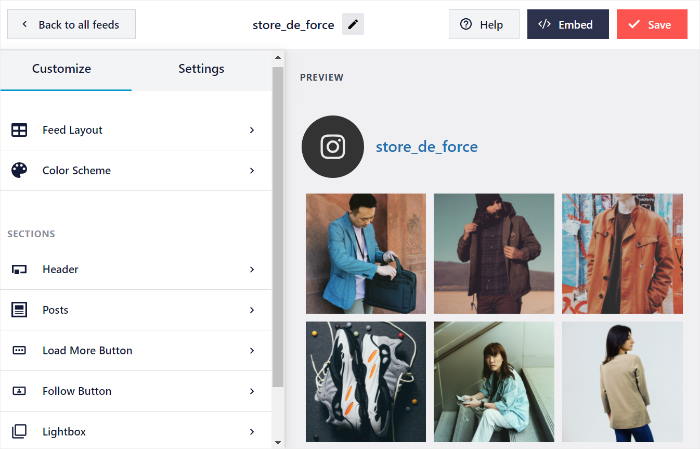
Credit: smashballoon.com
Optimizing Feed Performance
Optimizing the performance of your Instagram feed on WordPress is crucial for a smooth user experience. Slow loading feeds can frustrate visitors and increase bounce rates. Efficient techniques help your site load faster while displaying Instagram posts beautifully.
Caching Techniques
Caching saves a copy of your Instagram feed on your server. This reduces the need to fetch data from Instagram every time someone visits your site. Use plugins or tools that cache the feed and update it at set intervals. Caching lowers server load and speeds up page loading.
Lazy Loading Images
Lazy loading delays loading images until they appear on the visitor’s screen. This means Instagram photos below the fold do not load immediately. It saves bandwidth and improves page speed. Use lazy load features in your WordPress theme or plugins to enable this.
Minimizing Impact On Site Speed
Instagram feeds can slow your site if not optimized. Limit the number of posts displayed to reduce load time. Compress images to lower their file size without losing quality. Avoid using too many scripts or styles that add extra weight to your pages.
Enhancing Visual Appeal
Enhancing the visual appeal of your WordPress site by adding Instagram posts draws more attention. Visitors enjoy seeing fresh, vibrant images that reflect your style or brand. Well-presented Instagram posts make your site look lively and engaging. Use simple methods to highlight these posts effectively.
Using Lightbox Effects
Lightbox effects display Instagram images in a larger view without leaving the page. Visitors click a photo, and it opens in a clean, dark overlay. This keeps users focused on your content. Lightbox creates a smooth browsing experience and makes photos stand out.
Custom Styling With Css
CSS allows you to change the look of Instagram posts on your site. Adjust borders, spacing, and shadows to fit your design. You can also change hover effects to make images interactive. Custom styling helps your Instagram feed blend nicely with the rest of your content.
Integrating With Site Theme
Match Instagram posts with your WordPress theme colors and fonts. This creates a unified look across your website. Use similar styles for buttons and text near Instagram images. Integration makes your site appear professional and polished.
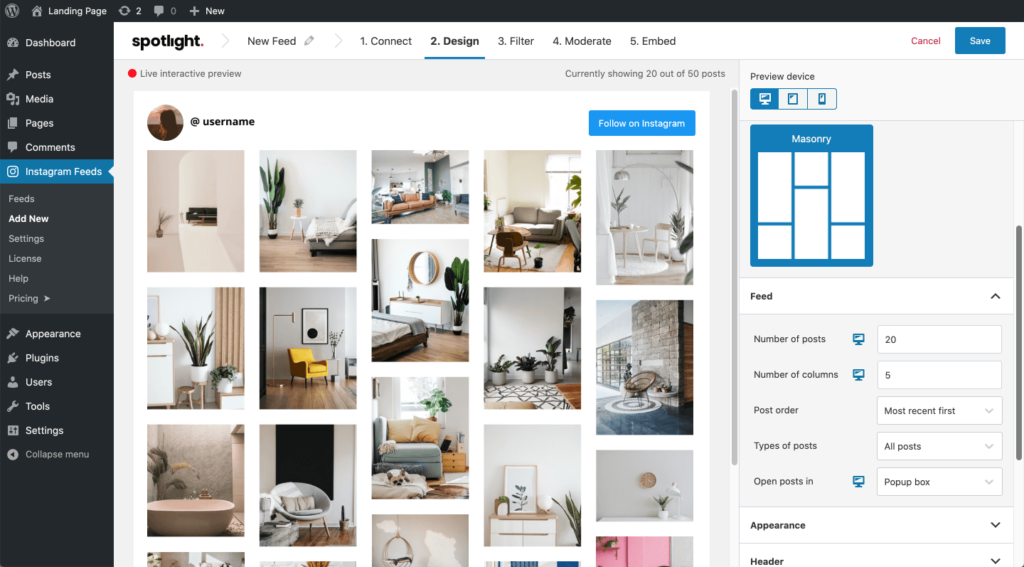
Credit: wpengine.com
Maintaining Your Instagram Feed
Maintaining your Instagram feed on WordPress keeps your website fresh and engaging. Regular care helps your feed show the latest posts without errors. It ensures visitors see up-to-date content that matches your brand.
Proper maintenance also avoids broken links or missing images. It keeps your site running smoothly and looking professional. The following tips help you keep your Instagram feed in top shape.
Regular Plugin Updates
Keep your Instagram plugin updated to the latest version. Updates fix bugs and improve performance. They also add new features and security patches.
Check for updates often, especially after WordPress core updates. Updated plugins reduce the chance of errors on your site. They help your feed load quickly and correctly every time.
Monitoring Feed Display
Watch your feed regularly to ensure it displays well. Look for missing images or broken links. Adjust the settings if posts do not appear as expected.
Test your feed on different devices and browsers. This helps you spot issues that visitors might face. A clean, well-displayed feed keeps visitors interested and engaged.
Handling Api Changes
Instagram updates its API rules from time to time. These changes can affect how your feed works on WordPress. Stay informed about API updates through official channels.
Update your plugin or code to match new API requirements quickly. Failure to adapt can cause your feed to stop showing posts. Being proactive avoids downtime and keeps your content live.
Frequently Asked Questions
How Do I Embed Instagram Posts In WordPress?
To embed Instagram posts, copy the post URL from Instagram. In WordPress, paste the URL directly into the post editor. WordPress automatically converts it into an embedded post. No plugins are required for this simple method.
What Are The Best Plugins For Instagram Integration?
Popular plugins include Smash Balloon Social Photo Feed and Instagram Feed WD. These plugins offer customizable Instagram feeds. They help display posts in various layouts and styles on your WordPress site, improving visual appeal and engagement.
Can I Add Instagram Posts To WordPress Without Coding?
Yes, you can add Instagram posts without coding. Use WordPress’s native block editor or install Instagram feed plugins. Both methods allow easy embedding and customization without needing technical skills.
How To Keep Instagram Posts Updated On WordPress?
Use an Instagram feed plugin that auto-updates. These plugins sync your latest Instagram posts automatically. This keeps your WordPress site fresh with new content without manual updates.
Conclusion
Adding Instagram posts to WordPress helps share your content easily. It makes your site more lively and interesting. You can show your latest updates without extra work. Using plugins or embed codes works well and saves time. Keep your visitors engaged with fresh and visual content.
Try these simple steps today to improve your website. Your audience will appreciate the new look and feel. It’s a smart way to connect your Instagram and WordPress sites.


