
Are you looking to spice up your WordPress site with your dynamic Instagram content? Adding an Instagram link to your WordPress theme is a simple yet powerful way to engage your audience and enhance your online presence.
Imagine your vibrant Instagram photos and videos seamlessly integrated into your website, offering visitors a taste of your creativity and style. This guide is designed just for you, to walk you through the straightforward steps to connect your Instagram to your WordPress theme effortlessly.
By the end of this article, you’ll not only know how to add the link but also understand why it’s a game-changer for your site’s engagement and aesthetics. Ready to transform your website into a more interactive and visually appealing platform? Let’s dive in and make it happen!
Credit: andersnoren.se
Choosing The Right Plugin
Instagram plugins help show photos on your website. Popular plugins include Smash Balloon, Instagram Feed, and Soliloquy. Each plugin has unique features. Some offer photo grids. Others allow for slideshow displays. Always check the plugin’s user reviews. Good reviews often mean satisfied users. Also, ensure the plugin updates regularly. This keeps your site safe. Look for plugins that are easy to use. Sometimes, simple is better. Many plugins have free versions. Try them first before buying.
Features are like tools in a toolbox. Important features include customization options. These let you match the plugin to your theme. Mobile-friendly plugins work on phones and tablets. This is very important today. Some plugins allow hashtag filtering. This shows only the photos you want. Other plugins support video posts. Videos make your site more dynamic. Always check if the plugin supports multiple accounts. This is useful for businesses.
Credit: smashballoon.com
Installing Instagram Plugin
Log into your WordPress account. Find the dashboard on the left. Click on it to open. You will see many options.
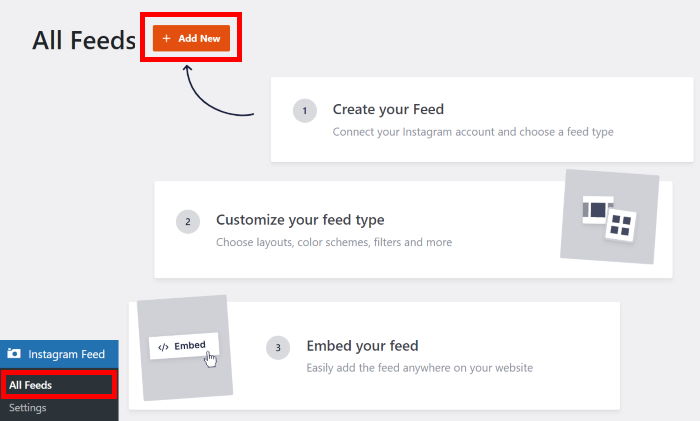
Look for the Plugins section. Click on “Add New”. Type “Instagram” in the search bar. Many options will appear. Choose a plugin you like. Read the reviews before selecting.
Click on “Install Now”. Wait for the installation to finish. After that, click “Activate”. The plugin will be ready to use. Check the settings to customize.
Configuring Plugin Settings
First, open the plugin settings. Find the option to link Instagram. Click on it. A new window will pop up. Enter your Instagram username and password. Click on the “authorize” button. Now, your Instagram account is linked. Check the settings again to be sure.
Go to the display settings section. Choose how you want your feed to look. You can choose grid or list view. Pick a style that fits your theme. Adjust the number of posts shown. You can also choose post size. Save your settings to see the changes.
An API key helps your site talk to Instagram. Find the API setup tab. Click to open it. Follow the steps shown there. You might need an Instagram developer account. Get your API key and enter it in the plugin. This will connect your site to Instagram. Now, you can show your Instagram photos on your site.
Adding Instagram To Sidebar Or Footer
Widgets help you add content to sidebars or footers easily. First, go to your WordPress dashboard. Find the Appearance menu. Click on Widgets. Here, you see a list of available widgets.
Find the Text widget. Drag it to your sidebar or footer area. A small box opens. Inside, paste your Instagram link. You can add a brief description. Click on the Save button.
After adding the widget, adjust its settings. Go back to the Widgets page. Click on the widget in the sidebar or footer. Check if the link looks right. You may change the title or text here.
Always remember to save changes. Refresh your site to see the update. If needed, return to edit again. Widgets make adding links quick and simple. Now, your visitors can find your Instagram easily.
Embedding Instagram Feed In Posts
Easily enhance your WordPress theme by adding an Instagram link. Begin by accessing your WordPress dashboard. Then, use a plugin like “Smash Balloon” to seamlessly embed Instagram feeds in your posts. This boosts engagement and keeps your audience connected.
Shortcodes Usage
Shortcodes help add Instagram feeds easily. WordPress supports shortcodes. They are bits of code. You paste them into posts. Shortcodes make Instagram feeds appear. No need for coding skills. Just copy and paste. Use the Instagram plugin for shortcodes. It generates the code for you. You get codes for different styles. Choose grid or carousel views. Shortcodes are flexible. They fit into any post. Adjust settings in the plugin. Change layout and size. Make the feed look neat. Shortcodes save time. They are quick and easy.
Custom Html Blocks
Custom HTML blocks offer another method. They allow direct coding. Insert HTML into posts. Use blocks for Instagram feeds. HTML gives more control. Style the feed how you want. Custom blocks require basic coding knowledge. But they offer flexibility. You can tweak each part. Modify colors and sizes. Make feeds match your theme. Custom blocks are versatile. They work with any theme. Use them for unique designs. They suit advanced users. Custom blocks enhance creativity. They let you personalize feeds. Explore different styles.
Troubleshooting Common Issues
Plugins sometimes don’t work well together. This can stop your Instagram link from showing. Disable each plugin one by one. Check if the link appears after disabling a plugin. If it does, that plugin is the problem. Update the plugin to its latest version. You can also contact the plugin maker for help. Always keep plugins updated. This avoids many issues.
Sometimes, the Instagram link doesn’t show correctly. It might look broken or missing. Check if your theme supports Instagram links. Some themes need extra steps. Review your theme settings. Ensure they allow Instagram links. Adjust settings if needed. Refresh your page after changing settings. This helps to see the changes. Double-check link formatting. Make sure it matches Instagram’s format.
Enhancing Instagram Integration
Fast page load speed is key. It keeps users happy. Slow pages make users leave. Optimize images. Compress them. Use lighter formats. Avoid heavy scripts. Minimize unnecessary plugins. Choose a reliable hosting service. Fast servers improve speed. Regularly check load times. Use tools like Google PageSpeed Insights.
Engagement increases with good content. Add Instagram links wisely. Show interesting posts. Make sure links are visible. Eye-catching spots work best. Encourage users to click. Use clear calls to action. Keep content fresh. Update links often. Interact with followers. Respond to comments. Create a lively community.

Credit: wpengine.com
Frequently Asked Questions
How Do I Add Instagram To WordPress?
To add Instagram to WordPress, use a plugin or widget. Popular options include “Instagram Feed” or “Smash Balloon. ” Install the plugin, authenticate your Instagram account, and configure display settings. This integration allows you to showcase your Instagram photos seamlessly on your WordPress site.
What Plugins Help Integrate Instagram In WordPress?
Several plugins help integrate Instagram in WordPress. “Instagram Feed,” “Smash Balloon,” and “WP Instagram Widget” are popular choices. These plugins allow you to display Instagram photos directly on your site. They offer customization options to match your theme, enhancing your site’s visual appeal.
Can I Add An Instagram Link Without Plugins?
Yes, you can add an Instagram link without plugins. Use WordPress’s built-in customization options. Navigate to “Appearance” and then “Menus. ” Add a custom link to your Instagram profile. This simple method lets visitors access your Instagram directly from your site.
Why Should I Link Instagram To My WordPress Site?
Linking Instagram to your WordPress site boosts engagement and showcases your visual content. It enhances user experience by providing a seamless connection to your social media. Integrating Instagram can also drive traffic, increasing visibility and interaction with your brand.
Conclusion
Adding your Instagram link to your WordPress theme is simple. Follow the steps above. Boost your website’s engagement by connecting social media. Your visitors will find your Instagram easily. This integration helps share more about you. People love visual content.
Sharing photos makes your site lively. Ensure your link works correctly. Test it after setup. Keep your content fresh and engaging. Regular updates attract more viewers. Your Instagram can showcase creativity. Make it part of your site’s charm. Enjoy the blend of WordPress and Instagram.
Happy blogging!


