

Want to make your WordPress website more engaging and visually appealing? Adding your Instagram feed is one of the best ways to do that.
Imagine your visitors seeing your latest photos and updates without leaving your site. It keeps your content fresh and encourages people to follow you on Instagram too. If you’re wondering how to add your Instagram feed easily and effectively, you’re in the right place.
By the end of this article, you’ll know exactly how to showcase your Instagram posts on your website, boosting your online presence and keeping your audience hooked. Let’s dive in!
Credit: wpengine.com
Benefits Of Adding Instagram Feed
Adding an Instagram feed to your WordPress website brings many benefits. It helps connect your social media with your site. Visitors see fresh content without extra work. This keeps your website active and interesting. It also builds trust by showing real photos and updates.
Here are some key benefits of adding an Instagram feed.
Enhances Visual Appeal
Instagram feeds add colorful and dynamic images to your site. This makes pages look lively and attractive. Visitors enjoy seeing photos and feel more engaged. A visually appealing site encourages visitors to stay longer.
Boosts User Engagement
Instagram feeds invite visitors to interact with your content. They can like, comment, or follow your Instagram directly. This creates a connection between your website and social media audience. Engaged users are more likely to return.
Displays Latest Updates Automatically
Your Instagram feed updates on your website automatically. No need to change content manually. This saves time and effort. Visitors always see your newest posts and news. It keeps your site current and relevant.
Improves Social Proof
Showing real Instagram posts builds trust with visitors. It proves your brand is active and popular. Social proof encourages new visitors to follow and buy. It makes your business appear reliable and friendly.
Increases Website Traffic
An Instagram feed can drive traffic between your site and social media. Visitors may visit your Instagram for more content. Instagram followers might visit your website for details. This cross-traffic helps grow both platforms.
Choosing The Right Plugin
Choosing the right plugin is key to adding an Instagram feed on your WordPress site. The plugin decides how your feed looks and works. It affects your website’s speed and user experience too. Picking the best plugin saves time and avoids future problems. Focus on ease of use, customization options, and support. These points help you find a plugin that fits your needs.
Free Vs Paid Options
Free plugins offer basic Instagram feed features. They work well for simple needs. Many free plugins allow showing recent posts easily. But, they may have limits on customization and support. Paid plugins give more design options and extra features. They often include better support and regular updates. Paid versions help if you want a unique look or advanced functions. Choose based on your budget and website goals.
Popular Instagram Feed Plugins
Several plugins stand out for adding Instagram feeds. Smash Balloon Social Photo Feed is popular for ease and flexibility. It supports multiple feeds and layouts. Another choice is 10Web Social Photo Feed, known for simple setup. Instagram Feed WD offers many customization options. These plugins balance features and user-friendly design. Test a few to see which fits your site best.
Preparing Your Instagram Account
Preparing your Instagram account is the first step to showing your feed on a WordPress site. This step makes sure your profile is ready and connected properly. It helps your website display the latest posts from your Instagram.
To do this, you need to switch your Instagram to a business account. Then, you must generate access tokens. These tokens act like keys that allow your website to access your Instagram feed safely.
Switching To A Business Account
Open the Instagram app and go to your profile. Tap on the menu icon in the top right corner. Choose Settings, then Account.
Select “Switch to Professional Account.” Pick Business as your account type. Follow the steps to connect your Facebook page. This link helps Instagram share data with your website.
A business account lets you use Instagram’s API to show your feed. It also gives access to tools that a personal account does not have. Make sure your profile is public so visitors can see your posts.
Generating Access Tokens
Access tokens allow your website to fetch your Instagram posts automatically. To get a token, visit the Facebook Developer site. You need to create an app to connect Instagram and your website.
Set up Instagram Basic Display or Instagram Graph API depending on your needs. Complete the app setup with the required information. Generate the access token from the dashboard once everything is approved.
Keep your token safe and do not share it publicly. Use the token in your WordPress Instagram plugin or widget settings. This step ensures your feed updates smoothly without manual work.
Credit: smashballoon.com
Installing The Instagram Feed Plugin
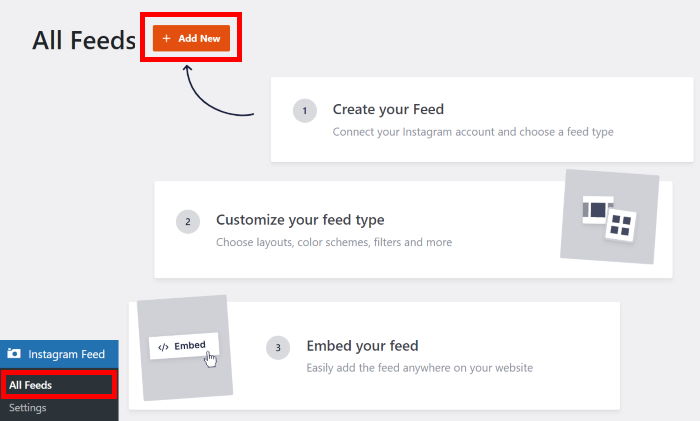
Installing the Instagram Feed plugin is the first step to show your Instagram photos on your WordPress site. This plugin connects your Instagram account with your website. It lets visitors see your latest posts directly on your pages. The process is simple and does not require coding. Follow the steps below to install and activate the plugin quickly.
Plugin Installation Steps
Log in to your WordPress dashboard. Find the menu on the left side. Click on “Plugins,” then select “Add New.” Use the search bar and type “Instagram Feed.” Look for the plugin with good ratings and many downloads. Click the “Install Now” button next to it. Wait a few moments while the plugin installs. After installation, the “Install Now” button changes to “Activate.”
Activating The Plugin
Click the “Activate” button to enable the plugin on your site. Once activated, a new menu item for Instagram Feed appears in your dashboard. This menu lets you configure the plugin settings. Connect your Instagram account by following the on-screen instructions. After connecting, you can customize how your feed looks. Save your settings to start displaying Instagram photos on your site.
Connecting Instagram To WordPress
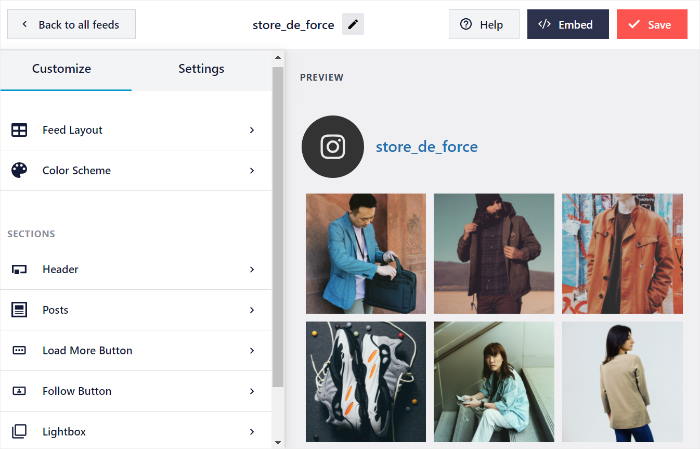
Customizing your Instagram feed on your WordPress site makes it fit perfectly with your design. It helps to show your brand’s style clearly. You can change how the feed looks and what posts appear. This makes your website more interesting and keeps visitors engaged.
Adjusting the feed also lets you control the user experience. You decide how many photos to show and their arrangement. This keeps your website neat and easy to explore. Custom options let you match the feed to your site’s colors and fonts. Let’s explore key ways to customize your Instagram feed.
Layout Options
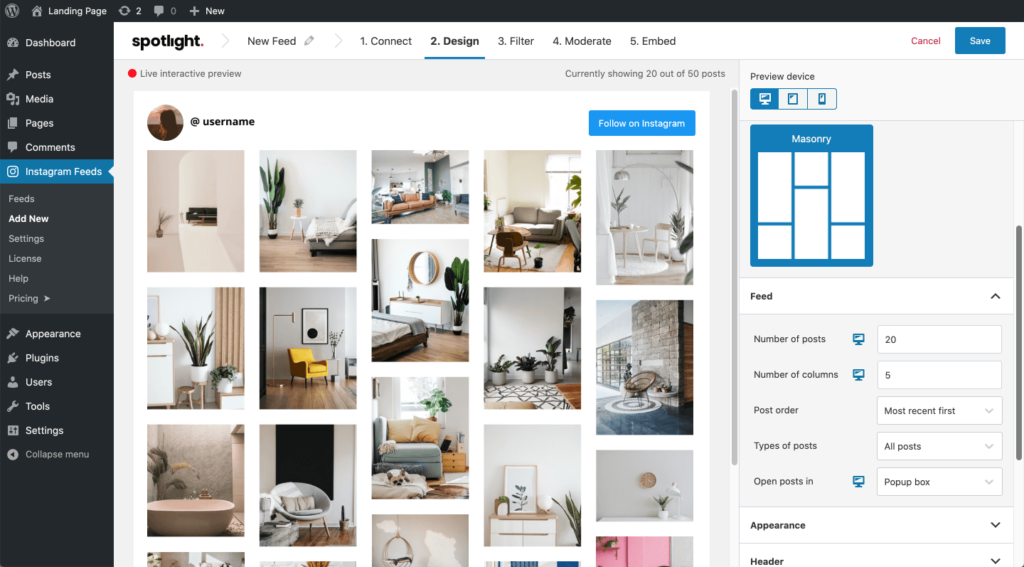
Choose a layout that fits your website’s look. Common layouts include grid, carousel, and masonry styles. Grids show images in rows and columns. Carousels let users scroll through photos horizontally. Masonry layout arranges images in different sizes for a dynamic look. Pick the one that suits your site’s space and style best.
Adjust the number of columns and rows. Smaller grids work well for sidebars. Larger grids fit better on main pages. Some plugins also allow full-width layouts. This helps highlight your Instagram feed as a main feature.
Display Settings
Control the size of each photo in the feed. You can choose small thumbnails or larger images. Set spacing between photos to avoid clutter. Decide if you want to show captions under images. Captions add context but can take up space. Enable or disable likes and comments count to keep the feed clean or interactive.
Set how many posts to display. Showing too many images can slow your site. Limit the number to improve loading speed. Enable or disable the “Load More” button. This lets visitors see more photos without leaving the page.
Filtering Content
Filter your Instagram feed to show only specific posts. Use hashtags to display posts with certain tags. This keeps the feed relevant to your website’s theme. You can also filter by user if you manage multiple accounts. Hide posts with certain keywords or types of content.
Filtering helps keep your feed fresh and appropriate. It stops unwanted or off-topic posts from appearing. This control helps maintain your brand’s image and message clearly.
Customizing Your Instagram Feed
Embedding your Instagram feed on a WordPress website helps visitors see your latest posts. It keeps your site fresh and interesting. Adding the feed requires placing a small piece of code or widget on your site. This section explains how to embed the feed using different methods.
Using Shortcodes
Shortcodes are simple codes that display content. Many Instagram feed plugins give you a shortcode. Copy this shortcode from the plugin settings. Paste it into the WordPress editor where you want the feed. The feed will show automatically after you update the page.
This method is fast and works on most themes. It gives you control over placement. No need to edit theme files or use extra tools.
Adding To Widgets
Widgets appear in sidebars or footers. To add your Instagram feed to a widget area, go to Appearance > Widgets. Find the Instagram widget or a Text widget. Paste your feed shortcode or embed code inside. Save the widget settings. The feed will show on all pages with that widget area.
This method is great for showing the feed on multiple pages. It keeps your feed visible without editing each page.
Placing In Pages Or Posts
You can place the Instagram feed directly inside pages or posts. Open the editor of your chosen page or post. Use the block editor’s shortcode or custom HTML block. Paste the feed’s shortcode or embed code. Update or publish the content to see the feed live.
This method works well for specific pages like About or Contact. It lets you add the feed exactly where you want it.
Embedding The Feed On Your Website
Adding an Instagram feed to your WordPress website can boost visitor engagement. Sometimes, problems may stop the feed from showing correctly. This section helps fix common issues fast. Clear steps guide you through solving usual problems.
Feed Not Displaying
Check if the Instagram account is public. Private accounts block feeds from showing. Refresh the WordPress page to reload the feed. Clear your browser cache to remove old data. Ensure the plugin or widget is active and placed correctly. Missing or wrong shortcode can stop the feed. Confirm the shortcode matches the plugin instructions.
Authentication Problems
Authentication connects your Instagram to WordPress. If the feed fails, re-login to Instagram within the plugin. Check if Instagram changed its API rules. Update the plugin to the latest version. Expired tokens cause connection errors. Generate a new token in the plugin settings. Keep your Instagram login details ready for re-authentication.
Plugin Conflicts
Some plugins may clash and stop the Instagram feed. Disable other plugins one by one to find the conflict. Clear cache after deactivating plugins. Check if your theme supports the Instagram feed plugin. Switch to a default WordPress theme to test compatibility. Keep plugins updated to avoid conflicts. Contact plugin support if the problem remains.
Troubleshooting Common Issues
Adding an Instagram feed to your WordPress website can boost visitor interest. To get the most from it, focus on ways to keep visitors engaged. Small changes can lead to better interaction and more time spent on your site.
Best Placement Practices
Place your Instagram feed where visitors can easily see it. The homepage sidebar or footer works well. Avoid hiding it too far down the page. Keep it near other important content for better visibility.
Make sure the feed fits well with your site’s design. It should not block other elements or slow down loading times. A clean, simple layout helps visitors focus on the images and posts.
Regular Updates
Keep your Instagram feed fresh by updating often. New posts attract repeat visitors and show active content. Set the feed to refresh automatically or update it manually each week.
Frequent updates encourage visitors to check back. Stale feeds can make your site look ignored or outdated. Fresh content keeps the page lively and interesting.
Encouraging Interaction
Invite visitors to engage with your feed. Add calls to action like “Follow us on Instagram” or “See more posts.”
Respond to comments and questions on your Instagram posts. This shows you value your audience and encourages more interaction. Engagement helps build a loyal community around your brand.
Credit: smashballoon.com
Frequently Asked Questions
How Do I Embed Instagram Feed On WordPress?
You can embed Instagram feed using plugins like Smash Balloon or Spotlight. Install the plugin, connect your Instagram account, and customize the display. Then, add the feed shortcode to your WordPress page or widget area. This method is simple and requires no coding.
Are Instagram Feed Plugins Free For WordPress?
Many Instagram feed plugins offer free versions with basic features. Premium versions unlock advanced customization, filtering, and support. Choose a plugin based on your needs and budget. Free plugins are usually sufficient for standard Instagram feed embedding.
Can I Customize The Instagram Feed Appearance?
Yes, most plugins allow you to customize layout, colors, and post types. You can choose grid, carousel, or masonry styles. Customization helps match your feed with your website’s design. This improves user experience and keeps your site visually appealing.
Does Adding Instagram Feed Affect Website Speed?
Adding Instagram feeds may slightly impact your website speed. However, well-optimized plugins use caching to minimize load time. Choose lightweight plugins and limit the number of posts displayed. This ensures a smooth browsing experience for visitors.
Conclusion
Adding an Instagram feed to your WordPress site boosts engagement and freshness. Visitors see your latest posts without leaving your page. It also helps build trust and shows your active presence. Choose a plugin that fits your needs and follow simple steps.
Keep your feed updated for the best results. Start today and make your website more lively and connected.


