

Are you looking to make your WordPress site more engaging with beautiful image galleries? Adding images to a gallery is a simple way to showcase your photos, products, or artwork in one attractive spot.
But if you’ve never done it before, it might feel a bit confusing. Don’t worry—this guide will walk you through the exact steps to add images to your WordPress gallery quickly and easily. By the end, you’ll have a stunning gallery that grabs your visitors’ attention and keeps them coming back for more.
Let’s get started!
Choosing The Right Gallery Plugin
Choosing the right gallery plugin is key to creating a beautiful image gallery. The right plugin makes adding and managing images easy. It also helps your website load fast and look professional. Some plugins offer many features. Others focus on simplicity. Select a plugin that fits your needs and skill level.
Popular Gallery Plugins
Some gallery plugins are widely used and trusted. NextGEN Gallery is popular for its powerful features and flexibility. Envira Gallery offers a user-friendly interface and responsive layouts. FooGallery is known for easy drag-and-drop image management. Modula focuses on creative grid layouts and customization. These plugins have large user bases and regular updates.
Plugin Features To Consider
Check if the plugin supports different gallery styles like grids or sliders. Responsive design is essential for mobile users. Look for easy image upload and organization tools. Speed matters; the plugin should not slow down your site. Compatibility with your WordPress theme and other plugins is important. Some plugins offer lightbox effects for better viewing. Also, consider if the plugin supports SEO features like alt tags for images.
Preparing Your Images
Preparing your images before adding them to a WordPress gallery is important. It helps your website load faster and look better. This step also improves user experience and SEO. Proper preparation saves time and avoids future problems.
Optimizing Image Size
Large images slow down your website. Resize images to fit the gallery space. Use tools like Photoshop or free online editors. Aim for a file size under 200 KB. Compress images without losing quality. Smaller files load faster and improve page speed.
Naming And Organizing Files
Use clear, simple names for your image files. Include keywords related to the image content. Avoid spaces and special characters. Use dashes instead of underscores. Organize files into folders by topic or date. This makes managing images easier later.
Uploading Images To WordPress
Uploading images to WordPress is simple and fast. It helps make your gallery look great. You can add photos to your site directly from your computer. WordPress offers easy tools to manage images.
Organizing your pictures saves time later. Proper uploads keep your gallery neat and clear. Knowing how to upload images correctly improves your website’s appearance.
Using The Media Library
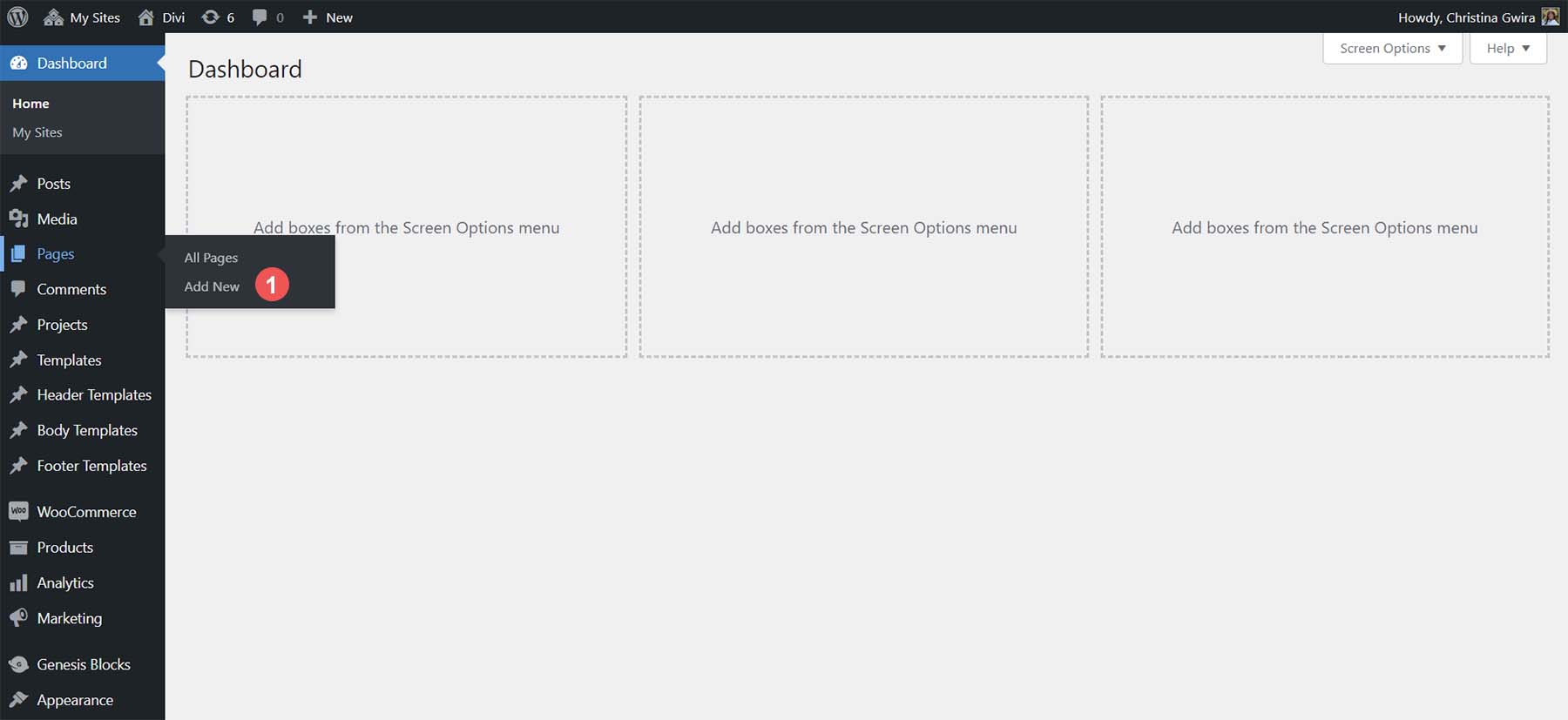
The Media Library stores all your uploaded images. To add pictures, go to the WordPress dashboard. Click on “Media” and then “Add New.”
Drag and drop files or click “Select Files” to upload. The library shows thumbnails for easy selection. You can edit image details like title and alt text here.
Alt text helps with SEO and accessibility. Always add clear, short descriptions to your images. This step improves your site’s search ranking.
Bulk Upload Tips
Uploading many images at once saves time. Use the bulk upload feature in the Media Library. Select multiple files from your computer.
Keep file sizes small to avoid slow uploads. Compress images before uploading to speed up the process. Use common formats like JPG or PNG.
Name your files clearly and consistently. This helps you find images later. Avoid spaces and special characters in file names.
Credit: www.elegantthemes.com
Creating A New Gallery
Creating a new gallery in WordPress helps display images neatly on your site. It improves user experience by organizing photos in one place. WordPress offers simple tools to make galleries fast. You can use the built-in gallery feature or install a plugin for more options.
Using The Default WordPress Gallery
Start by opening the post or page where you want the gallery. Click on the plus icon to add a new block. Select the “Gallery” block from the list. Upload new images or choose from the media library. Arrange images by dragging them into order. Add captions if needed. Click “Insert Gallery” to place it on your page. Preview the page to see how the gallery looks. The default gallery is easy and quick to use.
Setting Up With A Plugin
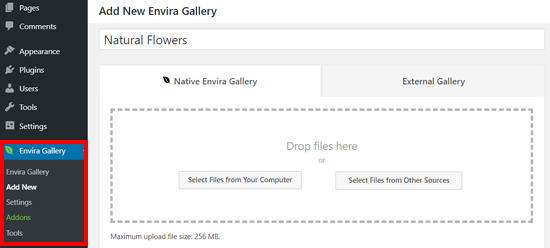
Plugins offer more features and styles for galleries. Install a gallery plugin from the WordPress plugin directory. Activate the plugin and go to its settings page. Create a new gallery by adding images to the plugin’s interface. Customize layout, size, and effects as you like. Copy the shortcode generated by the plugin. Paste the shortcode into your post or page. This method gives more control over the gallery’s appearance. It is good for advanced design needs.
Adding Images To The Gallery
Adding images to a gallery in WordPress is simple and fast. It lets you display multiple photos in one place. Galleries make your posts or pages look attractive and organized.
You can choose images from your media library or upload new ones. WordPress offers tools to arrange and edit images inside the gallery. This helps you control how the gallery appears to visitors.
Selecting Images
Start by opening the post or page editor. Click on the “Add Media” button. Then, select “Create Gallery” from the left menu. Choose images from your media library or upload new files. Pick all photos you want in the gallery. Click the “Create a new gallery” button to continue.
Arranging And Editing
After selecting images, arrange them by dragging and dropping. Order matters. The first image will show first in the gallery. You can add captions to each photo. Captions help visitors understand the images. Use the edit options to crop or rotate images. Finally, click “Insert gallery” to add it to your post or page.
Inserting The Gallery Into A Post Or Page
Inserting a gallery into a post or page lets you display multiple images neatly. It enhances the visual appeal and keeps visitors engaged. WordPress offers easy ways to add galleries without coding skills. You can use the Gutenberg block or a shortcode. Both methods work well for different needs and preferences.
Using Gutenberg Block
Gutenberg is the default editor in WordPress. It uses blocks to add content. To insert a gallery, click the “+” icon in the post or page editor. Select the “Gallery” block from the menu. Upload new images or choose from the media library. Arrange images by dragging them into place. You can add captions to each image if needed. Once done, save or publish your post to show the gallery.
Shortcode Method
Shortcodes are simple codes that add features quickly. To use a gallery shortcode, first upload your images to the media library. Note the image IDs needed for the shortcode. Insert this code into your post or page:
Replace the numbers with your actual image IDs. This method is fast and works in classic editors or text blocks. It gives control over the gallery layout and size. Use this if you prefer code or want to customize galleries further.
Customizing Gallery Appearance
Customizing the gallery appearance makes your images stand out. It helps create a look that fits your site style. You can change how images show and how the gallery feels to visitors. This part explains ways to adjust your gallery’s design easily.
Layout Options
WordPress offers several layout styles for galleries. You can choose grid, tiled, or masonry layouts. Grids arrange images in equal rows and columns. Tiled layouts mix different image sizes for a dynamic look. Masonry stacks images with varied heights but fixed widths. Each layout changes how visitors see your photos. Pick a style that matches your content and site design. You can also set the number of columns and image size. These options help keep your gallery neat and balanced.
Styling And Effects
Styling adds personality to your gallery. You can add borders or shadows around images. These details make pictures pop from the page. Hover effects create interaction when users move their mouse. Common effects include zoom, fade, or color changes. These effects draw attention to images without distraction. Adjust spacing between images for a clean look. You can also choose background colors that match your brand. Simple styling choices improve user experience and keep visitors engaged.
Managing And Updating Galleries
Managing and updating galleries in WordPress is simple and quick. Keeping your gallery fresh helps visitors enjoy your website more. Regular updates also improve your site’s visual appeal and user engagement.
WordPress allows easy changes to your galleries. You can add new images, remove old ones, and reorder photos to match your style. These tasks do not require technical skills or extra plugins.
Adding Or Removing Images
To add images, open the gallery in the WordPress editor. Click the “Add to Gallery” button and select pictures from your media library. You can upload new photos here too.
Removing images is just as easy. Select the photo you want gone and click the delete icon. This removes it from the gallery but keeps it in your media library.
Reordering Photos
Change the order by dragging and dropping images inside the gallery editor. This helps you control how visitors see your photos. Place your best images first to capture attention.
Reordering does not affect the original files. It only changes the display order in the gallery on your site.
Troubleshooting Common Issues
Troubleshooting common issues with WordPress galleries saves time and frustration. Many users face simple problems that have easy fixes. Understanding these issues helps keep your gallery looking perfect. This section covers common problems and how to solve them quickly.
Image Not Showing
Images may not show due to file upload errors. Check if the image file is in a supported format like JPG or PNG. Sometimes, image files are too large and fail to upload. Resize images to reduce file size before uploading.
Clear your browser cache to ensure images load properly. Also, verify the image URL is correct in the gallery settings. Broken URLs cause images to disappear. If using a plugin, make sure it is updated to the latest version.
Gallery Not Displaying Correctly
A gallery might not display correctly due to theme conflicts. Switch to a default WordPress theme to test this issue. Plugins can also cause display problems. Deactivate all plugins except the gallery plugin and check again.
Ensure your WordPress and gallery plugin are updated. Outdated software often leads to display errors. Check the gallery shortcode for any typing mistakes. A single error can prevent the gallery from showing properly.
Credit: www.wpbeginner.com
Credit: www.elegantthemes.com
Frequently Asked Questions
How Do I Add Images To A WordPress Gallery?
To add images, go to your WordPress dashboard, open the post or page editor, and click “Add Media. ” Select “Create Gallery,” choose your images, and click “Insert Gallery. ” This adds a gallery block with your selected images.
Can I Edit Images Within A WordPress Gallery?
Yes, you can edit images by clicking the gallery block and selecting “Edit Gallery. ” Here, you can add, remove, or reorder images. You can also change image captions and link settings to customize your gallery’s appearance.
What Image Formats Are Supported In WordPress Galleries?
WordPress supports common image formats like JPEG, PNG, GIF, and WebP. These formats work well in galleries and ensure fast loading and good quality. For best results, use optimized images to improve site speed.
How Do I Customize The Layout Of My WordPress Gallery?
You can customize the gallery layout using the block editor settings. Choose between grid, tiled, or masonry styles. Adjust columns, image sizes, and spacing to create a visually appealing gallery that fits your website design.
Conclusion
Adding images to a WordPress gallery is simple and quick. You can create beautiful galleries that show your photos well. Just follow the easy steps to upload and arrange your pictures. This helps visitors enjoy your site more. Keep your galleries updated to keep your website fresh.
Practice often to get better at managing images. Your website will look more attractive and professional. Start adding images today and see the difference yourself.


