

Are you struggling to make your WordPress blog posts stand out? Adding images is one of the easiest ways to grab your readers’ attention and keep them engaged.
But if you’re unsure how to add images the right way, you might miss out on boosting your blog’s appeal and traffic. In this guide, you’ll discover simple, step-by-step instructions to add images to your WordPress posts quickly and effectively.
By the end, you’ll know exactly how to make your blog visually striking and more memorable. Keep reading to unlock the secret to transforming your content with just a few clicks.
Credit: wordpress.org
Choosing The Right Image
Choosing the right image for your WordPress blog post is important. Images catch readers’ eyes and make posts more interesting. They also help explain your message better. Pick images that match your blog topic and style. The right image can make your content clearer and more attractive.
Image Formats And Quality
Choose the right image format to keep quality and speed balanced. JPEG works well for photos with many colors. PNG is best for images with text or transparent backgrounds. Use GIF for simple animations. Always pick high-quality images. Blurry or pixelated images look unprofessional and can turn readers away.
Sourcing Free And Paid Images
Find images from free websites like Unsplash or Pixabay. These sites offer many photos without cost. For unique or higher-quality pictures, consider paid sites like Shutterstock or Adobe Stock. Paid images often provide more variety and exclusive content. Always check the license to ensure you can use the image legally.
Optimizing Images For Web
Optimize images before uploading to your WordPress site. Large files slow down your website. Use tools to reduce file size without losing quality. Name your image files clearly with keywords. Add alt text to improve SEO and help screen readers. Proper optimization keeps your site fast and user-friendly.
Credit: www.pair.com
Preparing Images For WordPress
Preparing images for WordPress is important for a smooth and fast website. Proper image preparation helps your blog load quickly and look professional. It also improves your site’s SEO and user experience. Follow simple steps to get your images ready before uploading.
Resizing And Cropping
Large images slow down your website. Resize images to fit your blog layout. Cropping removes unnecessary parts and focuses on the main subject. Use tools like Photoshop or free online editors. Keep image dimensions suitable for your theme. This reduces file size and improves loading speed.
Compressing Images
Compress images to lower file size without losing quality. Smaller files load faster and save bandwidth. Use tools like TinyPNG or JPEG-Optimizer to compress images. Aim for a good balance between quality and size. Compressed images improve user experience and SEO rankings.
Naming Images For Seo
Give images clear, descriptive names using keywords. Avoid generic names like IMG1234.jpg. Use hyphens to separate words, for example, blue-widgets.jpg. Proper naming helps search engines understand your content. It also improves your blog’s visibility in image searches.
Uploading Images To WordPress
Uploading images to WordPress is simple and fast. Adding pictures makes your blog posts more attractive and easier to understand. WordPress offers several ways to upload images. Choose the method that fits your style.
Using The Media Library
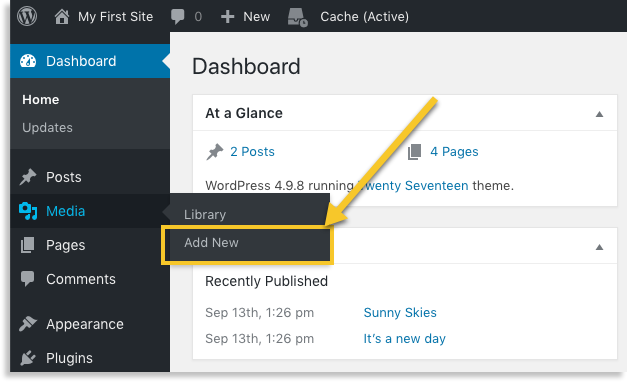
The Media Library stores all images and files on your site. To upload an image here, go to your WordPress dashboard. Click on “Media” and then “Add New.” Select the image file from your computer. The image will upload and save in your library. You can reuse it anytime in your posts or pages.
Drag And Drop Upload
This method is quick and user-friendly. Open the post or page editor. Find the spot where you want the image. Drag the image file from your computer and drop it into the editor. WordPress uploads the image automatically. It appears right where you dropped it. No extra steps needed.
Uploading Via Classic Editor
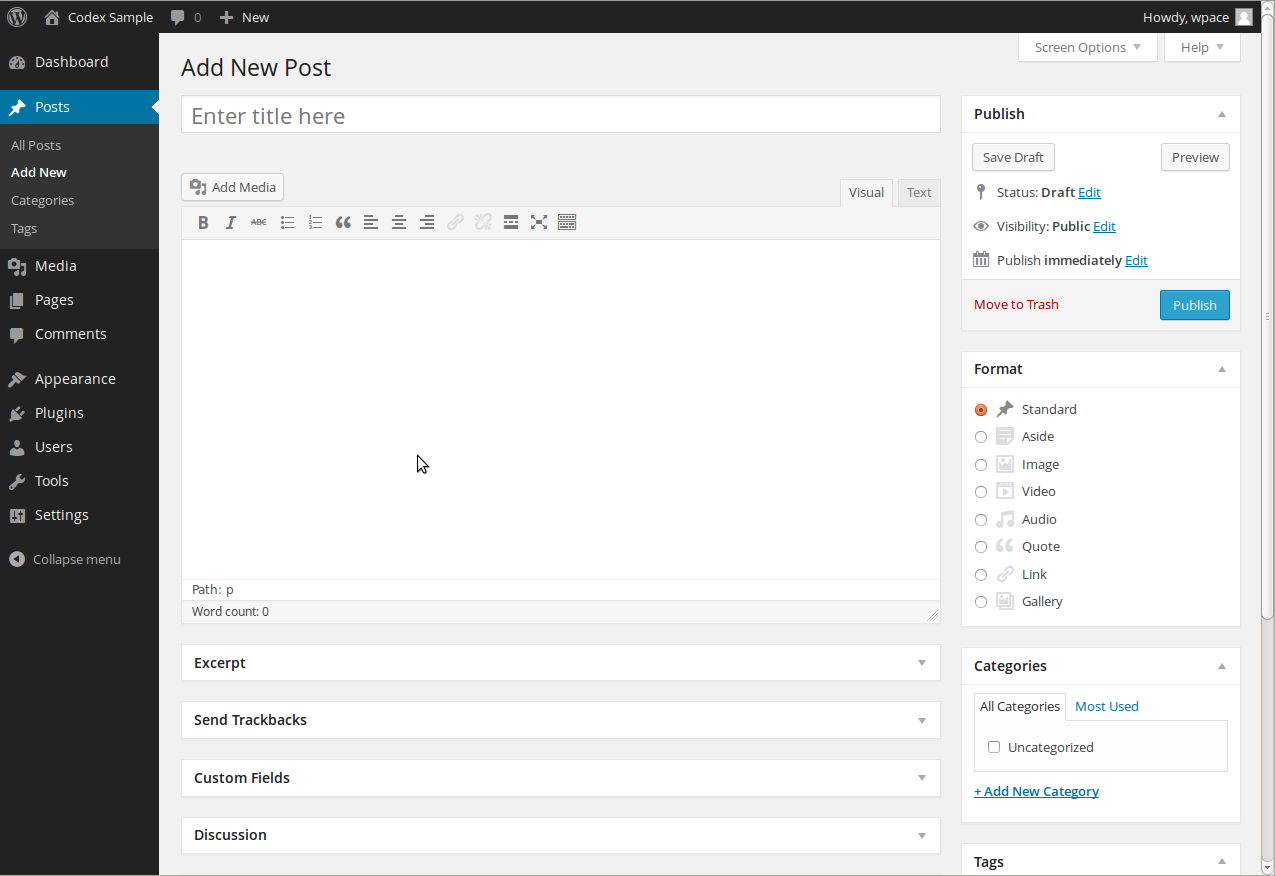
Classic Editor has a simple button to add images. Click on “Add Media” above the text box. A window opens showing your Media Library. Choose an existing image or upload a new one. After selecting the image, click “Insert into post.” The image appears inside the editor at the cursor’s place.
Inserting Images Into Blog Posts
Images make blog posts more attractive and easier to understand. They break up text and keep readers interested. Adding images in WordPress is simple and helps your content stand out.
Different editors in WordPress have different ways to insert images. Each method lets you upload, select, and place pictures where you want. Learning these steps saves time and improves your blog’s look.
Adding Images With Gutenberg Editor
The Gutenberg editor uses blocks to build posts. To insert an image, click the plus (+) button and choose the “Image” block.
Upload a new picture or pick one from the media library. After selecting, the image appears in your post.
You can add captions or alt text to describe the image. This helps with SEO and accessibility.
Using Classic Editor For Images
The Classic Editor looks like a simple text editor. Place the cursor where the image should go.
Click the “Add Media” button above the toolbar. Upload a file or select from the media library.
Choose the size and alignment, then click “Insert into post.” The image shows up in your content area.
Aligning And Positioning Images
Proper alignment makes posts look neat and professional. WordPress lets you align images left, right, or center.
In Gutenberg, select the image block and use alignment buttons in the toolbar. In Classic Editor, choose alignment before inserting the image.
Adjust image size to fit the content area. Avoid images that are too large or too small for better reading.
Enhancing Images For Better Engagement
Images catch readers’ eyes and keep them on your blog. Enhancing images makes posts more interesting and easier to understand. Well-prepared images improve the look and boost reader engagement. Use simple tricks to make your images work harder for you.
Adding Captions And Alt Text
Captions explain images and add context. They help readers know why the image is there. Alt text describes images for search engines and screen readers. It improves SEO and accessibility. Write clear, short captions and alt text. Use keywords naturally in alt text for better search results.
Creating Image Galleries
Image galleries show multiple photos in one spot. They keep readers on the page longer. Galleries work well for tutorials, product reviews, or travel blogs. Use WordPress’s gallery feature to group images neatly. Choose a layout that fits your blog style. Keep image sizes balanced for fast loading.
Using Featured Images
Featured images represent your post on social media and homepages. They attract clicks and shares. Pick a clear, relevant image for each post. Use the right size to avoid distortion. A strong featured image sets the tone for your content. It helps readers decide to read your post.
Troubleshooting Common Image Issues
Images make blog posts more interesting and engaging. But sometimes images do not work as expected. Troubleshooting common image issues helps keep your blog looking good and loading fast. Fixing these problems quickly improves the reader’s experience and keeps them coming back.
Fixing Slow Loading Images
Large image files slow down your website. Resize images before uploading to keep file size small. Use JPEG for photos and PNG for graphics with few colors. Compress images using free online tools to reduce size without losing quality. Lazy loading delays image loading until needed, speeding up page load time. Many WordPress plugins offer lazy loading easily.
Resolving Image Display Errors
Broken images show as empty boxes or error icons. Check that the image URL is correct. Re-upload the image if the file is missing or corrupted. Clear your browser cache to remove old data. Disable conflicting plugins that might block image display. Make sure your WordPress theme supports the image formats you use.
Managing Image Permissions
Permission issues stop images from showing on your blog. Set the correct file permissions on your server, usually 644 for images. Check that your web host allows image uploads and serving. Avoid hotlinking images from other websites to prevent permission errors. Use WordPress media library to manage images safely and easily.
Credit: shortiedesigns.com
Frequently Asked Questions
How Do I Upload Images To A WordPress Blog Post?
To upload images, click the “Add Media” button above the editor. Select your image from your computer or media library, then click “Insert into post. ” The image will appear in your blog post where the cursor is placed.
What Image Formats Are Supported By WordPress?
WordPress supports JPEG, PNG, GIF, and ICO formats. JPEG is best for photos, PNG for transparent images, and GIF for animations. Use these formats for optimal display and performance in your blog posts.
How Can I Optimize Images For WordPress Blog Posts?
Optimize images by resizing before upload and compressing files for faster loading. Use plugins like Smush or ShortPixel to automate compression. Proper optimization improves site speed and SEO rankings.
Can I Add Captions And Alt Text To Images In WordPress?
Yes, after uploading an image, you can add captions and alt text in the media settings. Alt text improves accessibility and SEO by describing the image content to search engines.
Conclusion
Adding images to your WordPress blog makes posts more interesting. It helps readers understand your message better. Use clear, simple pictures that match your content. Always check image size for faster page loading. Don’t forget to add alt text for accessibility and SEO.
Practice these steps to improve your blog’s look and reach. Keep trying, and your posts will get better over time. Images bring life to your words. Give it a go!


