
Imagine landing on a blog post and immediately recognizing the author by their image. It creates a connection, doesn’t it?
If you’re using the Newspaper theme in WordPress, adding an author image can significantly enhance your readers’ experience. It humanizes your content, making it more relatable and engaging. But how exactly do you add that personal touch? This guide is crafted just for you.
We’ll walk you through the simple steps, ensuring that your blog not only stands out but also strengthens the bond between you and your audience. Dive in, and let’s give your blog the personal flair it deserves.
Setting Up Your WordPress Environment
First, open your web browser. Type your website URL in the address bar. Add “/wp-admin” at the end. Press “Enter” on your keyboard. You will see the login page. Enter your username and password. Click “Log In.” Now you are in the WordPress dashboard. This is your control center. Here, you can make changes to your site.
Check your theme version. Go to “Appearance” and then “Themes.” Make sure your theme is up-to-date. Next, check your plugins. Go to “Plugins” and then “Installed Plugins.” Update any outdated plugins. This helps avoid problems. Compatibility is key for a smooth experience.

Credit: utilizewp.com
Navigating Newspaper Theme Options
Easily enhance your author profile by adding an image in the Newspaper Theme on WordPress. Navigate to the User section, select your profile, and upload a photo. Personalize your blog with a professional touch.
Exploring Theme Panel
Find the Newspaper theme panel on your WordPress dashboard. It’s usually on the left side. Click on it to open. This panel has many options. It’s like a control center for your theme. You can change colors, fonts, and more here. Author settings are also found here. These settings help personalize your blog. They add a unique touch.
Locating Author Settings
Look for author settings in the theme panel. They are easy to find. Click on ‘Author’ to see the options. Here, you can add images to authors. Choose an image that fits your author. This helps readers connect with the writer. It adds a personal touch. Make sure the image is clear and professional.
Uploading Author Image
First, choose a nice photo of the author. Make sure the image is clear. It should not be blurry. Resize the image if it is too big. Use a tool like Photoshop or GIMP. Save the image in a common format. JPEG or PNG are good choices.
Go to your WordPress dashboard. Click on Media. Then, click on Add New. Choose the author image file. Wait for it to upload. The image is now in your media library. You can use it anytime.
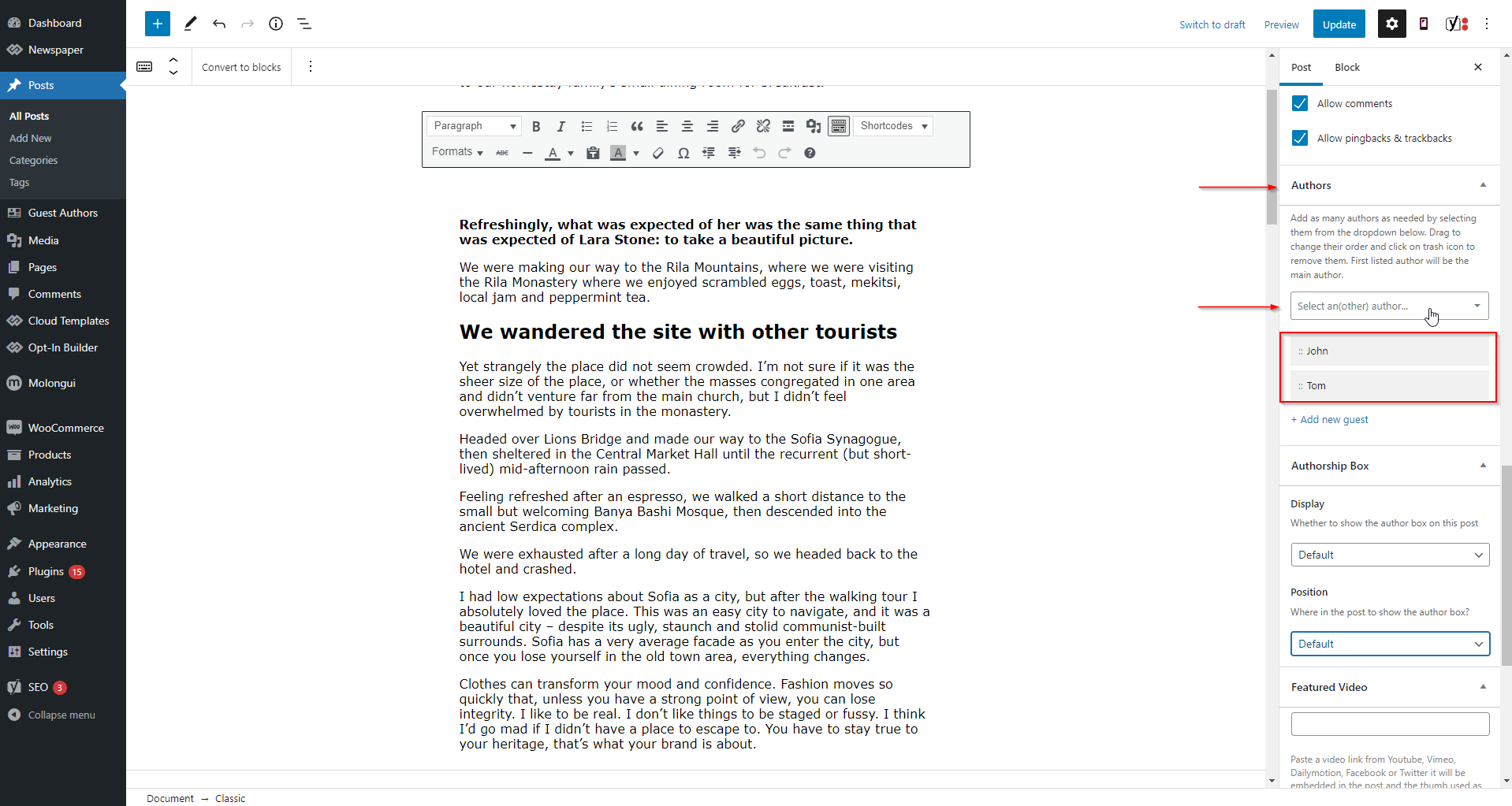
Go to the User section in WordPress. Click on the author’s name. Find the profile picture section. Click on Choose Image. Select the image from the media library. Save the changes. The author’s picture is now added.
Credit: forum.tagdiv.com
Customizing Author Image Display
The image size affects the page look. Small images may not show details. Large images can slow down the page. Use the right size for your theme. Check your theme settings for size options. You can use plugins to adjust size. Plugins can help make changes easy. Always preview changes before saving.
Aligning images with text improves readability. Images can be on the left or right. You can also center them. Some themes have built-in alignment options. Look for these in your theme settings. Use CSS for custom alignment. CSS offers more control over placement. Test different alignments for best results.
Troubleshooting Common Issues
Adding an image to the author profile in the Newspaper theme on WordPress can sometimes be tricky. Ensure the author image is uploaded in the user profile settings and check the theme customization options. If the image doesn’t appear, verify theme compatibility or update to the latest theme version.
Image Not Displaying
Images are sometimes invisible due to theme settings. Check if the image file is corrupted. A broken file cannot display. Verify the image URL is correct. Wrong URLs cause images to vanish. Ensure the image is in the right format. Use JPEG or PNG for best results. Inspect the media library for errors. A missing file means no display. Refresh the browser cache. Old cache might not show new images. Adjust the theme settings if needed. Some themes hide images by default.
Resolving Upload Errors
Upload errors can be frustrating. Check the file size. Large files fail to upload. Reduce size if necessary. Ensure correct permissions are set. Incorrect permissions block uploads. Verify the internet connection. A weak connection disrupts uploads. Check the server settings. Some servers limit file types. Use compatible formats like JPEG. Ensure plugins are updated. Outdated plugins often cause errors. Adjust WordPress settings if needed. Some settings may block uploads.
Credit: forum.tagdiv.com
Enhancing Author Profiles
Author profiles are important. They introduce the writer. Readers like to know who writes. Adding an author bio is easy. It helps readers connect. Write about the author’s work. Share their interests. Use simple words. Make it clear and friendly. Avoid long sentences. Keep it short and fun.
Linking social media profiles is also useful. Readers want more information. They like to follow authors online. Connect the author’s social media. Share links to Facebook and Twitter. Use icons for easy access. Make sure links work. This builds a community. Readers feel closer. They can interact with authors. It keeps them engaged.
Frequently Asked Questions
How Can I Add An Author Image In Newspaper Theme?
To add an author image, navigate to the WordPress Dashboard. Select ‘Users’ and click ‘Your Profile. ‘ Upload an image under ‘Profile Picture. ‘ The Newspaper Theme will automatically display this image for posts attributed to the author.
Why Is My Author Image Not Displaying?
Check if the Gravatar service is linked to your WordPress account. Ensure the image is correctly uploaded in ‘Users’ > ‘Your Profile. ‘ The Newspaper Theme relies on these settings to display the author image.
Can I Customize The Author Image Display?
Yes, you can customize it using custom CSS or theme settings. Navigate to Newspaper Theme settings. Adjust the author box appearance to match your design preferences. This allows for a personalized look on author pages.
Is Gravatar Required For Author Images?
Gravatar is not strictly required but recommended for consistency. It simplifies image management across WordPress sites. By linking Gravatar, your author image automatically appears wherever your profile is used.
Conclusion
Adding an image to the author in Newspaper Theme is simple. Follow the steps carefully. First, log into your WordPress dashboard. Next, navigate to the user profile settings. Upload your desired image there. Ensure it is a clear and professional photo.
Refresh your page to see the changes. This enhances your blog’s visual appeal. Readers connect better with visual content. A picture can tell a story instantly. Now, your blog looks more engaging. Always keep your images updated. Keep exploring WordPress features.
Your blog deserves the best!


