
Are you looking to make your WordPress site more engaging and visually appealing? Adding an image slider is one of the best ways to grab your visitors’ attention right away.
Imagine showcasing your best photos, products, or services in a smooth, eye-catching slideshow that keeps people on your site longer. In this guide, you’ll learn exactly how to add an image slider to your WordPress site—step by step, with no confusion.
By the end, you’ll have a powerful tool to boost your website’s look and keep your audience hooked. Let’s get started!
Choosing The Right Slider Plugin
Choosing the right slider plugin is key for your WordPress site. It affects how your images display and how your site performs. A good plugin makes your site look professional and keeps visitors interested. It should be easy to use and fit your site’s style. Below are options to help you pick the best slider plugin.
Popular Free Plugins
Free slider plugins offer great features without cost. They work well for simple image slideshows. Some popular ones include MetaSlider, Smart Slider 3, and Soliloquy Lite. These plugins have user-friendly interfaces. They support basic customization like slide speed and transitions. They are perfect for beginners or small sites.
Premium Slider Options
Premium plugins provide advanced features and support. They include more design options and effects. Examples are Slider Revolution and LayerSlider. These plugins allow animated layers and video slides. They come with regular updates and customer help. Ideal for sites needing complex sliders or unique looks.
Compatibility With Themes
Check if the slider plugin works with your theme. Some plugins may cause conflicts or design problems. Choose plugins tested with your theme or popular themes in general. Compatibility ensures smooth performance and avoids site errors. Always test the plugin on a staging site before going live.
Installing The Slider Plugin
Installing a slider plugin on WordPress is a simple task. It allows you to create dynamic image sliders for your site. This section explains how to install the plugin step-by-step. Follow these easy methods to get your slider working fast.
Using The WordPress Dashboard
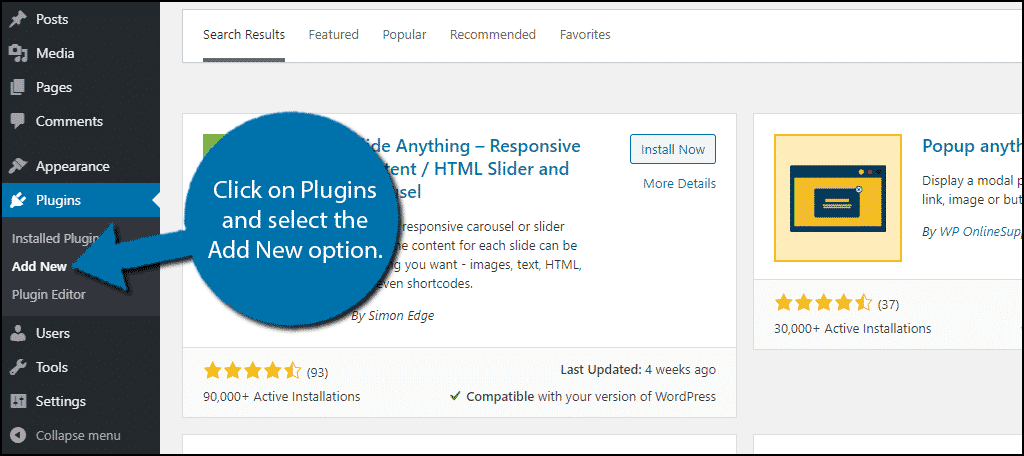
Log in to your WordPress dashboard. Go to the “Plugins” menu on the left side. Click “Add New.”
Type the name of the slider plugin in the search box. Find the plugin in the results list. Click “Install Now” next to the plugin.
Wait a few seconds while WordPress installs the plugin. This method is quick and requires no extra files.
Manual Plugin Upload
Download the slider plugin file from its official website or repository. The file will be in a .zip format.
In your WordPress dashboard, go to “Plugins” and then “Add New.” Click “Upload Plugin” at the top.
Select the .zip file from your computer. Click “Install Now” to upload and install it manually.
This method works well if you have a plugin that is not in the WordPress directory.
Activating The Plugin
After installation, the “Activate” button appears. Click it to enable the plugin on your site.
Once activated, you can access the slider settings from the dashboard menu. Start creating your image sliders immediately.
Creating Your First Image Slider
Creating your first image slider in WordPress is simple and fun. It helps showcase photos or products clearly. An image slider grabs visitors’ attention and makes your site lively. Follow these steps to build a slider that fits your style.
Adding Images
Start by selecting the pictures you want to use. Upload them to your WordPress media library. Choose clear and high-quality images for the best look. Add each image to your slider plugin or theme slider area. Arrange the images in the order you want them to appear.
Setting Slider Dimensions
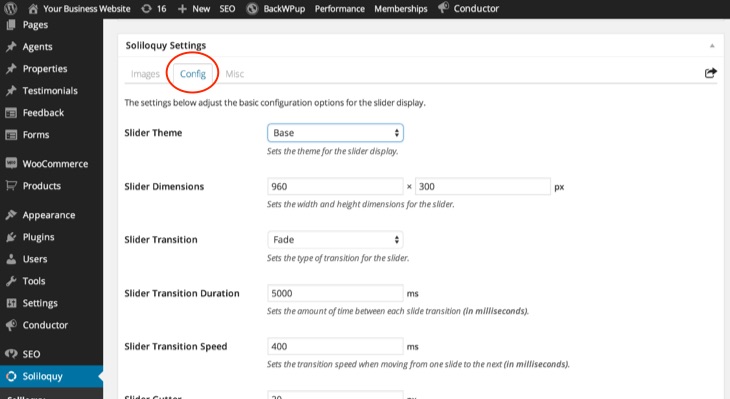
Decide how big your slider should be on the page. Set the width and height to fit your website layout. Use common sizes like 800×400 pixels for a balanced look. Check your slider preview to see if the size looks good on desktop and mobile. Adjust the dimensions if images look stretched or cut off.
Customizing Slide Transitions
Choose how your images change from one to the next. Pick slide, fade, or other effects available in your slider settings. Set the speed of the transition to keep it smooth and natural. Avoid fast or jumpy changes that distract visitors. Test different transitions to find the best match for your site’s style.
Credit: www.greengeeks.com
Inserting The Slider Into Your Site
After creating your image slider, the next step is placing it on your website. This makes your site more dynamic and visually appealing. You can insert sliders in several ways depending on where you want them displayed. Each method is simple and does not require coding skills.
Using Shortcodes
Most slider plugins generate shortcodes automatically. These are small pieces of code that insert the slider anywhere on your site. Copy the shortcode from the plugin’s dashboard. Paste it into the WordPress editor where you want the slider to appear. Shortcodes work in posts, pages, and widgets. This method is quick and flexible for placing sliders.
Adding Slider To Pages Or Posts
Open the page or post editor in WordPress. Place the cursor where the slider should go. Paste the shortcode directly into the content area. Update or publish the page to see the slider live. This method fits well for blog posts or specific landing pages. It keeps your content organized and visual.
Embedding In Widgets Or Sidebars
Go to the WordPress dashboard and open the Appearance menu. Click on Widgets to access sidebar or footer areas. Add a Text or Custom HTML widget where you want the slider. Paste the shortcode inside the widget content box. Save the changes and check your site. This method adds sliders to sidebars and footers easily.
Optimizing Slider Performance
Optimizing slider performance improves user experience and site speed. Slow sliders can frustrate visitors and increase bounce rates. Fast-loading sliders keep users engaged and help search engines rank your site better.
Image Compression Techniques
Compress images before uploading to your WordPress slider. Smaller images load faster and use less bandwidth. Use tools like TinyPNG or JPEG-Optimizer for easy compression. Choose the right file format: JPEG for photos, PNG for graphics with transparency. Avoid large image files that slow down your slider.
Lazy Loading Setup
Lazy loading delays image loading until they appear on the screen. This reduces initial page load time. WordPress supports lazy loading by default for images. Check your slider plugin settings to enable lazy loading. This method saves bandwidth and improves overall speed.
Minimizing Impact On Site Speed
Limit the number of slides to reduce load. Use simple slider effects instead of heavy animations. Keep slider plugins updated to ensure efficiency. Combine slider images with caching plugins for faster delivery. Test your site speed regularly to spot issues early.
Credit: slocumthemes.com
Enhancing Slider Design
Enhancing the design of your image slider can greatly improve your website’s look. A well-designed slider catches visitors’ eyes. It also guides them through your content smoothly. Small design choices make a big difference. They can boost user engagement and time spent on your site.
Choosing Navigation Styles
Navigation styles help users move through slides easily. You can use arrows, dots, or thumbnails. Arrows are simple and clear. Dots show how many slides you have. Thumbnails offer a preview of each slide. Pick a style that matches your site’s theme. Keep navigation visible but not distracting.
Adding Captions And Links
Captions add context to your images. They explain what each slide shows. Keep captions short and clear. Links in captions can lead visitors to related pages. This helps guide visitors deeper into your site. Use clear call-to-action words in links. This encourages clicks and interaction.
Responsive Design Tips
Make sure your slider looks good on all devices. Resize images to fit different screen sizes. Test your slider on phones and tablets. Use sliders that adjust automatically. Avoid sliders that are too large or slow. Fast, smooth sliders keep visitors interested.
Troubleshooting Common Issues
Troubleshooting common issues with image sliders is important for a smooth user experience. Sliders might not show correctly or stop working after updates. Knowing how to fix these problems saves time and keeps your site looking professional.
Fixing Display Problems
Sometimes sliders do not appear as expected. Check if images are uploaded properly. Clear your browser cache to see the latest changes. Make sure your theme supports the slider plugin. Adjust slider settings like size and speed to fit your layout. Use a simple slider style if complex ones cause trouble.
Resolving Plugin Conflicts
Plugins can clash and break sliders. Disable other plugins one by one to find the conflict. Update all plugins to the latest versions. Use plugins from trusted sources only. Avoid running multiple slider plugins at the same time. Conflicts often occur due to outdated or incompatible code.
Updating And Maintaining Sliders
Keep your slider plugin updated for security and features. Backup your site before major updates. Check slider functionality after every update. Remove unused sliders to reduce load time. Regularly test sliders on mobile and desktop. Good maintenance ensures smooth performance and fewer bugs.

Credit: www.youtube.com
Frequently Asked Questions
What Is The Easiest Way To Add An Image Slider In WordPress?
The easiest way is using a WordPress slider plugin like MetaSlider or Smart Slider 3. These plugins are user-friendly and require no coding. You can upload images, customize settings, and embed the slider with a shortcode or block.
Can I Add An Image Slider Without A Plugin In WordPress?
Yes, you can create a custom image slider using HTML, CSS, and JavaScript. However, this requires coding skills and is less flexible than plugins. For most users, plugins offer a quicker and simpler solution to add sliders.
How Do I Optimize Image Sliders For Faster Loading?
Optimize slider images by compressing them without losing quality. Use tools like TinyPNG or ShortPixel. Also, limit the number of slides and enable lazy loading to improve page speed and user experience.
Are Image Sliders Mobile-friendly In WordPress?
Most modern WordPress slider plugins are responsive and mobile-friendly. They automatically adjust to different screen sizes, ensuring your sliders look great on smartphones and tablets without extra effort.
Conclusion
Adding an image slider makes your WordPress site more lively. It shows pictures clearly and keeps visitors interested. You can choose simple plugins that suit your needs well. Adjust settings to match your website style easily. Remember to test how the slider works on different devices.
With a few steps, your site looks more professional and fun. Try adding an image slider today and see the change. It helps share your story with pictures in a smooth way. Simple, quick, and effective.


