
Are you looking to enhance your Cream Magazine WordPress theme with engaging and interactive content? Adding iframes could be the perfect solution.
Imagine seamlessly integrating videos, maps, or external web pages directly into your site, providing a richer experience for your visitors. In this guide, we’ll walk you through the simple steps to add iframes to your WordPress theme in Cream Magazine, transforming your site into a dynamic platform that keeps your audience engaged.
Stay with us, and by the end of this article, you’ll have the tools to captivate your readers and elevate your website’s interactivity. Let’s get started!
Understanding Iframes
Integrating iframes into the Cream Magazine theme in WordPress can enhance your site’s functionality. Simply access the theme’s editor, locate the desired location, and insert the iframe code. This approach allows you to display external content seamlessly within your website.
What Are Iframes?
An iframe is a small window on a webpage. It shows another webpage inside it. This tool is like a frame within a frame. You can use it to show videos, maps, or other content. The page inside the iframe is from a different source. Iframes help keep your page neat and tidy. They let you show content without cluttering your page. Iframes are useful for sharing dynamic content.
Benefits Of Using Iframes
Iframes can make your website better. They let you add interactive content easily. You can show videos without uploading them. This saves space on your site. Iframes load content from other websites. So your page stays fast and light. They also keep your content fresh and updated. Using iframes is a smart way to share information. They help you create a more engaging website.
Installing Cream Magazine Theme
First, visit the WordPress theme directory online. Search for Cream Magazine. Click the download button to get the theme files. Save the files on your computer. The theme comes as a zip file. Do not unzip it. You will upload this file later. Keep it safe until you need it. The download is quick. Ensure your internet connection is stable.
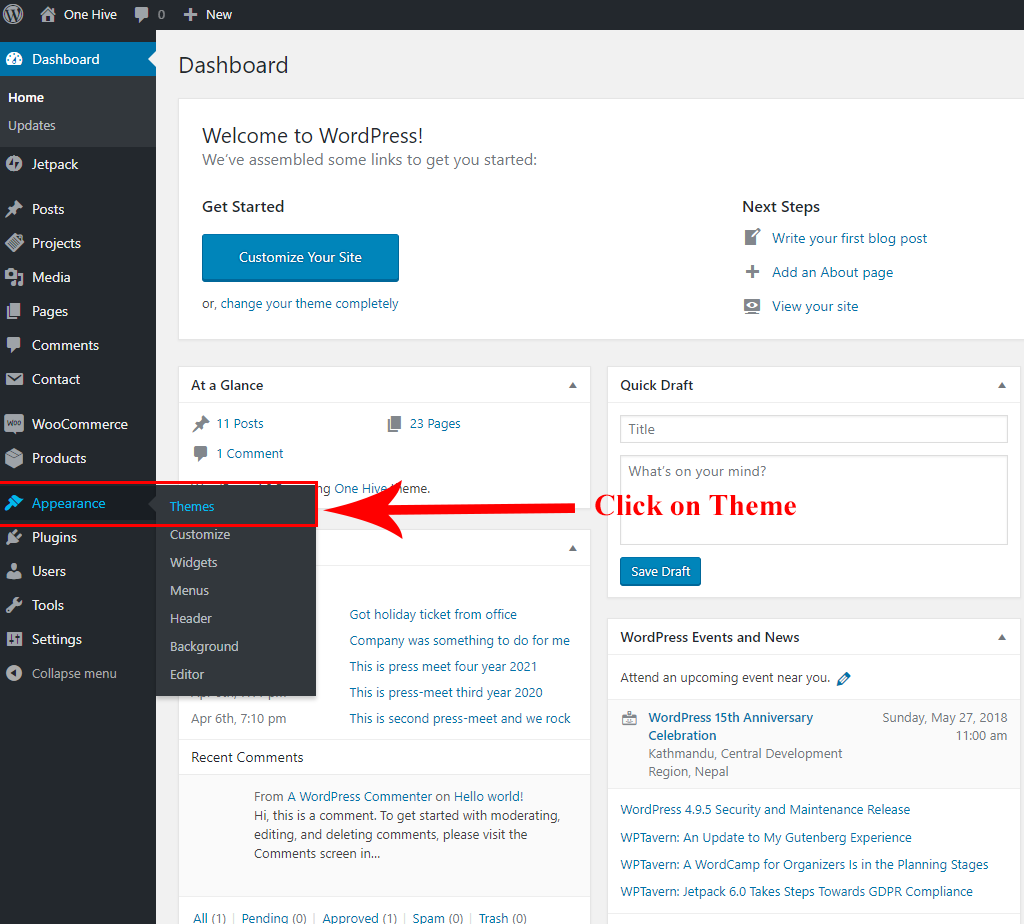
Open your WordPress dashboard. Find the Appearance section. Click on Themes. Choose Add New. Select Upload Theme. Click Choose File. Find the Cream Magazine zip file on your computer. Select it and click Install Now. After installation, click Activate. Your theme is now live. The process is simple. Follow each step carefully.
Preparing Your WordPress For Iframes
Ensure your WordPress theme is compatible with iframes. Some themes might not support them. Check the theme documentation. This can help avoid future issues. Compatibility ensures smooth operation.
Plugins make it easy to add iframes. Some plugins are essential for this task. Consider using the Iframe plugin. It’s easy and user-friendly. Another option is the Advanced iFrame plugin. It offers more features. These plugins can help integrate iframes smoothly.
Credit: www.mobidea.com
Adding Iframes To Posts
Adding an iframe manually is easy. First, open the post where you want to add it. In the editor, switch to the HTML view. Paste your iframe code where you want it.
Be sure to check the size. Sometimes, iframes are too big or small. Adjust the width and height if needed. Save your changes and preview the post.
Make sure the iframe looks right. Done! Your iframe is now in your post.
Shortcodes make adding iframes easy. First, install a shortcode plugin. Many plugins are free. After installing, create a new post. Use the shortcode format provided by the plugin.
Insert the URL of the content you want. The plugin will convert it into an iframe. Save and check the post preview. The iframe should display correctly.
Shortcodes are simple and quick. Perfect for beginners.
Customizing Iframe Appearance
Enhance your WordPress theme in Cream Magazine by customizing iframe appearance. Easily add iframes to display content. Adjust styles to blend seamlessly with your site.
Adjusting Width And Height
Iframes can be made to fit your page. Adjust width and height settings. Use numbers for size. Example: width=”600″ height=”400″. This means the iframe is 600 pixels wide. And 400 pixels tall. You can change these numbers. Make it wider or taller. Your choice. Experiment with different sizes. Find what looks best for your site.
Styling Iframes With Css
CSS makes iframes look nice. Add borders for style. Use CSS code like border: 2px solid black. This gives a black border. Change colors if you like. Add padding for space inside. Use padding: 10px for a neat look. Modify the background color. Use background-color: lightgrey. These simple changes can improve appearance. Try out different styles. See what fits best.
Credit: themebeez.com
Testing Iframe Functionality
After adding the iframe, check the preview. Look for any mistakes. Make sure the iframe fits well. It should not break the page layout. Click through links inside the iframe. Ensure everything loads correctly. The content should display properly. Adjust size if needed. Use the preview to make changes. It helps find problems early. Make sure everything looks neat. Check on different devices too.
Sometimes, the iframe might not work. Check the code for mistakes. See if the iframe source is correct. Ensure the URL is right. Some sites block iframes. Verify the site’s settings. Try using a different browser. Clear the cache if needed. If the problem stays, seek help online. Many forums have solutions. Ask for advice if needed. People online can assist you.
Best Practices For Iframe Use
Iframes can be risky. They might expose your site to security threats. Always check the source of the iframe. Make sure it’s trusted and safe. Use the “sandbox” attribute. It adds extra layers of security. This way, iframes can’t run harmful scripts. Always update your plugins and themes. This keeps your site secure.
Iframes can slow down your page. Use them wisely. Too many iframes can make your site slow. Load iframes after the main content. This helps the page load faster. Set a fixed size for iframes. This prevents layout shifts. Use lazy loading. It loads iframes only when needed. This improves your site’s speed.

Credit: themeforest.net
Frequently Asked Questions
How Do I Add An Iframe In Cream Magazine?
To add an iframe in Cream Magazine, access your WordPress theme editor. Navigate to the desired page or post. Switch to the HTML view in the editor. Paste your iframe code where you want it displayed. Save your changes and preview the page to ensure the iframe displays correctly.
Can I Embed Youtube Videos Using Iframes?
Yes, you can embed YouTube videos using iframes in Cream Magazine. Simply copy the embed code provided by YouTube. Paste it into the HTML editor of your WordPress post or page. Ensure the iframe dimensions fit your layout. Save the changes and preview to confirm the video appears correctly.
Do Iframes Affect Website Performance?
Iframes can affect website performance if not optimized properly. Large or numerous iframes can slow down page load times. To mitigate this, ensure iframes are only used when necessary. Consider lazy loading or optimizing the content within the iframe to improve performance.
Are Iframes Mobile-friendly?
Iframes can be mobile-friendly if designed responsively. Ensure the iframe’s width and height adjust based on screen size. Use CSS to make iframes responsive. Test the iframe on various devices to confirm it displays correctly. Properly implemented, iframes can enhance mobile user experience.
Conclusion
Adding iframes to Cream Magazine is simple and effective. Follow the steps outlined in this guide. You will enhance your website’s functionality and engagement. Iframes allow you to embed various content seamlessly. Videos, maps, and other media enrich your site.
Ensure your WordPress settings support iframes. Test your changes for proper display. Always check your theme’s compatibility. With iframes, your site offers a dynamic experience. Readers enjoy rich, interactive content. Keep exploring WordPress features for better user engagement. Your site will benefit from these simple enhancements.
Make your content engaging and informative.


