
Are you looking to make your WordPress posts more engaging and interactive? Adding hyperlinks is one of the easiest ways to do that.
Whether you want to link to useful resources, your own pages, or external sites, knowing how to add a hyperlink can boost your content’s value instantly. In this guide, you’ll learn simple steps to add hyperlinks quickly and effectively, even if you’re new to WordPress.
Ready to make your content more clickable and user-friendly? Let’s dive in!

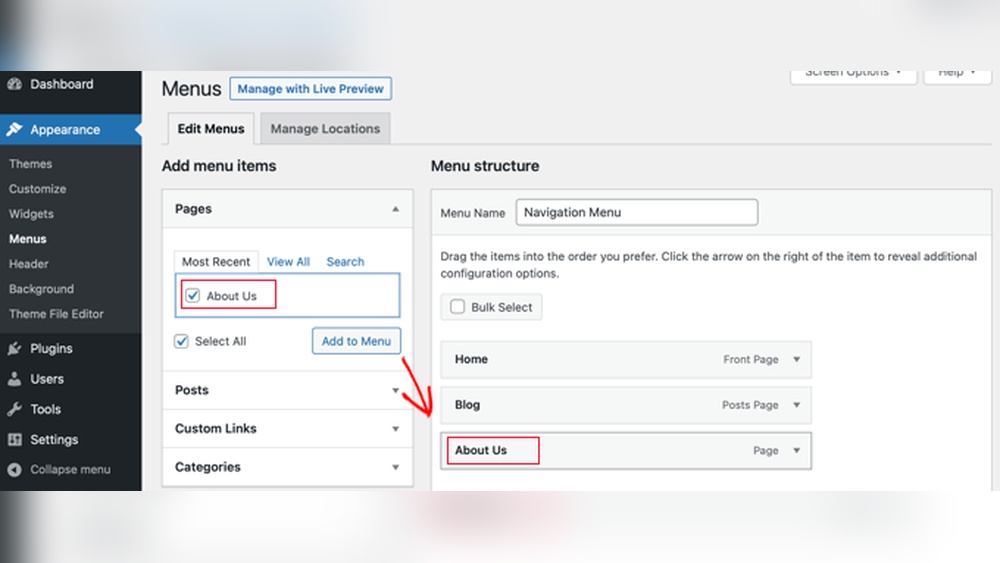
Credit: www.authormedia.com
Adding Links In WordPress Editor
Adding links to your WordPress content helps guide visitors to useful pages. Links improve navigation and keep readers engaged longer. WordPress offers simple ways to insert links using its editor tools. Understanding how to add links in the WordPress editor makes your posts more interactive and informative.
Using The Block Editor
The Block Editor, also called Gutenberg, uses blocks for content. To add a link, select the text you want to link. A small toolbar will appear above the text. Click the link icon that looks like a chain. Enter the URL in the box that appears. You can also search for existing pages on your site. Press Enter or click the Apply button to confirm. The text now links to the URL you chose. You can edit or remove links anytime by clicking the linked text and using the toolbar.
Using The Classic Editor
The Classic Editor works like a simple word processor. Highlight the text for your link first. Click the link button in the toolbar, which looks like a chain. A popup will open where you can paste the URL. You can also choose to open the link in a new tab by checking a box. Click the Add Link button to save the link. Your highlighted text now links to the chosen URL. To change or remove the link, click the linked text and use the toolbar options.
Linking To Internal Pages
Linking to internal pages helps visitors explore your website easily. It keeps readers engaged and improves SEO by connecting related content. WordPress makes this process simple and quick.
Selecting Pages And Posts
Start by highlighting the text you want to link. Click the link icon in the editor toolbar. A list of your pages and posts will appear. Choose the page or post that fits best. This method ensures your link leads to relevant content.
Using The Search Feature
Type a keyword in the search box to find specific pages or posts. This saves time when your site has many entries. Select the correct page from the search results. Confirm the link by clicking the apply button. This tool helps link precisely without scrolling.
Adding External Links
Adding external links in WordPress helps your readers find more information. It also improves your site’s credibility. External links connect your content to other useful websites. This can keep visitors engaged longer. It is simple to add these links using the WordPress editor.
Entering Urls Manually
Select the text you want to link. Click the link icon in the toolbar. A small box will appear. Type or paste the full URL of the website. Make sure to include “http://” or “https://”. Press Enter or click the Apply button. The text now links to the external site.
Double-check the URL for any typos. Wrong links lead to errors and poor user experience. Keep the link relevant to the content. This helps your readers trust your site.
Setting Links To Open In New Tabs
Opening external links in new tabs keeps visitors on your site. After entering the URL, click the link options icon (gear symbol). Find the checkbox labeled “Open link in new tab.” Check this box before applying the link. Now, clicking the link opens a new browser tab. Your site stays open in the original tab.
This method helps reduce bounce rates. Visitors can explore other sites without leaving yours. It also improves navigation and user control.

Credit: www.greengeeks.com
Customizing Link Appearance
Customizing the look of your links helps your website appear polished and professional. It improves user experience by making links clear and attractive. Simple changes to link text and styles can make a big difference. WordPress offers easy ways to adjust these elements without complex coding.
Changing Link Text
Start by editing the link text to match your message. Clear and precise text tells visitors what to expect. Avoid vague phrases like “click here.” Instead, use descriptive words that fit the content. To change the text, highlight the linked words and type the new text. This small change boosts SEO by using keywords naturally.
Applying Link Styles
Adjust the style of your links to match your site design. WordPress lets you change color, size, and underline options. Choose colors that stand out but still fit your theme. Use the block editor’s style settings or add custom CSS for more control. Well-styled links catch attention and improve navigation. Keep styles consistent for a neat, unified look.
Managing Links With Plugins
Managing links on WordPress can be simple with the right tools. Plugins help control and organize links effectively. They save time and reduce errors. Plugins offer options beyond WordPress’s default features. They can track clicks, shorten URLs, and group links.
Popular Link Management Plugins
Several plugins stand out for link management. Pretty Links helps create clean, simple URLs. It also tracks link clicks easily. ThirstyAffiliates is great for affiliate marketers. It manages affiliate links and cloaks URLs. Broken Link Checker scans your site for dead links. It notifies you to fix or remove them.
Benefits Of Using Plugins
Plugins improve link organization and control. They make links easier to manage in one place. Tracking link performance helps understand visitor behavior. Plugins help keep your site SEO-friendly by fixing broken links. They reduce manual work and save time. Using plugins ensures links stay updated and reliable.
Common Link Issues And Fixes
Links are vital for websites but can cause issues if not handled correctly. Common link problems affect user experience and search engine rankings. Fixing these issues improves site performance and trust.
Broken Links
Broken links lead visitors to error pages. They occur when the linked page is deleted or moved. Regularly check your links using tools or plugins. Update or remove broken links promptly. This keeps your site reliable and visitors happy.
No Follow Vs Do Follow Links
No follow links tell search engines not to pass ranking power. Use no follow for paid or untrusted links. Do follow links pass ranking credit to the linked site. Choose the right type based on your SEO goals. This helps control your website’s link value and trust.
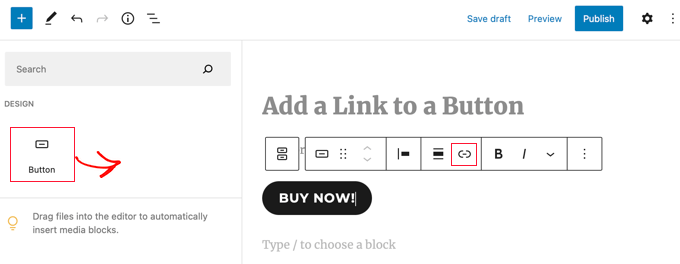
Credit: www.wpbeginner.com
Frequently Asked Questions
How Do I Add A Hyperlink In WordPress Editor?
To add a hyperlink, highlight your text, then click the link icon in the toolbar. Paste the URL and hit Enter or Apply. The text becomes clickable, directing visitors to the linked page.
Can I Add Hyperlinks To Images In WordPress?
Yes, select the image in the editor, click the link icon, and insert the URL. This makes the image a clickable link, guiding users to the specified page.
How To Edit Or Remove An Existing Hyperlink In WordPress?
Click on the linked text, then click the pencil icon to edit the URL. To remove, click the unlink icon. Changes save instantly, updating the link or removing it.
Are There Keyboard Shortcuts For Adding Hyperlinks In WordPress?
Yes, use Ctrl+K (Cmd+K on Mac) after selecting text to open the link box. Paste the URL and press Enter to add the hyperlink quickly.
Conclusion
Adding hyperlinks on WordPress is simple and useful. It helps readers find related information easily. Just follow the steps to create links quickly. Practice a few times to feel confident. Links make your content more interactive and helpful. Keep your links relevant and clear for best results.
Now, you can add links without any trouble. Try it on your next post and see the difference.



