

Are you looking to add an HTML page to your WordPress site but don’t know where to start? You’re not alone.
Adding a custom HTML page can give your website a unique look and extra functionality that standard WordPress pages might not offer. In this guide, you’ll discover simple, step-by-step instructions to get your HTML page up and running quickly. By the end, you’ll have the confidence to enhance your site exactly the way you want.
Ready to make your WordPress site truly yours? Let’s dive in!
Why Add Html Pages To WordPress
Adding HTML pages to WordPress offers more control over website design. It lets you create custom pages outside the WordPress editor. You can tailor these pages exactly as you want. This flexibility is useful for special layouts or unique content.
HTML pages can improve site performance. Plain HTML loads faster than complex WordPress pages. This speed helps keep visitors engaged and lowers bounce rates. It also benefits SEO by making your site quicker to load.
Using HTML pages allows integration of external tools easily. Some scripts or widgets work best on standalone HTML pages. This method avoids conflicts with WordPress plugins or themes. It keeps your site clean and organized.
Custom Design Freedom
HTML pages give full control over design elements. You can code styles and layouts without WordPress limits. This freedom helps create unique user experiences.
Faster Page Loading
HTML pages contain only necessary code. This makes them lighter and faster to load. Visitors spend more time on quick-loading sites.
Better Compatibility With External Scripts
Some scripts need plain HTML to work properly. Standalone HTML pages host these scripts without issues. This avoids plugin conflicts inside WordPress.
Easy Backup And Portability
HTML files are simple to back up and move. You can transfer them between servers quickly. This ease helps in site maintenance and migration.

Credit: www.interserver.net
Preparing Your Html Files
Before adding an HTML page to WordPress, prepare your HTML files carefully. This step makes the process smooth and error-free. Well-prepared files fit better into WordPress.
Organize your files clearly. Check all parts of your HTML page. Ensure everything works properly outside WordPress first.
Organize Your Html Content
Keep your HTML files neat and structured. Use folders to separate images, scripts, and styles. Name files clearly. This helps you find and manage files easily later.
Clean your code. Remove extra spaces and unused tags. Simple HTML is easier to upload and maintain. A tidy file loads faster and works better.
Check For Dependencies
Look for external resources your HTML page needs. Stylesheets, JavaScript files, and fonts must be included. Missing files cause broken pages.
Make sure all URLs are correct. Use relative paths for local files. Absolute URLs may not work after uploading.
Test your page in a browser. Confirm images and scripts load correctly. Fix any errors before moving to WordPress.
Methods To Add Html Pages
Adding an HTML page to your WordPress site can enhance its functionality. Several methods exist to do this. Each method suits different skill levels and needs. Choose the best one for you.
Using File Manager Or Ftp
One way to add an HTML page is by using the File Manager in your hosting control panel. Upload the HTML file directly to your website’s root folder or a subfolder. This method gives you full control over your files.
Alternatively, use an FTP client like FileZilla. Connect to your server and upload the HTML file to the desired directory. This method is reliable and fast for managing files.
After uploading, access the page by typing the file URL in your browser. For example, www.yoursite.com/yourfile.html.
Using WordPress Plugins
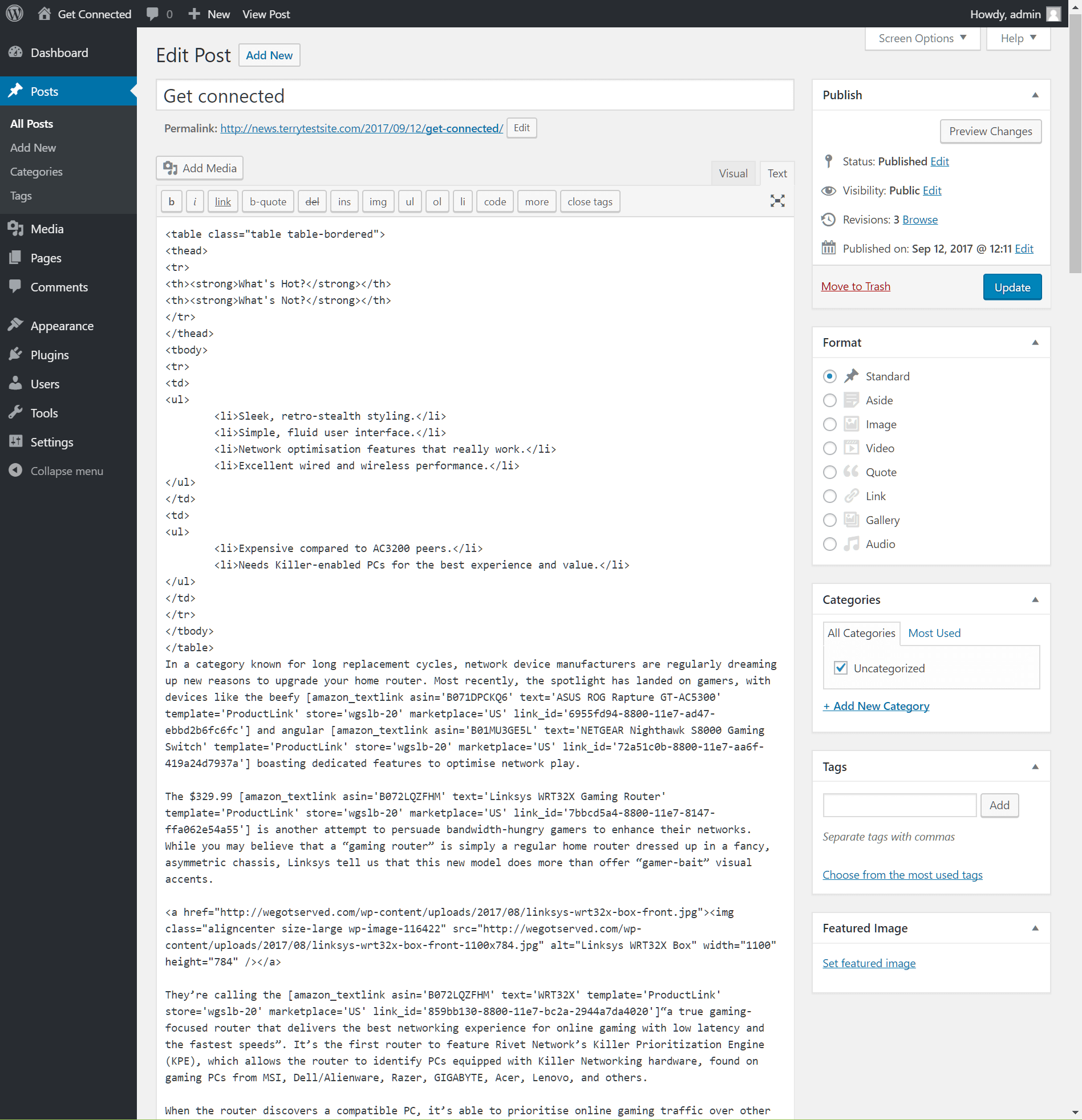
Some plugins let you add custom HTML pages inside WordPress. These plugins create new pages without using FTP or File Manager. It is easier for beginners.
Plugins like “Insert HTML Snippet” or “WP Add Custom HTML” help you insert HTML code directly. You can manage the pages from your WordPress dashboard.
This method keeps your site organized and avoids direct file handling. It also works well with themes and other plugins.
Credit: www.hostpapa.com
Uploading Html Via Ftp
Uploading HTML pages via FTP is a direct way to add custom pages to your WordPress site. FTP allows you to transfer files from your computer to your web server. This method is useful for adding static HTML files that do not need WordPress themes or plugins.
Using FTP requires a bit of setup but is straightforward. You will need an FTP client and access credentials for your web hosting server. After connecting, you can upload your HTML files to the correct folder.
Accessing Your Server
First, download and install an FTP client like FileZilla or Cyberduck. Open the FTP client and enter your server details. These include the hostname, username, and password provided by your web host.
Once connected, you will see your server files listed. This interface lets you browse and manage your website files directly. Keep your login details safe and private.
Uploading Files To The Right Directory
Find the directory where WordPress stores its files. Usually, this is the “public_html” or “www” folder. Upload your HTML files inside this folder or a subfolder you create.
Make sure to name your files properly, like “about.html” or “contact.html.” After uploading, you can visit your new HTML page by typing its URL in the browser.
Embedding Html In WordPress Pages
Embedding HTML in WordPress pages allows you to add custom content easily. It helps you control the page layout and design beyond the default editor. You can use HTML to include special features or style elements that are not available in standard blocks.
This section explains two simple methods to embed HTML in WordPress pages. Both methods require no advanced coding skills and fit well with most WordPress themes.
Using Custom Page Templates
Custom page templates let you create unique page designs using HTML and PHP. You start by creating a new template file in your theme folder. Write your HTML code inside this file to structure the page content.
After saving the template, upload it to your theme directory via FTP or file manager. In WordPress, open the page editor and select your new template from the page attributes box. Publish the page to see your HTML layout live.
This method is great for pages needing a distinct design or special HTML elements.
Using The Html Block In Gutenberg Editor
The Gutenberg editor includes an HTML block for adding raw HTML directly into pages. Open the page editor and click the plus icon to add a block. Search for “Custom HTML” and select it.
Paste or type your HTML code into this block. You can preview the output instantly within the editor. This method works well for small sections of custom HTML inside your content.
The HTML block is easy to use and does not require file access or theme changes.
Credit: www.inmotionhosting.com
Linking Your Html Pages In WordPress
Linking your HTML pages in WordPress helps visitors navigate your site easily. It connects your custom pages with the rest of your content. This way, users find the information they want without hassle. Proper links also improve your site’s SEO and user experience.
Adding Menu Items
Start by opening your WordPress dashboard. Go to Appearance > Menus. Choose the menu where you want to add your HTML page link. Use the “Custom Links” option to add your page URL. Enter the URL of your HTML page and a clear label. Click “Add to Menu” and then “Save Menu”. Your HTML page now appears in the menu.
Creating Internal Links
Internal links help users jump between pages easily. Edit a post or page where you want to add the link. Highlight the text to turn into a link. Click the link icon in the editor toolbar. Paste your HTML page URL in the box. Click “Apply” or press Enter. The link is now active and clickable.
Troubleshooting Common Issues
Adding an HTML page to WordPress can sometimes lead to common issues. These problems can stop your page from working well or looking right. Troubleshooting helps fix these issues quickly. Understanding these problems saves time and stress.
Fixing Broken Links
Broken links make your page look unprofessional. They confuse visitors and harm your site’s SEO. Check all links carefully after adding your HTML page. Use tools or plugins to find broken links fast. Update URLs if your links point to moved or deleted pages. Always use full URLs or correct relative paths in your HTML code.
Handling Css And Javascript Conflicts
CSS and JavaScript from your HTML page can clash with WordPress themes or plugins. This can break the page layout or stop scripts from running. Use unique class or ID names in your HTML and CSS. Avoid using global styles that affect the whole site. Load JavaScript files only on your HTML page, not site-wide. Test your page in different browsers to spot conflicts early.
Best Practices For Html Integration
Integrating an HTML page into WordPress requires careful attention. Best practices improve site performance and user experience. Proper integration ensures your page looks great and works well on all devices. It also helps search engines understand your content better.
Ensuring Responsive Design
Responsive design makes your HTML page fit all screen sizes. Use flexible grids and images that adjust automatically. Test your page on phones, tablets, and desktops. Avoid fixed widths in your HTML and CSS code. This approach keeps your page usable and readable everywhere.
Optimizing For Seo
SEO helps your page rank higher in search results. Use proper HTML tags like
Frequently Asked Questions
How Do I Create An Html Page In WordPress?
To create an HTML page, go to WordPress dashboard, select Pages > Add New. Use the Custom HTML block to insert your HTML code. Publish the page once done.
Can I Add Raw Html Code Directly To WordPress Pages?
Yes, WordPress allows adding raw HTML using the Custom HTML block in the block editor. This helps customize page content easily.
How To Link An Html Page To WordPress Menu?
After creating your HTML page, go to Appearance > Menus. Add the new page to the menu and save changes to display it on your site.
Is It Possible To Edit Html Pages After Publishing?
Yes, you can edit the HTML content anytime by navigating to Pages, selecting the page, and updating the HTML code in the Custom HTML block.
Conclusion
Adding an HTML page to WordPress is simple and quick. Just follow the steps carefully. You can create custom content easily this way. This method helps keep your site organized and flexible. No need for complex tools or coding skills.
Practice a few times to get comfortable. Your website will look professional and unique. Keep exploring new ways to improve your site. You now have the basics to add HTML pages confidently.



