
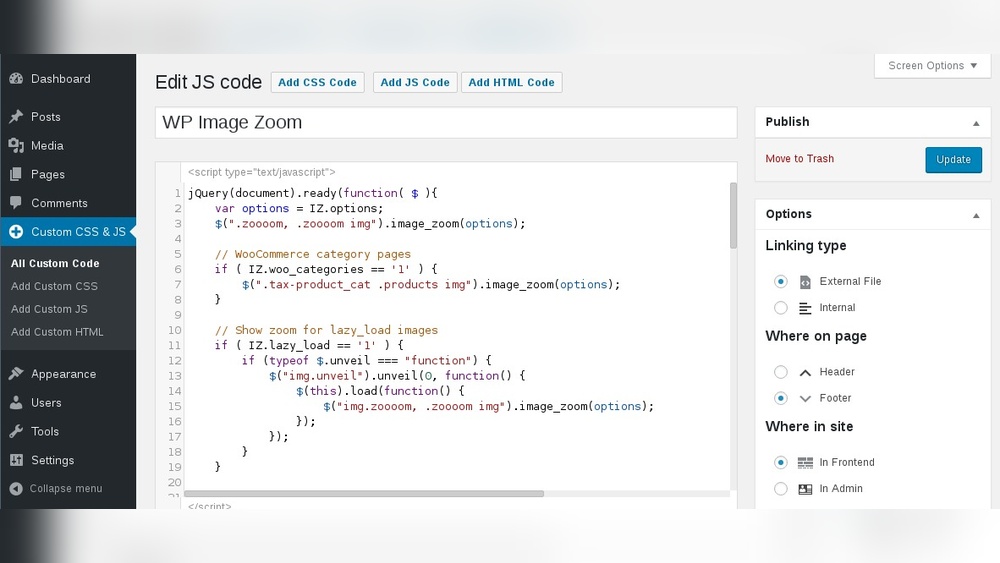
Are you looking to make your WordPress site truly your own? Adding custom HTML, CSS, and JavaScript can transform your website from ordinary to outstanding.
But maybe you’re not sure where to start or worried it might be too complicated. Don’t worry—you’re in the right place. This guide will show you simple, step-by-step ways to add your own code to WordPress. By the end, you’ll have the confidence to customize your site exactly how you want.
Ready to unlock your site’s full potential? Let’s dive in.
Prepare Your WordPress Site
Preparing your WordPress site is the first step before adding HTML, CSS, and JavaScript. A well-prepared site helps you avoid errors and makes customization easier. Follow these steps to set a solid foundation for your code.
Choose The Right Theme
Select a theme that supports custom code. Some themes offer built-in options to add HTML, CSS, and JavaScript. Pick a lightweight and flexible theme for better performance. A good theme makes your site faster and easier to manage.
Set Up A Child Theme
Create a child theme to protect your changes. It keeps your custom code safe during theme updates. Without a child theme, updates might erase your edits. Setting it up is simple and keeps your site stable.
Backup Your Site
Always backup your site before making changes. Backups save your content and design in case something goes wrong. Use plugins or your hosting service for easy backups. This step prevents data loss and saves time.
Credit: www.youtube.com
Add Html To WordPress
Adding HTML to WordPress allows you to customize your site beyond standard blocks. You can create unique layouts and add special features. This gives you full control over how your content looks and works. There are simple ways to add HTML without touching code files.
Use The Block Editor
The WordPress Block Editor lets you add HTML directly inside your posts or pages. Select the Custom HTML block from the block menu. Paste or write your HTML code there. You can see a live preview to check how it looks. This method is quick and does not require extra plugins.
Insert Html In Widgets
Widgets appear in sidebars, footers, or other widget areas. You can add HTML code inside a Custom HTML widget. Go to Appearance > Widgets in your dashboard. Drag a Custom HTML widget to your desired area. Paste your HTML code and save it. This method adds HTML to your site’s layout outside the main content.
Embed Html In Templates
For more advanced users, editing theme templates is an option. Access your theme files via the Theme Editor or FTP. Insert your HTML code directly into PHP template files. This method changes the site structure or design permanently. Always back up your site before making template changes.
Add Css To WordPress
Adding CSS to WordPress helps you change how your website looks. It lets you control colors, fonts, spacing, and much more. You can make your site unique and match your style easily. There are several ways to add CSS to WordPress. Each method fits different needs and skill levels.
Customize With The Customizer
The WordPress Customizer lets you add CSS without coding files. Go to Appearance > Customize in your dashboard. Find the “Additional CSS” section. Paste your CSS code there. See changes live before saving. This method is safe and simple. It works well for small style tweaks.
Add Css In Child Theme Stylesheet
Using a child theme is best for big style changes. Create a child theme folder and add a style.css file. Write your CSS in this file. This way, updates to the main theme do not erase your changes. It needs some basic knowledge of files and FTP. This method keeps your custom styles organized and safe.
Use Plugins For Css
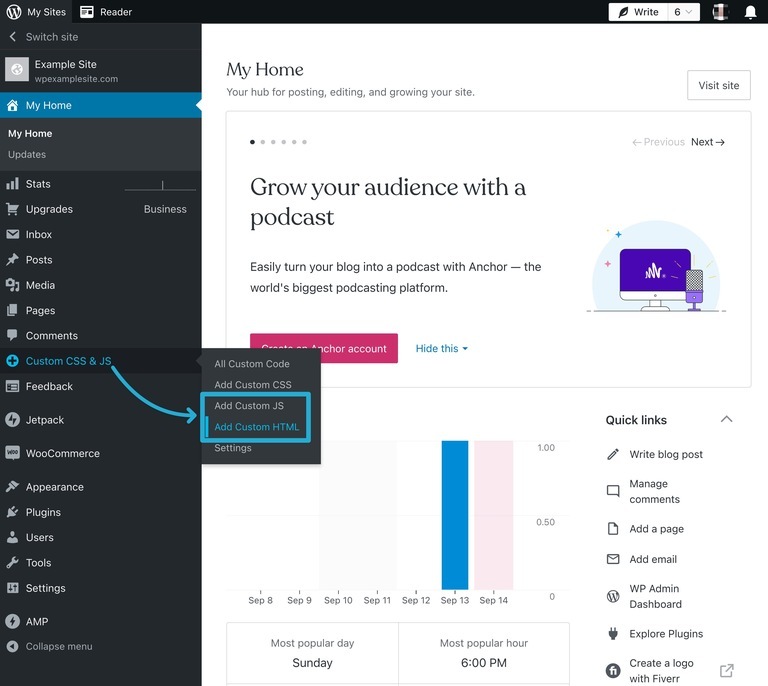
Plugins can help add CSS easily. Search for CSS plugins in the WordPress plugin library. Install and activate one. These plugins offer an editor for your CSS code. Some allow you to add CSS to specific pages or devices. This method is good if you want more control without editing theme files.
Credit: wordpress.com
Add Javascript To WordPress
Adding JavaScript to WordPress can improve your site’s interactivity. JavaScript makes pages dynamic and responsive. It lets you create animations, form validations, and more. Knowing how to add JavaScript helps you customize your site easily.
Enqueue Scripts Properly
Use the WordPress wp_enqueue_script function to add JavaScript. This method loads scripts safely and avoids conflicts. Add your script in the theme’s functions.php file. Use a unique handle for each script. Specify the script’s URL, dependencies, and version. Call the function inside an action hook like wp_enqueue_scripts.
Add Javascript In Theme Files
You can add JavaScript directly in theme files like header.php or footer.php. Place scripts inside tags. Adding scripts in the footer improves page load speed. Use this method for small scripts or quick tests. Avoid placing too much code here to keep the site clean.
Use Plugins To Insert Javascript
Plugins can help add JavaScript without coding. Many plugins let you insert scripts in headers, footers, or specific pages. This method is easy for beginners. It keeps your custom code separate from theme files. Choose a trusted plugin with good reviews. Always test your site after adding new scripts.
Test Your Code
Testing your HTML, CSS, and JavaScript code in WordPress is important. It helps catch mistakes early and ensures your site works well. Proper testing improves user experience and keeps your site running smoothly. Follow these steps to test your code effectively.
Check For Errors
Start by looking for syntax errors in your code. Even small mistakes can break your site layout or functions. Use online validators for HTML and CSS to find errors fast. For JavaScript, run your code through a linter tool. Fix any warnings or errors before moving on.
Use Browser Developer Tools
Browser developer tools help you test code live on your site. Open them with right-click and select “Inspect” or press F12. Check the Console tab for JavaScript errors. Use the Elements tab to see how HTML and CSS apply. Edit styles and scripts directly to test changes instantly.
Optimize For Performance
Fast loading sites keep visitors happy. Minimize your CSS and JavaScript files to reduce size. Avoid large images or heavy scripts that slow down your page. Test your site speed using tools like Google PageSpeed Insights. Make small improvements to boost loading times and overall performance.
Best Practices And Tips
Adding HTML, CSS, and JavaScript to WordPress improves your site’s look and function. Doing it right keeps your site fast and safe. Follow best practices to avoid errors and keep your code clean.
Keep Code Organized
Organize your code into clear sections. Use separate files for HTML, CSS, and JavaScript. This makes it easier to find and fix problems. Comment your code so you remember what each part does. Clean code saves time and avoids confusion later.
Avoid Conflicts
WordPress uses many scripts and styles. Your code can clash with them and cause errors. Use unique names for your CSS classes and JavaScript functions. Load scripts properly using WordPress functions like wp_enqueue_script. This prevents conflicts and keeps your site stable.
Regularly Update Your Site
Keep your WordPress, themes, and plugins updated. Updates fix bugs and security issues. Check your custom code after updates to ensure it works. Regular updates protect your site and improve performance. Don’t let outdated code slow you down.

Credit: wordpress.com
Frequently Asked Questions
How Do I Add Html Code To WordPress Posts?
To add HTML in WordPress posts, switch to the “Text” or “Code” editor. Paste your HTML code directly where needed. This method ensures your custom HTML displays correctly without interference from the visual editor.
Can I Use Css In WordPress Without Plugins?
Yes, you can add CSS via the WordPress Customizer under “Additional CSS. ” This lets you apply custom styles site-wide safely and instantly without using plugins or editing theme files.
What Is The Best Way To Include Javascript In WordPress?
The best way is to enqueue JavaScript files in your theme’s functions. php file using wp_enqueue_script(). This method ensures proper loading and avoids conflicts with other scripts.
Is It Safe To Add Custom Code To WordPress?
Yes, if done carefully. Always backup before editing files. Use child themes or Customizer for safer code management to prevent breaking your site during updates.
Conclusion
Adding HTML, CSS, and JavaScript to WordPress is simple and useful. You can change your site’s look and add new features. Use the right tools and follow safe steps. Test your code to avoid errors or slow loading. Keep learning and practicing to improve your skills.
Your website can become more personal and functional this way. Start small, then build up. Enjoy creating a site that fits your needs perfectly.


