
Are you looking to customize your WordPress site beyond the usual options? Adding HTML code can give you the power to make your site truly unique.
But if you’re not sure where to start, it might feel a bit overwhelming. Don’t worry—this guide will walk you through simple steps to add HTML code to your WordPress pages and posts. By the end, you’ll have the confidence to enhance your site exactly how you want.
Ready to unlock new possibilities for your website? Let’s dive in!
Credit: www.inmotionhosting.com
Why Add Html To WordPress
Adding HTML to WordPress gives you more control over your website. It lets you customize content beyond the default options. You can create unique designs and features. This helps your site stand out and work better for your needs.
Benefits Of Custom Html
Custom HTML lets you change layouts easily. You can add special elements like buttons, tables, or forms. It improves site functionality without extra plugins. You can fix small issues quickly. Custom code helps your site load faster and look cleaner. It also helps with SEO by structuring content clearly.
Common Use Cases
Many use HTML to embed videos or maps. Others add custom styles to text or images. You can insert contact forms or signup boxes. HTML is handy for adding tracking codes or scripts. It also helps create unique menus or galleries. These uses improve user experience and site interaction.
Preparing Your Html Code
Preparing your HTML code is an important step before adding it to WordPress. It helps ensure the code works well and looks right on your site. Clean, compatible code avoids errors and improves site performance.
Taking time to prepare your HTML makes the process smoother. It also helps keep your site safe and running fast. Let’s explore how to check and clean your code properly.
Checking Code Compatibility
Check if your HTML code matches WordPress standards. Avoid using outdated or unsupported tags. Use only tags allowed in WordPress posts and pages.
Test your code in a simple HTML file before adding it. Look for broken tags or missing elements. Valid code reduces display issues on your site.
Cleaning Up The Code
Remove extra spaces, comments, or unused code. Clean code loads faster and is easier to manage. Use an HTML validator tool to find errors.
Keep your code simple and clear. Avoid inline styles or scripts that WordPress might block. Clean code helps your page load smoothly and look neat.
Adding Html In The Block Editor
Adding HTML in the Block Editor lets you control your content’s structure. It gives you freedom to customize your pages. The Block Editor makes inserting HTML simple and clear. You can add code without needing extra plugins or tools. This method works well for small codes or custom elements.
Using The Custom Html Block
Start by opening your page or post in the Block Editor. Click the plus (+) icon to add a new block. Search for “Custom HTML” in the block list. Select the Custom HTML block to insert it into your content.
Paste or type your HTML code inside this block. The editor keeps your code safe and separate from other content. It does not change your tags or attributes. This block is perfect for adding buttons, forms, or special layouts.
Previewing Your Code
After adding your HTML, check how it looks on your page. The Custom HTML block has a “Preview” button at the top right. Click it to see your code as it will appear live. This helps catch any errors or display problems early.
Switch back to the “Edit” view to fix or change your code. Previewing saves time by showing your changes instantly. Use it often while working on your HTML content.
Credit: kinsta.com
Using The Classic Editor For Html
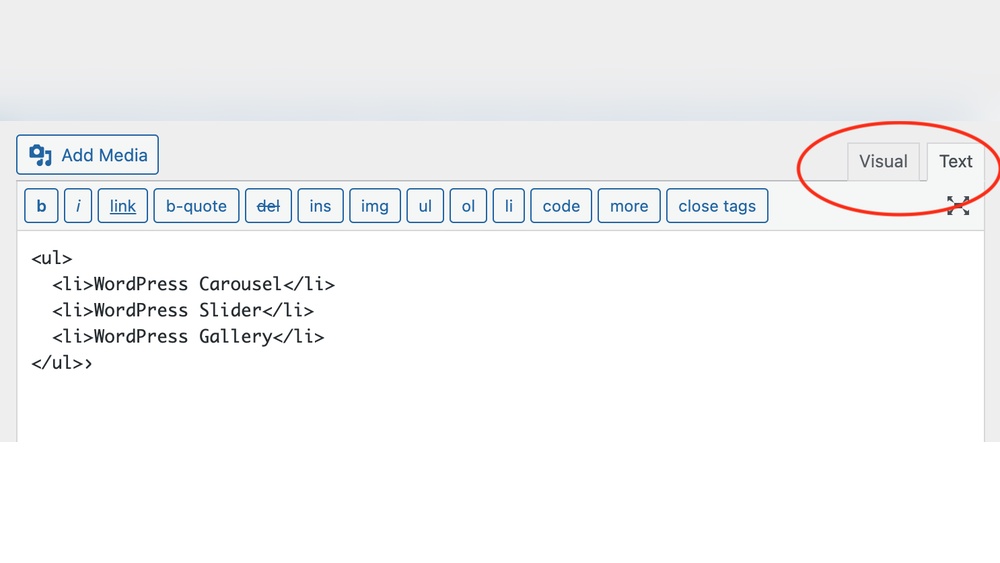
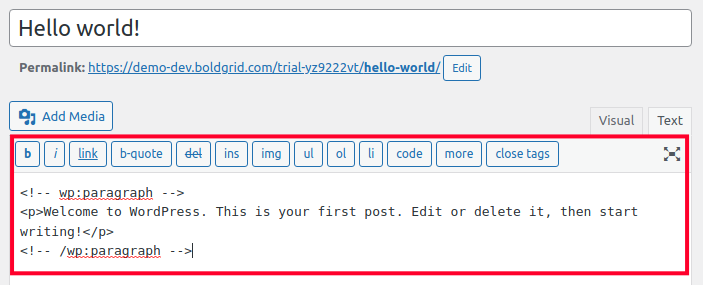
The Classic Editor in WordPress offers a simple way to add HTML code. It lets you switch between a visual view and a text view. The text view is where you can write or paste your HTML code directly. This method is ideal for small code snippets or when you need precise control.
Working with the Classic Editor is easy. It gives you a clear place to enter your HTML. You do not need to install extra plugins or tools. Just open the editor and start coding in text mode.
Switching To Text Mode
Open the Classic Editor for your post or page. Look for two tabs at the top right of the editor box. One says “Visual” and the other says “Text.” Click on the “Text” tab. This changes the editor to show the HTML code. You can now write or paste HTML directly. Switching back to Visual will show how the code looks on the page.
Inserting Html Snippets
In the Text mode, place your cursor where you want the code. Type or paste your HTML snippet at this spot. Make sure your code is clean and correct. Avoid breaking existing tags in the editor. After adding the code, switch back to Visual mode to check your work. Save or update the post to publish your HTML changes.
Embedding Html In Widgets
Embedding HTML in widgets lets you add custom code to your WordPress sidebar, footer, or other widget areas. This feature helps you display special content or features without changing theme files. You can include things like custom buttons, scripts, or simple HTML layouts. It’s a great way to personalize your site and improve user experience.
Accessing The Widget Area
First, log into your WordPress dashboard. Look for the “Appearance” menu on the left side. Click on “Widgets” to open the widget management area. Here you see all available widget areas for your theme. These areas might include sidebars, footers, or header sections. Select the area where you want to add your HTML code. It is easy to drag and drop widgets into these sections.
Adding Custom Html Widgets
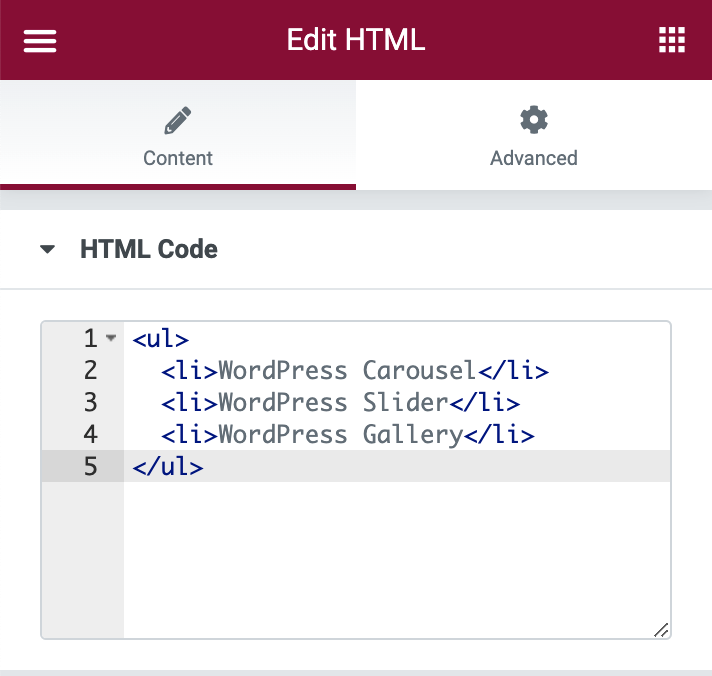
Inside the widget area, find the “Custom HTML” widget. Drag it to your chosen widget section. Click on the widget to open a box where you can write or paste your HTML code. Add your code carefully. Use simple tags like
Credit: www.wonderplugin.com
Editing Theme Files For Advanced Html
Editing theme files allows you to add advanced HTML directly into your WordPress site. This method gives more control over design and layout. You can change headers, footers, or other parts of your theme. This is useful for adding custom features or styles not available in the editor. Be careful, though. Mistakes can break your site.
Before you start editing, understand the risks. Theme files are the backbone of your site’s appearance. Small errors can cause big problems. Always prepare before making changes. Follow safe steps to protect your site and data.
Using The Theme Editor Safely
Access the theme editor from the WordPress dashboard under Appearance > Theme Editor. Only edit files you know well. Avoid changing code randomly. Always check what each file does before editing. Use simple code snippets to reduce errors.
Work on a staging site first if possible. This is a copy of your live site where you can test safely. Do not edit the live site directly. Save your work often and review the changes.
Backing Up Before Changes
Backing up your site is essential before editing theme files. Create a full backup of your WordPress files and database. Use a plugin or your web host’s backup tool. Store the backup in a safe place.
Backups let you restore your site if something goes wrong. Always back up before making any code changes. This step protects your site from data loss and downtime.
Common Issues And Fixes
Adding HTML code to WordPress can sometimes cause problems. These issues often confuse new users. Knowing common problems helps fix them fast. This saves time and improves your site’s look.
Below are frequent issues and easy fixes to try. These tips help your HTML work well on WordPress.
Html Not Displaying Correctly
Your HTML might not show as expected. Sometimes WordPress changes or removes code. This happens because of security settings or editor limits.
Use the “Custom HTML” block in the WordPress editor. It keeps your code safe and unchanged. Avoid using the Visual editor for HTML input.
Check for missing tags or extra spaces. These small errors stop correct display. Clean your code before adding it to WordPress.
Fixing Broken Layouts
Broken layouts appear when HTML and CSS clash. WordPress themes may override your styles. This breaks your design.
Try adding inline CSS inside your HTML code. This keeps styles tied to your content. Another way is to use a child theme for custom CSS.
Clear browser cache after updates. Old files can show broken pages. Refreshing the cache helps load fresh code.
Tips For Maintaining Clean Code
Maintaining clean code is important for a smooth WordPress experience. Clean code helps your site load faster and reduces errors. It also makes your site easier to update and manage.
Follow simple tips to keep your HTML neat and organized. This practice improves your site’s performance and user experience. It also helps avoid problems with other site elements.
Avoiding Conflicts With Plugins
Plugins can sometimes interfere with your custom HTML. Conflicts cause layout issues or broken features. Use simple and clear code to reduce these risks. Test your HTML after adding new plugins. Remove any code that causes problems. Keep your plugins and WordPress updated for better compatibility.
Validating Your Html
Valid HTML follows web standards and works well across browsers. Use online tools to check your HTML for errors. Fix issues like missing tags or wrong attributes. Valid code improves your site’s SEO and accessibility. Regular validation keeps your site reliable and clean.
Frequently Asked Questions
How Do I Add Html Code In WordPress Posts?
To add HTML code in WordPress posts, use the block editor’s “Custom HTML” block. Paste your HTML code there. This method keeps your code intact and displays it correctly on your site.
Can I Insert Html Code In WordPress Widgets?
Yes, you can add HTML code to WordPress widgets via the “Custom HTML” widget. Go to Appearance > Widgets, add the widget, and paste your code. It’s perfect for custom content in sidebars or footers.
Is It Safe To Add Custom Html Code In WordPress?
Adding custom HTML is safe if your code is clean and secure. Avoid scripts from untrusted sources to prevent security risks. Always test your code on a staging site before going live.
How Do I Edit Html In WordPress Pages?
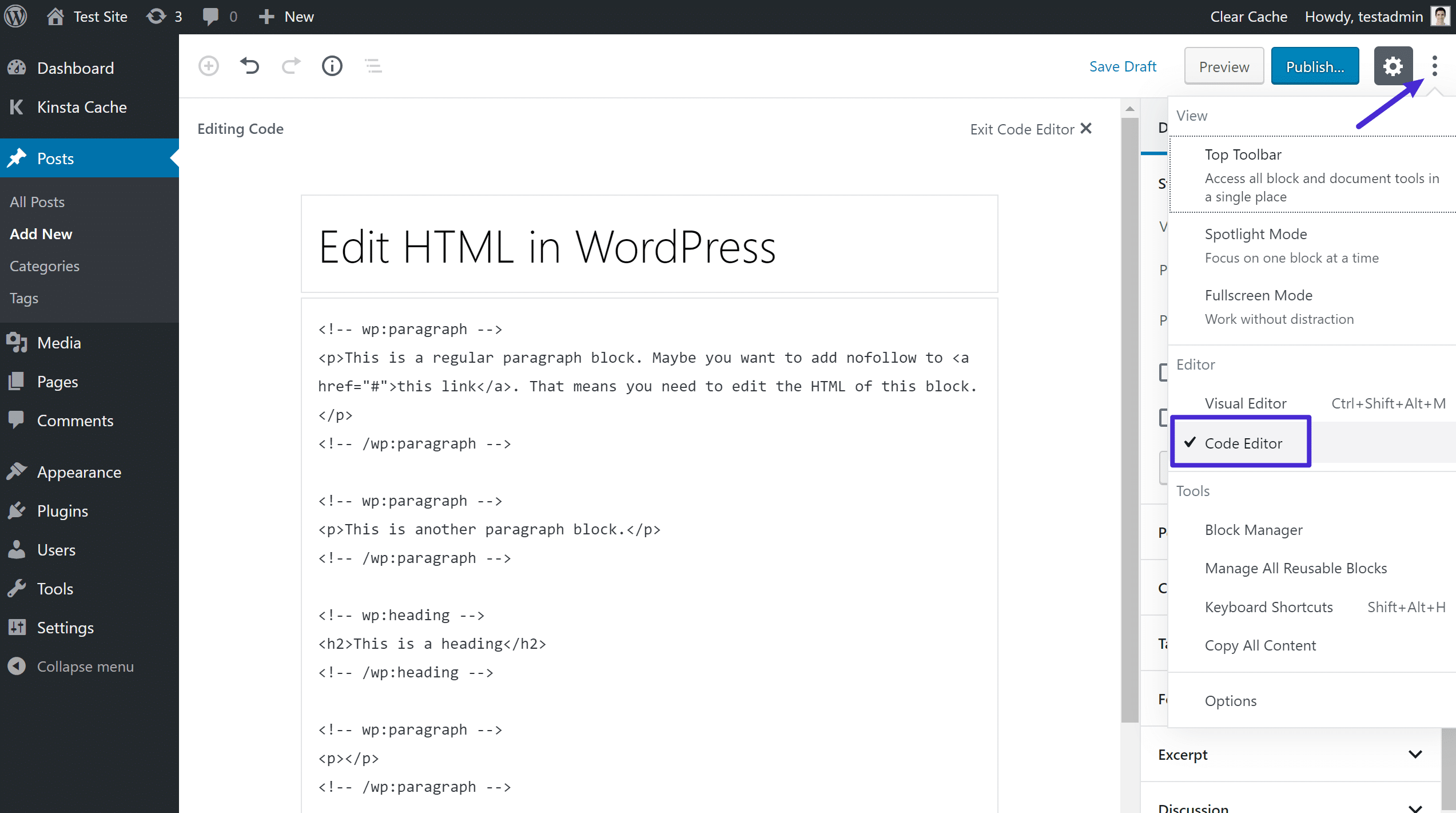
To edit HTML in WordPress pages, open the page editor and switch to the “Code Editor” mode. Here, you can directly modify the HTML for precise control over your content.
Conclusion
Adding HTML code to WordPress is simple and useful. You can change how your site looks and works. Just follow the steps carefully to avoid mistakes. Always check your code before saving it. Practice helps you get better and more confident.
Keep exploring new ways to make your site unique. This skill lets you control your website easily. Start small, then try bigger changes. Your site will grow with your skills. Keep learning and enjoy building your WordPress site.


