
Are you looking to make your WordPress site truly yours by adding custom HTML and CSS? Knowing how to do this can give you full control over your website’s look and feel, making it stand out from the crowd.
Whether you want to tweak a button, change a layout, or add new features, adding HTML and CSS is the key. In this guide, you’ll learn simple, step-by-step ways to add your own code without breaking your site. Stick with me, and you’ll soon have the skills to customize your WordPress like a pro.
Ready to unlock your website’s full potential? Let’s dive in!
Credit: kubiobuilder.com
Why Add Html And Css In WordPress
Adding HTML and CSS to WordPress lets you control your website’s look and feel. WordPress themes offer many options, but sometimes you need more. Custom HTML and CSS help you change small details or big parts of your site. This makes your site unique and personal.
Using HTML and CSS in WordPress also improves how your site works. You can fix layout issues, add new features, or make your site easier to use. These skills help you make your website better without relying on extra plugins or tools.
Why Customize Your WordPress Site With Html
HTML lets you add or change content structure. You can create custom sections like buttons, forms, or galleries. This gives your site new features that themes do not provide. It makes your pages clearer and more useful for visitors.
How Css Improves Your Site’s Appearance
CSS controls colors, fonts, and layout styles. You can change the look of your site quickly and easily. Custom CSS helps your site match your brand or personal style. It also helps your site look good on phones and tablets.
Better Site Performance And Speed
Adding your own HTML and CSS can reduce the need for heavy plugins. Fewer plugins mean faster loading times. Faster sites keep visitors happy and improve search engine ranking. Clean code also helps your site run smoothly.
Greater Flexibility And Control
Custom code gives you full control over your website. You decide exactly how every part looks and works. This freedom allows you to create a site that fits your needs perfectly. No limits from theme settings or plugin options.
Credit: www.youtube.com
Preparing Your WordPress Site
Before adding HTML and CSS to your WordPress site, prepare it properly. A well-prepared site makes customization easier and safer. Start by choosing a theme that fits your needs. Then, set up a child theme to protect your changes. These steps help keep your site stable and ready for custom code.
Choosing The Right Theme
Select a theme that supports customization. Pick one that is lightweight and fast. Themes with good reviews and regular updates work best. Avoid themes with too many built-in features. They can make your site slow or hard to edit. A simple theme lets you add your own HTML and CSS easily.
Installing A Child Theme
A child theme preserves your custom code during updates. Create a child theme based on your chosen theme. This keeps the parent theme files safe. Changes go into the child theme, so updates don’t overwrite them. Installing a child theme is easy and protects your work. It lets you add HTML and CSS without risk.
Adding Html In WordPress
Adding HTML in WordPress lets you control your site’s design and content. It helps you customize pages beyond the standard options. You can insert HTML code in different areas of your site. This section explains three simple ways to add HTML.
Each method suits different needs and skill levels. Choose the one that fits your task best.
Using The Block Editor
The WordPress Block Editor has a special block for HTML. It is called the “Custom HTML” block. You can add this block anywhere on a page or post. Paste your HTML code inside it. Then, preview the code to see how it looks.
This method keeps your HTML separate from other content. It is easy to edit and update later. No need to touch theme files or widgets here.
Inserting Html In Widgets
Widgets appear in sidebars, footers, and other areas. WordPress allows adding HTML inside widgets too. Go to Appearance > Widgets in your dashboard. Choose the “Custom HTML” widget and drag it to a widget area.
Paste your HTML code into the widget content box. Save the widget and check your site. This way is great for small HTML snippets like ads or contact info.
Editing Theme Files
For advanced users, editing theme files works well. Access your theme’s files via Appearance > Theme Editor. Find the file where you want to add HTML, like header.php or footer.php.
Add your HTML code directly in the file. Save changes and refresh your site to see updates. Use this method carefully. Incorrect edits can break your site.
Adding Css In WordPress
Adding CSS to your WordPress site changes how it looks. CSS controls colors, fonts, and layout styles. You can make your site unique and match your brand.
WordPress offers several ways to add CSS. Choose the best method for your skill level and needs. Each method lets you customize your website’s design easily.
Using The Customizer
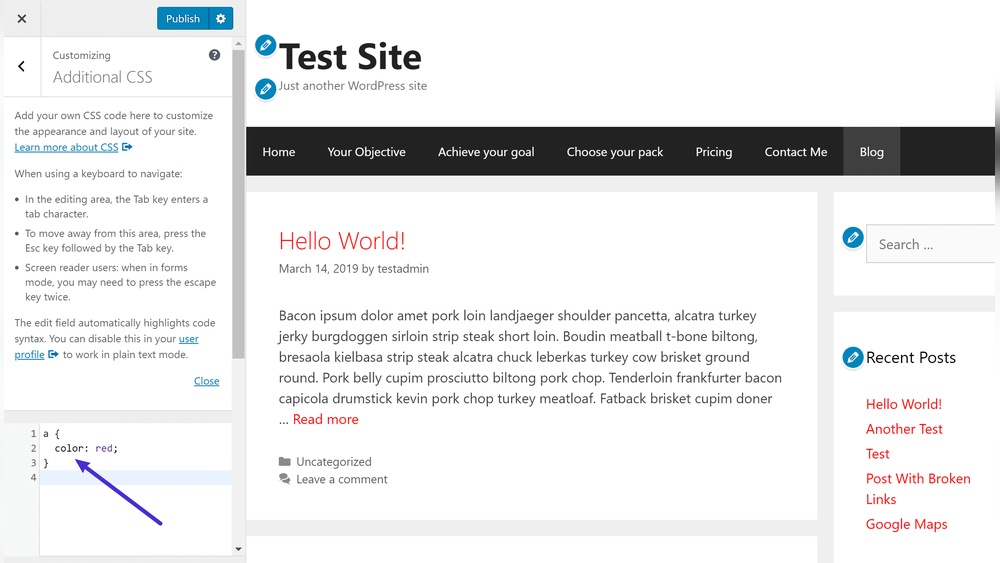
The WordPress Customizer lets you add CSS without touching files. Go to Appearance > Customize > Additional CSS. Paste your CSS code in the box. You will see the changes immediately. This method is safe and simple for beginners.
Adding Css Via Plugins
Plugins offer another way to add CSS. Install a CSS plugin like Simple Custom CSS or SiteOrigin CSS. These plugins provide a special area for your code. They keep CSS separate from your theme files. Useful for managing styles and updates safely.
Editing Stylesheet Files
You can edit your theme’s style.css file directly. Go to Appearance > Theme Editor > style.css. Add your CSS code at the bottom of this file. Be careful: wrong code can break your site’s design. Always back up before editing theme files.
Tips For Safe Customization
Customizing your WordPress site with HTML and CSS can improve its look and feel. It also lets you add unique features. Doing it safely is important to protect your site from errors or crashes. Follow simple safety tips to keep your site secure and stable.
Backing Up Your Site
Always create a backup before making changes. A backup saves your current site version. This helps you restore your site if something goes wrong. Use plugins or your web host’s backup tools. Keep backups regularly updated to avoid losing recent changes.
Using Staging Environments
Test your HTML and CSS changes in a staging environment first. This is a copy of your live site. It lets you try customizations without affecting visitors. Fix any problems in the staging site before applying changes live. Many hosts offer easy staging setup tools for WordPress.
Common Mistakes To Avoid
Adding HTML and CSS in WordPress can be tricky. Many users make simple mistakes that cause problems. Avoiding these errors saves time and keeps your site looking good.
Understanding common pitfalls helps you write clean code. It also makes your website faster and easier to manage.
Using Inline Styles Instead Of External Css
Inline styles mix design directly with content. This makes your site harder to update later. External CSS files keep style separate and cleaner.
Use the WordPress customizer or child theme to add CSS. Avoid placing style attributes inside HTML tags.
Adding Html In The Wrong Editor
WordPress has visual and text editors. The visual editor can change or remove code. Use the text editor for inserting HTML directly.
Switch to the code editor for better control. This prevents unwanted formatting changes.
Not Using A Child Theme For Custom Code
Editing theme files directly can cause problems. Updates overwrite your changes. Use a child theme to keep custom code safe.
Child themes let you add HTML and CSS without losing work.
Missing Closing Tags In Html
Forgetting to close tags breaks page layout. Browsers may display errors or strange designs. Always check your HTML for matching opening and closing tags.
Use online validators to catch mistakes before publishing.
Placing Css In The Wrong Location
Adding CSS in the content area confuses browsers. Styles should go in the customizer, child theme stylesheet, or a plugin. This keeps your site organized and fast.
Resources For Learning More
Learning how to add HTML and CSS in WordPress can be easier with the right resources. These tools help you understand coding better. They also guide you through each step clearly.
Many websites, videos, and books offer simple lessons for beginners. These resources make coding less confusing. You can practice and improve at your own pace.
Online Tutorials And Courses
Many websites offer free and paid tutorials. They cover basic to advanced HTML and CSS topics. Videos help you see how to write code live. Step-by-step guides make learning smooth.
Official Documentation
HTML and CSS have official documents online. These explain each tag and style clearly. They also show examples to try on your own. Using these helps you learn the correct way.
WordPress Forums And Communities
WordPress forums have active users ready to help. You can ask questions and share problems. Experienced coders often provide simple answers. Joining these groups speeds up learning.
Books For Beginners
Books explain HTML and CSS step-by-step. They use simple language and pictures. You can follow lessons without internet access. Many books come with exercises to practice.
Code Editors With Built-in Help
Some code editors show tips as you type. They highlight errors and suggest fixes. Using these tools reduces mistakes. This makes coding less stressful for beginners.

Credit: kinsta.com
Frequently Asked Questions
How Do I Add Html Code To A WordPress Post?
To add HTML, switch to the WordPress editor’s “Text” or “Code” view. Paste your HTML code directly where needed. This method keeps your design clean and functional.
Can I Insert Custom Css In WordPress Without Plugins?
Yes, use the WordPress Customizer under Appearance > Customize > Additional CSS. Add your CSS code here to style your site safely and efficiently.
Where Do I Place Html And Css Files In WordPress?
Upload CSS files via the theme’s style. css or use the Customizer. HTML can be added within posts, pages, or theme files via a child theme.
Is Editing Theme Files The Best Way To Add Html/css?
Editing theme files works but risks being overwritten during updates. Using a child theme or custom CSS in the Customizer is safer and update-proof.
Conclusion
Adding HTML and CSS to WordPress is simple and useful. You can change your site’s look and feel easily. Use the built-in editor or plugins to add code safely. Always check your changes on different devices. Small tweaks can make a big difference in design.
Keep practicing to become more confident. Your website will look better and work smoother. Start adding your own style today and enjoy the results.


