

Are you struggling to make your WordPress page look more professional and inviting? Adding a header can be the simple change that transforms your site’s appearance and grabs your visitors’ attention instantly.
If you want your page to stand out and communicate your message clearly, knowing how to add a header is essential. In this guide, you’ll discover easy steps to add a header to your WordPress page, even if you have no technical experience.
Keep reading, and by the end, you’ll have the skills to make your website look exactly the way you want.
Choosing The Right Header Style
Choosing the right header style is a key step in designing your WordPress page. The header is the first thing visitors see. It sets the tone for the whole site. Picking a style that fits your content helps visitors feel welcome. It also makes your site easier to use.
Think about the message you want to send. Your header should support that message clearly. The right style keeps your site tidy and professional. It guides visitors to important information quickly. Let’s explore some popular header types and how to pick one that suits your brand.
Exploring Header Types
Headers come in many styles. Each style serves a different purpose. A classic header shows the logo and navigation at the top. It stays visible as users scroll. This helps visitors move around easily.
A centered header puts the logo in the middle. It creates a balanced look. This style suits creative sites or portfolios. Some headers use large images or videos. These catch attention but can slow page loading.
Sticky headers remain on screen during scrolling. They keep navigation handy. Minimalist headers use small text and simple icons. This style works well for clean, modern sites. Choose a header type that fits your site’s goals and content.
Selecting A Header That Matches Your Brand
Your header should reflect your brand’s personality. Think about colors, fonts, and style. A playful brand might choose bright colors and bold fonts. A serious brand needs simple fonts and muted tones.
Use your logo colors in the header. Keep text easy to read. Make sure the header looks good on phones and tablets. Consistency builds trust with visitors. Match your header style to the feelings you want to create.
Remember, the header is part of your story. It should invite visitors to stay and explore. Choose a style that feels right for your brand identity.
Using WordPress Customizer For Headers
The WordPress Customizer is a simple tool for changing your site’s header. It shows a live preview of your edits. This way, you see how your header looks before saving. You can change many header parts like layout, colors, logo, and tagline. No coding skills needed. Just click and choose.
Accessing The Customizer
Go to your WordPress dashboard. Find the “Appearance” menu on the left. Click on “Customize.” The Customizer panel opens on the left side. The right side shows a live preview of your website. This is where you edit your header.
Editing Header Layout And Design
Inside the Customizer, find the “Header” or “Header Layout” section. Different themes have different names for this. Here, you can change how the header looks. Choose header styles or change the position of menu items. Adjust colors, background, and font styles. Each change updates the live preview immediately.
Adding Logo And Tagline
Still in the Customizer, look for “Site Identity” or similar. Upload your logo image using the “Select Logo” button. Resize or crop the logo if needed. Below, add or edit your site’s tagline. The tagline is a short description or slogan. It appears near the logo in the header. Save your changes once happy with the look.
Adding Headers With Page Builders
Adding headers to your WordPress page is easier with page builders. These tools let you design headers without coding. You can create unique and attractive headers that fit your site’s style. Many page builders offer drag and drop features and ready-made templates. This makes the process faster and simpler for everyone.
Overview Of Popular Page Builders
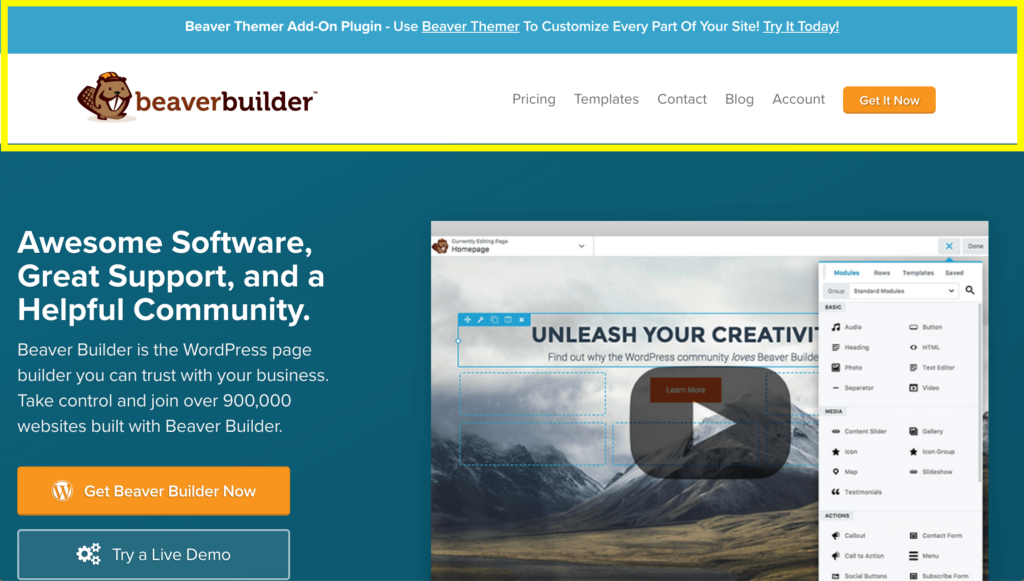
Page builders like Elementor, Beaver Builder, and Divi are very popular. Each offers easy-to-use tools for building headers. They work with almost any WordPress theme. These builders let you customize text, images, and buttons in headers. You can see changes live as you edit. This helps create a professional look quickly.
Creating Custom Headers With Drag And Drop
Drag and drop makes header design simple. Just pick elements like text boxes or images. Then drag them into place on your header area. You can adjust size, colors, and fonts easily. No coding skills needed. This method gives full control over how your header looks. It also lets you add logos, menus, and calls to action.
Using Templates For Quick Setup
Templates save time when adding headers. Most page builders include ready-made header designs. You can choose a template that fits your style. Then customize text, colors, and images to match your brand. This approach helps create a polished header fast. Templates are great for beginners and busy site owners.
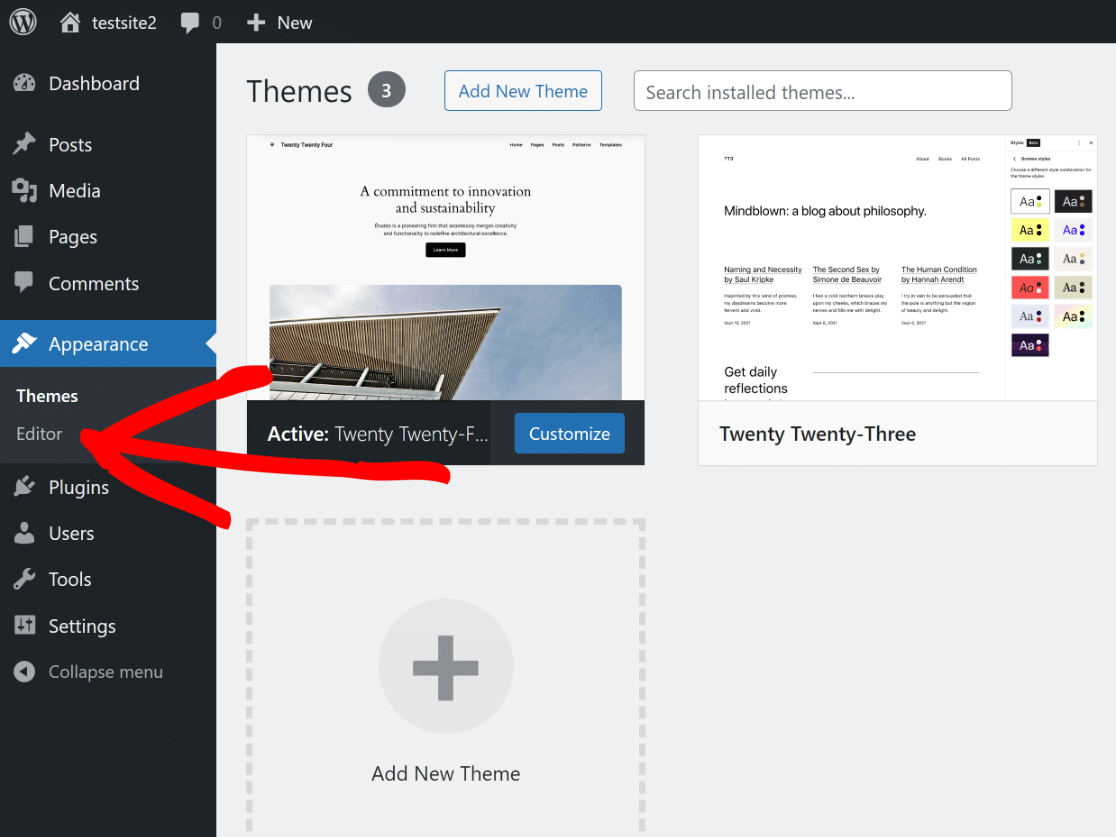
Credit: wpforms.com
Inserting Headers Manually With Code
Inserting headers manually with code lets you control your WordPress page’s design. It means editing files directly to place headers exactly where you want. This method offers flexibility beyond what typical page builders provide.
Manual insertion requires basic coding knowledge. You need to work with theme files, PHP, HTML, and CSS. This section explains safe editing and coding for custom headers.
Editing Theme Files Safely
Always back up your theme before editing any files. Use a child theme to avoid losing changes after updates. Access files through the WordPress dashboard or an FTP client. Avoid editing the live site directly to prevent errors. Test your changes on a staging site first.
Using Php And Html For Custom Headers
Open the template file where you want the header. Usually, it’s page.php or header.php. Insert your header code using HTML tags like
or . Use PHP to add dynamic content, such as the page title. Example:
php the_title(); ?
This code displays the current page’s title inside an H1 header.
Adding Css For Styling Headers
Style your headers with CSS for better appearance. Add CSS rules in your child theme’s style.css file. Example:
h1 { color: 333333; font-size: 36px; margin-bottom: 20px; }Adjust colors, fonts, and spacing to match your site design. Use simple CSS for clean, readable headers.
Optimizing Headers For Mobile Devices
Optimizing headers for mobile devices is essential for a good user experience. Mobile users expect clear, readable headers that fit small screens. A header that looks great on a desktop may appear cluttered or too large on a phone. Adjusting your header design ensures visitors can easily read and navigate your page from any device.
Headers should be flexible and adapt to different screen sizes. This helps keep your page neat and professional. Mobile optimization also improves your site’s SEO since search engines favor mobile-friendly pages. Simple changes to your header can make a big difference in how users interact with your content.
Responsive Design Tips
Use relative units like percentages or ems for header sizes. Avoid fixed widths or heights that break on small screens. Choose fonts that remain clear and readable when scaled down. Limit the number of header elements to reduce clutter. Keep padding and margins balanced to maintain space without crowding. Use media queries in your CSS to adjust header styles on different devices. Test different font sizes and line heights for legibility.
Testing Headers On Different Screens
Check your headers on phones, tablets, and desktops regularly. Use browser developer tools to simulate various screen sizes. Open your site on multiple real devices if possible. Look for overlapping text, cut-off words, or oversized fonts. Make adjustments based on what you see. Ask friends or colleagues to test your site on their devices. Keep testing after every update to maintain mobile optimization.
Credit: www.greengeeks.com
Enhancing Headers With Plugins
Enhancing headers with plugins makes your WordPress pages more attractive and functional. Plugins let you customize headers without coding skills. They offer many options to change designs and add features. You can create a unique look that fits your brand. These tools save time and make editing easier for beginners and experts alike.
Top Plugins For Header Customization
Several plugins stand out for header design. “Elementor” allows drag-and-drop header building. “Header Footer Code Manager” helps add custom scripts. “WP Header Images” lets you add images to headers quickly. “Sticky Menu (or Anything!) on Scroll” adds sticky header options. These plugins work well with most themes. Choose the one that matches your needs and skills.
Integrating Extra Features Like Sticky Headers
Sticky headers keep your menu visible while scrolling. This improves navigation and user experience. Many plugins offer sticky header features easily. You can set the header to stick at the top or hide on scroll. Customize colors, sizes, and effects to fit your style. Sticky headers make your site more user-friendly and modern.
Troubleshooting Common Header Issues
Sometimes headers on WordPress pages do not show up as expected. This can confuse many users. Troubleshooting common header issues helps fix these problems quickly. Knowing the basic causes and fixes makes your site look better and work well.
Fixing Header Display Problems
Headers may not display due to wrong settings. Check your header image size. Large images can slow loading or not show at all.
Make sure the header is enabled in the theme customizer. Sometimes, the header area is hidden by mistake. Clear your site cache and browser cache. Old cache can block new changes.
Use a simple header first. Remove complex elements like videos or sliders to test. This helps find what causes the issue.
Resolving Conflicts With Themes Or Plugins
Sometimes themes or plugins cause header issues. Disable all plugins and check if the header appears. If it does, activate plugins one by one to find the problem.
Switch to a default WordPress theme like Twenty Twenty-Three. If the header works, your theme may have conflicts. Contact the theme developer for support or updates.
Keep your WordPress, themes, and plugins up to date. Outdated software often causes conflicts and display problems.
Credit: www.wpbeaverbuilder.com
Frequently Asked Questions
How Do I Add A Header To A WordPress Page?
To add a header, go to your WordPress dashboard. Select Pages, then choose the page. Use a page builder or theme customizer to insert your header. Save changes to apply the new header on your page.
Can I Customize Headers On Different WordPress Pages?
Yes, you can create unique headers for each page. Use page-specific settings in your theme or page builder. This helps tailor content and design to fit each page’s purpose and audience.
What Types Of Headers Can I Add In WordPress?
WordPress supports text, image, video, and menu headers. Choose a header type that matches your site style. Use plugins or theme options to enhance header functionality and appearance.
Do I Need Coding Skills To Add A WordPress Header?
No coding is needed for most themes and builders. Use drag-and-drop tools or header settings in the WordPress customizer. This makes adding headers easy even for beginners.
Conclusion
Adding a header to your WordPress page makes your site look better. It helps visitors know what your page is about. You can choose different styles and colors to fit your brand. The steps are simple and do not take much time.
Keep your header clear and easy to read. This small change improves your website’s user experience. Try it today and see how it changes your page’s appearance. Your visitors will appreciate the neat and organized look.


