
Are you looking to add custom code to your WordPress header but don’t know where to start? Adding header code can boost your website’s functionality, improve SEO, and help you track important data.
Whether it’s a tracking pixel, custom CSS, or verification code, placing it correctly is key. In this guide, you’ll learn simple, step-by-step methods to add header code safely and effectively—no tech jargon, just clear instructions you can follow right now.
Keep reading to unlock the full potential of your WordPress site!

Credit: wpcode.com
Why Add Header Code
Adding header code in WordPress helps improve how your site works and is seen online. The header section loads before the main content. This makes it the perfect place to insert important codes. These codes can help with search engines, tracking visitors, and customizing your site’s look and function.
Benefits For Seo
Search engines check the header for key information. Adding code here can improve your site’s ranking. You can add meta tags that describe your pages. This makes it easier for search engines to understand your content. Better SEO means more visitors and higher visibility.
Tracking And Analytics
Header code allows you to add tracking tools like Google Analytics. These tools collect data about your visitors. You learn where visitors come from and what they do. This helps you improve your site and marketing efforts. Tracking code in the header runs on every page.
Custom Scripts And Styles
Custom scripts and styles control how your site looks and behaves. Adding them in the header loads them early. This keeps your site running smoothly. You can add fonts, animations, or special features. Header code lets you personalize your site easily.
Methods To Add Header Code
Adding code to your WordPress header helps improve site features. You can insert scripts like Google Analytics or custom CSS. There are different ways to add code to the header. Choose the method that fits your skills and site setup.
Using Theme Editor
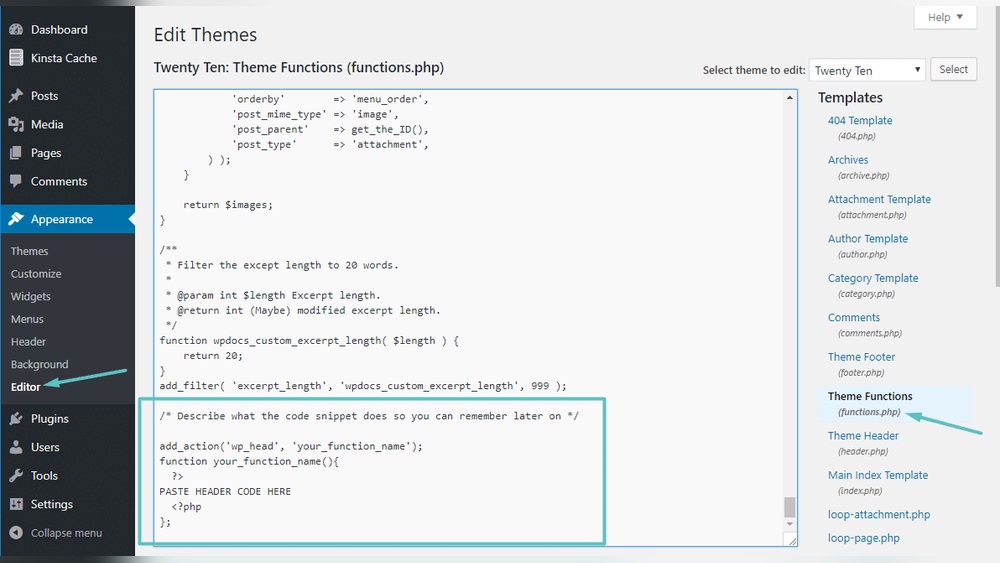
The Theme Editor lets you edit theme files directly from WordPress. Access it via Appearance > Theme Editor. Find the header.php file in the list. Carefully paste your code before the closing tag. Save changes and check your site. This method needs caution to avoid site errors.
Installing Header And Footer Plugins
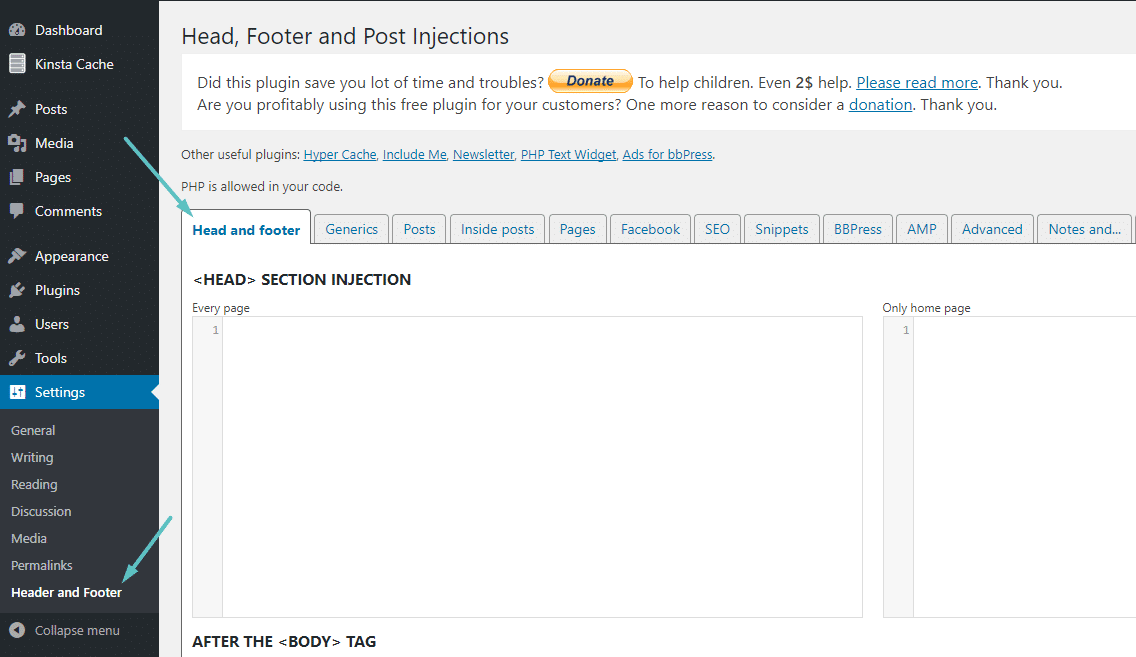
Plugins simplify adding header code without editing files. Search for “Header and Footer” plugins in WordPress plugins. Install and activate your chosen plugin. Use its settings page to paste header scripts. This way, code stays safe even if you change themes.
Child Theme Approach
A child theme lets you customize without losing changes after updates. Create a child theme folder and add a header.php file. Copy the original header code there. Insert your new code in the child theme’s header.php file. Activate the child theme to apply changes safely.
Step-by-step Guide With Theme Editor
Adding header code in WordPress using the Theme Editor is a direct method. It lets you insert scripts or styles right into your theme files. This guide walks you through each step. You will learn how to access the editor, find the right file, and add your code safely.
Accessing Theme Editor
First, log in to your WordPress dashboard. On the left menu, click “Appearance.” Then select “Theme Editor.” A warning message may appear. It reminds you to be careful when editing files. Proceed only if you understand the risks. The Theme Editor screen will open with your active theme files listed.
Locating Header.php File
On the right side, find the file list. Scroll down to locate “header.php.” This file controls the header section of your website. Click on it to open the code editor. Here you will insert your code snippet. Be sure to only edit this file if your code needs to go in the header.
Inserting Code Safely
Place your code carefully within the header.php file. Usually, the code goes before the closing tag. Avoid changing other parts of the file. After pasting the code, click “Update File.” This saves your changes. Check your website to confirm the code works as expected. Always back up your site before editing theme files.
Credit: wordpress.org
Using Plugins For Header Code
Using plugins is a simple way to add header code in WordPress. Plugins let you insert code without touching theme files. This method is safe and keeps your code even after updates. Many plugins are designed for header and footer code insertion. They work well for scripts like Google Analytics or Facebook Pixel.
Choosing The Right Plugin
Pick a plugin with good reviews and regular updates. Check if it supports the type of code you want to add. Look for plugins with an easy interface. Popular choices include “Insert Headers and Footers” and “Header Footer Code Manager.” These plugins are lightweight and user-friendly.
Installing And Activating Plugin
Go to your WordPress dashboard and open Plugins > Add New. Type the plugin name in the search bar. Click “Install Now” and then “Activate.” The plugin will appear in your dashboard menu. Make sure it is active before adding any code.
Adding Code Via Plugin Interface
Open the plugin settings from the dashboard menu. Find the section labeled “Header” or similar. Paste your code snippet in the header box. Save the changes to apply your code. The plugin will now add the code to your site’s header automatically.
Working With Child Themes
Working with child themes is a safe way to change your WordPress site. Child themes keep your changes separate from the main theme. This way, updates to the main theme do not erase your edits. You can add code to the header or tweak design safely.
Child themes use the main theme’s files but let you add your own code. This is great for adding header scripts like Google Analytics or custom CSS. You keep your site organized and avoid losing work after updates.
Creating A Child Theme
Start by making a new folder in your themes directory. Name it after your main theme with “-child” at the end. Inside, create a style.css file. Add a header comment with the child theme name and the main theme it uses. Create a functions.php file to load the parent theme’s styles. This setup lets WordPress know to use your child theme.
Editing Header File In Child Theme
Copy the header.php file from the main theme to your child theme folder. Edit this copy to add your header code. Insert scripts or meta tags between the tags. Save your changes. WordPress will use this file instead of the parent’s header.
Preserving Changes During Updates
Using a child theme keeps your custom code safe. Updates to the main theme do not affect files in the child theme. Your header edits stay intact after theme updates. This method avoids losing custom code and saves time on fixes.
Credit: kinsta.com
Best Practices For Header Code
Adding code to your WordPress header can improve site function and tracking. Follow best practices to keep your site safe and working well. Careful steps help avoid errors and site downtime. Use clear, simple methods to add header code correctly.
Testing Code Before Publishing
Always test code in a safe environment first. Use a staging site or local setup to check changes. Testing helps catch errors before they affect your live site. Run the site to see if the code works as expected. Fix any problems before making code live.
Backing Up Your Site
Create a full backup of your website before adding code. Backups save all your files and database. This allows easy recovery if something goes wrong. Use trusted backup plugins or your hosting provider’s tools. Store backups safely and update them regularly.
Avoiding Common Mistakes
Do not paste code without understanding it. Avoid adding duplicate or conflicting scripts. Use proper HTML tags and place code in the correct header section. Check for extra spaces or broken lines in the code. Keep your code clean to prevent site errors and slowdowns.
Frequently Asked Questions
How Do I Add Header Code In WordPress?
To add header code in WordPress, use the Theme Editor or a plugin like Insert Headers and Footers. Paste your code snippet inside the
section or plugin’s header area, then save changes. This method is safe and does not require editing core theme files.Can I Add Google Analytics Code To WordPress Header?
Yes, you can add Google Analytics code to your WordPress header using a plugin or by editing the header. php file. Plugins are easier and safer, avoiding direct theme file changes. This ensures your tracking code loads on every page correctly.
Is Editing Header.php Safe For Adding Code?
Editing header. php is possible but risky if not done correctly. Always back up your theme before making changes. Using a child theme or plugins is safer, preventing code loss during theme updates and avoiding site crashes from incorrect edits.
What Plugins Help Add Header Code In WordPress?
Popular plugins like Insert Headers and Footers, Header Footer Code Manager, and WPCodeBox allow you to add header code easily. These plugins insert scripts without touching theme files, making code management safer and simpler for all users.
Conclusion
Adding header code in WordPress is simple and useful. It helps improve website features and tracking. Always back up your site before making changes. Use the right method based on your comfort level. Keep your code clean and organized. Regularly check your site to ensure it works well.
Small steps like these make a big difference over time. Try it today and see the benefits yourself.


