

If you want your website to stand out and rank higher on Google, adding an H1 heading in WordPress is a simple but powerful step you can’t afford to miss. Your H1 heading tells visitors—and search engines—what your page is all about.
But if you’re unsure how to add or customize it, don’t worry. This guide will walk you through easy, clear steps to help you set up the perfect H1 heading for your WordPress site. By the end, you’ll know exactly how to boost your site’s clarity and SEO with just a few clicks.
Ready to make your content shine? Let’s dive in.
Why H1 Headings Matter
H1 headings play a key role in web pages. They guide both search engines and visitors. A clear H1 helps readers know the page’s main topic quickly.
Without a strong H1, pages can feel confusing and less trustworthy. Search engines also use H1 tags to understand content structure.
Role In Seo
Search engines scan H1 tags to find the main subject of a page. Proper use of H1 can improve your page’s ranking. It signals what the page is about clearly. This helps search engines show your page for relevant searches. Using one H1 per page is best practice. It keeps your SEO focused and strong.
Impact On User Experience
Users rely on headings to scan and understand content quickly. A clear H1 grabs attention and sets expectations. It makes content easier to read and follow. When visitors find what they want fast, they stay longer. This lowers bounce rates and improves site engagement.
Locating The H1 In WordPress
Finding the H1 heading in WordPress is key for good SEO and clear page structure. The H1 tag shows the main topic of the page to visitors and search engines. It is important to know where WordPress places this tag by default. This helps ensure your content is easy to read and ranks well.
Many WordPress themes handle H1 tags automatically. You might not see the H1 in the editor, but it exists in the site code. Checking your theme and setup helps confirm the H1 is present and correctly used.
Default Theme Behavior
Most WordPress themes place the H1 on the post or page title automatically. This means the title you enter in the editor usually becomes the H1 tag on the live page. Themes often control this to keep the heading structure consistent.
Some themes may use H1 tags only on the homepage or main title. Other themes use H1 on all post titles. The exact behavior depends on the theme’s design and coding.
Checking Your Current Setup
Open your website in a browser. Right-click the page title and select “Inspect” or “View Source.” Look for the H1 tag in the code. It should wrap around your main page or post title.
If no H1 tag exists, check your theme settings or editor options. Some page builders let you choose heading levels manually. Ensure you set the main title as H1 for best SEO.
Adding H1 In The WordPress Editor
Adding an H1 heading in the WordPress editor helps organize content clearly. It tells visitors and search engines the main topic of your page. Using the right heading improves your site’s SEO and user experience.
WordPress offers two main editors to create content. Each editor has a simple way to add an H1 heading. The steps differ slightly depending on which editor you use.
Using The Block Editor
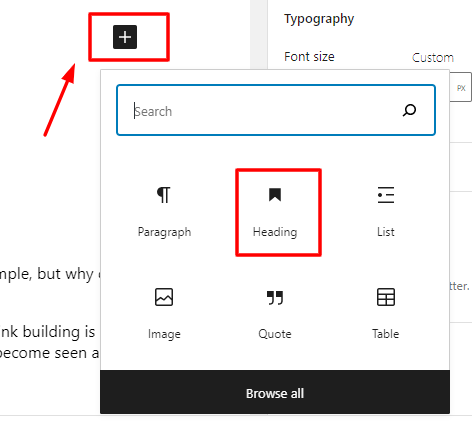
The Block Editor uses blocks to build content. To add an H1 heading, click the plus (+) button. Choose the “Heading” block from the list. By default, it may show as H2 or another level.
Look at the toolbar above the block. Click the dropdown that shows the heading level. Select “H1” from the options. Now, type your main heading text inside this block.
WordPress allows only one H1 per page for best SEO. Make sure this heading is the main title of your content. The Block Editor makes changing heading levels quick and easy.
Classic Editor Method
The Classic Editor looks like a simple text editor. To add an H1 heading, highlight the text you want as the main title. Then, find the “Paragraph” dropdown in the toolbar.
Click the dropdown and select “Heading 1.” The text will change style to H1. This method also helps search engines understand your page structure.
Remember, keep only one H1 per page. Use other heading levels like H2 or H3 for subheadings. The Classic Editor is easy for those who prefer a traditional writing experience.

Credit: www.youtube.com
Customizing H1 With Page Builders
Customizing the H1 heading in WordPress is simple with page builders. These tools let you design headings without coding. You can change fonts, colors, size, and layout easily. Page builders help make your H1 unique and fit your site style. This improves user experience and SEO. Below, learn how to customize H1 with popular page builders.
Elementor
Elementor offers a drag-and-drop editor for H1 headings. Select the heading widget and place it on your page. Choose the H1 tag from the settings panel. Customize font style, size, and color with a few clicks. Elementor also lets you add shadows and spacing. Preview your changes instantly to see how they look.
Divi
Divi’s visual builder makes H1 editing easy. Add a text module and set the heading level to H1. Use the design tab to adjust font, color, and alignment. Divi includes many font options and effects. You can control line height and letter spacing too. This ensures your heading fits perfectly with your page design.
Beaver Builder
Beaver Builder uses modules to create headings. Insert a heading module and pick H1 for the tag. Style your heading with font choices and color palettes. Adjust size and weight to highlight important text. Beaver Builder’s live preview shows your edits in real time. This helps you create a clear, attractive H1 heading.
Ensuring H1 Is Seo-friendly
Ensuring your H1 heading is SEO-friendly helps search engines understand your page. It improves your site’s ranking and user experience. A clear and well-optimized H1 guides readers and boosts visibility.
Focus on relevant keywords and proper HTML structure. Avoid common mistakes that can harm your SEO performance. This section covers essential tips for creating an SEO-friendly H1 in WordPress.
Choosing Keywords
Pick keywords that match your content topic. Use terms people type in search engines. Keep keywords natural and avoid stuffing them in the heading. The H1 should clearly describe the page’s main idea.
Avoiding Multiple H1 Tags
Each page should have only one H1 tag. Multiple H1s confuse search engines about the page’s focus. Use other headings like H2 or H3 for subtopics. Check your WordPress theme to prevent extra H1 tags.

Credit: wordpress.com
Troubleshooting Common Issues
Troubleshooting common issues with H1 headings in WordPress helps keep your site clear and organized. Sometimes, the H1 heading does not show as expected. Other times, your theme may cause conflicts that hide or change the H1 display. Knowing how to spot and fix these problems saves time and improves your site’s SEO.
H1 Not Showing
Sometimes the H1 tag is missing from your page. This happens if you forget to set the heading or if the page builder removes it. Check the editor to confirm the H1 is added correctly. Also, view the page source in your browser to see if the H1 tag exists in the code. If it is missing, add the heading again using the block editor or classic editor.
Another reason for a missing H1 is a plugin that changes page structure. Disable plugins one by one to find the cause. Clear your cache after each change to see updates. Always keep backups before disabling plugins.
Theme Conflicts
Your WordPress theme controls how headings appear. Some themes may override your H1 styles or hide the tag entirely. Switch to a default theme like Twenty Twenty-Three to check if the problem resolves. If it does, your theme needs adjusting.
Editing the theme’s template files can restore the H1 tag. Look for files like single.php or page.php. Add or fix the code that outputs the_title() inside an H1 tag. Use a child theme to keep changes safe during updates.
Verifying H1 With Seo Tools
Verifying your H1 heading is important for good SEO. It helps search engines understand your page’s main topic. Using SEO tools, you can check if your H1 tag is set correctly. This ensures your heading stands out and improves your site’s ranking.
Using Browser Extensions
Browser extensions make it easy to check H1 tags quickly. Tools like SEOquake and MozBar show heading structure directly in your browser. You can see if your page has one H1 or multiple, which can hurt SEO. These extensions also highlight other SEO elements for a full check.
Online Seo Analyzers
Online SEO analyzers scan your webpage and report on headings. Websites like Ahrefs and SEMrush offer free tools for this. They list your H1, H2, and other tags clearly. These tools help identify missing or duplicate H1 tags that need fixing.
Credit: www.seoptimer.com
Frequently Asked Questions
What Is The Purpose Of An H1 Heading In WordPress?
An H1 heading defines the main title of a page or post. It improves SEO by signaling the content’s topic to search engines. WordPress themes usually display the H1 prominently, making content clear and user-friendly.
How Do I Add An H1 Heading In WordPress Editor?
To add an H1 heading, select the block editor’s “Heading” block. Choose “H1” from the block settings. Then, type your desired title. This ensures your main heading is properly tagged for SEO.
Can I Have Multiple H1 Headings On One WordPress Page?
It’s best to use only one H1 heading per page. Multiple H1s can confuse search engines about page structure. Use H2 or H3 for subheadings to maintain clear hierarchy.
Does Adding An H1 Improve WordPress Seo Ranking?
Yes, an H1 heading helps search engines understand your page’s main topic. Proper use of H1 can boost SEO by improving content clarity and relevance. It’s a key SEO best practice.
Conclusion
Adding an H1 heading in WordPress helps organize your content clearly. It tells readers and search engines what your page is about. Use the block editor or classic editor to add or edit your H1 heading easily. Always keep your headings simple and relevant to the page topic.
Proper headings improve both user experience and SEO rankings. Practice adding H1 headings to make your site look professional. Your content will become easier to read and find online. Simple steps lead to better website structure and visibility.


