

Are you tired of making silly grammar mistakes on your WordPress posts? Imagine having a tool that instantly catches those errors and helps you write clear, professional content every time.
Adding Grammarly to your WordPress site can do just that—boost your writing quality without extra effort. You’ll learn simple, step-by-step ways to connect Grammarly with your WordPress, so you can save time and impress your readers with flawless writing. Keep reading, and take your blog to the next level today!
Credit: www.youtube.com
Why Use Grammarly On WordPress
Using Grammarly on WordPress helps improve your writing directly in the editor. It checks your spelling, grammar, and style as you write. This tool can make your content clearer and easier to read for your audience. It works quietly in the background, offering suggestions without interrupting your flow.
Benefits For Bloggers And Writers
Bloggers and writers get many advantages from Grammarly. It catches mistakes that are easy to miss. This keeps your posts professional and trustworthy. The tool also helps you choose better words and phrases. Your writing becomes sharper and more engaging. This can attract more readers to your site.
Improving Content Quality
Grammarly improves the overall quality of your content. It points out weak sentences and suggests fixes. Your ideas come across more clearly. The tool also checks for tone and style. This ensures your writing matches your audience. Better content leads to more shares and comments.
Saving Time On Editing
Editing takes less time with Grammarly. It finds errors quickly, so you don’t need to reread many times. This speeds up your writing process. You can focus more on creating ideas. Less time editing means faster publishing and more content.
Credit: www.greengeeks.com
Preparing For Grammarly Integration
Preparing your WordPress site for Grammarly integration ensures a smooth setup. It helps avoid common issues during installation. Taking time to prepare saves effort later and improves performance.
System Requirements
Check your WordPress version first. Grammarly works best with the latest updates. Make sure your browser supports Grammarly extensions. Chrome, Firefox, and Edge are good choices. Confirm your computer meets minimum specs for smooth operation. A stable internet connection is essential for Grammarly to work properly.
Choosing The Right Grammarly Plan
Grammarly offers free and paid plans. The free plan covers basic grammar and spelling checks. Paid plans provide advanced suggestions like style and tone. Decide based on your writing needs and budget. For blogs, the free plan may be enough to start. Upgrade later if you need more features.
Backing Up Your WordPress Site
Always back up your site before adding new tools. Use a reliable backup plugin or your hosting service. Save a copy of your database and files. This step protects your content if something goes wrong. Restoring your site is easier with a recent backup.
Adding Grammarly Browser Extension
Adding the Grammarly browser extension is a simple way to improve your writing on WordPress. It checks your grammar, spelling, and style as you type. This tool helps you create clear and correct content fast.
The extension works directly in your browser. No need to copy and paste text into another app. You get instant suggestions while writing blog posts or pages on WordPress.
Supported Browsers
Grammarly supports popular browsers. It works with Google Chrome, Firefox, Microsoft Edge, and Safari. You can install the extension on any of these browsers. Make sure your browser is updated to the latest version for best results.
Installation Steps
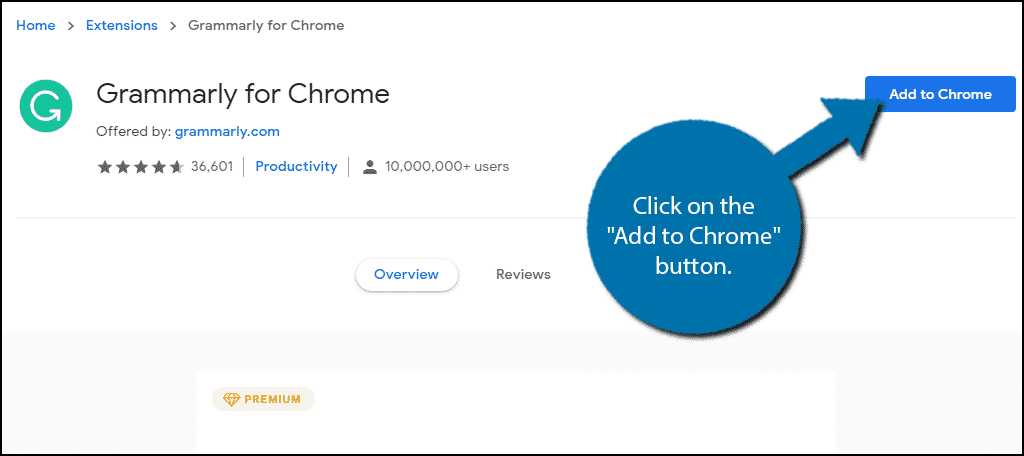
Go to the official Grammarly website or your browser’s extension store. Search for “Grammarly” and select the extension. Click “Add to Browser” or “Install.” Follow the prompts to complete installation. Once added, sign in or create a Grammarly account to activate the extension.
Enabling Grammarly On WordPress Editor
Open your WordPress editor in the supported browser. Grammarly works automatically in most text fields. If it does not appear, check the extension icon near your browser’s address bar. Click it and enable Grammarly for the WordPress site. Start typing in the editor to see grammar and spelling suggestions instantly.
Using Grammarly With WordPress Block Editor
Using Grammarly with the WordPress Block Editor makes writing clearer and easier. This tool helps find spelling mistakes and grammar errors while you create content. It works smoothly inside the Gutenberg editor, saving time and improving your posts.
Grammarly checks your text as you type in each block. It highlights problems and suggests fixes. This way, your writing stays clean and professional without extra steps.
Checking Grammar In Gutenberg
Grammarly works directly inside the WordPress Block Editor. When you write a paragraph or heading, it scans the text. Errors appear with red or blue underlines. Hover over these marks to see suggestions. You can fix issues instantly or ignore them if needed. This helps catch mistakes early and improves your post quality.
Handling Suggestions Effectively
Not all suggestions fit your style or meaning. Review each Grammarly tip carefully. Accept changes that improve clarity and correctness. Reject suggestions that alter your tone or intent. Use this balance to keep your voice while fixing errors. This approach keeps your content natural and reader-friendly.
Customizing Grammarly Settings
Adjust Grammarly’s settings for better results. Choose your language preference and writing style. Turn on or off checks for punctuation, spelling, or grammar. Customize alerts to fit your writing needs. These settings make Grammarly a flexible helper inside WordPress.
Alternative Methods For Grammarly Integration
Grammarly helps improve writing quality. Not all WordPress setups support direct Grammarly integration. Alternative methods help writers use Grammarly with WordPress. These options fit different needs and technical skills.
Using Grammarly Desktop App
The Grammarly desktop app works outside browsers. Write content in the app first. The app checks spelling and grammar automatically. Copy the corrected text to your WordPress editor. This method works well for long posts. It ensures thorough error checking before publishing.
Copy-paste Workflow Tips
Write your content in any text editor or Grammarly’s online editor. Copy the text and paste it into WordPress. Always double-check formatting after pasting. Use the “Paste as text” option to avoid style conflicts. This workflow is simple and fast. It helps keep your writing clean and error-free.
Third-party Plugins To Consider
Some plugins integrate Grammarly-like features into WordPress. These tools scan your text for grammar and spelling. Examples include Jetpack and TinyMCE Spellcheck. Check plugin reviews and update frequency before use. Plugins offer convenience but may not match Grammarly’s accuracy. Use them as extra help alongside Grammarly tools.
Troubleshooting Common Issues
Troubleshooting common issues helps keep Grammarly working smoothly in WordPress. Many users face small problems that stop Grammarly from checking their writing. Fixing these issues quickly saves time and avoids frustration. Below are some simple solutions for common problems.
Grammarly Not Working In WordPress
Sometimes Grammarly does not show suggestions in WordPress editors. This happens if the Grammarly extension is disabled or blocked. Check that the extension is turned on in your browser settings. Refresh the WordPress page after enabling it. Also, make sure you are logged into your Grammarly account. Clear your browser cache to remove old data that might cause issues.
Fixing Browser Extension Conflicts
Other browser extensions can interfere with Grammarly. They may stop it from working correctly in WordPress. Disable all other extensions except Grammarly. Then reload the WordPress editor and test again. Enable your other extensions one by one. This helps find which extension causes the conflict. Remove or update the conflicting extension to fix the problem.
Dealing With Performance Slowdowns
Grammarly may slow down WordPress editing on some systems. This happens if the browser uses too much memory. Close unused tabs and restart the browser. Use a lightweight browser for better speed. Updating the Grammarly extension can also improve performance. If slowdowns continue, try using Grammarly’s desktop app for editing.
Tips For Flawless Writing On WordPress
Writing well on WordPress is key to reaching and engaging readers. Clear, error-free content builds trust and keeps visitors interested. Using tools like Grammarly helps catch mistakes and improve text quality. Combine this with smart strategies to ensure your writing stays polished and effective.
Combining Grammarly With Seo Tools
Grammarly checks grammar and spelling. SEO tools focus on keywords and readability. Together, they make your content strong and search-friendly. Use Grammarly first to fix language errors. Then, apply SEO tools to adjust keywords and structure. This approach ensures your posts attract readers and rank well.
Maintaining Consistent Style
Consistency in writing style creates a smooth reading experience. Use Grammarly’s style suggestions to keep tone and voice uniform. Choose a simple, clear style and stick to it. Avoid sudden changes in language or format. Consistent style helps readers understand your message easily.
Regular Content Audits
Check your WordPress posts regularly for errors and updates. Run Grammarly on older articles to find missed mistakes. Update facts and improve clarity where needed. Regular audits keep your content fresh and reliable. This habit improves your site’s overall quality and reader trust.

Credit: www.greengeeks.com
Frequently Asked Questions
How Do I Install Grammarly On WordPress?
You can install Grammarly on WordPress by using the Grammarly browser extension. It works seamlessly in the WordPress editor, checking your content for grammar and spelling errors in real-time.
Can Grammarly Improve My WordPress Blog Posts?
Yes, Grammarly enhances your WordPress blog posts by catching grammar mistakes, suggesting better word choices, and improving overall readability for a professional tone.
Is Grammarly Free To Use With WordPress?
Grammarly offers a free version compatible with WordPress. It provides basic grammar and spelling checks, while premium features require a subscription for advanced writing suggestions.
Does Grammarly Support All WordPress Editors?
Grammarly supports most WordPress editors, including the Classic Editor and Gutenberg block editor. It works within your browser, making it compatible with both editing interfaces.
Conclusion
Adding Grammarly to WordPress helps catch mistakes fast. It improves your writing clearly and simply. You write better posts that readers enjoy. The setup takes just a few steps. You stay confident in your content every time. Try it today to see the difference yourself.
Writing feels easier with this helpful tool. Keep your blog error-free and professional. Simple changes make your work stand out.


