

Are you looking to boost your website’s trust and attract more customers? Adding Google Reviews to your WordPress site is one of the easiest and most effective ways to do just that.
When visitors see real feedback from happy customers, they feel more confident choosing your services or products. In this guide, you’ll discover simple steps to display Google Reviews on your WordPress site without any hassle. Keep reading, and by the end, you’ll have a powerful tool to build credibility and grow your business.
Credit: smashballoon.com
Why Google Reviews Matter
Google reviews hold great value for any WordPress site. They show real feedback from customers. This feedback helps new visitors decide if your business is trustworthy. Positive reviews build a strong reputation and attract more clients.
Adding Google reviews to your WordPress site makes your business look reliable. It also helps your site perform better in search results. These reviews act like digital word-of-mouth, influencing many potential customers.
Impact On Customer Trust
Customer trust is key to business success. Google reviews show honest opinions from real people. Visitors read these reviews to check if your service meets their needs. A high rating and good comments increase trust quickly. Trust encourages visitors to choose your business over others.
Boosting Search Rankings
Google favors websites with frequent, positive reviews. Reviews add fresh content to your site automatically. This content helps search engines find and rank your site higher. Higher rankings mean more visibility and more visitors. Good reviews can improve your local search presence too.
Preparing Your Google Reviews
Preparing your Google reviews is a key step before adding them to your WordPress site. It helps ensure your reviews are genuine and easy to manage. Proper preparation can also increase the number of reviews you get from real customers.
Start by making sure your business profile on Google is set up correctly. This profile is where customers leave their feedback. You also want to encourage your customers to share their experiences. Positive reviews build trust and attract more visitors to your website.
Claiming Your Business Profile
First, find your business on Google Maps or Search. Claiming your profile gives you control over the information shown. You can update your address, hours, and photos. This makes your profile look professional and trustworthy. Claim your profile by signing into Google My Business. Follow the verification steps carefully. Verified profiles get more attention and better rankings in search results.
Encouraging Customers To Leave Reviews
Ask happy customers to leave reviews. Simple reminders work well. You can use email, receipts, or in-store signs. Make it easy by sharing a direct link to your review page. Always thank customers for their feedback. Respond politely to all reviews. This shows you value their opinion and care about service quality.
Methods To Add Google Reviews In WordPress
Displaying Google reviews on your WordPress site builds trust and shows real feedback. Several methods exist to add these reviews easily. Choose the best way based on your skill level and needs.
Using Plugins
Plugins simplify adding Google reviews to WordPress. They connect your site with Google and fetch reviews automatically. Many plugins offer customization options for style and layout. Installation is quick and does not need coding knowledge. Popular plugins also update reviews regularly to keep content fresh. This method is ideal for users wanting a simple setup.
Manual Embedding
Manual embedding involves copying review code directly from Google. You visit Google Maps, find your business, and select the review to embed. Then, copy the HTML iframe code and paste it into your WordPress post or page. This method gives you control over which reviews show. It requires basic understanding of HTML but no extra plugins. Manual embedding works well for showing a few select reviews.
Third-party Widgets
Third-party widgets offer another way to display Google reviews. These services collect and display reviews on your site through a widget code. They often provide more design options and analytics. You sign up on their platform, connect your Google account, and get the widget code. Paste this code into WordPress using a text block or widget area. This method fits users wanting stylish displays without coding.

Credit: elfsight.com
Top Plugins For Google Reviews
Adding Google Reviews to your WordPress site builds trust and shows real customer feedback. Plugins make this task simple and quick. They help display reviews in attractive ways that catch visitors’ eyes. Selecting the right plugin improves user experience and boosts site credibility.
Features To Look For
Choose plugins that update reviews automatically. This keeps your site fresh without extra work. Look for easy setup and clear display options. Customization matters to match your site’s style. Good plugins offer filters to show only positive or recent reviews. Mobile-friendly design is a must for all visitors. Check if the plugin supports multiple locations if needed.
Popular Plugin Options
Several plugins are trusted by WordPress users. “Google Reviews Widget” is simple and free for basic use. “WP Business Reviews” offers more design choices and review sources. “Rich Reviews” is lightweight and good for beginners. “Google Places Reviews” connects directly to your business location. Each plugin has free and paid versions. Test a few to find the best fit for your site’s needs.
Step-by-step Guide To Using A Plugin
Adding Google reviews to your WordPress site builds trust and shows real feedback. Using a plugin makes this process simple and fast. This step-by-step guide explains how to use a plugin to display Google reviews on your site. Follow the steps carefully to get the best results.
Installing The Plugin
Start by logging into your WordPress dashboard. Go to the Plugins menu and click “Add New.” In the search bar, type “Google Reviews.” Choose a plugin with good ratings and many downloads. Click “Install Now” and then activate the plugin. The plugin is now ready to use.
Connecting To Google Api
Next, you need to connect the plugin to Google. Go to the plugin settings in your dashboard. Find the option to add your Google API key. To get this key, visit the Google Cloud Console and create a new project. Enable the Places API and generate an API key. Copy the key and paste it into the plugin settings. Save the changes to link your site to Google.
Customizing Display Settings
Open the plugin’s display settings page. Choose how many reviews you want to show. Select the layout style, such as grid or list. Adjust colors and fonts to match your site’s design. Decide if you want to show reviewer names and dates. Save your settings to prepare the reviews for display.
Embedding Reviews On Your Site
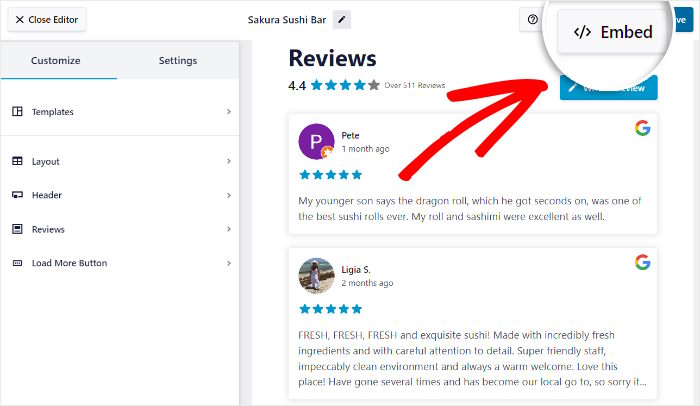
Copy the shortcode from the plugin’s main page. Open the page or post where you want to show reviews. Paste the shortcode into the editor. Update or publish the page. Your Google reviews now appear on your WordPress site. Visitors can see real feedback easily.

Credit: wordpress.org
Manual Embedding Of Google Reviews
Manual embedding of Google Reviews lets you show real feedback directly on your WordPress site. This method gives you full control over where and how reviews appear. It does not require plugins or extra tools. Just a little bit of code and you are ready.
This approach is perfect for those who want a simple, clean display of reviews. It keeps your site fast and easy to manage. The process involves two main steps: getting the embed code and placing it on your WordPress page.
Generating Embed Code
Start by going to Google Maps and finding your business listing. Click on the review you want to share. Look for the “Share” button on the review. Click it, then choose “Embed a review.”
Google will show an HTML code snippet. Copy this code exactly as it appears. This snippet contains all the info needed to display the review on your site. Keep it safe for the next step.
Adding Code To WordPress Pages
Log into your WordPress dashboard. Open the page or post where you want the review to appear. Switch the editor to the “Text” or “HTML” mode. Paste the copied embed code into the editor.
Save or update the page. Visit your site to check the review display. The review should appear as it does on Google, with stars and text. Adjust placement by moving the code block within the editor.
Tips For Maximizing Review Impact
Getting Google reviews on your WordPress site is just the first step. Making the most of these reviews helps build trust and attract more visitors. Use simple strategies to show reviews clearly and keep them fresh. Engage with your audience to boost your site’s reputation and encourage more feedback.
Highlighting Positive Feedback
Showcase the best reviews on your homepage or sidebar. Choose feedback that talks about your strengths and unique services. Use quotes or star ratings to catch visitors’ attention quickly. This builds confidence in new customers and makes your site look trustworthy.
Regularly Updating Reviews
Keep your review section current by adding new feedback often. Remove outdated or irrelevant reviews to keep your page fresh. Regular updates show that your business is active and cares about customer opinions. This can improve your search engine ranking and attract repeat visitors.
Responding To Customer Comments
Reply to both positive and negative reviews politely and quickly. Thank happy customers for their kind words. Address concerns from unhappy customers with solutions or apologies. This shows you value feedback and helps build a positive online image.
Frequently Asked Questions
How Do I Display Google Reviews On WordPress?
You can show Google Reviews by using plugins like “Google Reviews Widget. ” Connect your Google account, customize the display, and embed the shortcode on your pages.
Can I Add Google Reviews Without A Plugin?
Yes, manually embed Google Reviews using Google Maps Embed API. Copy the review link, generate iframe code, and paste it into your WordPress HTML block.
Are Google Reviews Important For WordPress Seo?
Yes, Google Reviews boost credibility and local SEO. They improve trust, increase click-through rates, and help your site rank better in local search results.
How Often Should I Update Google Reviews On WordPress?
Update Google Reviews regularly, ideally every month. This keeps your site fresh, improves user trust, and reflects the latest customer feedback accurately.
Conclusion
Adding Google Reviews to WordPress helps build trust fast. Visitors see real feedback from happy customers. This boosts your site’s credibility and can increase sales. Follow easy steps to connect your reviews smoothly. Keep your site updated with fresh testimonials often.
This simple feature makes your website more attractive and reliable. Start showing your positive reviews today and watch your business grow.


