

If you want to boost your website’s trust and attract more visitors, adding Google reviews is a smart move. Imagine showing real feedback from happy customers right on your WordPress site — it builds instant credibility and encourages new clients to choose you.
But how do you get those glowing reviews to display seamlessly? This guide will walk you through simple steps to add a Google Review widget to your WordPress site, even if you’re not tech-savvy. By the end, you’ll know exactly how to showcase your best reviews and turn visitors into loyal customers.
Keep reading to unlock this powerful tool for your business.

Credit: wpsocialninja.com
Why Add Google Review Widget
Adding a Google Review widget to your WordPress site brings many benefits. It shows real feedback from customers right on your website. Visitors trust reviews from other people. This trust can help turn visitors into customers faster.
Google Reviews also improve your site’s credibility. They make your business look honest and open. This can set you apart from competitors who do not show reviews.
Increase Trust And Credibility
People trust honest opinions from other buyers. Google Reviews build this trust by showing real experiences. A review widget on your site makes these opinions visible and easy to read.
Boost Local Seo
Google Reviews help improve local search rankings. More positive reviews mean higher chances to appear in local searches. This widget displays reviews that search engines like.
Enhance User Experience
Visitors want to know what others think before buying. The review widget makes it easy to see feedback without leaving your site. This keeps visitors engaged and informed.
Save Time And Effort
The widget updates automatically with new reviews. No need to add reviews manually. This saves time and keeps your site fresh with new content.
Choose The Right Plugin
Choosing the right plugin is a key step to add Google Review widgets in WordPress. The right plugin makes the process simple and ensures your reviews look good on your site.
Many plugins offer different features. Some focus on design, others on ease of use or integration. Picking one that fits your needs saves time and improves your site’s trustworthiness.
Popular Google Review Plugins
Several plugins are popular for showing Google Reviews on WordPress sites. These include:
- Google Reviews Widget: Easy to use with good customization options.
- WP Business Reviews: Combines reviews from Google and other platforms.
- Rich Snippets WordPress Plugin: Adds review stars to search results.
- Widget for Google Reviews: Simple widget with clean layouts.
Each plugin works well but offers different styles and controls. Check which one matches your website design.
Plugin Features To Look For
Look for plugins that offer easy setup with clear instructions. Automatic review updates keep content fresh without extra work.
Customization options let you match colors and fonts to your site’s style. Mobile responsiveness ensures reviews look good on phones and tablets.
Support for multiple locations is helpful if your business has more than one place. Also, check if the plugin allows review filtering to show only positive feedback.
Get Google Api Key
To display Google reviews on your WordPress site, you need a Google API key. This key allows your website to connect with Google services securely. Obtaining the API key is the first step to add the Google review widget. Follow these clear steps to get your API key quickly.
Create Google Cloud Account
Start by visiting the Google Cloud Platform website. Sign up or log in with your Google account. After logging in, create a new project for your WordPress site. This project will hold all your API settings. Give it a simple and recognizable name.
Enable Places Api
Inside your project dashboard, find the “APIs & Services” menu. Click on “Library” to explore available APIs. Search for “Places API” in the search bar. Select it and click “Enable” to activate the API for your project.
Generate Api Key
Next, go to “Credentials” under the “APIs & Services” menu. Click on “Create Credentials” and choose “API Key.” Google will generate your unique key immediately. Copy this key and keep it safe. You will paste it into your WordPress plugin or widget settings.
Credit: wordpress.org
Install And Activate Plugin
To show Google reviews on your WordPress site, you need a plugin. Installing and activating the plugin is the first step. It makes the process simple and quick. This section explains how to install and activate the Google Review widget plugin.
Search And Install Plugin
Open your WordPress dashboard. Go to the Plugins menu and click “Add New.” In the search bar, type “Google Review widget.” A list of plugins will appear. Find one with good ratings and recent updates. Click the “Install Now” button next to it. Wait a few moments for the plugin to download and install.
Activate Plugin On WordPress
After installation, the “Install Now” button changes to “Activate.” Click “Activate” to enable the plugin. Once activated, the plugin will appear in your dashboard menu. Now, you can start setting up your Google Review widget. Activation lets the plugin work on your site immediately.
Configure Plugin Settings
Configuring the plugin settings is the next step after installation. It allows you to connect the widget to your Google account. Also, it helps to control how your reviews display on your website.
This section guides you through the key settings needed for the Google Review widget. The setup is simple and clear. Follow each step carefully to ensure the widget works perfectly.
Enter Api Key
The API key links your website to Google’s services. You must get this key from the Google Cloud Console. Copy the key and paste it into the plugin’s API key field. This step ensures the plugin can fetch your Google reviews.
Add Google Place Id
The Place ID tells the plugin which business reviews to show. Find your Place ID using Google’s Place ID Finder tool. Enter the ID into the correct box in the plugin settings. This action connects the widget to your specific business.
Customize Widget Appearance
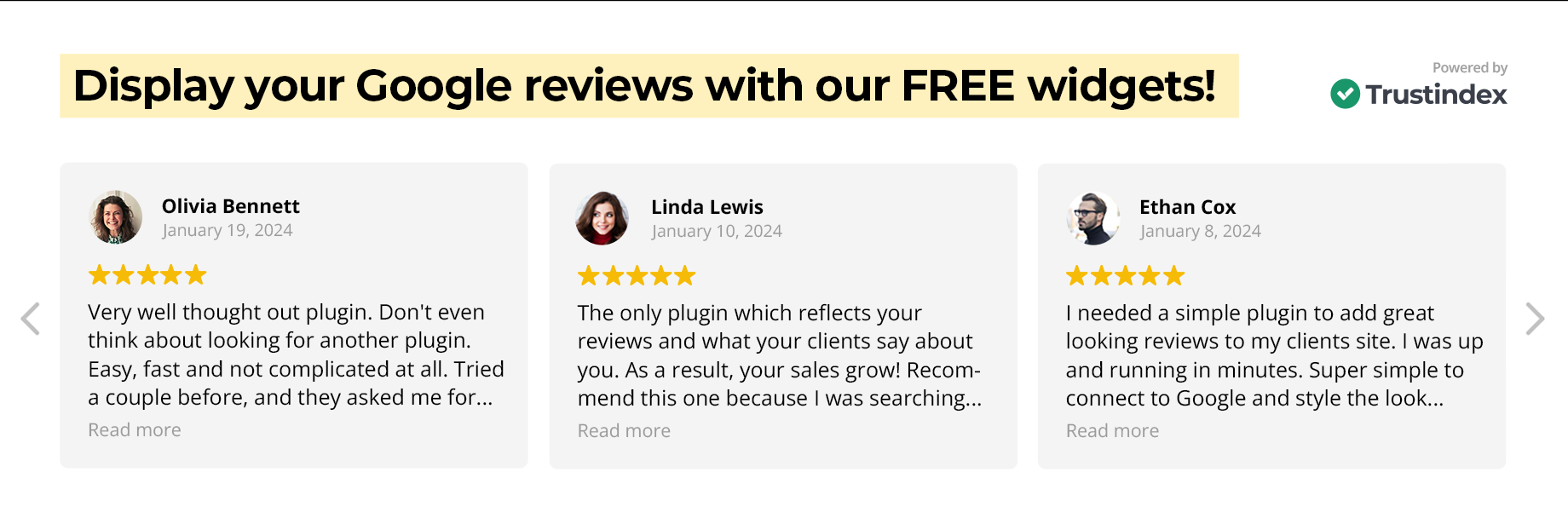
Adjust the look of the widget to match your website style. Choose colors, fonts, and layout options in the plugin’s appearance settings. Preview the changes live before saving. A well-designed widget fits smoothly into your site and attracts visitors.

Credit: tagembed.com
Embed Widget On Your Site
Embedding a Google Review widget on your WordPress site helps show real feedback from your customers. It builds trust and encourages new visitors to choose your services. Placing this widget on your site is simple and can fit any part of your website.
You can add the widget using different methods. Each method works well for specific parts of your site. Choose the right one based on where you want your reviews to appear.
Use Shortcode
Many Google Review plugins give you a shortcode after setup. This shortcode is a small piece of text that you copy and paste. Insert it where you want the reviews to show.
Shortcodes work inside pages, posts, or widgets. Just paste the shortcode in the editor, and the reviews will appear automatically.
Add To Sidebar Or Footer
Sidebars and footers are great spots for your Google Review widget. Go to your WordPress dashboard, then to Appearance > Widgets. Find the widget area for sidebar or footer.
Add a “Custom HTML” or “Text” widget. Paste the shortcode or embed code inside. Save the changes, and the reviews show on every page.
Insert Into Pages Or Posts
Embedding the widget directly into pages or posts helps target specific content. Open the page or post editor in WordPress. Switch to the “Text” or “HTML” view if needed.
Paste the shortcode or embed code where you want the reviews to appear. Update or publish the content. Visitors will see the Google reviews on that page or post.
Test And Troubleshoot
After adding the Google Review widget to your WordPress site, testing and troubleshooting are key steps. These ensure the reviews show correctly and the widget works smoothly. This process helps catch errors early and improves user experience.
Verify Review Display
Check the widget on different devices and browsers. Reviews should load quickly and look clean. Make sure the correct number of reviews appears. Confirm the stars and text match the Google listing. Refresh the page to see if updates show up. Clear your browser cache if old data appears.
Fix Common Issues
Slow loading often comes from large images or slow servers. Optimize images and use caching plugins. Missing reviews might mean an API key problem. Verify your Google API key is active and has correct permissions. If the widget is not responsive, adjust its width settings. Check for plugin conflicts by disabling others one by one. Update the plugin and WordPress to their latest versions. Finally, review error messages or logs for clues.
Tips To Maximize Review Impact
Adding a Google Review widget to your WordPress site is a great start. To get the best results, focus on how you manage and display these reviews. Small efforts can make a big difference in trust and engagement from visitors.
Encourage Customers To Leave Reviews
Ask customers to share their experiences after a purchase or service. Send a short, polite message with a direct link to your Google Review page. Make it easy and quick for them to leave feedback. Positive reviews build trust and attract new visitors.
Keep Reviews Updated
Regularly check and refresh your review widget on your site. Show the newest reviews at the top to keep content fresh. Remove any outdated or irrelevant reviews that might confuse visitors. Updated reviews show that your business is active and cares about feedback.
Frequently Asked Questions
How Do I Add A Google Review Widget To WordPress?
To add a Google Review widget, install a plugin like “Google Reviews Widget. ” Connect it to your Google My Business account, then customize and embed the widget via shortcode or widget area.
Can I Display Google Reviews Without A Plugin?
Yes, you can manually embed Google Reviews using Google Maps embed code or API. However, plugins offer easier customization and automatic updates.
Is It Free To Use Google Review Widgets On WordPress?
Many Google Review plugins offer free versions with basic features. Premium versions include advanced customization, more widget styles, and priority support.
How Often Do Google Reviews Update On WordPress Widgets?
Review updates depend on the plugin or API settings. Most plugins refresh reviews every 24 to 72 hours for accuracy.
Conclusion
Adding a Google Review widget to your WordPress site builds trust fast. It shows real feedback from your customers. Visitors see honest opinions, which helps them decide. The steps are simple and clear to follow. Keep your reviews updated for best results.
This small addition can improve your site’s credibility. Start today and watch your online presence grow.


