
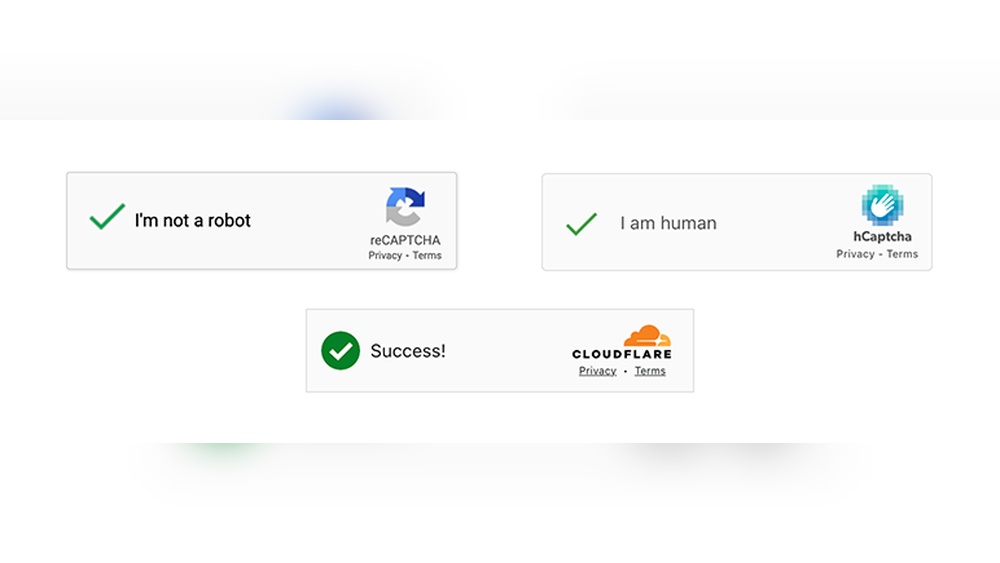
Are you tired of spam flooding your WordPress contact form? Adding Google reCAPTCHA to Contact Form 7 is the easiest way to protect your site from unwanted bots.
Imagine having peace of mind knowing that only real visitors can reach you. In this guide, you’ll learn step-by-step how to set up Google reCAPTCHA quickly and without any hassle. Keep reading, and by the end, your contact form will be secure, giving you more time to focus on what really matters—connecting with genuine visitors.
Credit: contactform7.com
Why Use Google Recaptcha
Google reCAPTCHA helps protect your website from unwanted activity. It stops bots from sending spam through your contact forms. This tool works quietly in the background. It checks if a user is real or a robot. Using reCAPTCHA adds a layer of trust and safety to your site.
Preventing Spam
Spam messages can flood your contact form. This wastes your time and clutters your inbox. Google reCAPTCHA blocks automated bots that send spam. It filters out fake submissions easily. This keeps your messages clean and relevant. You spend less time sorting and more time helping real visitors.
Enhancing Security
Security is important for every website. Bots try to exploit contact forms to attack your site. reCAPTCHA stops these harmful actions early. It protects your site from spam and hacking attempts. This keeps your data and visitors safe. A secure site builds trust with your audience.
Setting Up Google Recaptcha
Setting up Google reCAPTCHA is the first step to protect your WordPress contact form from spam. This process involves creating an account with Google and getting special keys. These keys connect your website to Google’s reCAPTCHA service.
Following the correct steps ensures your contact form works smoothly and safely. The setup is easy and takes only a few minutes.
Creating A Google Recaptcha Account
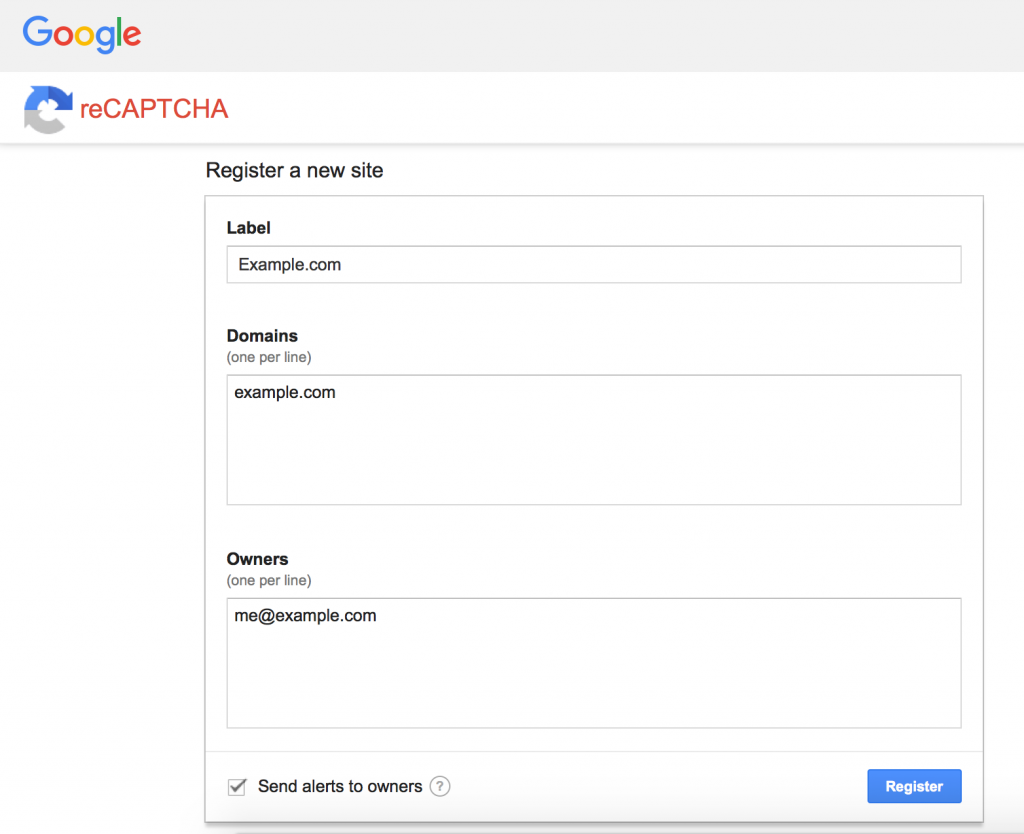
Go to the Google reCAPTCHA website. Sign in with your Google account or create one if needed. Click on the “Admin Console” button to start.
Enter a label for your site. This helps you identify the site later. Choose the type of reCAPTCHA you want to use. Usually, reCAPTCHA v2 is best for most sites.
Next, add your website’s domain name. This tells Google where you will use reCAPTCHA. Accept the terms of service and submit the form.
Generating Site And Secret Keys
After submitting, Google will show two keys: Site Key and Secret Key. The Site Key goes on your website to display the reCAPTCHA widget.
The Secret Key stays private. It helps your site communicate with Google and verify users.
Copy both keys and save them. You will need these keys to connect reCAPTCHA with Contact Form 7 in WordPress.
Installing Contact Form 7 Plugin
Installing the Contact Form 7 plugin is the first step to creating a contact form on your WordPress site. This plugin is free and easy to use. It allows you to build forms without coding knowledge. The installation process takes only a few minutes. Follow the steps below to get started.
Plugin Installation Steps
Log in to your WordPress dashboard. Go to the “Plugins” menu and click “Add New.” In the search bar, type “Contact Form 7.” Find the plugin in the results and click “Install Now.” Wait a few seconds for the installation to complete.
Activating The Plugin
After installation, click the “Activate” button. Activation makes the plugin ready to use. You will see a new menu called “Contact” in your dashboard. This menu is where you create and manage your contact forms.

Credit: contactform7.com
Integrating Recaptcha With Contact Form 7
Integrating Google reCAPTCHA with Contact Form 7 helps protect your site from spam and bots. It adds a simple test to your forms that real users can pass easily. This keeps your contact form safe and your inbox clean. The process is straightforward and requires only a few steps.
Adding Recaptcha Keys To WordPress
First, visit the Google reCAPTCHA website to get your site keys. Register your website and choose reCAPTCHA v3 or v2. After registration, Google will give you a site key and a secret key. Copy these keys carefully.
Next, open your WordPress dashboard. Go to Contact > Integration. Find the reCAPTCHA section and click “Setup Integration.” Paste your site key and secret key into the fields. Save the changes to connect your site with Google reCAPTCHA.
Inserting Recaptcha In Contact Forms
After adding keys, edit the contact form where you want to add reCAPTCHA. Contact Form 7 supports reCAPTCHA automatically for v3, so no shortcode is needed. For v2, add the shortcode [recaptcha] in your form editor.
Save the form and place it on your website. Test the form by submitting it to check if reCAPTCHA works. You will see a small badge or checkbox depending on the version used. This confirms your form is protected from spam bots.
Testing The Recaptcha Functionality
Testing the reCAPTCHA functionality in Contact Form 7 is important. It ensures your form blocks spam and works properly. Testing helps catch problems early and confirms user experience is smooth. Follow simple steps to verify the reCAPTCHA setup.
Submitting A Test Form
Open your WordPress site and navigate to the page with your form. Fill out the form fields just like a visitor would. Complete the reCAPTCHA challenge carefully. Click the submit button to send the form.
Watch for a success message or confirmation. This means reCAPTCHA verified you as a real user. If the form submits without error, your reCAPTCHA works well. Try submitting a few times to be sure.
Troubleshooting Common Issues
Sometimes reCAPTCHA does not work as expected. Check if you entered the correct site key and secret key in the plugin settings. Incorrect keys cause errors or prevent the challenge from showing.
Clear your browser cache and reload the form page. Cached files can block new reCAPTCHA scripts. Disable other plugins temporarily to find conflicts affecting reCAPTCHA.
Look for JavaScript errors in the browser console. Errors can stop reCAPTCHA from loading. Fix these errors or ask a developer for help. Testing again after fixes confirms the problem is solved.
Tips For Better Spam Protection
Protecting your contact form from spam is key for a clean and secure website. Spam messages waste time and can harm your site’s reputation. Using smart techniques helps keep your form safe and user-friendly. Here are some tips to improve spam protection with Google reCAPTCHA and more.
Using Recaptcha V3 Vs V2
reCAPTCHA v2 asks users to check a box or solve a challenge. It is easy to set up and shows a visible test. This makes it clear to visitors that spam protection is active.
reCAPTCHA v3 works quietly in the background. It scores user behavior to detect bots without extra steps. It offers a smoother experience but requires careful setup to avoid false positives.
Choose v2 for simple, clear protection. Pick v3 for less user interruption and advanced detection.
Combining With Other Security Measures
Adding extra layers of security strengthens your form against spam. Use plugins that block suspicious IPs or limit form submissions. Simple questions, like math problems, can catch bots.
Regularly update your WordPress and plugins to fix security holes. Monitor form activity to spot unusual patterns. Together, these steps reduce spam and keep your contact form reliable.

Credit: wordpress.org
Frequently Asked Questions
How Do I Add Google Recaptcha To Contact Form 7?
To add Google reCAPTCHA, first register your site on Google reCAPTCHA. Then, get your site and secret keys. In WordPress, go to Contact Form 7 settings and enter these keys. Finally, add the reCAPTCHA shortcode to your contact form.
Which Recaptcha Version Works Best With Contact Form 7?
Contact Form 7 supports reCAPTCHA v3, which is invisible and user-friendly. It runs in the background, detecting bots without interrupting users. This version improves security while maintaining smooth user experience on your forms.
Can I Use Recaptcha Without A Google Account?
No, you must have a Google account to register your website. Google requires this to generate site and secret keys for reCAPTCHA integration. These keys authenticate your site’s use of the reCAPTCHA service.
How Can Recaptcha Improve My WordPress Form Security?
ReCAPTCHA helps block spam and automated bots from submitting forms. It ensures only real users can send messages through Contact Form 7. This reduces spam and protects your website from malicious attacks.
Conclusion
Adding Google reCAPTCHA to Contact Form 7 helps block spam easily. It keeps your website safe and your forms clean. The process is simple and quick to follow. Just copy the keys, paste them, and add the tag in your form.
Visitors will stay happy without annoying spam messages. Protect your site today with this small but powerful step. It makes your contact form work better for everyone.


