
Are you looking to enhance your WordPress site with dynamic, location-based features? Integrating Google Maps can be a game-changer.
Whether you’re running a business directory, showcasing your store locations, or simply want to add a touch of interactivity, Google Maps can significantly elevate your website’s user experience. But how can you seamlessly add Google Maps API to your WordPress theme?
The process might seem daunting, but it’s simpler than you think. This guide will walk you through every step, ensuring you can implement this feature without hassle. Dive in, and discover how easy it is to empower your site with the world’s leading mapping service.
Credit: www.storemapper.com
Setting Up Google Maps Api
Create a Google Cloud account. Sign in using your Google ID. This step is free. You can enjoy a free trial too. Follow the instructions to set it up. Make sure all your details are correct.
Visit the Google Cloud Console. Find the Library tab. Search for the Maps JavaScript API. Click on it to enable it. This step is crucial. Your map won’t work without it.
Go to the Credentials page. Select Create Credentials. Choose API Key from the list. A key will appear. Copy this key. Keep it safe. You need this key for your map.
Integrating Api Key In WordPress
Adding Google Maps API to a WordPress theme enhances functionality. First, obtain an API key from the Google Cloud Platform. Then, integrate it into your WordPress theme using the functions. php file. This allows displaying interactive maps seamlessly on your website.
Install Required Plugins
Google Maps needs a special plugin. You can find it in your WordPress dashboard. Search for “Google Maps Plugin.” Click “Install” to begin the process. After installing, activate the plugin. This step is crucial for mapping functions. Without activation, it won’t work.
Add Api Key To Plugin Settings
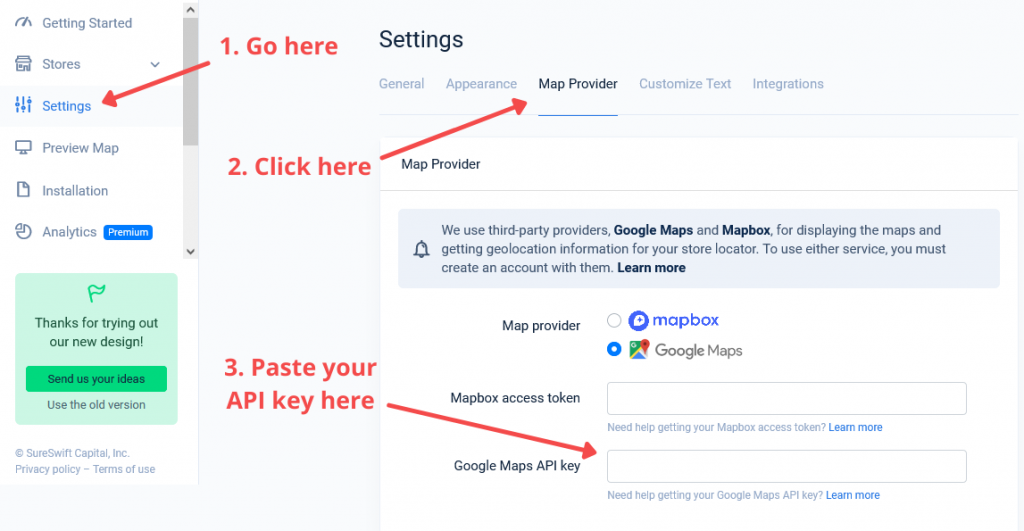
First, get your Google Maps API key. Visit the Google Cloud Platform. Create a new project there. Copy the API key provided. Now, go to your WordPress settings. Locate the plugin you installed. Find the section for API keys. Paste your copied API key into the field. Save the changes. Your maps should work now. If not, double-check the API key. Ensure it is correct and active.
Embedding Google Maps In Theme
Integrating Google Maps API into a WordPress theme enhances user experience by providing interactive map features. Start by obtaining an API key from Google. Add this key to your theme’s functions file. This setup allows seamless map display on your site, improving navigation and engagement.
Locate Appropriate Theme File
First, find the right file in your theme. Usually, this is the header.php or footer.php file. Use a text editor to open it. Look for the spot where you want to place the map. This is important for the layout.
Insert Google Maps Code Snippet
Get your Google Maps API key ready. Next, visit the Google Maps Platform and create a map. Copy the generated code snippet. Now, go back to your theme file. Paste the code snippet in the chosen spot. Save the changes and close the file. Finally, check your website. The map should appear on your page.

Credit: docs.phlox.pro
Customizing Google Maps Appearance
Changing the map size is easy. You can set it to fit your theme. Make the map bigger or smaller. Use the settings in your WordPress theme. Changing the zoom level helps too. You can show a large area or a small one. Try different levels to see what looks best. A clear map makes it easy for users to find places.
Adding custom markers can make your map unique. Use different icons to show special places. You can also change map styles. Make it colorful or simple. Choose styles that match your website theme. This makes the map more fun to use. Users can easily spot important locations.
Testing And Troubleshooting
Integrating Google Maps API into a WordPress theme involves testing and troubleshooting to ensure seamless functionality. Start by obtaining your API key, then add it to your theme’s functions. php file. Check for errors and debug using browser console tools, ensuring your map displays correctly and enhances user experience.
Verify Map Functionality
Check if the map shows up on your page. Make sure the map is in the right place. Zoom in and out to see if it works. Click on locations. See if details pop up. Use different browsers to test the map. Ensure it works on phones and tablets too.
Resolve Common Issues
If the map doesn’t load, check your API key. Ensure the key is active and valid. Look for JavaScript errors in the console. Fix any errors you find. Check if Google Maps is enabled in your WordPress theme. Sometimes, themes block scripts. Enable them if needed. Update your theme and plugins. Outdated versions can cause problems. Restart the browser and clear cache. This helps solve minor issues.
Optimizing Map Performance
Use caching to make maps load faster. Caching saves map data for later use. This means the map does not have to load from scratch each time. You can use plugins to help with caching. WP Rocket is a good example. Speed improves user experience. It also reduces server load. This helps your site run smoothly.
Reducing API requests helps save resources. Only call the Google Maps API when needed. Use lazy loading for maps. This means the map loads only when users scroll to it. Fewer requests mean faster load times. This helps your site perform better. Users will enjoy a smoother experience. Efficiency is key.
Credit: kinsta.com
Frequently Asked Questions
How To Integrate Google Maps With WordPress?
To integrate Google Maps with WordPress, first obtain a Google Maps API key. Then, add this key to your theme’s functions. php file. Use a plugin like “WP Google Maps” for customization. This allows you to embed interactive maps directly into your WordPress pages easily.
Do I Need An Api Key For Google Maps?
Yes, an API key is necessary to use Google Maps on WordPress. It allows you to access Google Maps services securely. Obtain the key from the Google Cloud Platform. It helps track usage and ensures your maps work correctly on your website.
Can I Customize Google Maps In WordPress?
Yes, Google Maps can be customized in WordPress. Use plugins like “WP Google Maps” for customization options. You can adjust map style, markers, and routes. This enhances user experience by providing tailored map views directly on your site.
Are There Free Plugins For Google Maps In WordPress?
Yes, there are free plugins for Google Maps in WordPress. Plugins like “WP Google Maps” offer free versions with basic features. They allow easy integration and customization of maps. For advanced features, consider their premium versions.
Conclusion
Adding the Google Maps API to your WordPress theme enhances user experience. Visitors find locations easily. This integration boosts website functionality. Follow the steps carefully. Make sure your API key is secure. Test the map on different devices. Ensure it loads smoothly.
Check for any errors. Keep your WordPress theme updated. This prevents compatibility issues. Your site gains a professional look. Users appreciate easy navigation. They spend more time on your site. This can improve your site’s ranking. A simple yet powerful tool.
Give your audience what they need. A clear map right at their fingertips.


