
Are you looking to gain insights into your website’s performance and understand your audience better? Adding Google Analytics to your WordPress theme is a powerful way to do just that.
Imagine having the ability to peek into your visitors’ behavior, track their journey through your site, and make data-driven decisions to enhance your online presence. By integrating Google Analytics, you can transform raw data into actionable strategies that boost engagement and grow your business.
But let’s face it, diving into the technicalities can feel overwhelming. You might worry about making mistakes or not knowing where to start. Don’t worry, though. This guide is here to simplify the process for you. We’ll walk you through each step, ensuring you feel confident and equipped to connect Google Analytics to your WordPress theme effortlessly. Ready to unlock the potential of your website data? Let’s get started!
What Is Google Analytics?
Google Analytics is a free tool by Google. It helps track your website visitors. You can see how many people visit your site. It shows where they come from. This tool tells what pages they look at. You can learn how long they stay on your site. It even tells if they come back again. Knowing these things helps improve your website. It makes sure visitors have a good time. This tool is important for all website owners. It helps make smart choices about your site.
Benefits Of Integrating Google Analytics
Google Analytics gives insights into how visitors use your site. It helps track user behavior. You can see which pages are popular. Find out where visitors come from. Know what devices they use. Understand how long they stay. Learn what links they click.
With this data, make better decisions. Improve your site’s design. Enhance user experience. Boost visitor engagement. Increase conversions. Google Analytics reveals trends over time. It shows growth or decline in traffic. This helps plan for the future.
Tracking enables targeted marketing. You can focus on what works. Optimize content for better results. Set goals and measure success. Google Analytics is a powerful tool. It supports your site’s growth. It’s important for every website owner.
Creating A Google Analytics Account
First, visit the Google Analytics website. Click on the “Start for Free” button. You need a Google account to sign in. Enter your email and password. Once logged in, click on the “Admin” option.
Under the “Account” column, click “Create Account.” Give your account a name. Choose your data sharing settings. Click “Next” to proceed.
Now, create a property. A property is a website or app. Choose a name for your property. Set your time zone and currency. Click “Next” again. Select your industry category. Choose your business size.
Finally, click “Create.” Accept the terms and conditions. Your account is ready. You can now track your website visitors.
Generating Tracking Code
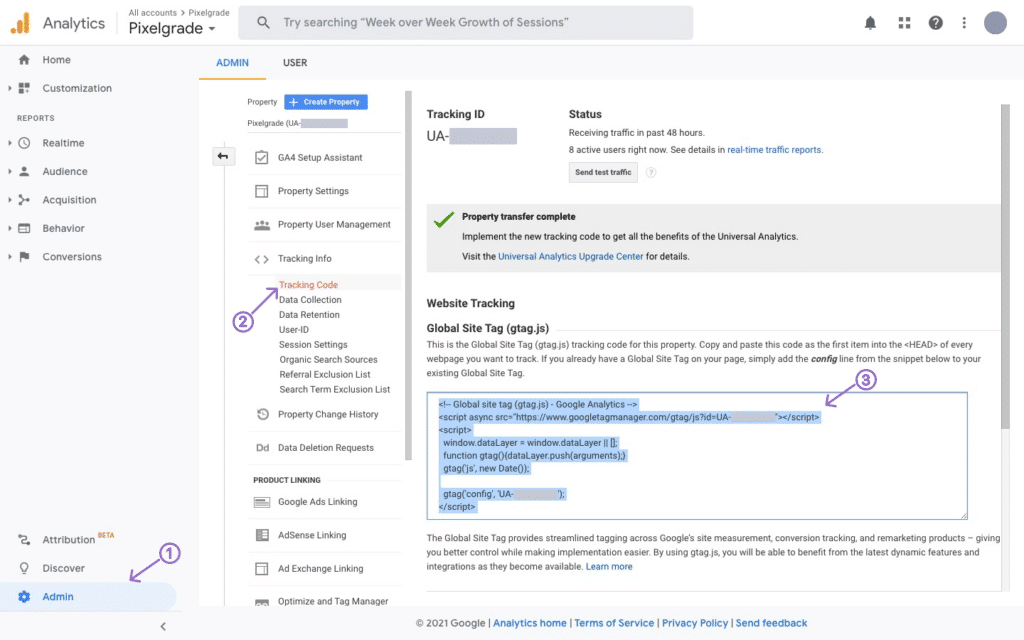
First, sign in to your Google Analytics account. Navigate to the Admin section. Click on the Property settings. Here, find the Tracking Info option. Click it to reveal the Tracking Code. Copy this code. It is unique for your website. You will need this code soon.
Make sure to keep this code safe. It is important. The tracking code helps track website data. Without it, Analytics won’t work. So, copy it carefully. Keep it accessible. You will use it in the next steps.
Adding Code To WordPress Theme
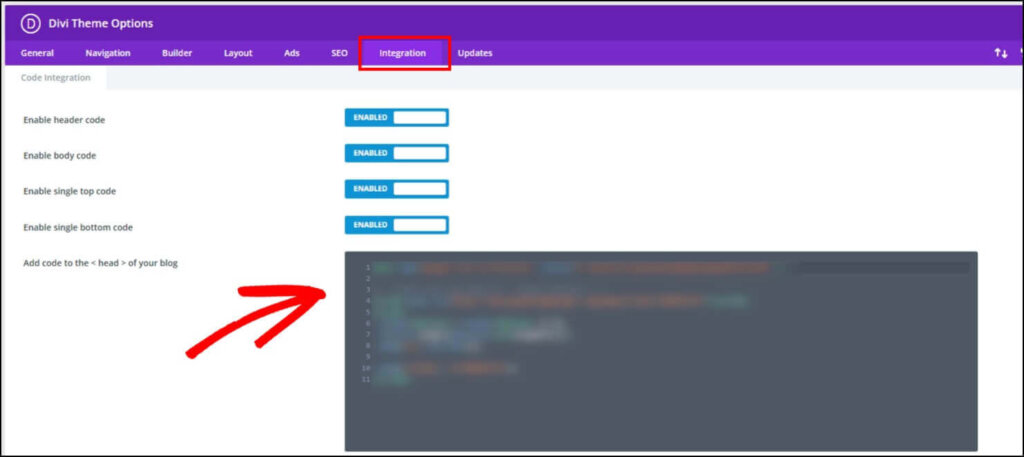
The WordPress Theme Editor allows easy code changes. Access it from the dashboard. Click on Appearance, then Theme Editor. Choose the right theme file. Look for the header.php file. Add your Google Analytics code above the closing tag. Save the changes. Always back up your files first. Mistakes can break your site.
Create a child theme to keep changes safe. It protects your work during updates. Copy the header.php file from the main theme. Add your Google Analytics code. Place the code above the tag. Activate the child theme. Your changes stay even after updates. It’s safer and recommended.
Plugins make adding Google Analytics easy. Search for Google Analytics plugins in the dashboard. Install a plugin like MonsterInsights. Follow the setup steps. Connect your Google Analytics account. No code needed. Plugins are user-friendly and quick. They update and keep your site safe.
Credit: pixelgrade.com
Verifying Google Analytics Setup
First, go to the Google Analytics website. Log in to your account. You should see your website listed there. Click on your website name. This will take you to the analytics dashboard.
Check if data is coming in. Look for the Real-Time reports. See if there are any active users. If the number is zero, there might be an issue. Make sure the tracking code is installed correctly. This is crucial for data collection.
Visit your website in another tab. Go back to Google Analytics. Refresh the page. If your visit shows in real-time data, it works. If not, double-check the tracking code. Ensure it’s in your WordPress theme.
Finally, wait a few hours. Check again for data. Data might take time to appear. Patience is key.
Common Issues And Solutions
Many people face issues adding Google Analytics to WordPress. One common problem is the incorrect placement of tracking code. It should be in the header, not elsewhere. Another issue is forgetting to save changes after adding the code. Always click “Save” to ensure changes are applied.
Plugin conflicts can also cause issues. Some plugins block Google Analytics. Try disabling plugins one by one to find the problem. Sometimes, cache plugins prevent code updates. Clear the cache to resolve this.
A missing Google Analytics ID can lead to tracking errors. Double-check your ID and make sure it is correct. If your site is still not tracking visits, check if your theme supports the code. Some themes need extra setup.
Credit: optinmonster.com
Best Practices For Data Analysis
Google Analytics helps you understand your website visitors. You can see where they come from. This tool shows which pages they visit. It gives you insights into their behavior. These insights are important for improving your site.
Track your most visited pages. This helps you know what users like. Identify pages with high bounce rates. It can show you where users leave your site. Analyze how long users stay on your pages. This indicates content interest.
Use Google Analytics to compare traffic sources. This helps find the best channels for your site. Check mobile vs desktop traffic. Understand your audience better. Review conversion rates to see how well your site performs.

Credit: www.hermesthemes.com
Frequently Asked Questions
How Do I Integrate Google Analytics Into WordPress?
To integrate Google Analytics, install a plugin like “MonsterInsights” or “Google Site Kit. ” Activate the plugin, then follow the setup wizard. Enter your Google Analytics tracking ID to connect your site. Once linked, you’ll see analytics data directly on your WordPress dashboard.
Can I Add Google Analytics Without A Plugin?
Yes, you can manually add Google Analytics code to your theme. First, copy the tracking code from your Google Analytics account. Then, paste it into the header.php file of your active theme. Ensure it’s placed before the closing tag to track visitors effectively.
Why Should I Use Google Analytics For WordPress?
Google Analytics helps you understand user behavior and site performance. It provides insights into visitor demographics, page views, and traffic sources. With this data, you can optimize content and improve user experience. It’s essential for strategic decisions and boosting your site’s SEO.
Is Google Analytics Free For WordPress Users?
Yes, Google Analytics is free for all users, including WordPress sites. You can access valuable data without any cost. The free version offers comprehensive tracking features. It’s suitable for personal blogs, small businesses, and even larger sites needing basic analytics.
Conclusion
Adding Google Analytics to your WordPress theme is simple. Follow each step carefully. Your website’s performance will improve. You can track visitor behavior easily. Use insights to make smart decisions. Adjust your content based on data. Maximize your site’s potential with analytics.
Stay informed with real-time updates. Enhance user experience through valuable feedback. Regularly check your analytics dashboard. Keep learning from the data you see. Always aim for better results with these tools. Your journey to understanding audience needs starts here. Empower your site with accurate tracking.
Make your WordPress site stronger with insights.


