
Are you looking to elevate your WordPress website’s performance with the Divi Theme? Adding Google Analytics is your next step to unlocking a treasure trove of insights.
Imagine knowing exactly how visitors interact with your site. You’ll discover which pages captivate your audience and which ones might need a little more love. The power to make data-driven decisions is at your fingertips, and it all starts with integrating Google Analytics.
In this guide, you’ll learn the simple steps to set it up seamlessly on your Divi Theme, ensuring you have the tools to grow and optimize your website effectively. Stick around, and by the end, you’ll be ready to harness the full potential of Google Analytics for your site.
Credit: hangtenseo.com
Google Analytics Account Setup
Start by visiting the Google Analytics website. Click on the sign-up button. Use your Google account to log in. Fill in the required details like your website name. Choose your website’s industry category and time zone. Make sure all details are correct. Click on the Create button to finish.
After account setup, you need a Tracking ID. This ID helps track your website’s data. Go to the Admin section in Google Analytics. Find the Tracking Info tab. Click to view your Tracking Code. Copy the Tracking ID starting with “UA”. Save it for later use. This ID is important for linking your website.
Install Google Analytics In Divi
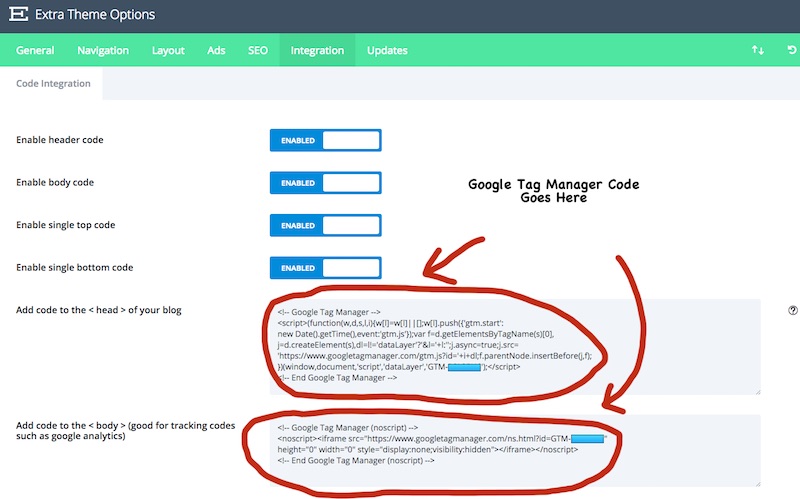
Open your WordPress dashboard. Look for Divi in the menu. Click on it. Find Theme Options. This is where you can add code. It helps you track visitors. Google Analytics code is needed here.
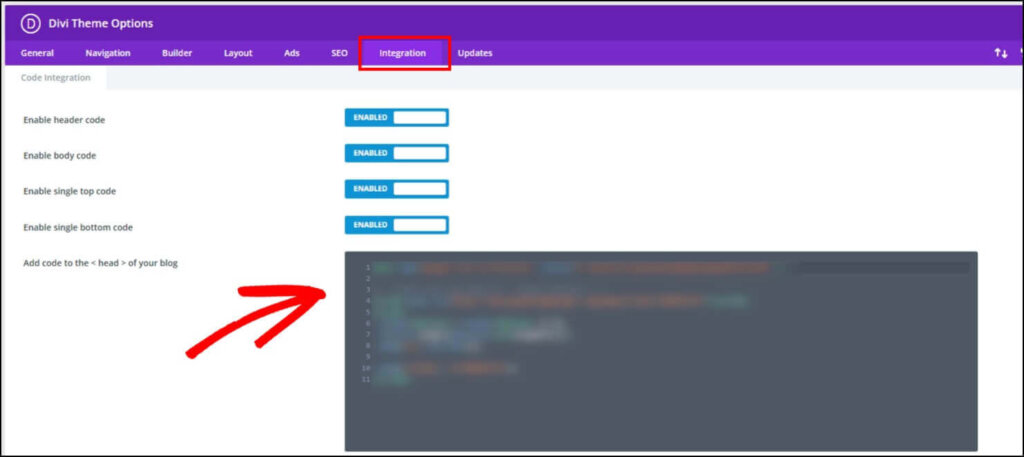
Copy the Google Analytics tracking code. Go back to Theme Options. Find the Integration tab. Paste the code in the Header Code box. Save changes. Your site now has analytics. You can see who visits and how often.
Utilize Google Tag Manager
Google Tag Manager is a free tool from Google. It helps you manage tags without editing code. First, create a Google Tag Manager account. Go to the Google Tag Manager website. Sign up using your Google account. After signing up, make a new container. Name it after your website. Choose “Web” as the type. This container holds all your tags.
Create Google Tag Manager Account
Setting up your Tag Manager account is easy. Use your existing Google login. If you don’t have one, make a Google account first. After logging in, click “Create Account”. Fill in the details about your site. Make sure to select the right container type. Remember, it should be “Web”. This is your first step to manage your tags.
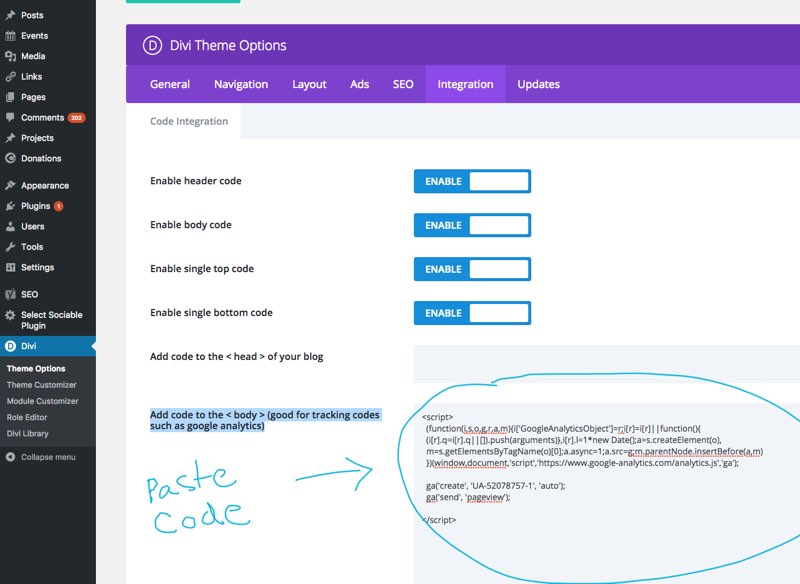
Add Tag Manager Code To Divi
Adding code to Divi is simple. First, copy the Tag Manager code. It’s given when you create a container. Next, go to your WordPress dashboard. Click on “Divi” then “Theme Options”. There, you will find a place to paste the code. Paste the code in the “Integration” tab. Save your changes. Now your Divi theme can use Google Tag Manager.
Credit: hangtenseo.com
Verify Google Analytics Installation
Use the Google Analytics Debugger tool. It is a browser extension. This tool helps check if Analytics works. First, install the extension. Then, turn it on. Visit your site and open the console. You will see messages. These messages show data sent to Analytics.
Real-Time Reports show current site activity. Open your Google Analytics account. Go to the Real-Time section. You can see who visits your site now. Check if the numbers match your visitor count. This helps confirm proper setup. Make sure data appears here. If not, recheck your setup steps.
Troubleshoot Common Issues
Tracking code errors can stop data from reaching Google Analytics. Ensure the code is copied correctly from your Analytics account. Paste it into the correct section of your Divi Theme. Sometimes, the code is placed in the wrong part of the website. This can cause problems. Double-check the placement to avoid mistakes.
Tag Manager conflicts can affect how data is tracked. If using both Analytics and Google Tag Manager, ensure they don’t overlap. Check the settings in both tools to avoid conflicts. It’s important to make sure each tool has its own space. This helps in accurate tracking of your website data.
Credit: optinmonster.com
Optimize Analytics Data
Setting up goals helps track specific actions. Actions like sign-ups or purchases. It shows what works on your site. Use Google Analytics to set these goals. Identify key user activities. Then, track them. This helps improve your website’s success. It’s easy and effective.
Enable this feature for better insights. It shows age, gender, and interests. Understand who visits your site. This data helps tailor content. Make your site more engaging. It’s crucial for reaching your audience. Google Analytics makes it simple. Just turn it on. See the difference in your reports.
Frequently Asked Questions
How Do I Integrate Google Analytics With Divi?
To integrate Google Analytics with Divi, first obtain your tracking ID from Google Analytics. Then, navigate to Divi Theme Options in WordPress. Paste the tracking ID into the “Integration” tab under “Add code to the of your blog.” Save changes to activate.
Can I Add Google Analytics Without A Plugin?
Yes, you can add Google Analytics without a plugin. Access your Google Analytics account to get the tracking code. Then, insert this code directly into the Divi Theme Options under the “Integration” tab. This method avoids additional plugins and streamlines your site.
Where Do I Find The Tracking Code?
Find the tracking code in your Google Analytics account. Log in and select the desired property. Navigate to “Admin,” then “Tracking Info,” and finally “Tracking Code. ” Copy the code provided and use it to integrate with your Divi Theme.
Is Divi Compatible With Google Analytics?
Yes, Divi is compatible with Google Analytics. Divi Theme Options include an “Integration” tab where you can paste your tracking code. This ensures seamless integration and accurate data collection, helping you analyze website traffic effectively.
Conclusion
Adding Google Analytics to your WordPress Divi theme is simple. Follow the steps carefully for accurate data tracking. Make sure your Analytics code is correctly placed. Check your website’s performance regularly. This helps you understand visitor behavior and improve site experience.
Analytics offers valuable insights for growth. Keep your data secure by updating plugins. Try exploring different Analytics reports. These can show you new opportunities. Use this information to refine your content strategy. Engaging content boosts visitor satisfaction. Stay informed and adjust your tactics.
Tracking your progress is essential for success.


