
Are you eager to unlock the full potential of your WordPress website? Adding Google Analytics to your WordPress child theme is a game-changer.
Imagine having the power to understand your audience’s behavior and preferences, all at your fingertips. This not only helps you refine your content strategy but also boosts your site’s performance and engagement. In this guide, you’ll discover how easy it is to integrate Google Analytics into your child theme, ensuring you maintain the customizations you’ve worked hard to create.
Whether you’re a seasoned developer or a curious beginner, this process is designed for everyone. Dive in to learn how you can leverage data-driven insights to elevate your website’s success. Ready to transform your approach? Let’s get started!
Benefits Of Google Analytics
Google Analytics helps track how people use your website. It shows which pages are popular. You can see how long visitors stay on your site. This helps in understanding your audience better. Knowing this can help improve your site. It lets you see where visitors come from, like social media or search engines. This data tells you what content people like.
Traffic and engagement data can guide your content strategy. You can make changes based on real information. Using Google Analytics makes it easier to plan for the future. Businesses can grow by using these insights. This tool is useful for anyone with a website. Understanding user behavior is key. Google Analytics offers these insights easily.
Setting Up Google Analytics Account
First, visit the Google Analytics website. Sign up with your Google account. Follow the steps to create your new account. You will need to provide your website details. After signing up, you will get a tracking ID. This ID is important for your website. Keep it safe.
Choose the right tracking options for your site. Make sure it fits your needs. Your website type matters. Set it up correctly for accurate data. You can track visitors, page views, and more. This helps you know your audience better. Use the information wisely.
Creating A Child Theme
A child theme is like a backup plan. It keeps your changes safe. The parent theme stays original. Updates won’t break your site. You can try new things easily. Mistakes are not a big problem. Fixes are quick. This helps keep your site working well. Use a child theme for your website.
First, find your theme folder. Open the themes folder. Then, create a new folder. Name it after your theme. Add “-child” to the name. Next, create a style.css file. Write the parent theme’s name in it. Finally, create a functions.php file. Add the enqueue function. This links the styles. Now, activate your child theme. Your new theme is ready.

Credit: theme.co
Adding Google Analytics To Child Theme
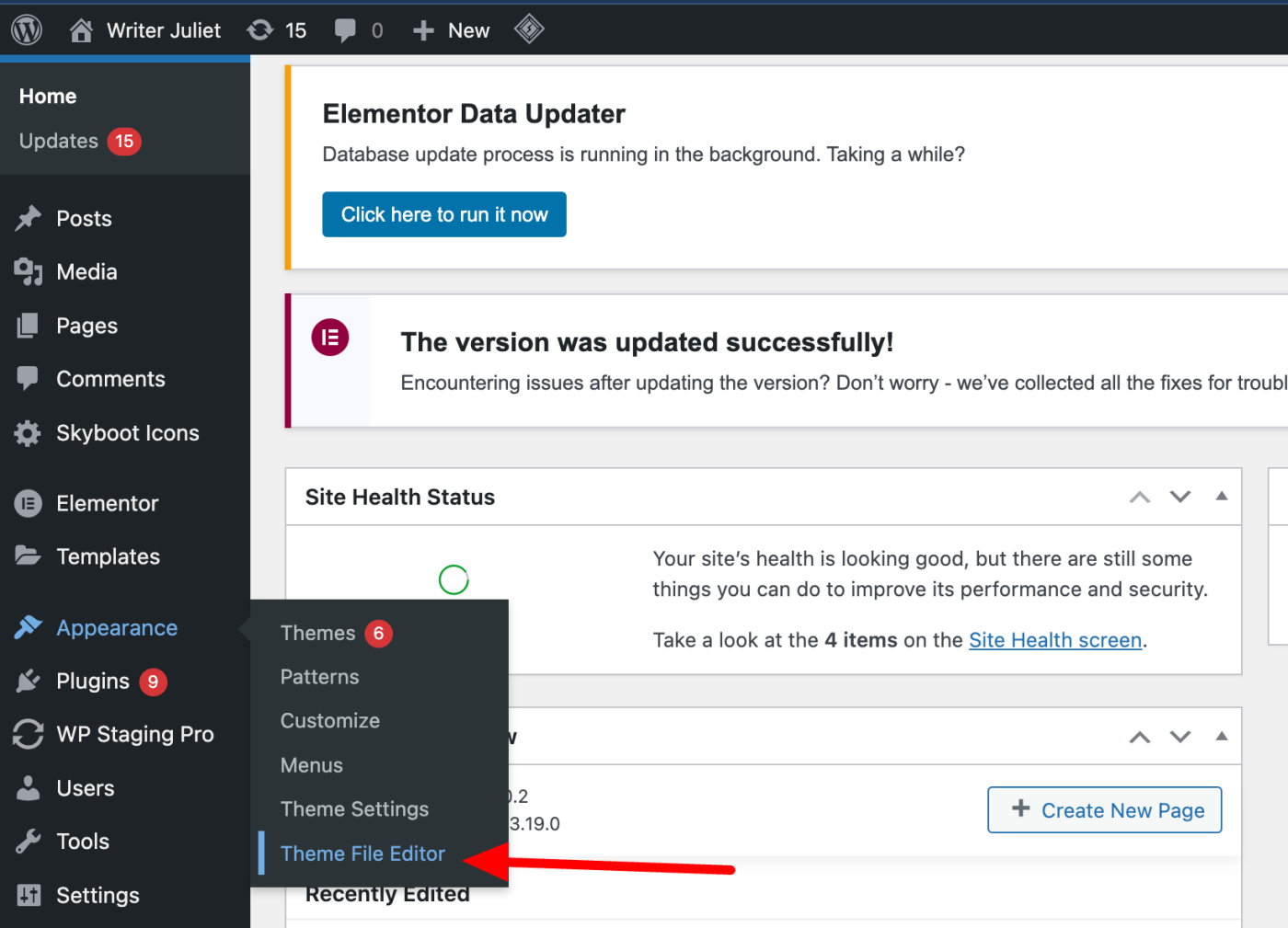
First, find your child theme’s header file. It’s named header.php. This file holds the top part of your website’s code. Open your WordPress dashboard. Go to Appearance, then Theme Editor. Select your child theme. Look for header.php in the list. Open it to edit. Always make a backup before editing. This keeps your site safe.
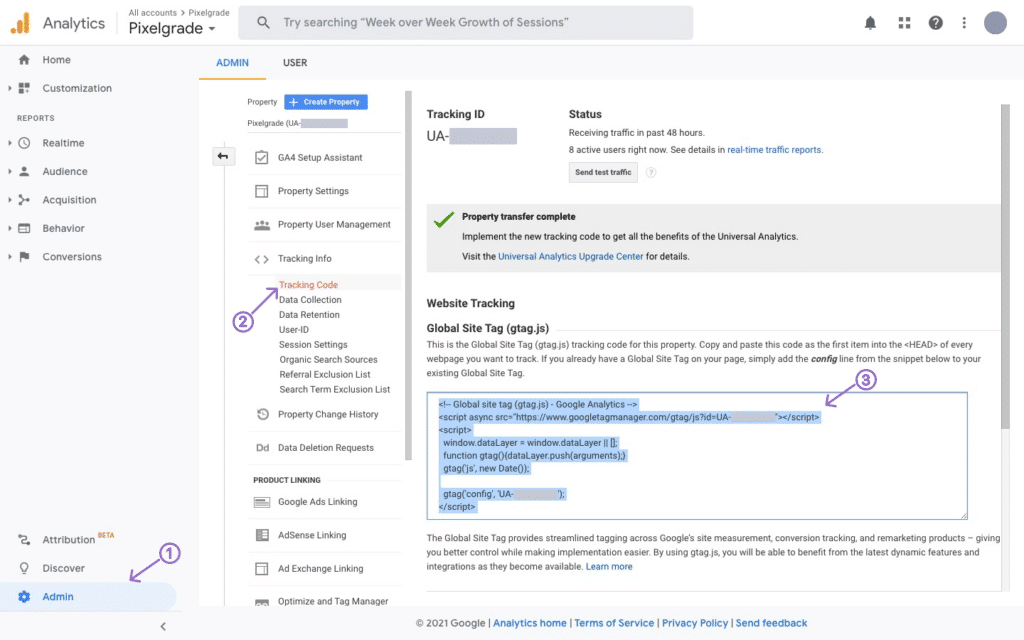
You now have the file open. Get your Google Analytics tracking code. It’s available in your Google Analytics account. Copy the code. Find the tag in header.php. Paste the code before this tag. Save the changes. Your site now tracks visitors. Check Google Analytics for data. Remember, changes might take some time to appear.
Verifying The Installation
Check if Google Analytics works by visiting your site and viewing real-time data. Ensure tracking code is active. Confirm installation through Google Analytics dashboard for accurate data collection.
Using Google Tag Assistant
Google Tag Assistant helps check if Google Analytics is installed. First, add the extension to Chrome. Open your WordPress site. Click the Tag Assistant icon. It shows tags on your page. Look for the Google Analytics tag. Make sure it’s green. Green means it is working fine. If not green, troubleshoot the installation. This tool is simple to use. It makes checking tags easy. Always use it after adding new tags.
Checking Real-time Reports
Real-Time Reports show who visits your site now. Go to your Google Analytics dashboard. Find the Real-Time section. Click on it. You see live data of visitors. Check if the numbers change. If they change, Google Analytics works. If no change, there might be an issue. Real-Time is useful for quick checks. It helps see instant results. Use it often to monitor site activity.
Troubleshooting Common Issues
Ensuring Code Placement: Correct code placement is crucial. Place the Google Analytics code in the functions.php file of your child theme. Wrong placement leads to errors. Check if the code is in the right spot. Test your website after placing the code.
Resolving Tracking Discrepancies: Tracking discrepancies can confuse users. Check the tracking ID for errors. Ensure it matches your Google Analytics account. Clear your browser cache often. This helps see new data. Verify if data appears correctly in reports.
Enhancing Analytics With Plugins
Choosing the right plugin is important. MonsterInsights is popular for Google Analytics. Site Kit by Google is official and reliable. Easy to use and set up. Both plugins offer helpful features. They integrate smoothly with WordPress. WP Statistics is another option. Provides detailed reports. Tracks site traffic efficiently. Always check reviews before installing. Make sure plugins are updated regularly.
First, go to your WordPress dashboard. Click on Plugins. Select Add New. Type the plugin name in the search bar. Click Install next to the chosen plugin. After installation, hit Activate. Follow setup instructions. Enter your Google Analytics ID. Make sure tracking is enabled. Check settings for accuracy. Save changes and test. Confirm data appears in Google Analytics.
Credit: pixelgrade.com
Maintaining Your Analytics Setup
Adding Google Analytics to a WordPress child theme requires editing the theme’s functions file. Locate the file in the child theme directory. Insert the Google Analytics tracking code within the PHP tags. Save and upload the file back to the server.
This ensures your analytics setup remains intact during theme updates.
Regular Updates
Keep your Google Analytics and WordPress plugins up to date. Updates fix bugs and add new features. They keep your site running smoothly. Outdated plugins can cause errors or security issues. Check for updates once a month. Set a reminder if needed. It’s a simple task but very important. Always back up your site before updating.
Monitoring And Reporting
Check your Google Analytics data often. Look for changes in traffic and user behavior. Use reports to understand how visitors use your site. Identify which pages are popular. See where visitors come from. This helps you make better decisions. Share reports with your team if needed. Discuss what the numbers mean. Plan improvements based on the data.
Credit: zapier.com
Frequently Asked Questions
How Do I Integrate Google Analytics With A Child Theme?
To add Google Analytics to a child theme, first obtain your tracking ID from Google Analytics. Next, access your WordPress child theme’s functions. php file. Insert the tracking code using wp_enqueue_scripts action hook. This method ensures tracking capabilities without altering the parent theme’s files.
Is Coding Required To Add Google Analytics?
Yes, adding Google Analytics requires basic coding. You need to insert the tracking code into your child theme’s functions. php file. This involves using the wp_enqueue_scripts hook to execute the JavaScript snippet. Ensure you have access to your theme files through WordPress Dashboard or FTP.
Can I Use Plugins For Google Analytics?
Yes, plugins simplify adding Google Analytics. Tools like MonsterInsights or Google Site Kit automate the integration process. They provide easy setup and comprehensive analytics without manually editing theme files. Ensure the plugin is compatible with your WordPress version and child theme for seamless functionality.
Why Use A Child Theme For Google Analytics?
Using a child theme ensures your Google Analytics code persists after updates. Parent theme updates can overwrite customizations. By adding analytics code to a child theme, you maintain tracking functionality while safely updating the parent theme, preserving your site’s data integrity and customization.
Conclusion
Integrating Google Analytics into your WordPress child theme is essential. It offers valuable insights into visitor behavior. You can track user interactions and improve your site’s performance. Follow the steps carefully to add the tracking code. Ensure it’s placed in the right section of your theme.
This enhances your ability to measure success effectively. Regularly check analytics for trends and patterns. Adjust strategies based on this data. Stay informed and make data-driven decisions. This helps to grow your online presence steadily. Begin today and elevate your WordPress site’s analytics game.
Your efforts will pay off in the long run.


