

Are you wondering how to track your website’s visitors and understand what makes them stay or leave? Adding Google Analytics to your WordPress site is the key to unlocking powerful insights about your audience.
Imagine knowing exactly which pages grab attention, where your visitors come from, and what actions they take. This information can help you make smarter decisions to grow your website and boost your success. You’ll learn step-by-step how to easily connect Google Analytics to your WordPress site—no tech skills needed.
Keep reading, and soon you’ll have the tools to turn your website into a true powerhouse.
Credit: www.hostinger.com
Choose The Right Google Analytics Account
Choosing the right Google Analytics account is an important step. It affects how you track and understand your website traffic. The correct account helps you gather accurate data. This data guides your decisions and improves your site.
You may have multiple Google accounts. Each account can have different Analytics setups. Selecting the correct one ensures you do not mix data from other projects. It keeps your website information clear and organized.
Identify Your Existing Google Analytics Accounts
Start by checking if you already have a Google Analytics account. Log in to Google Analytics with your Google email. Look for any accounts linked to your website. This avoids creating duplicate accounts and confusing data.
Create A New Google Analytics Account If Needed
If no account matches your website, create a new one. Use your Google email to sign up. Enter your website’s name and URL. Choose the right industry category and time zone. This setup improves your data relevance.
Understand The Difference Between Google Analytics 4 And Universal Analytics
Google Analytics 4 is the latest version. It offers new features and better tracking. Universal Analytics is the older version. Some users still use it. Choose the version that fits your needs. Google Analytics 4 is recommended for new users.
Link The Correct Account To Your WordPress Site
After choosing or creating the account, connect it to WordPress. Use a plugin or manual code insertion. Verify the account matches your website. This step activates data collection for your site.
Set Up A Google Analytics Property
Setting up a Google Analytics property is the first step to track your WordPress website’s visitors. It helps you see how people find and use your site. This data guides you to improve your content and user experience.
Creating a Google Analytics property is simple. It only takes a few minutes. You will get a unique tracking ID for your website. This ID connects your site to Google Analytics.
Create A Google Account
A Google account is needed to use Google Analytics. Use your existing Gmail or create a new account. This account gives you access to all Google services.
Access Google Analytics
Go to the Google Analytics website. Sign in with your Google account. You will see the option to start measuring your website.
Set Up Your Property
Click on “Create Property.” Enter your website name. Choose your website’s time zone and currency. This helps to see data in your local time.
Configure Data Stream
Select “Web” as your platform. Enter your website URL. This tells Google Analytics where to collect data from.
Get Tracking Id
After setting up the data stream, you get a tracking ID. It looks like “G-XXXXXXXXXX.” This ID links Google Analytics to your WordPress site.
Get Your Tracking Id Or Measurement Id
Getting your Tracking ID or Measurement ID is a key step in connecting Google Analytics to your WordPress site. This unique code lets Google track visitors and gather data about your website traffic. Without it, Google Analytics cannot collect any information.
Here is how to find your Tracking ID or Measurement ID quickly and easily.
Sign In To Google Analytics
Go to the Google Analytics website and sign in with your Google account. Use the account linked to your website or create a new one if needed.
Select Or Create A Property
Choose the property that represents your website. If you have not set up a property yet, create a new one by entering your website name, URL, and industry category.
Find Your Tracking Id Or Measurement Id
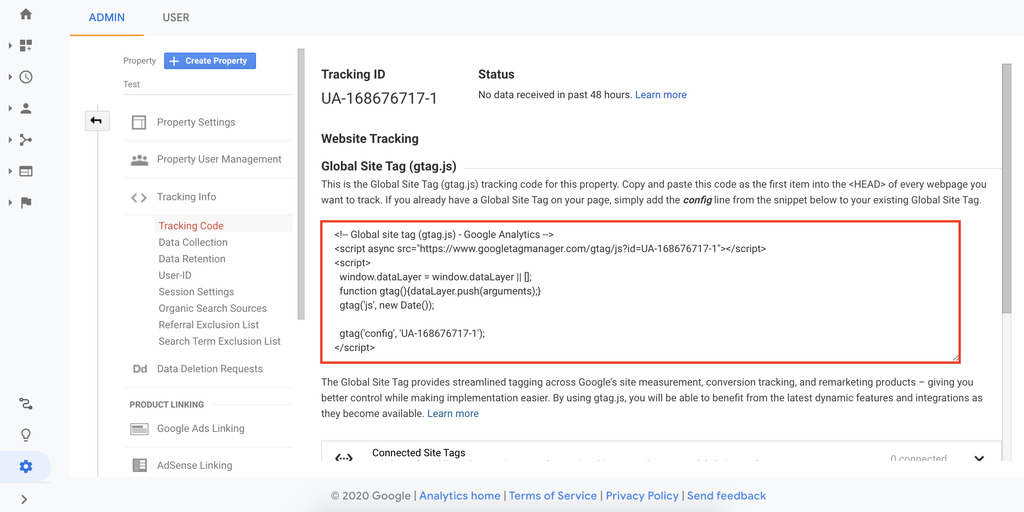
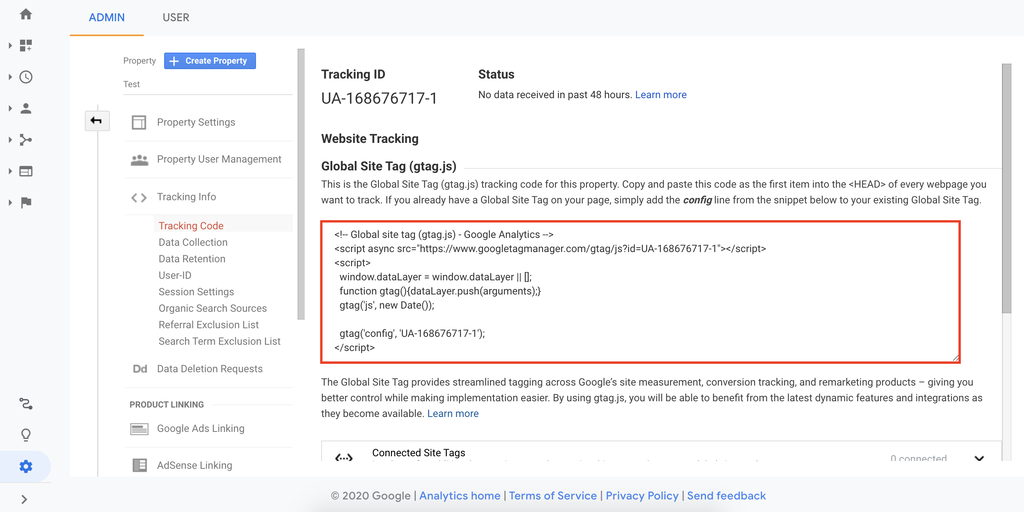
For Universal Analytics, find the Tracking ID starting with “UA-“. For Google Analytics 4, locate the Measurement ID starting with “G-“. It is usually shown in the property settings or data stream details.
Copy The Id For Use
Copy the Tracking ID or Measurement ID exactly as shown. You will need this code to add Google Analytics to your WordPress site using a plugin or manual method.
Add Google Analytics Using A Plugin
Adding Google Analytics to your WordPress site helps track visitors and site performance. Using a plugin is the easiest method for most users. Plugins handle the code and settings for you. No need to edit website files manually.
This method saves time and reduces errors. Many plugins offer extra features like reports and easy setup. Follow these steps to add Google Analytics using a plugin.
Install And Activate The Plugin
Go to your WordPress dashboard. Click on “Plugins” and then “Add New.” Search for a Google Analytics plugin. Popular options include “MonsterInsights” or “GA Google Analytics.”
Choose the plugin that fits your needs. Click “Install Now” and then “Activate.” The plugin will appear in your dashboard menu.
Connect The Plugin To Google Analytics
Open the plugin settings in your dashboard. You will see an option to connect your Google Analytics account. Click the “Connect” or “Authenticate” button.
Sign in to your Google account linked to Analytics. Allow the plugin to access your Google Analytics data. Select the website profile or property you want to track.
Save the settings. The plugin now links your site to Google Analytics.
Verify Tracking Is Working
Visit your Google Analytics account. Go to the “Real-Time” section. Open your website in another browser tab or device.
You should see your activity in real-time reports. If data appears, tracking works correctly. If not, check plugin settings and reauthenticate if needed.
Add Google Analytics Manually
Adding Google Analytics manually to your WordPress site gives you full control. It lets you place the tracking code directly into your theme files. This method works well for those who want a simple and direct setup. It does not require extra plugins, so your site stays fast and clean.
Follow these steps carefully to ensure accurate data tracking. Editing theme files can be risky without attention. Always back up your site before making changes.
Access WordPress Theme Editor
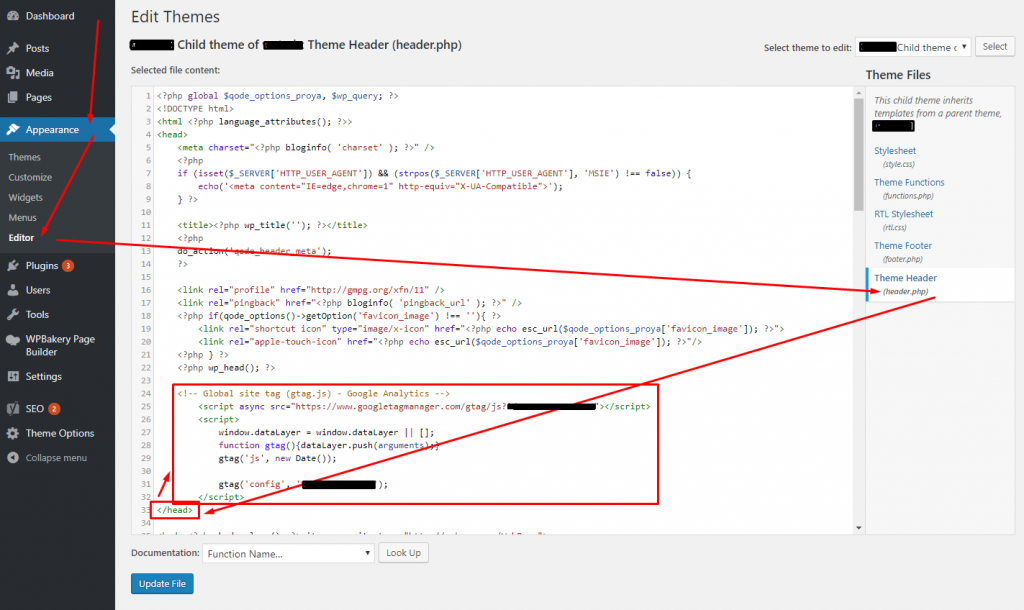
Log in to your WordPress dashboard. Go to Appearance, then choose Theme Editor. Find the header.php file on the right side. This file controls the content in the website’s header area.
Be cautious here. Do not change other files by mistake. The header.php file is where the tracking code must go.
Insert Tracking Code In Header
Open Google Analytics and copy your tracking code. It usually starts with . In the Theme Editor, paste this code right before the closing tag.
Placing the code here allows Google Analytics to load on every page. This is key for accurate visitor data.
Save Changes And Test
Click the Update File button to save your edits. Clear your browser cache to see the changes. Visit your website and check if Google Analytics is tracking correctly.
Use Google Analytics’ real-time report to confirm data is coming in. If you see your visit, the setup works. If not, review your steps and try again.
Credit: www.hostinger.com
Use Google Tag Manager For Integration
Using Google Tag Manager (GTM) simplifies adding Google Analytics to a WordPress site. GTM acts as a container that holds all tracking codes. It helps manage tags without editing code repeatedly. This method saves time and reduces errors. It also lets you add other tracking tools easily in the future.
Create A Google Tag Manager Account
Start by visiting the Google Tag Manager website. Click on “Create Account.” Enter your account name, country, and container name. The container name is usually your website domain. Select “Web” as the target platform. Agree to the terms and create the account. Google will then provide you with a container code snippet.
Add Gtm Code To WordPress
Log in to your WordPress dashboard. Go to Appearance > Theme Editor. Open the header.php file of your active theme. Paste the first part of the GTM code just after the opening
tag. Next, open the footer.php file. Paste the second part of the GTM code immediately after the opening tag. Save the changes. Alternatively, use a plugin like “Insert Headers and Footers” to add the code safely.Set Up Google Analytics Tag
Go back to your Google Tag Manager account. Click on “Add a new tag.” Choose “Google Analytics: Universal Analytics” as the tag type. Select “Page View” as the track type. Enter your Google Analytics Tracking ID. Set the trigger to “All Pages.” This setup tracks every page visit on your site. Save the tag configuration to continue.
Publish And Verify Tags
Click the “Submit” button in Google Tag Manager. Add a version name and description for your reference. Publish the container to make tags active on your site. Use the Preview mode to test if tags fire correctly. Finally, visit your website and check Real-Time reports in Google Analytics. Confirm that your data appears correctly.
Check Real-time Data In Google Analytics
Checking real-time data in Google Analytics helps you see live activity on your website. This feature shows how many visitors are on your site now. It also reveals what pages they visit and their locations. Real-time data is useful for testing if Google Analytics works after setup.
By watching real-time reports, you learn how users interact with your site instantly. It helps spot problems or confirm if new content attracts visitors. Real-time insights support quick decisions to improve your website’s performance.
How To Access Real-time Reports In Google Analytics
Log in to your Google Analytics account. Select the website you want to track. Find the “Real-Time” section in the left menu. Click “Overview” to see current visitor details. This page updates automatically every few seconds.
What Real-time Data Shows
You can see active users, their locations, and traffic sources. It also shows which pages they visit and events triggered. This data helps understand immediate user behavior on your website.
Using Real-time Data To Test Your Setup
After adding Google Analytics to WordPress, open your site in another tab. Watch real-time reports to see your visit appear instantly. This confirms your tracking code works correctly. If you don’t see data, check your setup again.
Troubleshoot Common Issues
Adding Google Analytics to your WordPress site is simple. Sometimes, the data may not show up right away. This section helps fix common problems. Small errors can stop tracking from working. Check these points to solve issues fast.
Verify Tracking Code Placement
Check if the Google Analytics code is in the correct spot. It should be inside the
section of your website. Some themes have special areas to add scripts. Placing code in the wrong place stops tracking. Make sure the entire tracking code is copied. Even one missing part causes errors.Clear Caches And Cookies
Caches save old versions of your site. They can stop new tracking code from loading. Clear your browser cache to see changes. Use WordPress caching plugins to clear site cache. Also, delete cookies to avoid tracking issues. This refresh helps your site show the latest version.
Check Plugin Conflicts
Some plugins may block Google Analytics scripts. Disable other plugins one by one to find conflicts. Plugins that manage scripts or security often cause problems. Test your site after disabling each plugin. Reactivate plugins after testing to keep your site safe. This helps find the cause quickly.
Best Practices For Google Analytics On WordPress
Best practices improve how you use Google Analytics on WordPress. They help you get clear and useful data. This data guides your website growth and user experience. Follow simple steps to make Google Analytics work well for your site.
Enable Demographics And Interests Reports
Turn on Demographics and Interests reports in Google Analytics settings. These reports show visitor age, gender, and interests. This helps you understand your audience better. You can create content that fits their needs and likes. It also helps improve your marketing strategies.
Set Up Goals And Conversions
Create goals in Google Analytics to track key actions. These can be newsletter signups, purchases, or contact form submissions. Goals show how well your site meets business objectives. Tracking conversions helps you find what works and what needs change. Make goals clear and simple for best results.
Regularly Review Analytics Data
Check your Google Analytics data often to spot trends. Look for changes in traffic, user behavior, and goal completions. Regular reviews help you act quickly on problems or opportunities. Use reports to adjust your content and marketing plans. Consistent monitoring keeps your website growing.
Credit: deeperlook.com.au
Frequently Asked Questions
What Is The Easiest Way To Add Google Analytics To WordPress?
The easiest way is using a plugin like “MonsterInsights” or “Site Kit. ” These plugins simplify setup and automatically connect your site to Google Analytics without coding.
Can I Add Google Analytics Without A Plugin In WordPress?
Yes, you can manually add the Google Analytics tracking code to your theme’s header. php file. This requires basic coding knowledge and careful editing to avoid errors.
How Long Does Google Analytics Take To Show Website Data?
Google Analytics typically takes 24 to 48 hours to start showing accurate visitor data after setup. Initial reports may show limited information immediately.
Do I Need A Google Analytics Account For My WordPress Site?
Yes, a Google Analytics account is necessary to generate the tracking ID. This ID links your WordPress website to your Google Analytics dashboard for data tracking.
Conclusion
Adding Google Analytics to your WordPress website is simple and helpful. It lets you see how visitors use your site. Tracking this data helps improve your content and design. You can make better choices to grow your audience. Start with easy steps and keep checking your results.
Stay patient and learn from the numbers. Your website will get stronger over time.


