

If you want to truly understand how visitors interact with your WordPress site, adding Google Analytics is a must. But if you’re unsure how to get started, don’t worry—you’re not alone.
This guide will walk you through the simple steps to add Google Analytics code to your WordPress site quickly and without hassle. By the end, you’ll have powerful insights at your fingertips, helping you grow your site smarter and faster.
Ready to unlock your website’s full potential? Let’s dive in.
Credit: deeperlook.com.au
Why Add Google Analytics To WordPress
Adding Google Analytics to WordPress helps you understand your website visitors. It shows how people find and use your site. This data helps improve your content and design. You see what works and what does not.
Tracking your visitors is key to growing your online presence. Google Analytics gives you clear numbers and reports. These insights guide your decisions and strategies. This makes your website more effective and user-friendly.
What Is Google Analytics?
Google Analytics is a free tool by Google. It tracks website traffic and visitor behavior. It collects data like page views, session time, and user location. This helps website owners understand visitor activity.
Benefits Of Using Google Analytics On WordPress
It helps identify popular pages and posts. You learn which content attracts more visitors. It shows how visitors find your website, such as through search or social media. You can track user actions, like clicks and form submissions.
How Google Analytics Improves Website Performance
You get detailed reports on visitor behavior. This helps fix issues and improve site speed. You can test changes and see their impact on traffic. It supports better marketing by showing which campaigns work.
Credit: www.monsterinsights.com
Create A Google Analytics Account
Creating a Google Analytics account is the first step to track your WordPress site’s visitors. It helps you understand who visits your site and what they do. This information guides you to improve your content and grow your audience.
Setting up an account takes only a few minutes. You will get a unique tracking code to add to your WordPress site. This code collects data about your visitors safely and accurately.
Create A Google Account
To use Google Analytics, you need a Google Account. If you already have one, you can use it. If not, go to the Google sign-up page and create a new account. Use a valid email address and a strong password.
Go To Google Analytics
Open your web browser and visit the Google Analytics website at analytics.google.com. Sign in with your Google Account. You will see the option to start measuring your website’s data.
Set Up A New Property
Click the “Start measuring” button to create a new property. A property represents your website in Google Analytics. Enter your website name, URL, and choose your time zone and currency. This step is important for accurate data tracking.
Accept The Terms Of Service
Read the Google Analytics Terms of Service carefully. You must agree to these terms to use the service. Check the boxes and click “I Accept” to proceed.
Get Your Tracking Code
Getting your Google Analytics tracking code is the first step to start measuring your website traffic. This code helps connect your WordPress site with Google Analytics. It collects data about your visitors and their actions on your site. You need this code to track important details like page views, user behavior, and more.
Finding and copying your tracking code is simple. Google Analytics provides a unique code for each property you create. This code must be added to every page of your WordPress site to gather accurate data.
Sign In To Your Google Analytics Account
Go to the Google Analytics website. Use your Google account to log in. If you don’t have an account, create one for free. Signing in lets you access your tracking codes and reports.
Select Your Property
After logging in, choose the website you want to track. This is called a property in Google Analytics. Each property has its own tracking code. Make sure to pick the correct one for your WordPress site.
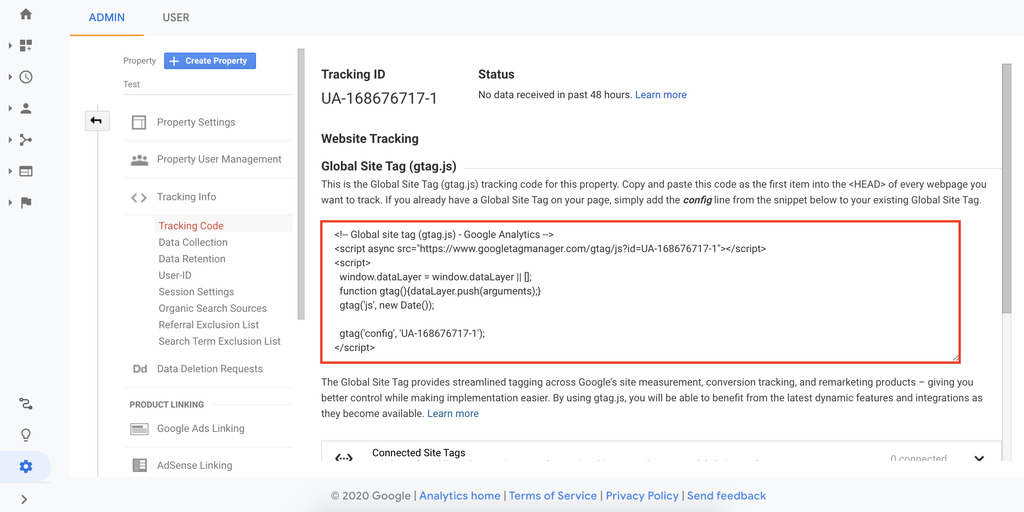
Find The Tracking Code
Navigate to the Admin section in Google Analytics. Under the property column, click on “Tracking Info.” Then select “Tracking Code.” You will see a box with a code starting with “
Copy The Tracking Code
Highlight the entire code inside the box. Right-click and choose “Copy” or press Ctrl+C. Keep this code ready to paste into your WordPress site. This step connects your site to Google Analytics.
Add Tracking Code Manually
Adding Google Analytics tracking code manually helps you control where the code goes. This method suits those who want direct access to their WordPress theme files. It is important to be careful when editing files to avoid errors. Always back up your site before making changes.
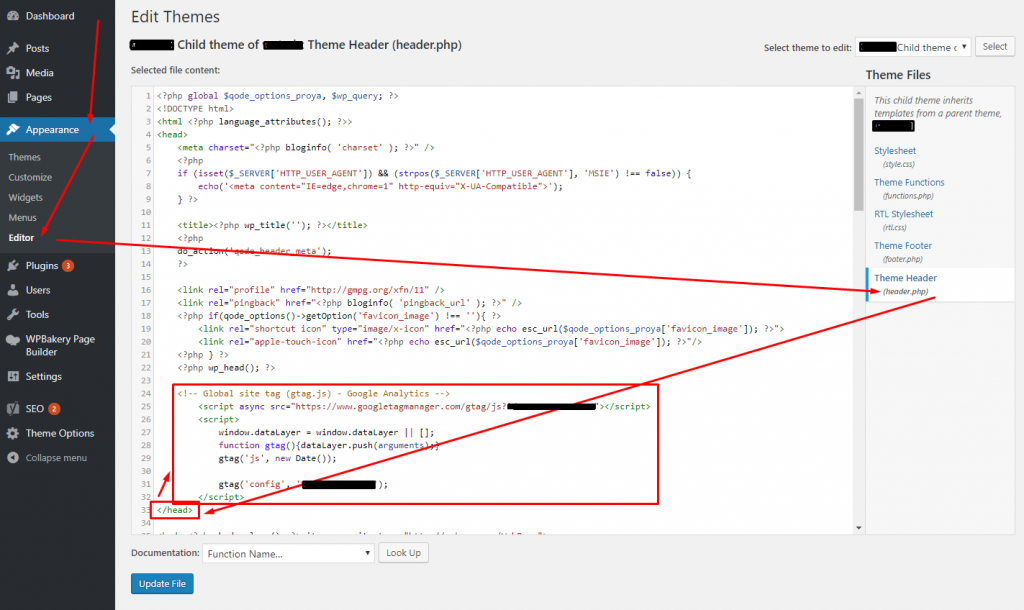
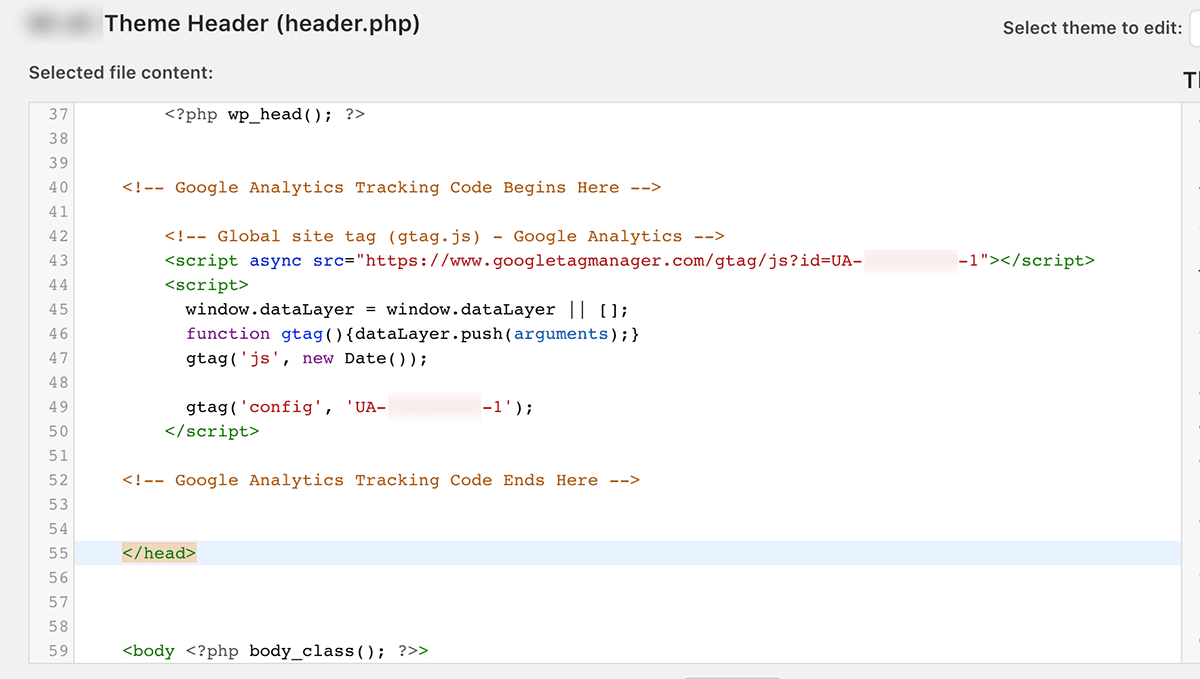
Edit Header.php File
Open your WordPress dashboard. Go to Appearance > Theme Editor. Find and select the header.php file from the right side. Paste the Google Analytics tracking code just before the closing tag. Save the changes. This places the tracking code in the header, so it loads on every page.
Use Functions.php File
Access the functions.php file in the Theme Editor. Add a small function to insert the tracking code. This method keeps your header file clean and uses WordPress hooks. Use this code snippet:
function add_google_analytics() { ?> Paste your Google Analytics code here php } add_action('wp_head', 'add_google_analytics'); Save the file. The tracking code will now load in the header section. This method is safer for theme updates and easier to manage.
Add Tracking Code Using Plugins
Adding Google Analytics tracking code using plugins is an easy way to monitor your website traffic. Plugins handle the code insertion without touching your site’s files. This method suits beginners and saves time. Plugins also offer extra features like data display inside WordPress.
Install A Google Analytics Plugin
Start by logging into your WordPress dashboard. Go to the Plugins section and click “Add New.” Search for a popular Google Analytics plugin like “MonsterInsights” or “GA Google Analytics.” Click “Install Now” and then “Activate.”
Configure Plugin Settings
After activation, find the plugin settings in the dashboard menu. Enter your Google Analytics tracking ID or connect your Google account. Follow the plugin’s instructions to complete setup. Save settings to start tracking your site visitors immediately.
Credit: www.hostinger.com
Verify Tracking Code Installation
After adding the Google Analytics code to your WordPress site, verifying its installation is important. This step confirms that Google Analytics can collect data correctly. Without verification, you might miss valuable insights about your visitors. Two simple methods can help you check the tracking code quickly and easily.
Use Google Tag Assistant
Google Tag Assistant is a free Chrome extension. It scans your website for Google tags, including Analytics. Install the extension and open your WordPress site in the browser. Click the Tag Assistant icon to see if the Analytics tag appears. The tool will show if the tag works or has errors. Fix any issues before moving forward.
Check Real-time Reports
Real-Time reports in Google Analytics show live visitor activity. Open your Google Analytics account and go to the Real-Time section. Visit your website from another device or browser tab. Watch the Real-Time report to see if your visit appears. If it does, the tracking code is working correctly. This method offers quick confirmation without extra tools.
Troubleshooting Common Issues
Adding Google Analytics to WordPress is simple, but problems can happen. Troubleshooting helps find and fix these issues fast. This section covers common problems and easy solutions.
Code Not Appearing
Sometimes, the Google Analytics code does not show on your site. Check if you copied the code correctly. Make sure you paste it in the right place, usually in the header.php or via a plugin.
Clear your site cache and browser cache. Cached pages may hide new code. Disable other plugins that might block scripts. Test your site in a private browser window.
Data Not Showing In Analytics
Data may not appear in your Google Analytics dashboard immediately. Wait 24 to 48 hours for data to update. Confirm your tracking ID in the code matches your Analytics account.
Verify the tracking code is active on all pages. Use Google Tag Assistant or similar tools to check if the code works. Make sure no filters block your own visits from being recorded.
Frequently Asked Questions
How Do I Find My Google Analytics Tracking Code?
Log in to your Google Analytics account. Go to Admin > Property > Tracking Info > Tracking Code. Copy the Global Site Tag (gtag. js) script shown there.
Where Should I Add Google Analytics Code In WordPress?
Add the Google Analytics code inside the header.php file, just before the closing tag. Alternatively, use a plugin for easier integration.
Can I Use A Plugin To Add Google Analytics Code?
Yes, plugins like “Insert Headers and Footers” or “MonsterInsights” allow easy Google Analytics code insertion without editing theme files.
How Long Does Google Analytics Take To Track Data?
Google Analytics usually starts tracking your site within 24 to 48 hours after adding the code correctly.
Conclusion
Adding Google Analytics code to your WordPress site helps track visitor behavior. This data guides you to improve your website’s content and design. The process is simple and does not take much time. You can choose to add the code manually or use plugins.
Both ways work well and keep your site running smoothly. Keep checking your analytics regularly to see what works best. Start today and watch your site grow with useful insights.


