

Are you looking to earn money from your WordPress site? Adding Google AdSense code is a simple way to start making passive income through ads.
But if you’re not sure how to do it, you might feel stuck or overwhelmed. Don’t worry—this guide will walk you through every step, using clear and easy instructions. By the end, you’ll know exactly how to place AdSense code on your site and start turning your traffic into cash.
Keep reading to unlock the secret to monetizing your WordPress blog quickly and effectively!
Create A Google Adsense Account
Creating a Google AdSense account is the first step to start earning money from your WordPress site. AdSense connects your website with Google ads. You earn money when visitors click or view these ads. The process is simple and takes a few minutes.
Follow clear steps to set up your account correctly. This ensures your ads run smoothly on your WordPress blog or site.
Sign Up For Adsense
Go to the official Google AdSense website. Click the sign-up button to start. Use your Google account to log in. Enter your website URL where you want ads to appear. Provide your email address and choose your country. Read and agree to the AdSense terms and conditions. Submit your application for review.
Complete Account Verification
Google will review your site to check if it meets policies. This process can take a few days. You will receive an email when your account is approved. Next, verify your phone number and address. Google may send a PIN by mail for address confirmation. Enter the PIN in your account to complete verification. Without this, you cannot receive payments.
Generate Adsense Code
Generating the AdSense code is a key step to display ads on your WordPress site. This code tells Google which ads to show and where to place them. The process is simple and quick. Follow these steps to create your AdSense code correctly.
Choose Ad Format
Start by signing into your Google AdSense account. Find the section for ad units. Here, select the ad format that fits your site best. Options include display ads, in-feed ads, and in-article ads. Pick the one that matches your page layout and visitor experience.
Customize Ad Settings
Next, adjust the settings for your chosen ad format. Set the ad size to fit your WordPress theme. Choose colors and styles that blend with your site design. This helps keep ads less intrusive and improves user engagement.
Copy The Ad Code
After customizing, generate the ad code. A box with HTML code will appear. Highlight all the code and copy it carefully. This snippet is what you will paste into your WordPress site to show ads.
Add Adsense Code Using WordPress Widgets
Adding Google AdSense code to your WordPress site can increase your chances of earning revenue from ads. Using WordPress widgets is a simple way to place ads on your site without editing theme files. Widgets let you add code to sidebars, footers, or other widget-ready areas.
This method works well for beginners. It does not require any coding skills. Just follow a few easy steps to insert your AdSense code and display ads on your site.
Access The Widget Area
Log in to your WordPress dashboard. Go to Appearance > Widgets. This section shows all widget-ready areas on your site. Choose where you want your ad to appear. Common places include sidebar or footer areas.
Insert Custom Html Widget
Find the Custom HTML widget in the list. Drag and drop it into your chosen widget area. This widget allows you to add custom code or scripts. It’s perfect for inserting AdSense code.
Paste Adsense Code
Copy your AdSense code from your Google AdSense account. Paste it into the Custom HTML widget’s content box. Save the widget settings. Your ad will now show on your website in the selected area.
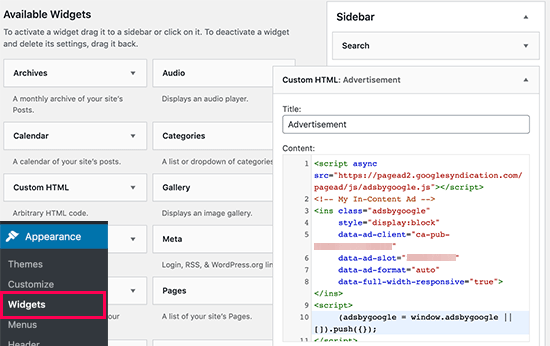
Credit: aioseo.com
Insert Adsense Code In WordPress Theme
Inserting Google AdSense code into your WordPress theme helps display ads on your site. This can increase your earnings from visitors. You can place the code in different parts of your theme, like the header or sidebar. Doing this manually requires editing theme files carefully. Follow simple steps to add the code safely and correctly.
Edit Theme Files Safely
Always back up your website before editing any files. Use a child theme to avoid losing changes after updates. Access your theme files through the WordPress dashboard or an FTP client. Locate the file where you want to add the AdSense code. Common files include header.php for the header or sidebar.php for the sidebar. Open the file and prepare to insert the code.
Place Code In Header Or Sidebar
To add ads in the header, place the AdSense code before the closing tag in header.php. For sidebar ads, insert the code in sidebar.php where you want the ad to appear. Make sure the code is exactly as provided by Google AdSense. Avoid changing the code to prevent errors and lost revenue.
Save Changes And Test
After adding the code, save the edited file. Refresh your website to check if ads appear correctly. Use different devices and browsers to ensure proper display. Clear your cache if you don’t see ads immediately. Monitor your site to confirm the ads load without slowing it down.
Use WordPress Plugins For Adsense Integration
Using WordPress plugins to add Google AdSense code makes the process simple. Plugins handle the technical steps for you. This method saves time and reduces errors. It also offers options to control where ads appear on your site.
Select An Ad Management Plugin
Choose a plugin designed for managing ads. Popular choices include Ad Inserter, Advanced Ads, and WP Quads. Check the plugin’s ratings and reviews. Confirm it supports Google AdSense. This ensures compatibility and better performance.
Install And Activate Plugin
Go to your WordPress dashboard. Navigate to Plugins > Add New. Search for the plugin you want. Click Install Now and then Activate. The plugin will appear in your dashboard menu. This step completes the setup process.
Configure Plugin Settings
Open the plugin from your dashboard menu. Find the section for Google AdSense code. Paste your AdSense code exactly as given by Google. Choose where ads should show on your site. Save your settings to apply changes immediately.
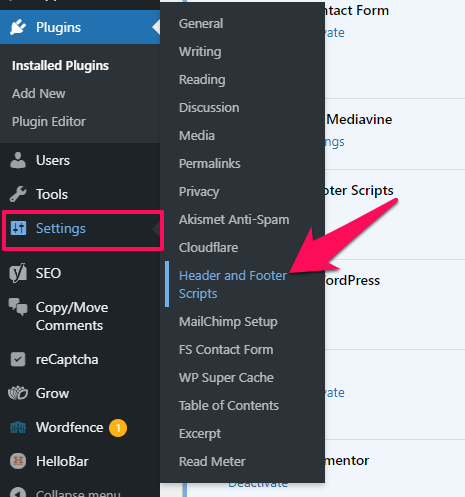
Credit: www.crazyegg.com
Verify Ad Display And Performance
After adding Google AdSense code to your WordPress site, verifying ad display and performance is essential. This step ensures ads appear correctly and generate revenue. It also helps spot any issues early and optimize your site’s earnings.
Check Ads On Your Site
Visit your website on different devices like desktop and mobile. Look for visible ads in the locations you placed the code. Ads might take a few minutes to show up. Clear your browser cache if you don’t see them right away. Make sure no errors block the ads from loading. Check that ads fit well with your site layout and do not disrupt user experience.
Monitor Adsense Dashboard
Log in to your Google AdSense account regularly. Review the dashboard for ad performance data. Track important metrics like impressions, clicks, and earnings. Use this information to understand which ads work best. Identify low-performing ads and adjust placement or settings. The dashboard also alerts you to any policy issues or problems. Staying updated helps keep your ads active and profitable.
Troubleshoot Common Issues
Adding Google AdSense to WordPress can bring extra income. Sometimes, ads may not show or work properly. Troubleshooting common issues helps fix these problems quickly. This section covers simple fixes to get your ads running smoothly.
Fix Ads Not Showing
Ads might not appear for many reasons. First, check if your AdSense account is approved. Unapproved accounts will not display ads. Clear your browser cache to see the latest changes. Use a different browser or device to test the ads.
Make sure your site has enough content. Google prefers sites with useful content for ads. Disable ad blockers during testing. They stop ads from loading. Wait up to 30 minutes after adding code. Sometimes ads take time to appear.
Resolve Code Placement Errors
Incorrect code placement stops ads from showing. Place the AdSense code in the right spot. Most themes require adding code in the header or sidebar widget. Avoid placing code inside post content unless you use a plugin.
Use the Text editor, not Visual editor, to paste code. Visual editor can change the code format. Double-check for missing parts of the code. Even one missing character breaks the ad. Save changes and refresh your site after editing.
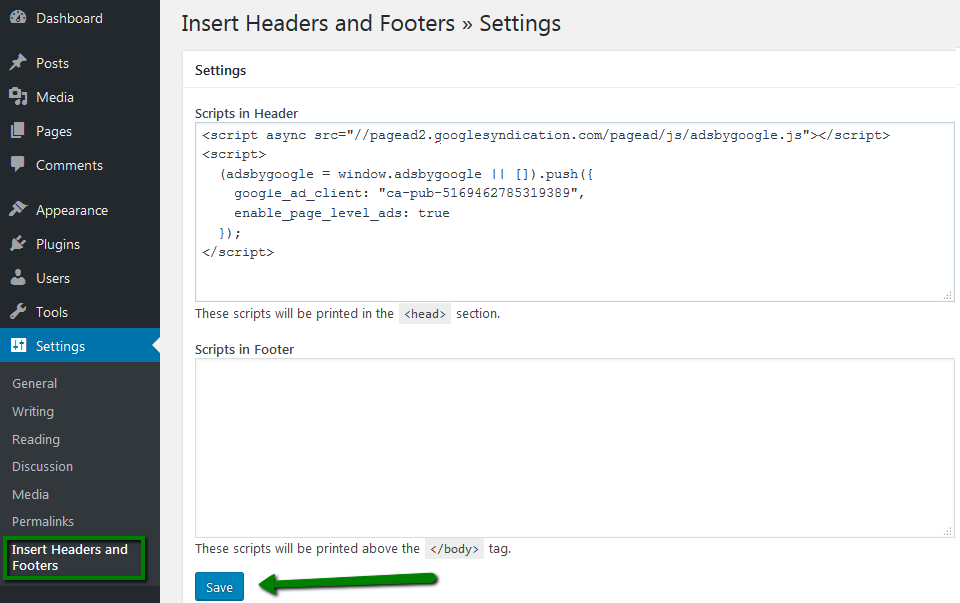
Credit: www.namecheap.com
Frequently Asked Questions
How Do I Create A Google Adsense Account?
To create an Adsense account, visit the Google Adsense website. Sign up using your Google account, enter your website URL, and complete the application. Google will review your site for approval, which usually takes a few days.
Where To Place Adsense Code In WordPress?
Place the Adsense code in your WordPress theme header, footer, or use a plugin. The header. php file or widget areas are common spots for ad placement to ensure ads display correctly.
Can I Use Adsense With WordPress Plugins?
Yes, many WordPress plugins support Adsense integration. Plugins like “Ad Inserter” or “Advanced Ads” simplify ad code management and placement without editing theme files.
How To Verify Adsense Code Is Working?
After adding the Adsense code, check your website for ads after 24-48 hours. You can also use Google Adsense dashboard to monitor ad activity and ensure the code is active.
Conclusion
Adding Google AdSense code to WordPress is simple and quick. Place the code in the right spot to start showing ads. Check your site regularly to make sure ads work well. This helps you earn money from your content. Keep your site clean and easy to use.
Stay patient as ads may take time to appear. Follow these steps, and your site will be ready for Google AdSense. Enjoy the benefits of monetizing your WordPress site easily.


