
Are you looking to make your WordPress website more lively and engaging? Adding a GIF is one of the easiest ways to grab your visitors’ attention and bring your content to life.
But if you’re not sure how to add a GIF without slowing down your site or breaking your layout, you’re in the right place. This guide will walk you through simple, step-by-step methods to add GIFs effortlessly. By the end, you’ll know exactly how to make your website stand out with eye-catching animations that keep your visitors coming back for more.
Ready to get started? Let’s dive in!
Choosing The Right Gif
Choosing the right GIF is key to making your WordPress site lively and fun. A good GIF should match your content and catch visitor attention quickly. It helps explain ideas or add a bit of humor without slowing down your site.
Pick a GIF that fits your message clearly. Avoid overly busy or confusing images. The best GIFs are simple, clear, and easy to understand at a glance.
Sources For Quality Gifs
Find GIFs from trusted websites that offer a wide range of choices. Popular sources include Giphy, Tenor, and Imgur. These sites have many categories to suit different topics.
Choose GIFs that are free to use or have proper licenses. This avoids any legal trouble for your website. Always check the usage rules before downloading.
Optimizing Gif Size And Format
Large GIF files can slow down your website loading speed. Optimize the size by resizing or compressing before uploading. This keeps your site fast and user-friendly.
Use tools like EZGIF or Photoshop to reduce file size without losing quality. Convert GIFs to modern formats like WebP if your WordPress theme supports them. This saves bandwidth and improves performance.
Credit: www.greengeeks.com
Uploading Gifs To WordPress
Uploading GIFs to your WordPress site is a simple way to make your pages more lively. GIFs add movement and catch visitors’ attention. WordPress supports GIF files just like images, so you can easily upload and display them.
This section explains how to upload GIFs using WordPress tools. Follow these steps to get your GIFs online quickly and easily.
Using The Media Library
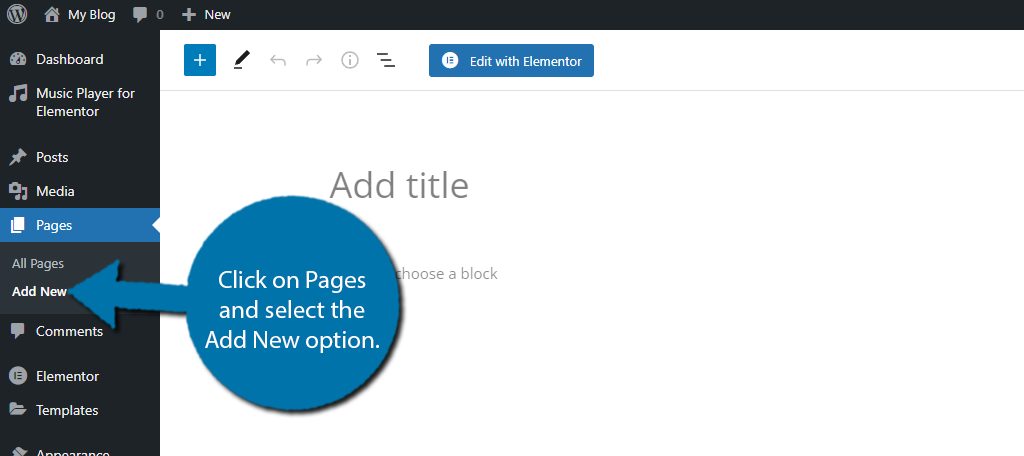
The Media Library is the main place to upload and manage files. To add a GIF, go to your WordPress dashboard. Click on “Media” then “Add New.”
Drag your GIF file into the upload area or click “Select Files” to choose it from your computer. After uploading, the GIF will appear in your Media Library.
From there, you can insert the GIF into any post or page. Just click “Add Media” while editing and pick your GIF from the library.
Direct Upload Tips
Upload GIFs directly in your post or page editor for fast results. Click the “Add Media” button above the editor toolbar. Select “Upload Files” and pick your GIF from your computer.
Keep your GIF file size small for faster loading. Large GIFs can slow down your site and affect user experience.
Rename your GIF file with descriptive keywords before uploading. This helps search engines understand your content better.
Inserting Gifs Into Posts And Pages
Inserting GIFs into posts and pages can make your WordPress site more lively and fun. GIFs help show emotions, explain ideas, or catch attention quickly. The process depends on the editor you use. WordPress has two main editors: Block Editor and Classic Editor. Each has a simple way to add GIFs.
Block Editor Method
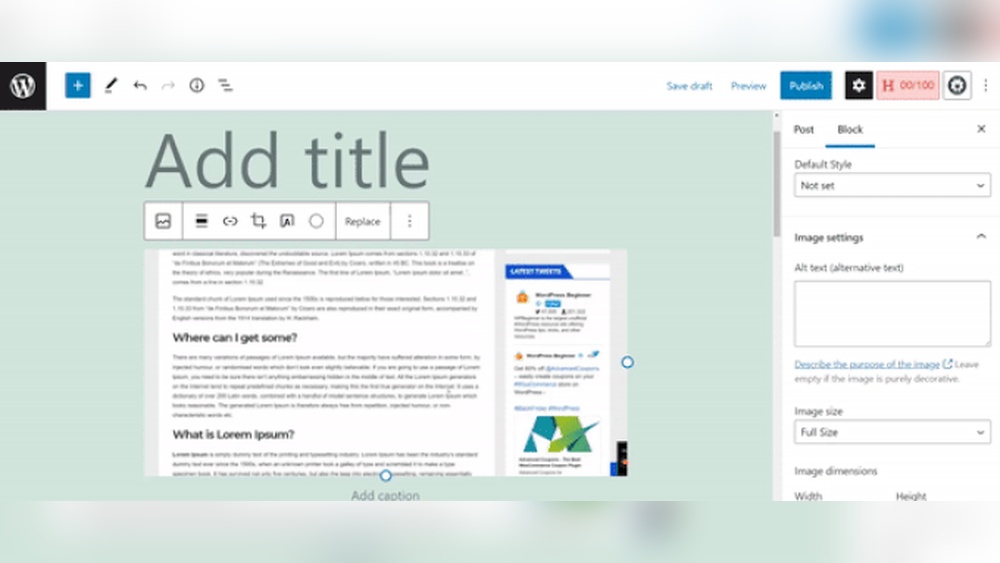
Start by opening the post or page in the Block Editor. Click the plus (+) button to add a new block. Choose the “Image” block from the list. Upload your GIF file or paste its URL if hosted online. The block will display the GIF and keep its animation.
You can resize the GIF by dragging its corners. Add a caption if needed to explain the image. The Block Editor keeps your layout clean and easy to manage. This method works well for all types of posts and pages.
Classic Editor Method
Open your post or page in the Classic Editor. Place the cursor where you want the GIF to appear. Click the “Add Media” button above the editor toolbar. Upload your GIF file or select one from the Media Library. Insert it into your content.
The Classic Editor will show the GIF as part of your content. You can click the image to adjust size or alignment. This method suits users who prefer the older WordPress editor style. It keeps the GIF animation active on your site.
Adding Gifs To Widgets And Sidebars
Adding GIFs to widgets and sidebars can make your WordPress site more lively. These animated images grab visitor attention and show your style. Using GIFs in these areas is simple and does not need coding skills.
Two common ways exist to place GIFs in widgets or sidebars. One uses the built-in image widget. The other uses a custom HTML widget. Both methods work well depending on your needs.
Using Image Widgets
The image widget allows easy GIF uploads. Go to Appearance > Widgets in your dashboard. Drag the Image widget to your sidebar area.
Click the widget and select Upload Image. Choose your GIF from the media library or upload a new file. Save the widget settings.
The GIF will appear in your sidebar exactly as it does in the media library. This method is fast and user-friendly. No extra code is needed.
Custom Html Widget Approach
The custom HTML widget lets you add GIFs with HTML code. Go to Appearance > Widgets and drag the Custom HTML widget to the sidebar.
Enter this code, replacing the URL with your GIF’s link:

Click Save. This method works well if you want to use GIFs hosted outside WordPress. It also allows extra customization with HTML.
Enhancing Gif Display With Plugins
Using plugins can improve how GIFs look and work on your WordPress site. Plugins help control GIF size and speed. They also make sure GIFs load fast and look good on all devices. This helps keep visitors interested and your site running smoothly.
Recommended Gif Plugins
Several plugins work well to enhance GIF display. “WP GIF Player” lets you control GIF play and pause. “GIF Animation Preview” shows GIFs as thumbnails. “Smush” optimizes images, including GIFs, for faster loading. Choose a plugin that fits your site needs and is easy to use.
Configuring Plugin Settings
After installing a plugin, adjust its settings for best results. Set GIF sizes to fit your page layout. Control animation speed if the plugin allows. Enable lazy loading to improve site speed. Test the GIFs on different devices to ensure they look right. Save your settings and refresh your site to see changes.
Optimizing Performance And Loading Speed
Adding GIFs to your WordPress site makes it lively and fun. Yet, GIFs can slow down your page if not optimized. Slow loading hurts user experience and SEO rankings. Optimizing GIFs helps your site load faster and keeps visitors happy.
Lazy Loading Gifs
Lazy loading delays GIFs from loading until they appear on screen. This reduces the initial page load time. It saves bandwidth and speeds up your site. WordPress plugins can enable lazy loading easily. This keeps your pages light and fast.
Caching And Compression Techniques
Caching stores GIFs in the user’s browser for faster return visits. Compression reduces the file size without losing quality. Use tools or plugins to compress GIFs before uploading. Combine caching with compression for best results. Your site will load quicker and use less data.
Troubleshooting Common Issues
Adding GIFs to your WordPress website can make your content lively. Sometimes, these GIFs do not work as expected. Troubleshooting common issues helps fix problems fast. It keeps your site looking great and working well.
Below are common problems users face with GIFs and easy ways to solve them.
Gif Not Animating
One common problem is GIFs not moving. This happens if WordPress treats the GIF like a still image. WordPress may create a static thumbnail instead of using the full GIF. Use the “Add Media” button to insert the GIF properly. Avoid uploading GIFs via the theme settings or page builder if they do not support animation.
Make sure the GIF file itself is animated before uploading. Check the file size too; very large GIFs may not load correctly. Try optimizing the GIF for web use to improve performance. Use plugins that support animated GIFs if needed.
Display Problems On Mobile Devices
GIFs sometimes look broken or do not play on mobile phones. This can be due to mobile browsers limiting animations to save data. Some themes or plugins may block GIFs on mobile devices. Test your site on different phones and browsers to see if the issue occurs.
Use smaller and optimized GIF files for better mobile performance. Avoid autoplaying many GIFs at once, which can slow down pages. Consider using alternative formats like MP4 videos for smoother animation on mobiles.

Credit: appsero.com

Credit: www.youtube.com
Frequently Asked Questions
How Do I Insert A Gif Into WordPress Posts?
To insert a GIF, upload it via the WordPress media library. Then, add the GIF to your post using the block editor or classic editor. This method ensures the GIF displays correctly and loads smoothly on your website.
What File Formats Are Best For WordPress Gifs?
WordPress supports standard GIF files for animations. Use. gif format for animated images to ensure compatibility. Avoid converting GIFs to other formats, as animations may not display properly.
Can Gifs Affect My WordPress Website Speed?
Yes, large GIF files can slow down your site. Optimize GIF size before uploading to reduce load times. Use plugins or online tools to compress GIFs without losing quality.
Is It Possible To Add Gifs To WordPress Widgets?
Yes, you can add GIFs to widgets by inserting the GIF URL or uploading via the widget’s media options. This enhances visual appeal in sidebars or footers easily.
Conclusion
Adding a GIF to your WordPress site is simple and quick. You just need to upload the file and place it where you want. GIFs make your site more lively and fun. They can help explain ideas better than words alone.
Keep your GIFs small to avoid slowing down your site. Now, you can easily share moving images with your visitors. Try adding GIFs to make your content more engaging today.


