
Are you ready to unlock powerful insights about your website visitors? Adding a GA4 tag to your WordPress site is the key to tracking user behavior like never before.
But if you’re not sure where to start, don’t worry — this guide will walk you through every step in a simple, clear way. By the end, you’ll have a fully set up GA4 tag that helps you make smarter decisions for your site’s growth.
Keep reading to discover how easy it is to connect your WordPress site with Google Analytics 4 and start seeing the data that matters most to you.
Why Use Ga4 On WordPress
Using GA4 on WordPress helps you track your website’s performance better. It gives clear data about visitors and their actions. This data helps improve your site and grow your audience. GA4 is the latest version of Google Analytics. It works well with WordPress and offers new features for tracking.
Benefits Of Ga4 Tracking
GA4 tracks users across devices. It shows how visitors use your site on phones and computers. This helps you understand user behavior clearly. It also tracks events automatically. No need to set up every action manually. You get insights about page views, clicks, and more.
GA4 focuses on privacy. It adapts to new rules about user data. You can collect useful data without breaking privacy laws. The reports are flexible and easy to customize. This makes it simple to see what matters most to you.
Differences Between Ga4 And Universal Analytics
GA4 uses an event-based model. It tracks all interactions as events. Universal Analytics tracks sessions and pageviews. This makes GA4 more detailed in user actions. GA4 also uses machine learning. It predicts user trends and helps with decision-making.
Universal Analytics relies on cookies. GA4 works better with or without cookies. This suits current internet privacy changes. GA4 offers deeper integration with Google Ads. This helps improve your marketing results on WordPress sites.
Preparing For Ga4 Setup
Preparing for GA4 setup is the first step to track your website data. This process helps you collect accurate information about your visitors. You need to create a GA4 property and get a measurement ID. These elements connect your WordPress site to Google Analytics.
Create A Ga4 Property
Start by signing in to your Google Analytics account. Click on “Admin” in the bottom left corner. Under the “Account” column, select your account or create a new one. In the “Property” column, click “Create Property.” Enter your website name, time zone, and currency. Choose “Web” as your platform. This creates a new GA4 property for your site.
Get Your Measurement Id
After creating the GA4 property, find the measurement ID. Click on “Data Streams” under the property column. Select your web data stream. You will see the measurement ID at the top right. It starts with “G-” followed by letters and numbers. Copy this ID. You will use it to link your WordPress site with GA4.
Adding Ga4 Tag Manually
Adding the GA4 tag manually to your WordPress site gives you full control over the tracking code. This method helps ensure accurate data collection without extra plugins. You will place the GA4 code directly into your website’s header section. It may sound technical, but the steps are simple and clear.
Accessing WordPress Theme Editor
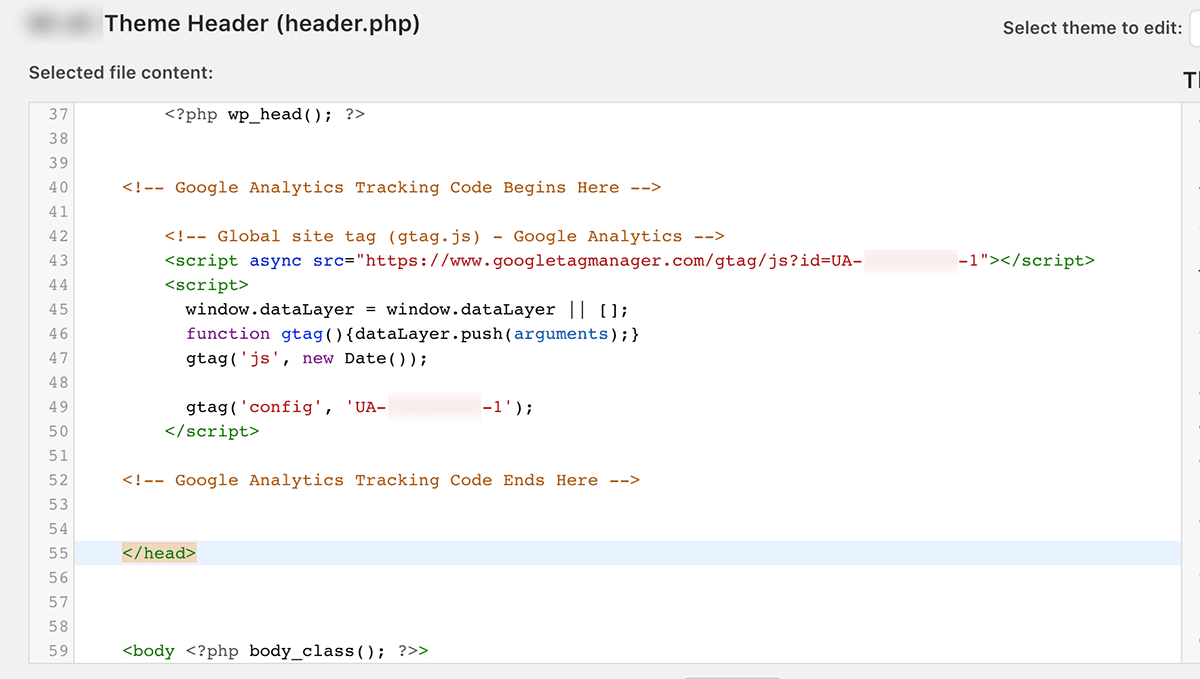
First, log in to your WordPress dashboard. On the left menu, find and click on “Appearance.” Then select “Theme Editor.” A warning might appear about editing theme files. Read it carefully. Click “I understand” to proceed if you agree. You will see a list of theme files on the right side.
Inserting Ga4 Code In Header
Look for the file named “header.php” and click it. This file controls the header area of your site. Paste your GA4 tracking code right before the closing tag. Make sure the entire GA4 code snippet is included. Double-check to avoid breaking the code structure. This step connects your site to Google Analytics.
Saving And Verifying Changes
After adding the code, scroll down and click “Update File.” This saves your changes. Visit your website and open the page source. Look for your GA4 code to confirm it appears correctly. Also, use Google Analytics real-time reports to check if your visits register. This confirms successful installation of the GA4 tag.
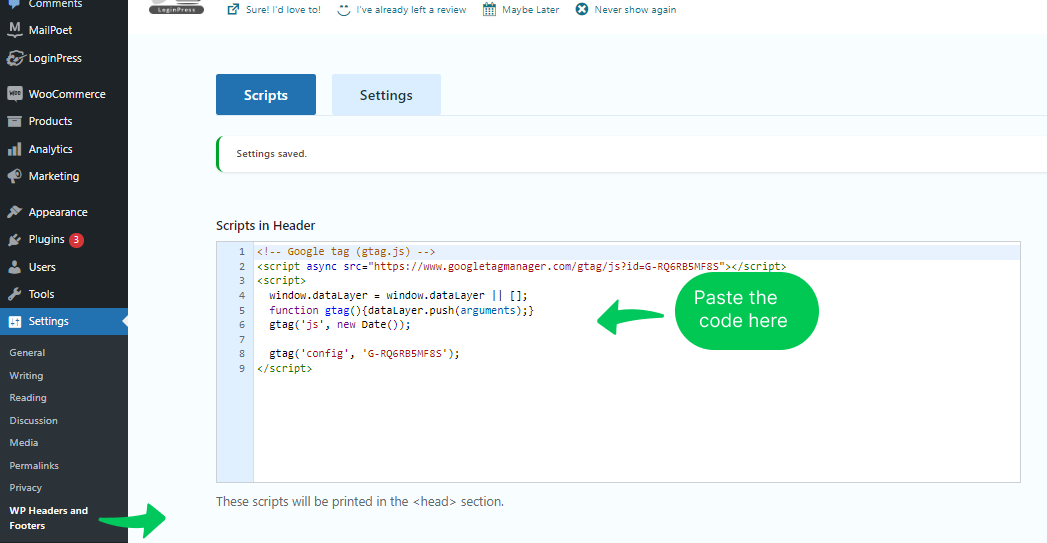
Credit: analytify.io
Using Plugins To Add Ga4
Adding the GA4 tag to WordPress is easier with plugins. Plugins handle most of the technical work. They save time and reduce errors. You do not need to edit code manually. Plugins help connect your site to Google Analytics quickly. Follow clear steps to set up the plugin right.
Choosing The Right Plugin
Pick a plugin designed for GA4 support. Check the plugin’s ratings and reviews. Choose one updated recently for security. Look for easy setup and clear instructions. Popular choices include “Site Kit by Google” and “GA Google Analytics.” Select a plugin that fits your needs and skill level.
Installing And Activating Plugin
Go to your WordPress dashboard. Click on “Plugins” then “Add New.” Type the plugin name in the search box. Find the plugin and click “Install Now.” After installation, click “Activate.” The plugin is now ready for configuration.
Configuring Plugin With Ga4 Id
Open the plugin settings in your dashboard. Enter your GA4 Measurement ID carefully. The ID looks like “G-XXXXXXXXXX.” Save the changes to connect your site. Verify the connection using Google Analytics. Your site will start sending data soon.
Testing Ga4 Tracking
Testing GA4 tracking is important after adding the tag to WordPress. It helps confirm that data is sent correctly to Google Analytics. Proper testing avoids mistakes and ensures accurate reports. This step saves time and improves website analysis.
Using Google Tag Assistant
Google Tag Assistant is a free tool to check tags on your site. It shows if the GA4 tag is working or has errors. Open your website in Chrome and run the Tag Assistant extension. Look for the GA4 tag and check its status. Green means the tag works fine. Fix any errors if the tag is red or yellow.
Checking Real-time Reports In Ga4
Real-time reports in GA4 show live user activity on your site. Visit your website while the report is open to see immediate data. This confirms GA4 tracks users correctly. Check events, page views, and user engagement. If data appears, your tag works well. No data means the tag needs review.
Common Issues And Fixes
Adding the GA4 tag to WordPress can be straightforward. Still, some common issues may stop your data from tracking correctly. Knowing these problems helps fix them fast. Below are typical issues and easy ways to solve them.
Tag Not Firing Properly
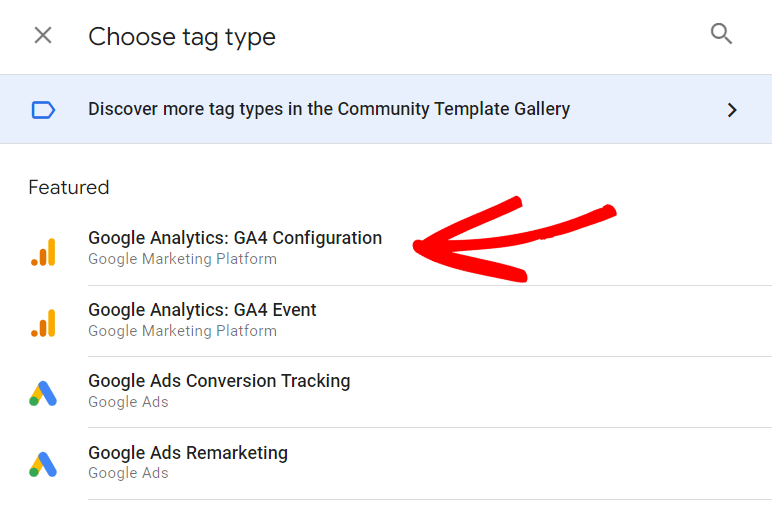
Sometimes the GA4 tag does not send data to Google Analytics. This happens if the tag code is missing or placed incorrectly. Check that the code is in the right spot, usually in the header or through a tag manager plugin.
Clear your site cache and browser cache. Cached pages can stop new tags from working. Use Google Tag Assistant or GA4 DebugView to test if the tag fires on your site.
Duplicate Tracking Codes
Having the GA4 tag twice causes duplicate data in reports. This problem happens when a plugin adds the tag and you insert it manually too. Remove one of the codes to avoid double counting.
Check all plugins and theme settings for any GA4 integration. Keep only one method active for tracking. This keeps your data clean and reliable.
Delayed Data In Ga4
GA4 sometimes shows data with a delay. This delay can last from a few minutes to hours. It is normal but can cause worries if you expect real-time data.
To reduce delay, avoid heavy scripts or slow-loading pages. Use a fast hosting service and optimize your website speed. Monitor data regularly to catch delays early.
Tips For Accurate Data
Getting accurate data from your GA4 tag is important. It helps you understand your visitors and improve your site. Use these tips to keep your data clean and useful.
Exclude Internal Traffic
Internal traffic means visits from you or your team. It can make your data less clear. Use filters to block your own IP addresses. This stops your visits from showing in reports. Your data will reflect real users better.
Set Up Conversion Events
Conversions show when visitors complete goals on your site. Set up events like form submissions or purchases. GA4 lets you mark these events as conversions. Tracking conversions helps measure your site’s success. Choose important actions to track for better insights.
Regularly Monitor Analytics
Check your GA4 reports often. Look for unusual changes or errors. Monitoring helps spot problems early. Fix issues before they affect your decisions. Regular reviews keep your data trustworthy and up to date.
Credit: www.monsterinsights.com
Credit: www.monsterinsights.com
Frequently Asked Questions
What Is Ga4 And Why Add It To WordPress?
GA4 is Google Analytics’ latest version. It tracks website traffic and user behavior. Adding GA4 to WordPress helps you understand visitor actions and improve your site’s performance effectively.
How Do I Create A Ga4 Tag For WordPress?
Log in to Google Analytics, create a new GA4 property, and get the Measurement ID. Use this ID in WordPress via a plugin or by adding the tag manually to your site’s header.
Can I Add Ga4 Tag Without A Plugin?
Yes, you can add GA4 manually. Insert the GA4 global site tag code into your WordPress theme’s header. php file or use a code snippet plugin to safely add it.
How To Verify Ga4 Tag Is Working On WordPress?
Use Google Tag Assistant or the GA4 real-time report. Visit your website and check if your visit appears in the real-time analytics dashboard, confirming the tag works.
Conclusion
Adding the GA4 tag to your WordPress site is simple and quick. It helps you track visitor activity clearly. This data can improve your website’s performance. Follow the steps carefully to avoid mistakes. Check your setup to make sure it works well.
Updating your tracking keeps your site up to date. Start gathering useful insights today to grow your site. Your efforts will pay off with better results.


