

Your website’s footer is more than just the bottom part of your pages—it’s a powerful tool to boost your site’s professionalism and keep visitors engaged. If you’re wondering how to add or customize a footer in WordPress, you’re in the right place.
This guide will show you simple, step-by-step ways to create a footer that not only looks great but also helps your site work better for you. Keep reading, and by the end, you’ll have a footer that enhances your site’s appeal and functionality.
Choosing The Right Footer Style
Choosing the right footer style is important for your website’s look and feel. The footer is the last thing visitors see. It can leave a strong impression or confuse users. Picking a footer that fits your site helps keep visitors engaged and guides them to important information.
A good footer style matches your website’s purpose and design. It should be easy to read and use. Think about what content you want in the footer. This could be contact details, links, or social media icons. The style you choose should make this content clear and accessible.
Simple Vs. Complex Footers
Simple footers show only key information. They often include basic links, a copyright notice, and a small logo. Simple footers load fast and look clean. They work well for blogs or small business sites.
Complex footers have more sections and details. They may include multiple menus, newsletter forms, and social icons. Complex footers suit bigger websites with many pages. They help visitors find many types of information quickly.
Matching Footer To Website Theme
The footer style should match your website’s overall theme. Use similar colors, fonts, and design elements. This creates a smooth visual flow from top to bottom.
Check your website’s style before choosing a footer. For example, a modern site needs a modern footer. A classic site needs a simple, traditional footer. Matching styles keeps your website looking professional and polished.
Using WordPress Customizer For Footers
The WordPress Customizer offers a simple way to change your website’s footer. It lets you see changes live. No need to guess how your footer looks before saving. You can add text, links, and widgets easily. This tool works well for beginners and those with little coding knowledge.
Accessing The Customizer
Start by logging into your WordPress dashboard. Find the “Appearance” menu on the left side. Click on “Customize.” This opens the Customizer panel. Here, you can adjust many parts of your site, including the footer. Look for the “Footer” or “Widgets” section inside the panel.
Editing Footer Widgets
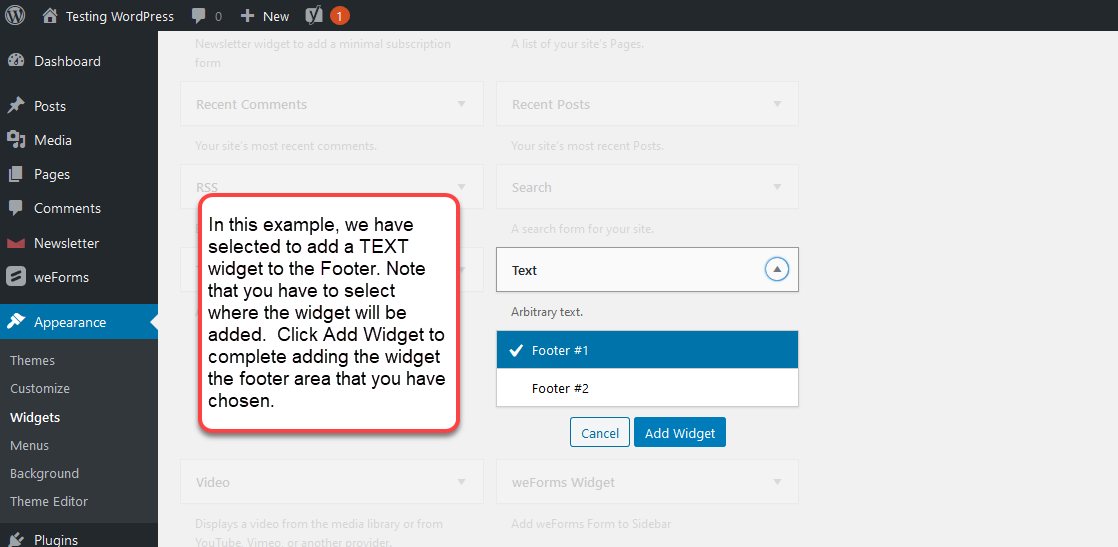
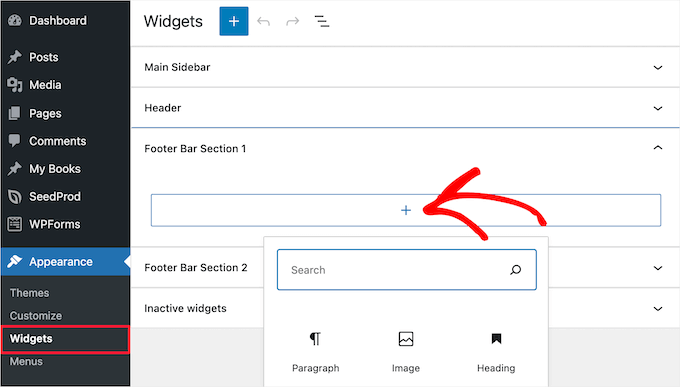
Footer widgets show blocks of content in your footer area. You can add or remove these widgets easily. Inside the Customizer, select the “Widgets” area. Choose the footer widget area you want to edit. Add text, images, or menus to make your footer useful. Drag and drop widgets to change their order.
Adding Custom Text And Links
You can include custom text or links in your footer. This helps visitors find important info fast. Go to the footer text or “Custom HTML” widget in the Customizer. Type your message or paste your links here. Use simple words and clear links to help users navigate.
Installing Footer Plugins
Installing footer plugins is an easy way to customize your WordPress footer. These plugins let you add text, links, images, and more without coding. You can control the look and content of your footer in just a few clicks.
Plugins also help keep your site organized. They offer ready-made options that save time. Even beginners can create professional footers quickly. Let’s explore how to choose and install the right plugin for your site.
Top Footer Plugins To Consider
Several popular plugins help add footers to WordPress sites. “Footer Putter” offers simple copyright and info options. “Elementor” includes footer building in its drag-and-drop editor. “WPForms” can add custom forms to footers. “Insert Headers and Footers” is great for adding code snippets easily. Each plugin has unique features for different needs.
Step-by-step Plugin Installation
Open your WordPress dashboard. Click on “Plugins” then “Add New.” Type the plugin name in the search box. Find the plugin and click “Install Now.” After installing, click “Activate.” The plugin is ready to use.
Some plugins might ask for setup after activation. Follow the on-screen instructions. This setup usually takes only a few minutes. Your footer plugin is now part of your site.
Configuring Plugin Settings
Go to the plugin settings from the dashboard menu. Adjust the footer text, colors, and layout. Choose what content you want to show in the footer. Save your changes and preview your site.
Test the footer on different devices for best results. Make changes if something looks off. Good settings improve your site’s look and user experience. Keep settings simple for easy maintenance.
Credit: www.inmotionhosting.com
Adding Footer With Custom Code
Adding a footer with custom code gives full control over your website’s bottom section. You can create a unique look that fits your brand. This method requires some basic knowledge of WordPress files and coding. It is a flexible way to add content, links, or design elements to your footer area.
Custom coding helps you avoid limitations of footer plugins or themes. You can customize every detail to suit your needs. Follow the steps carefully to keep your site safe and working properly.
Editing Footer.php File
The footer.php file controls the footer section in most WordPress themes. To edit it, access your theme folder via FTP or the WordPress theme editor. Locate the footer.php file in your active theme directory. Back up the file before making changes. Add or modify HTML code inside this file to change footer content. Save your changes and refresh your site to see the updates.
Using Child Themes For Safety
Directly editing the footer.php file can cause problems during theme updates. Use a child theme to protect your custom changes. A child theme copies the parent theme’s files safely. Create a child theme folder and add a style.css and functions.php file. Copy footer.php from the parent theme to your child theme. Edit the copied footer.php file there. This way, updates to the parent theme won’t erase your custom footer code.
Adding Html And Css
Write simple HTML to structure your footer content. Use tags like
Optimizing Footer For Mobile
Optimizing your WordPress footer for mobile devices is essential. Mobile users expect fast, clear, and easy-to-navigate footers. A well-optimized footer improves user experience and keeps visitors engaged. It also helps with SEO by making your site more accessible.
Focus on simplicity and clarity. Avoid clutter. Use larger fonts and buttons for easy tapping. Keep important links visible without overwhelming the screen.
Responsive Design Tips
Use flexible grid layouts that adjust to screen size. Set footer elements to stack vertically on small screens. Choose font sizes that remain readable on phones. Make buttons and links large enough for fingers to tap easily. Avoid fixed widths or heights that break on mobile. Use CSS media queries to control styles for different devices.
Testing Footer On Different Devices
Check your footer on smartphones and tablets of various sizes. Use browser developer tools to simulate mobile views. Test on actual devices whenever possible. Look for issues like text cut off or buttons too close together. Ensure all links are easy to click. Fix any layout problems before publishing changes.
Incorporating Social Media And Contact Info
Adding social media links and contact information to your website footer helps visitors connect easily. It builds trust and makes your site look professional. These details should be clear and easy to find. Place them in your footer to keep them visible on every page.
Adding Social Icons
Social icons let visitors follow your profiles quickly. Use simple icons that represent each platform. WordPress offers plugins to add these icons without coding. Choose icons that match your site’s style for a neat look. Link each icon directly to your social media pages. Keep the icon size consistent for a balanced footer.
Including Contact Details
Contact details give visitors ways to reach you. Include your phone number, email, and physical address if available. Write them clearly and use readable fonts. Use clickable links for phone numbers and emails to improve user experience. Position the contact info near social icons for easy access. Keep the footer clean by only showing essential contact details.
Enhancing Footer With Widgets
The footer is a valuable space on your WordPress site. It can hold more than just copyright info. Widgets help you add useful features there. You can display recent posts, social links, contact info, and more. Widgets make your footer more interactive and helpful for visitors. They improve user experience and keep people engaged on your site.
Popular Footer Widgets
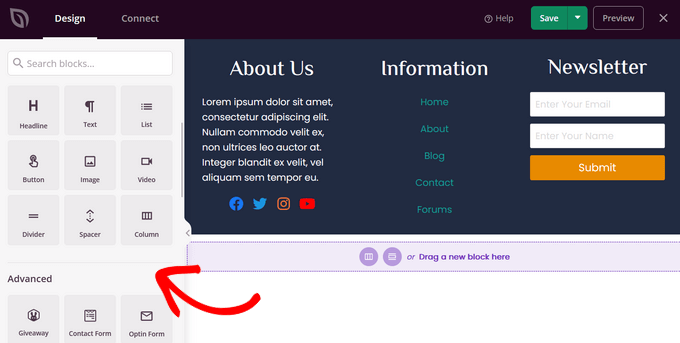
Several widgets work well in the footer area. The Recent Posts widget shows your latest articles. Visitors can find new content quickly. The Social Icons widget links to your social media profiles. It helps grow your audience and connect with users. A Contact Info widget displays your phone number, email, or address. It makes your site trustworthy and easy to reach. Other common widgets include a Search bar and a Newsletter signup. These encourage visitors to explore or stay updated.
Organizing Widget Areas
Arrange your footer widgets carefully for a clean look. Most WordPress themes offer multiple widget areas in the footer. Divide your content into sections like About, Links, and Contact. Use short titles to guide visitors. Keep the layout simple and balanced. Avoid overcrowding with too many widgets. White space helps each section stand out. Test your footer on mobile devices too. A well-organized footer looks professional and helps visitors find info fast.
Credit: www.wpbeginner.com
Troubleshooting Common Footer Issues
Footer issues can be frustrating when customizing your WordPress site. These problems often stop your footer from appearing or looking right. Fixing them quickly helps keep your site professional and user-friendly.
Footer Not Showing
Sometimes the footer does not appear at all. This can happen if the footer widget area is empty. Check if you have added content or widgets to the footer section. Also, ensure your theme supports footers. Some themes do not show footers by default.
Clear your website cache after making changes. Caching can prevent new content from displaying. Disable plugins that might block footer display. Test your site on different browsers to see if the issue persists.
Alignment And Styling Problems
Footer alignment might look off or text may be hard to read. This often happens due to CSS conflicts or missing styles. Use the WordPress Customizer to adjust footer colors and fonts. Make sure your theme’s CSS is loading correctly.
Check if custom code in your theme or plugins affects footer layout. Sometimes extra CSS causes misalignment. Use browser developer tools to inspect and fix styles. Keep footer design simple for better compatibility across devices.
Credit: www.wpbeginner.com
Frequently Asked Questions
How Do I Add A Footer In WordPress?
To add a footer, go to Appearance > Customize > Widgets or Footer section. Add desired widgets or custom HTML. Save changes to display the footer on your site.
Can I Customize The WordPress Footer Without Coding?
Yes, many themes offer footer customization via the Customizer. You can add widgets, text, or logos without coding. For advanced design, a page builder plugin may help.
What Plugins Help Create Custom WordPress Footers?
Popular plugins like Elementor, WPForms, and Footer Putter enable easy footer customization. They provide drag-and-drop interfaces and extra footer features without needing code.
How Do I Edit Footer Copyright Text In WordPress?
Footer copyright text is usually editable via the Customizer or theme settings. If not, edit the footer. php file carefully or use a plugin designed for footer customization.
Conclusion
Adding a footer in WordPress is simple and useful. It helps visitors find important links and information easily. You can customize it to fit your website style and needs. Keep your footer clear and organized for the best effect. Spend time choosing what to include, like contact details or social media links.
Small changes make a big difference in your site’s look and function. Try adding a footer today and see how it improves your website.


