
Are you looking to enhance your WordPress website with a professional touch? Adding a footer widget to your theme can do just that.
Not only does it provide a space for essential information, but it also boosts user engagement by making navigation easier and more intuitive. Imagine your visitors finding what they need without scrolling endlessly. Sounds convenient, right? You’ll discover step-by-step how to add a footer widget to your WordPress theme, ensuring your site looks polished and functions seamlessly.
Stick around, and you’ll learn how to transform your website’s footer into a dynamic, informative space that keeps visitors coming back.
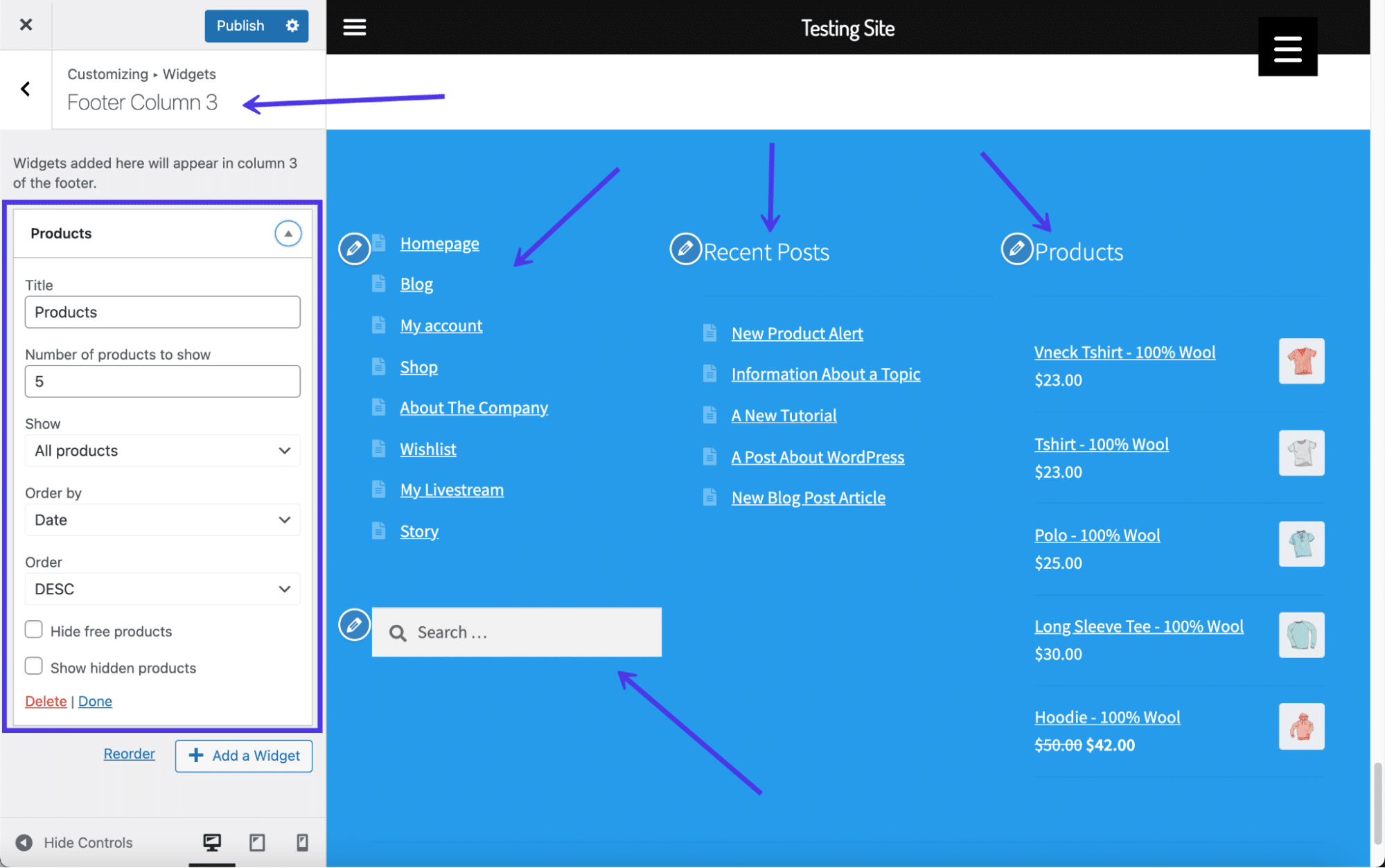
Credit: kinsta.com
Selecting The Right Theme
Choosing the right theme is important. Some themes support footer widgets. Others do not. Check if your theme has this feature. Look for the WordPress Customizer. It can help you see widget areas. If not, consider changing your theme. Many free themes support footer widgets. Popular choices include Astra and OceanWP. These themes are easy to use. They also have many features. Remember, a good theme makes your site better.
Understanding WordPress Widgets
WordPress widgets are small tools. They help add features to your site. You can place them in the sidebar or footer. They make your site look nice. Widgets are easy to use. You don’t need to code.
Widgets can show recent posts. They can display social media links. Some widgets show a calendar. Others show search bars. You can choose which widgets to use. You can change them anytime.
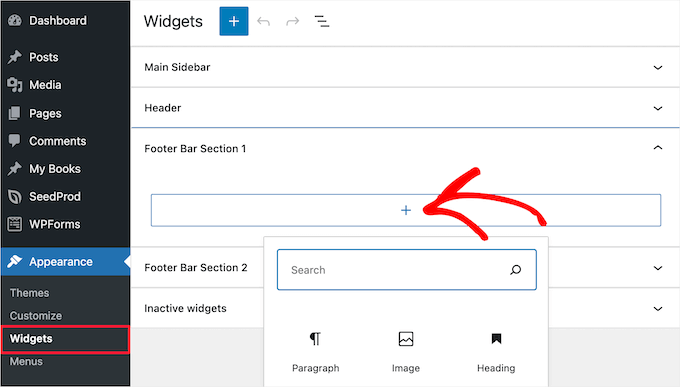
Adding widgets is simple. Go to your WordPress dashboard. Click on “Appearance”. Then select “Widgets”. You will see a list of available widgets. Drag them to your footer area.
Widgets help visitors. They find information quickly. They make your site more interactive. Widgets are a great way to improve your site. Explore different widgets today.
Accessing The WordPress Dashboard
First, you need to log in to your WordPress Dashboard. Use your username and password. Look for the left-hand menu once you log in. This menu holds all the tools you need. Find the Appearance option in this menu. Click on it. A new list will show up. This list will have an option called Widgets.
Click on Widgets to proceed. Now, you can see all available widgets. You can add these widgets to your footer. Drag and drop them into the Footer Area. It’s easy and quick. Make sure to save your changes. Your footer will now have the widget you added.
Navigating To Widget Settings
Start by logging into your WordPress dashboard. Look on the left side. There is a menu. This menu is called the Appearance menu. You will need to find it. It helps you change how your site looks. It’s very important for your site. Click on it to see more options. This is the first step. It is easy to find once you know where to look.
After clicking Appearance, you will see more choices. Look for the word Widgets. Widgets help you add cool things to your site. They are small tools that do big jobs. You will find them in a section called Widgets. Click on it to start adding widgets. It is fun and easy to do. Widgets make your site look nice and work well.
Adding A New Footer Widget
Discover how to enhance your WordPress theme by adding a new footer widget. Start by navigating to your theme’s customization settings. Easily drag and drop the widget to personalize your site’s footer.
Choosing The Footer Area
Pick the footer area where you want your widget. Go to the WordPress dashboard. Find Appearance and then Widgets. You will see different areas for widgets. Choose the footer area. This is where your widget will show. Make sure you select the right one. This step is important.
Selecting The Desired Widget
Decide which widget you want to add. You will see many options. Choose a text widget or an image widget. Drag your chosen widget to the footer area. Customizing is easy. Add your text or image. Preview your changes. Save your work to keep the widget in place. Check your website to see it live.
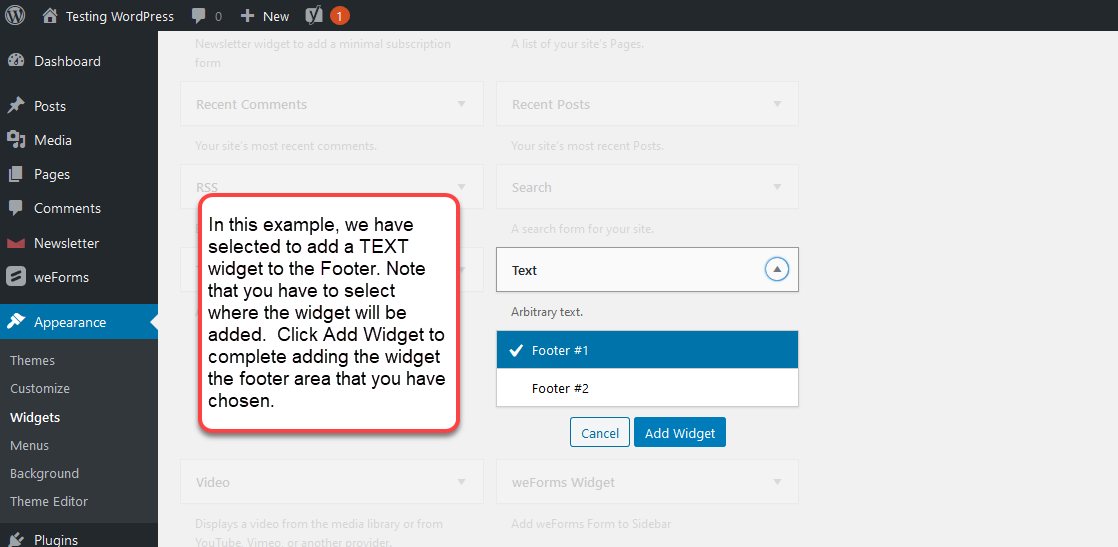
Credit: www.inmotionhosting.com
Customizing The Footer Widget
Start by opening your WordPress dashboard. Click on Appearance, then Widgets. Here, you will see your available widgets. Drag a widget to the footer area. Choose options for your widget. Some widgets let you add text or images. Others might have links or lists.
To add custom content, use a Text Widget. Drag it to the footer. Click on it to type your content. You can add text, links, or images. Remember to click Save when done. Look at your website to see the changes. If you need to change something, go back to the widget area.
Saving And Previewing Changes
Easily add a footer widget to your WordPress theme by saving and previewing changes. This ensures your design looks perfect before going live. Make adjustments as needed in the WordPress customizer for the best results.
Saving The Widget Configuration
First, find the Widgets section in the WordPress dashboard. Pick the footer area where you want to add widgets. Click on it to open the configuration options. Choose your desired widget from the list. Drag it to the footer area. Once placed, fill in the widget settings. Click the Save button to store the configuration. This ensures your changes are kept safe.
Previewing The Footer Changes
After saving, visit the site front-end to view changes. Refresh the page to see the updated footer. Check if the widget appears correctly. If adjustments are needed, go back to the dashboard. Make the necessary tweaks. Save again and refresh the site. Ensure every widget fits perfectly in the footer area.
Troubleshooting Common Issues
Adding a footer widget in a WordPress theme can sometimes be tricky. Ensure your theme supports widgets and navigate to the Widgets section in your WordPress dashboard. Drag and drop your desired widget into the footer area, then save your changes to update your site.
Widget Not Displaying
Sometimes, the widget might not show up. Check if the widget area is active. Go to the WordPress dashboard. Navigate to Appearance and then Widgets. Ensure the widget is in the correct section. If the widget still does not show, it might be due to theme settings. Some themes require extra settings to display widgets. Review your theme’s documentation for guidance.
Styling Conflicts
Widgets sometimes look wrong due to styling conflicts. Themes have their own styles. These styles might clash with widget styles. Use the Custom CSS feature in WordPress. This feature helps fix style issues. Go to Appearance and then Customize. Add your CSS under Additional CSS. This should help align the widget style with the theme.
Enhancing Footer Design
Custom CSS can change your footer’s look. It helps in making the footer unique. To do this, go to the WordPress dashboard. Click on “Appearance” and then “Customize.” Find “Additional CSS” and click. Here, add your own CSS code. You can change colors, fonts, and spacing. This makes your footer stand out. Keep changes simple and neat. This helps in keeping the site fast and clean. Experiment with different styles. See what looks best for your site.
Plugins add more features to your footer. Many free plugins are available. Search for “footer widget plugins” in the plugin directory. Install and activate the plugin you like. Follow the instructions given by the plugin. Some plugins let you add social media icons or contact forms. Choose plugins that match your site’s style. Too many plugins can slow your site down. Pick only what is necessary. Always check for plugin updates. This ensures your site runs smoothly.
Credit: www.wpbeginner.com
Frequently Asked Questions
How To Add A Footer Widget In WordPress?
To add a footer widget, navigate to your WordPress dashboard. Go to Appearance > Widgets. Locate the Footer section and drag your desired widget into it. Save your changes. Your footer widget will now appear on your website, enhancing its functionality and design.
Can I Customize The Footer Widget Area?
Yes, you can customize the footer widget area. Access it through Appearance > Widgets in your dashboard. You can add, remove, or rearrange widgets. Some themes offer additional customization options in the Appearance > Customize section, allowing you to adjust the layout and styling.
Why Isn’t My Footer Widget Showing?
If your footer widget isn’t showing, check your theme’s settings. Ensure the widget is placed in the correct footer area. Verify that your theme supports footer widgets. If problems persist, try disabling plugins that might conflict or consult your theme’s documentation for further guidance.
Are All Themes Compatible With Footer Widgets?
Not all themes are compatible with footer widgets. Most modern themes support them, but some older or basic themes might not. Check your theme’s documentation or contact the developer to confirm compatibility. If unsupported, consider switching to a theme with footer widget support.
Conclusion
Adding a footer widget to your WordPress theme enhances your site’s look. It offers extra space for important information. You can easily display contact details, social media links, or recent posts. Widgets improve user experience and navigation. They make your website more functional and visually appealing.
With a few simple steps, your footer can become a valuable asset. Experiment with different widgets to see what works best. Enjoy the process and watch your site transform. A well-organized footer leaves a lasting impression. Your audience will appreciate the effort you put into your site.


