

Are you tired of your WordPress site looking plain and boring? The right font can change everything, making your content more engaging and easier to read.
But how do you add a custom font to your WordPress theme without breaking a sweat? This guide will walk you through simple, clear steps to help you pick and add fonts that match your style perfectly. By the end, you’ll have a site that not only looks great but also keeps your visitors coming back.
Ready to make your WordPress theme stand out? Let’s dive in!
Choose The Right Font
Choosing the right font for your WordPress theme affects your site’s look and readability. A good font makes your content easy to read and fits your brand style. Picking the wrong font can confuse visitors or make your site look unprofessional.
Web-safe Fonts Vs Custom Fonts
Web-safe fonts are common fonts found on most devices. They load fast and show the same way everywhere. Examples include Arial, Times New Roman, and Verdana.
Custom fonts are unique and can give your site a special style. These fonts come from external sources and may need extra setup. They can slow down your site if not used wisely.
Popular Font Sources
Google Fonts is a popular source offering many free fonts. It is easy to use and works well with WordPress. Another option is Adobe Fonts, which has a large collection but may require a subscription.
You can also upload your own font files to WordPress. This gives full control but needs more technical steps. Choose a source that fits your skill level and site needs.
Consider Font Licensing
Fonts come with licenses that tell you how you can use them. Some fonts are free for personal and commercial use. Others need a license purchase for business sites.
Always check the license before using a font. Using a font without permission can cause legal problems. Choose fonts that fit your budget and legal needs.
Add Fonts Using Google Fonts
Adding fonts to your WordPress theme can improve your site’s look and feel. Google Fonts offers many free, easy-to-use fonts. These fonts load fast and work well on all devices. This section explains how to add Google Fonts to your WordPress theme in three simple ways.
Select Fonts From Google Fonts
Visit the Google Fonts website to browse font options. Use filters to find fonts by style or popularity. Click on a font to see its details and styles. Choose the font weights and styles you want to use. Copy the embed link provided by Google Fonts. This link connects your website to the font files.
Embed Fonts Via Theme Customizer
Go to your WordPress dashboard and open the Theme Customizer. Look for typography or font options in the settings. Paste the Google Fonts embed link into the custom CSS section if available. Some themes have a direct option to select Google Fonts from a list. Save changes and preview your site to see the new font.
Use Plugins For Google Fonts
Install a Google Fonts plugin from the WordPress plugin directory. Activate the plugin and open its settings page. Select your desired fonts and assign them to different text areas. Plugins handle the font embedding automatically. This method requires no coding and is beginner-friendly.
Upload Custom Fonts Manually
Uploading custom fonts manually to your WordPress theme lets you control your website’s style. It helps make your site unique and matching your brand. This process takes a few clear steps. You prepare your font files, add them with CSS code, and change the theme’s style settings.
Prepare Font Files
Start by choosing the font file formats you need. Use formats like .woff, .woff2, and .ttf for best browser support. Make sure your font files are named simply and clearly. Upload these files to your WordPress theme folder using an FTP client or the file manager in your hosting panel. Keep them in a new folder called “fonts” for easy access.
Add Fonts With @font-face
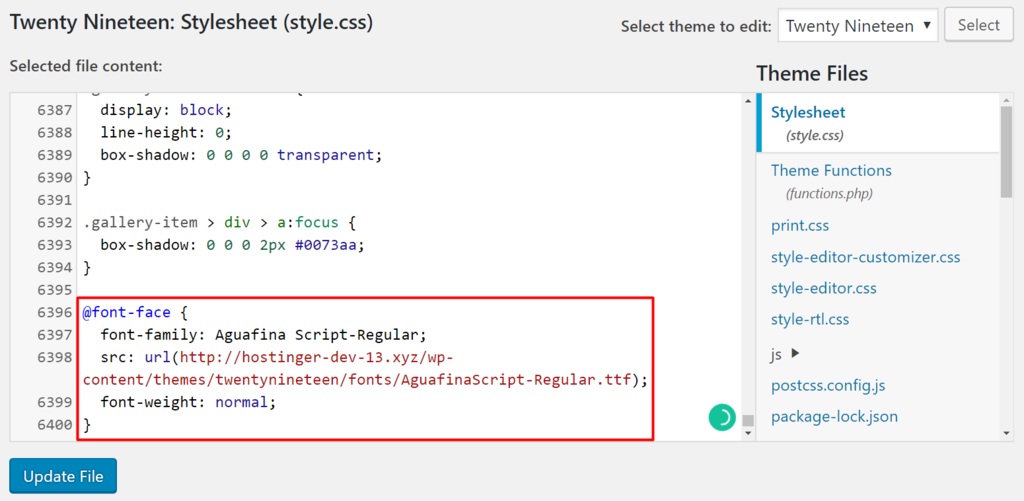
Use the @font-face rule in CSS to add your custom fonts. This rule tells browsers where to find the font files. Write the CSS code inside your theme’s style.css or a child theme file. Example:
@font-face { font-family: 'MyCustomFont'; src: url('fonts/mycustomfont.woff2') format('woff2'), url('fonts/mycustomfont.woff') format('woff'); font-weight: normal; font-style: normal; } Replace ‘MyCustomFont’ with your font’s name. Adjust the URL path to match your font file location.
Modify Theme’s Css
After adding the font, apply it to your website’s text. Use CSS selectors like body, headings, or specific classes. For example:
body { font-family: 'MyCustomFont', Arial, sans-serif; } This code makes your custom font the main font. Add fallback fonts like Arial for better compatibility. Save your changes and refresh your website to see the new font in action.

Credit: www.seedprod.com
Use Plugins To Add Fonts
Using plugins to add fonts in WordPress is an easy and fast method. Plugins help you customize fonts without coding. They offer many font options and simple controls. This makes your site look unique and professional.
Top Font Plugins For WordPress
Several plugins help you add fonts easily. Google Fonts Typography offers many free Google Fonts. Easy Google Fonts lets you change fonts live on your site. Use Custom Fonts plugin to upload your own font files. These plugins work well with most themes.
Installing And Activating Plugins
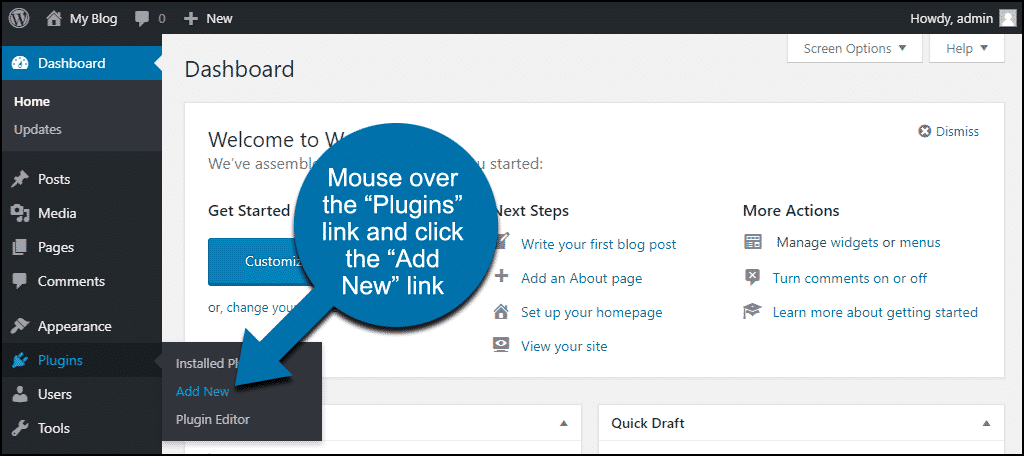
Go to your WordPress dashboard. Click on Plugins > Add New. Search for the font plugin name. Click Install Now, then Activate. The plugin will appear in your dashboard menu. This process takes only a few minutes.
Configuring Fonts With Plugins
Open the plugin settings from the dashboard. Choose the fonts you want to use. Assign fonts to headings, paragraphs, or menus. Preview changes to see how fonts look. Save settings and check your website. Your new fonts should appear instantly.
Apply Fonts To Specific Elements
Applying fonts to specific elements in your WordPress theme helps create a clear visual hierarchy. It improves readability and gives your site a unique style. This section explains how to target headings and paragraphs with custom fonts. It also covers using custom CSS and testing the font appearance to ensure everything looks right.
Target Headings And Paragraphs
Headings and paragraphs are the main text blocks on your site. Changing their fonts makes your content stand out. Most WordPress themes use standard tags like
, , and
for headings and paragraphs.
To apply fonts, target these tags in your theme’s style settings or custom CSS area. For example, use a bold font for headings and a clean, simple font for paragraphs. This separation keeps your content easy to scan.
Use Custom Css
Custom CSS lets you add specific font styles without changing the whole theme. Access your WordPress dashboard and go to Appearance > Customize > Additional CSS.
Use CSS code like this:
h1, h2, h3 { font-family: 'Arial', sans-serif; } p { font-family: 'Georgia', serif; }This code changes fonts for all headings and paragraphs. Replace font names with your preferred fonts. You can also target classes or IDs for more specific control.
Test Font Appearance
After applying fonts, check how your text looks on different devices. Use desktop, tablet, and mobile views to ensure readability. Look for any font size or spacing issues.
Make sure your chosen fonts load quickly and do not slow down your site. Adjust font weights and sizes if needed. Clear, readable fonts keep visitors engaged longer.
Optimize Fonts For Performance
Optimizing fonts for performance is key to a fast and smooth website. Fonts can slow down your site if not handled well. Proper optimization ensures quick loading and better user experience. This section covers simple steps to keep fonts efficient and fast.
Limit Font Weights And Styles
Each font weight and style adds extra file size. Use only the weights you need, such as regular and bold. Avoid loading many styles like italic, light, or black. Fewer font files mean faster loading and less data usage.
Enable Font Display Swap
Font display swap lets text show immediately with a system font. The custom font loads in the background and replaces the system font once ready. This prevents invisible text and improves perceived speed.
Use Caching And Minification
Caching stores font files on the visitor’s browser. This avoids re-downloading fonts on every page load. Minification reduces file size by removing unnecessary code. Both techniques boost font loading speed and reduce server load.
Troubleshoot Font Issues
Font issues can ruin your website’s look and feel. They make text hard to read or cause pages to load slowly. Troubleshooting font problems is key to a smooth user experience.
This section helps you fix common font troubles. Follow these steps to get your fonts working correctly in your WordPress theme.
Fix Font Loading Problems
Check your font files are uploaded correctly. Missing or broken files stop fonts from showing. Use correct file paths in your theme’s CSS. Clear your browser cache to see font changes. Slow servers can delay font loading. Use a reliable hosting service for speed.
Check Browser Compatibility
Not all browsers support all font types. Test your site on popular browsers like Chrome, Firefox, and Edge. Use web-safe fonts or formats like WOFF and TTF. These formats work on most browsers. Avoid uncommon font types that may not display properly.
Resolve Plugin Conflicts
Plugins can interfere with font loading. Disable all plugins and check if fonts appear. Enable plugins one by one to find the conflict. Update or replace plugins causing font issues. Use lightweight plugins designed for font management.
Credit: www.greengeeks.com
Credit: www.hostinger.com
Frequently Asked Questions
How Do I Add Custom Fonts To A WordPress Theme?
To add custom fonts, use a plugin like Easy Google Fonts or manually enqueue fonts in your theme’s functions. php file. Upload font files or link to external font sources like Google Fonts for seamless integration and improved site design.
Can I Use Google Fonts With Any WordPress Theme?
Yes, Google Fonts are compatible with most WordPress themes. You can add them via plugins or by editing your theme’s stylesheet and functions. php file for custom font usage.
What File Formats Are Best For WordPress Fonts?
Use WOFF and WOFF2 formats as they are optimized for web use. These formats ensure faster loading and better browser compatibility for your WordPress site fonts.
Will Adding Fonts Affect My WordPress Site Speed?
Adding fonts can impact speed if not optimized. Use only needed font weights and formats, and consider loading fonts asynchronously to minimize performance issues.
Conclusion
Adding fonts to your WordPress theme is simple and improves site style. Choose fonts that match your brand and keep readability high. Use clear steps to avoid errors and save time. Test your changes on different devices to ensure they look good everywhere.
Custom fonts help your website stand out and feel unique. Keep practicing these methods to get comfortable with design changes. Your site’s appearance matters—fonts play a big role in that. Start adding fonts today for a fresh, professional look.


