

Are you looking to make your WordPress site stand out with unique fonts? The right font can transform your website’s look and feel, making it more inviting and easier to read.
But how do you add new fonts to your WordPress site without any hassle? You’ll discover simple, step-by-step methods to add fonts that match your style and brand. Keep reading, and by the end, you’ll have the tools to give your site that perfect font makeover.
Credit: pixelgrade.com
Choose The Right Font
Choosing the right font shapes how visitors see your website. Fonts affect readability and the overall look. A good font matches your site’s style and message. It also keeps visitors comfortable while reading. Picking the perfect font improves user experience and keeps people on your site longer.
Web-safe Fonts
Web-safe fonts work on almost every device. They do not need extra files to load. Common examples include Arial, Times New Roman, and Verdana. These fonts load fast and look familiar. Using web-safe fonts avoids display issues on different browsers. They are a safe choice for simple and clean designs.
Google Fonts
Google Fonts offer many free options. You can find modern and classic styles here. These fonts load quickly from Google’s servers. They work well with most WordPress themes. Google Fonts give your site a fresh and unique look. You can easily add them using plugins or theme settings.
Custom Fonts
Custom fonts make your site stand out. They are unique and match your brand perfectly. You need to upload font files to your server. Some themes or plugins help add these fonts without coding. Custom fonts may slow down your site if not optimized. Use them carefully for special design needs.
Add Fonts Using Plugins
Adding fonts using plugins is an easy way to change your WordPress site’s style. Plugins let you pick from many fonts without coding. They save time and make your site look better. Using a plugin is safe and fits well with WordPress.
Plugins also help with font loading speed and compatibility. They often include tools to customize font size and style. This method suits beginners and those who want quick font changes.
Popular Font Plugins
Several font plugins work well with WordPress. Google Fonts Typography offers a large library of free fonts. Easy Google Fonts lets you preview fonts live on your site. Use Custom Fonts to upload your own font files. These plugins are user-friendly and get regular updates. Each one has unique features to fit different needs.
Step-by-step Plugin Setup
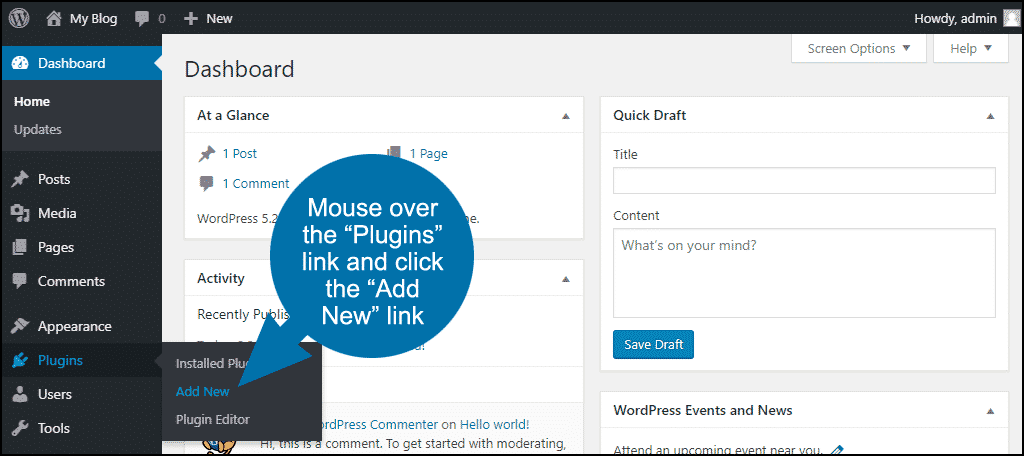
Start by logging into your WordPress dashboard. Go to Plugins > Add New. Search for your chosen font plugin name. Click Install Now, then Activate the plugin.
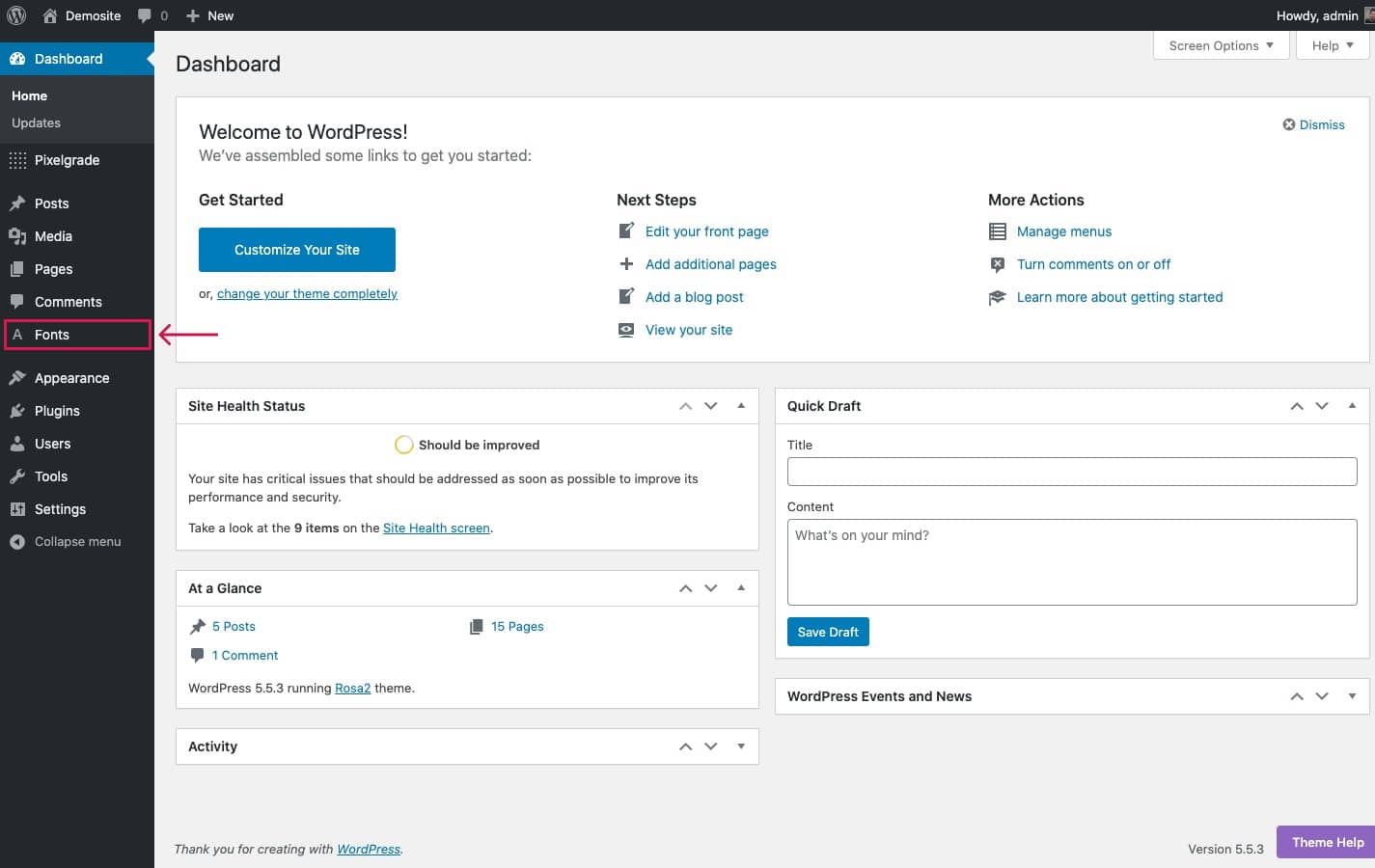
Next, find the plugin settings in the dashboard menu. Choose the fonts you want to use. Customize font sizes and styles if the plugin allows. Save your changes to apply the fonts on your site.
Visit your website to see the new fonts live. Adjust settings anytime for the best look. Using plugins makes font management simple and fast.
Add Fonts Manually
Adding fonts manually to your WordPress site gives you full control over your typography. You can use custom fonts not available in default options. This method needs basic file handling and CSS skills. It is a great choice for unique font styles.
Upload Font Files
First, prepare your font files in web formats like .woff or .woff2. These formats work well across browsers. Use an FTP client or the WordPress media library to upload the font files. Place them in a dedicated folder inside your theme, such as /fonts/. Remember the exact file path for later use.
Modify Css For Fonts
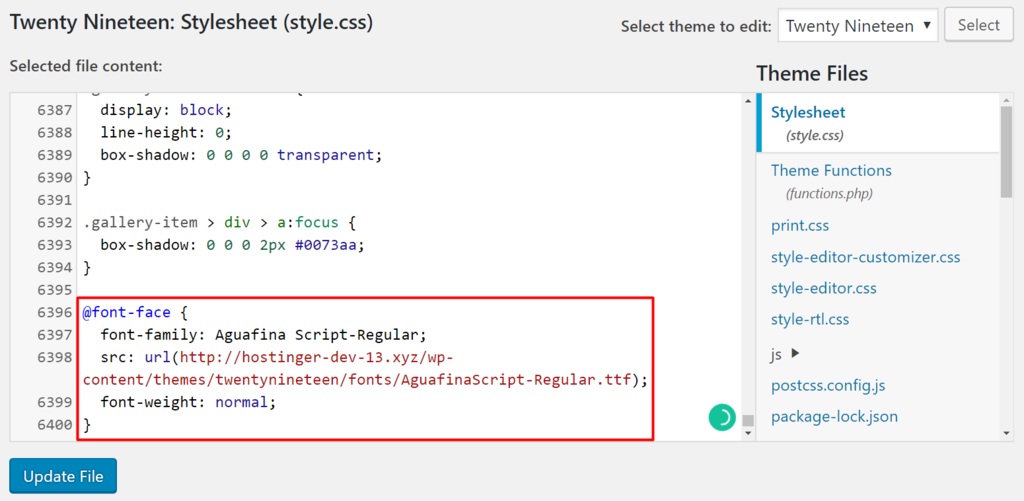
Open your theme’s style.css file or custom CSS section in the WordPress customizer. Use the @font-face rule to define your new font. Specify the font-family name and the file URL you uploaded.
@font-face { font-family: 'CustomFont'; src: url('your-theme-folder/fonts/customfont.woff2') format('woff2'), url('your-theme-folder/fonts/customfont.woff') format('woff'); font-weight: normal; font-style: normal; } After that, apply the font-family to elements using CSS selectors. For example, to change body text:
body { font-family: 'CustomFont', Arial, sans-serif; } Save your changes and refresh the website. Your new font should appear on the site. This manual method ensures your font loads exactly as you want.
Use Google Fonts In WordPress
Google Fonts offers a wide range of free, web-friendly fonts for WordPress sites. Using these fonts can improve your site’s look and readability. Google Fonts works well with WordPress themes and plugins. You can add fonts easily without uploading files or writing complex code.
There are two common ways to use Google Fonts in WordPress. One way is to embed fonts directly through your theme. The other is to add fonts by editing your theme’s functions.php file. Both methods are simple and effective.
Embed Fonts Via Theme
Many WordPress themes include options to add Google Fonts. Check your theme’s settings under Typography or Fonts. Pick your desired font from the list. Save the settings, and the font will appear on your site.
This method does not need coding. It is perfect for beginners. The theme loads Google Fonts automatically. This keeps your site fast and secure.
Enqueue Fonts In Functions.php
For more control, you can enqueue Google Fonts by editing functions.php. This file controls your theme’s features. Add a function that loads the font from Google’s servers.
Here is a simple example:
function load_google_fonts() { wp_enqueue_style( 'google-fonts', 'https://fonts.googleapis.com/css2?family=Roboto&display=swap', false ); } add_action( 'wp_enqueue_scripts', 'load_google_fonts' ); This code loads the Roboto font. Replace “Roboto” with any Google Font you want. This way, the font loads only where needed. It improves site speed and performance.
Optimize Font Loading
Optimizing font loading improves your WordPress site’s speed and user experience. Fast-loading fonts reduce waiting times. Visitors see your content quicker. Search engines also favor faster sites.
Proper font loading helps avoid layout shifts. It keeps text readable during page load. This section explains simple ways to optimize font loading.
Minimize Font Files
Use only the font styles you need. Avoid loading all font weights and styles. Each extra file increases page load time. Limit fonts to essential styles like regular and bold.
Choose modern font formats like WOFF2. These files are smaller and faster to load. Compress font files to reduce size further. Smaller files improve site speed and performance.
Use Font Display Swap
Font display swap controls how fonts appear during loading. It shows a system font first. Then it swaps to your custom font once loaded. This prevents invisible text on your site.
Add font-display: swap; in your CSS for custom fonts. This makes text readable immediately. Users see content without delay or blank spaces.
Credit: www.greengeeks.com
Test And Troubleshoot Fonts
Testing and troubleshooting fonts is a key step after adding fonts to your WordPress site. It ensures your font looks good and works well across different devices and browsers. Proper testing helps avoid display problems that can frustrate visitors.
Checking fonts early saves time and makes your website more professional. It also improves readability and user experience. Let’s explore how to test fonts and fix common font issues on your WordPress site.
Check Cross-browser Compatibility
Different browsers can show fonts in various ways. Some fonts may look perfect in Chrome but fail in Firefox or Safari. Test your site on popular browsers to see how fonts appear.
Use tools like BrowserStack or simply open your website on multiple browsers and devices. Check font size, style, and spacing. Make sure text is readable and consistent everywhere.
Fonts loaded from external sources might fail if the browser blocks them. Confirm your font files are accessible and allowed to load. This step ensures all visitors see the same font.
Fix Common Font Issues
Fonts sometimes do not load or display incorrectly. Clear your browser cache to reload the font files freshly. This often solves font display problems.
If fonts appear too small or large, adjust the CSS font-size property. Use simple units like pixels or em for better control.
Check your font files for errors or missing formats. Some browsers need specific font formats like WOFF or TTF.
Look for conflicts with other plugins or themes. Disable plugins temporarily to see if fonts improve. Switch themes if necessary to find the source of the issue.
Credit: www.hostinger.com
Frequently Asked Questions
How Do I Add Custom Fonts To My WordPress Site?
You can add custom fonts by using plugins like Easy Google Fonts or by embedding font code in your theme’s CSS. Both methods allow you to personalize typography without coding knowledge.
Can I Use Google Fonts On WordPress Easily?
Yes, Google Fonts integrate smoothly with WordPress via plugins or manual CSS insertion. This method offers free, fast-loading fonts that enhance your site’s design and user experience.
What Plugins Help Add Fonts To WordPress?
Popular plugins include Easy Google Fonts, Use Any Font, and Custom Fonts. These tools simplify font installation and customization, making font management user-friendly and efficient.
Is It Safe To Add Fonts Via Third-party Plugins?
Yes, reputable font plugins are safe if regularly updated and downloaded from trusted sources. Always backup your site before installing new plugins to avoid conflicts.
Conclusion
Adding fonts to your WordPress site improves its look and feel. You can choose from many font options to match your style. Follow easy steps to add fonts without trouble. Changing fonts helps make your content clear and inviting. Remember to test your site after adding fonts to check how it looks.
Keep your site simple and easy to read for visitors. Enjoy customizing your WordPress site with fonts that fit your needs.


