
Are you struggling to make your custom WordPress theme visually appealing? Adding a featured image can be a game-changer.
It not only enhances the look of your posts but also grabs your readers’ attention instantly. If you’re unsure how to incorporate this powerful element into your custom theme, you’re in the right place. In this guide, you’ll discover step-by-step instructions to seamlessly add a featured image, boosting your site’s aesthetics and engagement.
Dive in and transform your WordPress experience today!
Theme File Structure
Creating a custom theme needs a good file structure. It helps in organizing your code. Keep your files in the right folders. This makes it easier to find things. The main files include index.php, style.css, and functions.php.
Each file has a special job. index.php is the main page template. style.css controls how your site looks. functions.php adds features to your theme. Use them right to build a great theme.
Ensure to include a header.php and footer.php too. They help in setting up the top and bottom parts of your pages. Follow this structure for a neat and clean theme.
Enabling Featured Images
Adding featured images is easy. It starts with the functions.php file. Open this file in your theme folder. Look for the code section related to theme support. You will see other features listed here. Insert the following code: add_theme_support(‘post-thumbnails’);. This line enables featured images. Save the file after adding the code.
Check your WordPress dashboard. You should see the featured image option now. It appears on posts and pages. This simple step makes your theme better. Featured images improve the look of your site. They make posts more engaging. Readers love images. They draw attention and keep them interested.
Declare support for featured images. This is crucial. Without this, images won’t work. The code is simple. Use add_theme_support(‘post-thumbnails’);. Add this to your functions file. It tells WordPress your theme supports images. Always check your dashboard after changes. Ensure the option is visible. If not, recheck your code. Sometimes small errors happen. Fix them and try again.
Setting Up Image Sizes
Register custom image sizes with add_image_size() function. This function lets you define image dimensions. Use it in your theme’s functions.php file. This makes sure images fit your theme well.
Ensure images look perfect by adjusting dimensions. Use the set_post_thumbnail_size() function. It helps you set default image sizes. This ensures images display correctly on all devices.
Proper image size keeps your site looking neat. It also helps your pages load faster. Fast loading means happy visitors. Happy visitors stay longer on your site.

Credit: wordpress.com
Adding Image To Theme Template
Easily include a featured image in your WordPress custom theme. Start by editing the theme’s functions. php file. Use the “add_theme_support” function for images. Enhance your site’s visual appeal effortlessly.
Locating Appropriate Template
First, find the right template file. This file shows your post. Commonly, it’s called single.php or content-single.php. Open this file in a code editor. Look for the place where the post content shows. This is usually marked by the_content();. It helps to know where to put the image.
Inserting Php Code For Display
Next, add PHP code to show the featured image. Use the code php the_post_thumbnail(); ?. Place this code above or below the_content();. It decides where the image appears. Save the changes to your file. Check your site to see the featured image. If it shows, you did it right!
Testing Featured Images
Adding a featured image in a custom WordPress theme is simple. First, enable featured images in your theme’s functions. php file. Then, use the WordPress dashboard to upload and set your image for each post.
Uploading And Setting Images
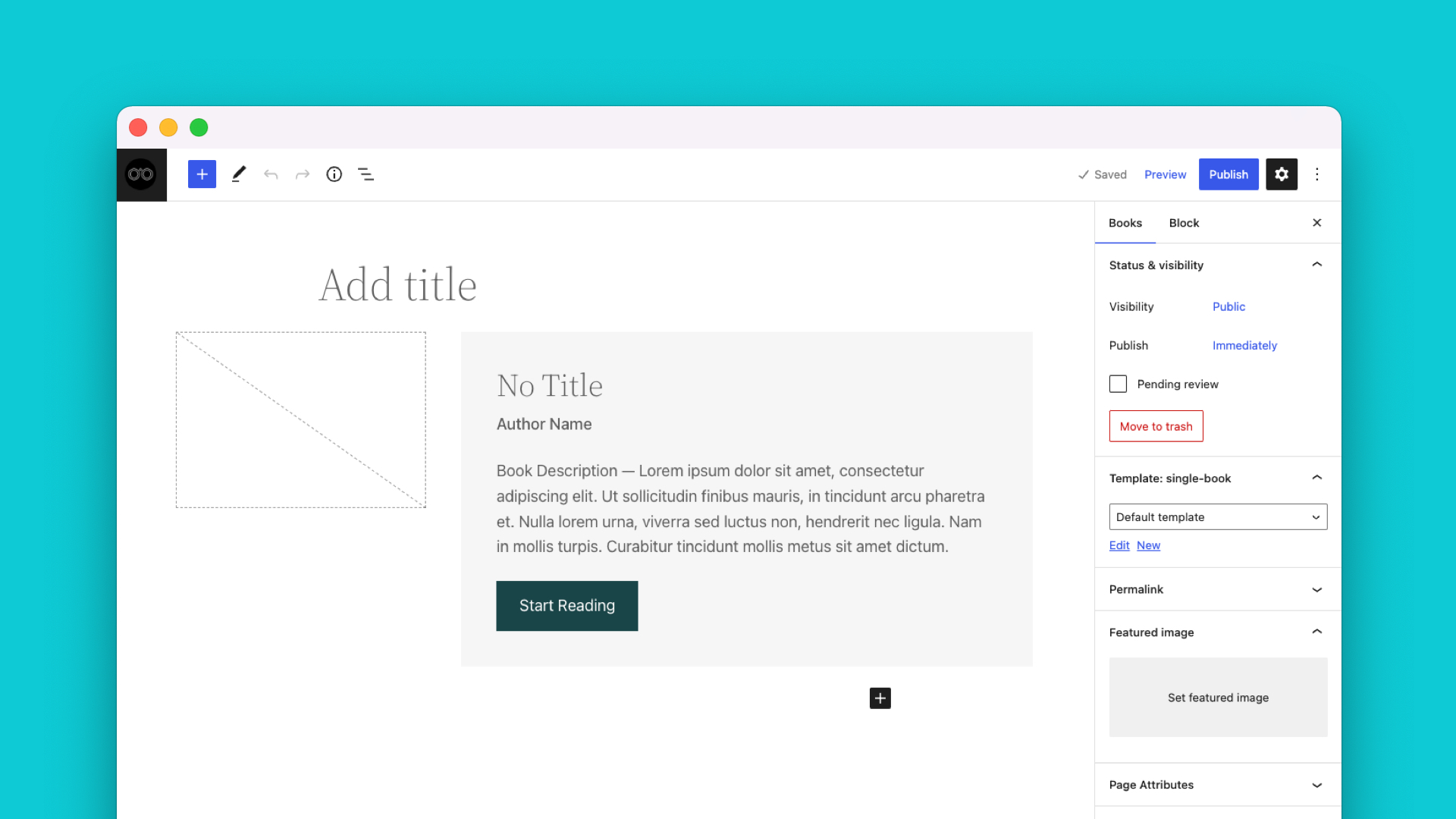
Begin by uploading your image. Go to your WordPress dashboard. Click on Media, then Add New. Drag your image into the upload area. Wait for it to load completely. Next, set the image as featured. Edit your post or page. Look for the Featured Image box on the right. Click on Set Featured Image. Select your uploaded image. Confirm by clicking Set Featured Image button. Save your changes.
Troubleshooting Display Issues
Sometimes images don’t show up correctly. Check your theme settings first. Some themes require specific image sizes. Resize your image if needed. Use an image editing tool. Double-check your custom theme code. Make sure it includes featured image support. If problems persist, contact your theme developer. They can provide guidance. For quick fixes, use a plugin. Plugins can help with image display issues. Choose a reliable one. Test your site after changes.

Credit: wordpress.com
Enhancing Image Features
Adding a featured image makes your WordPress site more engaging. It helps to catch the reader’s eye. To customize the image, adjust its size and alignment. You can also add a border for a neat look. Use simple tools in the WordPress dashboard. Ensure the image fits your theme’s style. This keeps your site looking good.
Images should have alt text. This helps search engines understand your content. Descriptive alt text is good for users too. Always compress images to make pages load faster. This improves your site’s SEO. Choose images that are relevant to your content. High-quality images make a big difference. Keep accessibility in mind for all users.
Credit: wpengine.com
Frequently Asked Questions
How Do I Enable Featured Images In WordPress?
To enable featured images in WordPress, add `add_theme_support(‘post-thumbnails’);` to your theme’s `functions. php` file. This code activates featured image functionality. Afterward, you can set a featured image for posts and pages within the WordPress editor.
Why Is My Featured Image Not Showing?
Your featured image might not show if your theme doesn’t support it. Ensure you’ve added `add_theme_support(‘post-thumbnails’);` in `functions. php`. Also, check if the correct template displays the featured image code. Lastly, verify the image is set in the post editor.
Can I Set A Default Featured Image?
Yes, you can set a default featured image using a plugin or custom code. A popular plugin is “Default Featured Image. ” Alternatively, add custom code in `functions. php` to automatically assign a default image when none is set.
What Size Should My Featured Image Be?
The ideal size for a featured image depends on your theme. Common sizes are 1200×628 pixels for full-width layouts. Check your theme’s documentation for specific dimensions. Using consistent sizes ensures images appear correctly across your site.
Conclusion
Adding a featured image to your custom WordPress theme is simple. It enhances visual appeal and boosts engagement. Start by accessing your WordPress dashboard. Navigate to the theme’s functions file. Add the necessary code to enable featured images. Ensure proper sizing for better display.
Test and preview your changes. Check responsiveness on mobile devices. Featured images can increase user interaction. They make your posts more attractive. Follow these steps carefully for success. Enjoy a more engaging blog layout. Happy blogging!


