
Ever stumbled upon a website that instantly caught your eye with its sleek design and vibrant style? Chances are, they might be using a standout WordPress theme like Fashionista.
If you’re looking to give your own website a chic makeover, you’re in the right place. Adding the Fashionista WordPress theme can transform your site into a visually stunning platform that resonates with your audience. Imagine the impact of a beautifully designed site that not only reflects your personal style but also keeps visitors coming back for more.
It’s easier than you think, and this guide will walk you through the process step-by-step. Ready to captivate your audience and elevate your online presence? Let’s dive in and see how you can effortlessly install the Fashionista theme and make your site shine.
Prerequisites
First, make sure WordPress is installed. This is the start. It must be done before adding any theme. Check your website. Is WordPress running? If yes, you are ready. If not, install it now. Follow the steps on the WordPress site. It is simple and quick. Make sure your version is recent. Older versions may not work well.
Check if the Fashionista theme works with your site. Some themes need special settings. Look at the theme’s page. Are there any warnings? Read carefully. If your setup matches, great! If not, you might need changes. Check plugins too. Some may clash with the theme. Fix any issues before proceeding.
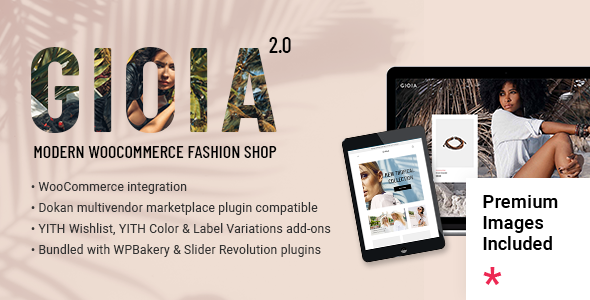
Credit: themeforest.net
Downloading The Fashionista Theme
The Fashionista theme is popular for blogs. You can find it online. Visit the WordPress theme directory. Search for Fashionista. Look for the official source. Make sure you download the right file. It should be safe and virus-free.
Click the download button. Wait for the files to save. Check your computer. The files should be in the downloads folder. These files are important. You need them for installation. Make sure they are complete. Sometimes files can be missing.
Installing The Fashionista Theme
Log in to your WordPress dashboard. Find the Appearance section. Click on Themes. Then, click Add New at the top. Use the search box. Type Fashionista. Click Install when you see it. After installation, click Activate. Now the theme is live.
First, download the Fashionista theme file. Use a tool like FileZilla. Connect to your website server. Go to the wp-content folder. Then find the themes folder inside. Upload the theme file here. Go to your WordPress dashboard. Click Appearance and then Themes. Find Fashionista and click Activate. Your new theme is ready.
Activating The Theme
Open your WordPress dashboard. Find the Appearance section on the left. Click on it. Now, select Themes. You will see a list of themes. Find the Fashionista theme. If it’s not there, upload it first. Click the Activate button under the Fashionista theme. This will make it your site’s main look. Your site will now have a fresh, stylish design.
Go to Appearance again. Click on Customize. Here, you can change many things. Adjust colors and fonts. Add your logo. Change the site title and tagline. Ensure your site looks how you want. Remember to save changes. Your site will now be unique and personal.
Customizing The Theme
Discover how to add the Fashionista WordPress Theme effortlessly. Navigate to your WordPress dashboard, click on “Appearance,” then “Themes. ” Search for “Fashionista,” install, and activate it. Enjoy customizing your site with this stylish theme.
Using The WordPress Customizer
The WordPress Customizer helps change theme settings easily. It shows a live preview of changes. Adjust layouts and designs with this tool. Access it through the dashboard. Click ‘Customize’ under the ‘Appearance’ tab. Try different settings. Experiment with styles. Save your changes. Make sure it looks good.
Personalizing Colors And Fonts
Colors and fonts create a theme’s mood. Choose colors that match your brand. Pick fonts that are easy to read. Bold fonts stand out more. Use the Customizer to change them. Select the ‘Colors’ option. Adjust the hue and shade. Go to ‘Fonts’ section. Pick a style you love.
Adding Widgets And Menus
Widgets add extra features. Menus guide users around your site. Place widgets in the sidebar. Use the ‘Widgets’ option in the Customizer. Add items like search bars or calendars. Menus are added through ‘Menus’ tab. Create a clear path for users. Make navigation simple and logical.
Troubleshooting Common Issues
Struggling with the Fashionista WordPress theme setup? Ensure your WordPress version is updated. Check the theme’s requirements and compatibility. Still facing issues? Clear your browser cache and deactivate conflicting plugins.
Theme Conflicts
Sometimes, themes do not work well together. This is called a conflict. Check if other themes are active. Deactivate them one by one. See if the problem goes away. If it does, note the theme causing trouble.
Missing Features
Some features might not show up. This could be due to plugin issues. Plugins can hide features. Look at your plugins list. Turn off each plugin and check. This helps find which plugin is the problem.
Help And Support
If issues persist, seek help. Visit the support page of the theme. Look for guides or FAQs. Join forums to ask questions. Many users and experts can help. They share tips and solutions.
Optimizing Theme Performance
Fast websites make users happy. Reduce image sizes for quicker loads. Use a caching plugin. This helps speed up your site. Clean up old files. Remove what you don’t need. This keeps your site light. Faster sites rank better on search engines.
Good SEO brings more visitors. Use keywords in your content. They help people find your site. Add meta tags for each page. These are like labels for search engines. Use alt text for images. This tells search engines what the image shows. Better SEO means more traffic.
Many people browse on phones. Make sure your site works on all devices. Use a responsive design. This makes your site look good everywhere. Test your site on different screens. Check for any broken parts. Happy mobile users stay longer. This helps your site grow.

Credit: www.mishkatwp.com

Credit: w3layouts.com
Frequently Asked Questions
How Do I Install Fashionista Theme On WordPress?
To install the Fashionista theme, navigate to your WordPress dashboard. Click on “Appearance” then “Themes. ” Select “Add New,” search for “Fashionista,” and click “Install. ” Once installed, activate the theme. Customize it through the “Customizer” option to fit your style preferences.
Is Fashionista Theme Free To Use?
Yes, the Fashionista theme offers a free version with basic features. It includes essential customization options suitable for most users. Premium versions provide advanced features like additional layouts and design elements. You can upgrade to these for a more enhanced experience.
Can I Customize Fashionista Theme Settings?
Absolutely, Fashionista offers extensive customization options. Use the WordPress Customizer to adjust layout, colors, fonts, and more. You can personalize header images and social media integrations. This flexibility allows you to create a unique design that reflects your brand’s personality.
Does Fashionista Theme Support Woocommerce?
Yes, Fashionista theme supports WooCommerce integration. It allows you to set up an online store effortlessly. You can add product listings, manage inventory, and process payments. This feature makes Fashionista ideal for fashion bloggers who want to sell products directly from their site.
Conclusion
Adding the Fashionista WordPress theme is simple and rewarding. It enhances your site’s look and feel. Follow the easy steps outlined. Customize to match your style. Enjoy a sleek, modern design. Your website becomes visually appealing. Engage visitors with ease.
Boost your site’s appeal effortlessly. Feel proud of your stylish site. Fashionista brings elegance to your online presence. Explore its features and find what suits you. Your site deserves to shine. Start today and transform your blog. Make it stand out with Fashionista.
Your audience will appreciate the fresh design. Keep your site trendy and inviting.


