
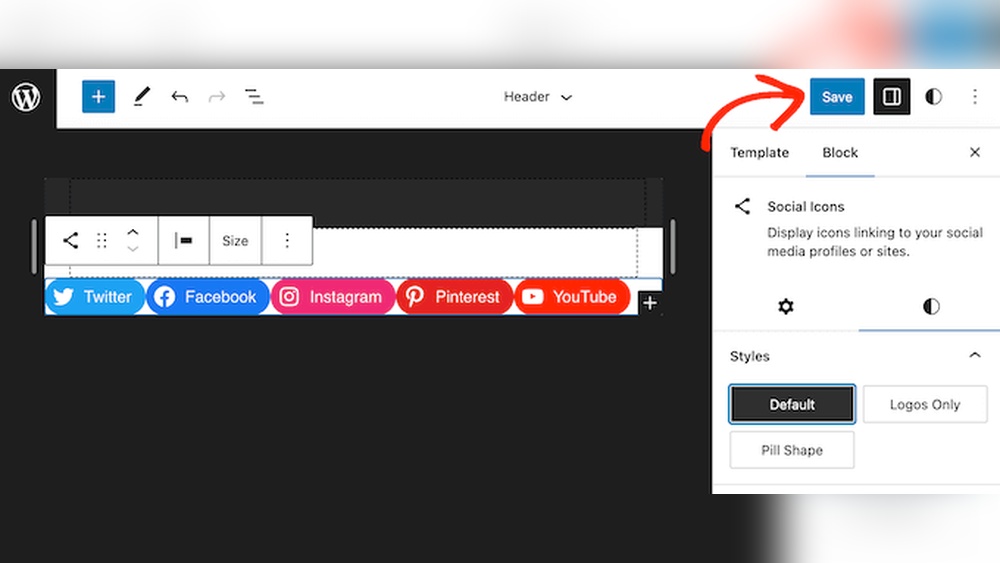
Are you looking to boost your website’s connection with your audience? Adding a Facebook icon to your WordPress site is a simple yet powerful way to do just that.
It lets visitors find and follow your Facebook page with one easy click. In this guide, you’ll discover exactly how to add a Facebook icon to your WordPress site—step by step. By the end, you’ll have a sleek, clickable icon that drives more traffic to your social media, helping you grow your online presence effortlessly.
Ready to make your site more social? Let’s dive in.
Choose The Right Facebook Icon
Choosing the right Facebook icon is important for your WordPress site. It helps visitors find your Facebook page easily. The icon should match your website’s style and look clear on all devices. Picking a good icon also makes your site look professional and trustworthy. Let’s explore some options to help you select the best Facebook icon.
Free Vs Premium Icons
Free icons are easy to find and use. Many websites offer free Facebook icons in different shapes and colors. They work well for simple blogs or personal sites. However, free icons might be used by many other websites too. This can make your site less unique.
Premium icons come with a small cost but offer more choices. These icons usually have better design and higher quality. You get exclusive styles that match your brand better. Premium icons often include extra features like animation or custom sizes.
Decide based on your budget and how unique you want your icon to be. Both free and premium icons can work well for WordPress sites.
Recommended Icon Styles
Pick an icon style that fits your website’s look. Flat icons are simple and modern. They use solid colors without shadows. These icons look clean and work well on all screen sizes.
Outline icons have only the border shapes. They look minimal and elegant. Outline icons suit sites with a light or white background.
Colored icons show the classic Facebook blue. These catch attention and are easy to recognize. Use colored icons if you want the icon to stand out clearly.
Match the icon size to your site’s design. It should be visible but not too big. Test the icon on mobile and desktop views to ensure it looks good everywhere.

Credit: www.youtube.com
Install A Social Media Plugin
Installing a social media plugin is the easiest way to add a Facebook icon to your WordPress site. These plugins help you show social icons without touching any code. They also let you customize the icon’s look and position on your site. Plugins save time and make your site look professional. Many plugins offer extra features, like showing follower counts or linking to multiple social profiles. Choosing the right plugin depends on your needs and how simple you want the setup to be.
Top Plugins For Facebook Icons
Several plugins are popular for adding Facebook icons. “Simple Social Icons” is easy to use and customizable. “Social Media Share Buttons & Social Sharing Icons” supports many networks including Facebook. “Smash Balloon Social Photo Feed” is great if you want to show Facebook content too. “WP Social Icons” lets you place icons in different site areas. Each plugin works well for beginners and advanced users.
How To Install A Plugin
Go to your WordPress dashboard and click “Plugins.” Choose “Add New” and search for the plugin name. Click “Install Now” on the plugin you want. After installation, click “Activate.” The plugin will appear in your dashboard menu. Open the plugin settings and find the Facebook icon options. Add your Facebook page URL. Customize the icon size and style. Save the settings and check your site. The Facebook icon should show up clearly.
Add Facebook Icon Using Widgets
Adding a Facebook icon to your WordPress site using widgets is simple. Widgets let you place icons in sidebars or footers without coding. This method works well for beginners and saves time.
You can quickly guide visitors to your Facebook page. The icon acts as a direct link for easy access. It improves your site’s social presence and user experience.
Accessing Widget Area
First, log in to your WordPress dashboard. Find the “Appearance” menu on the left side. Click “Widgets” to open the widget area.
The widget area shows all available widget spaces. These spaces depend on your theme. Common areas include sidebars and footers.
Choose the widget area where you want the Facebook icon. You can add widgets by dragging or clicking “Add.”
Configuring The Facebook Widget
Look for the “Custom HTML” or “Text” widget in the list. Drag it to your chosen widget area. Open the widget settings to edit content.
Paste the Facebook icon’s HTML code or a link to your Facebook page. Use a simple icon image or font icon code.
Save the widget to apply changes. Visit your site to see the Facebook icon live. Adjust size and placement if needed.

Credit: wordpress.com
Insert Facebook Icon With Custom Html
Adding a Facebook icon to your WordPress site helps visitors find your page quickly. Using custom HTML allows full control over the icon’s look and link. It is a simple way to personalize your site without extra plugins.
This method uses basic HTML code to place the Facebook icon anywhere on your site. You can add it to posts, pages, or widget areas. The process involves getting the right icon code and then inserting it into WordPress.
Finding The Facebook Icon Code
First, get the Facebook icon’s HTML code. Many free icon sites offer simple code snippets. Search for “Facebook icon HTML” or visit icon libraries like Font Awesome or Simple Icons.
Copy the provided HTML code for the Facebook icon. The code usually includes a link to Facebook and a small image or SVG. This code works without extra setup and is easy to customize.
Adding Code To WordPress
Log in to your WordPress dashboard. Go to the page or post where you want the icon. Switch to the HTML or “Text” editor mode.
Paste the Facebook icon code where you want it to appear. For sidebars or footers, use Appearance > Widgets. Add a Custom HTML widget and paste the code there.
Save your changes and view your site. The Facebook icon should show and link to your page. Adjust size or style by editing the HTML code if needed.
Link Facebook Icon To Your Profile
Linking your Facebook icon to your profile makes it easy for visitors to find and follow you. It connects your website with your social media presence. This step helps build trust and grow your audience. The process is simple and quick.
Obtaining Your Facebook Url
Start by opening your Facebook profile. Look at the address bar at the top of your browser. Copy the entire URL. This URL links directly to your Facebook page or profile.
Make sure you copy the correct link. It should start with “https://www.facebook.com/”. This ensures users reach your official page.
Ensuring Proper Link Functionality
Paste the copied URL into the link field of your Facebook icon. Check that the link opens your Facebook page. Test the link on different devices and browsers.
Use the target=”_blank” attribute to open the link in a new tab. This keeps visitors on your website while they visit your Facebook profile. Confirm there are no typos in the URL. A broken link can confuse visitors and reduce trust.
Customize Icon Appearance
Customizing the Facebook icon on your WordPress site helps match your brand style. It makes the icon clear and easy to find. You can change its size, color, and position. These tweaks improve the look and user experience on your website.
Changing Icon Size And Color
Adjust the icon size to fit your site’s design. A larger icon grabs attention but avoid making it too big. Small icons look neat but must remain visible. Use the plugin or theme settings to set the size. Many tools let you pick exact pixel dimensions.
Changing the icon color helps it blend with your site or stand out. Choose colors that match your brand palette. Use simple color codes like hex or RGB. Some plugins offer preset color options. Pick colors that keep the icon clear and readable.
Positioning The Icon On Your Site
Place the Facebook icon where visitors see it easily. Common spots include the header, footer, or sidebar. The header keeps the icon visible on all pages. The footer is less intrusive but still accessible. Sidebars are good for blogs or content-heavy sites.
Use drag-and-drop tools or widget areas to move the icon. Test different positions to find what works best. The goal is easy access without cluttering your page. Proper placement improves click rates and user engagement.
Test And Troubleshoot
Testing and troubleshooting are key steps after adding a Facebook icon to WordPress. They ensure your icon shows up and works as expected. This process helps find and fix problems fast. Let’s explore how to check your icon and solve common issues.
Checking Icon Visibility
First, visit your website’s front page. Look carefully for the Facebook icon. Check different devices like phones, tablets, and computers. The icon should be clear and clickable. Refresh the page if you do not see it at first.
Clear your browser cache to avoid old data hiding the icon. Use different browsers to test visibility. Sometimes, a browser may block certain images or icons. Confirm your WordPress theme supports social icons.
Fixing Common Issues
If the icon does not appear, check the widget or plugin settings. Make sure the Facebook URL is correct. Incorrect links can stop the icon from working. Update your plugins and WordPress to the latest versions.
Look for CSS conflicts in your theme that might hide the icon. Disable other plugins temporarily to find conflicts. Sometimes, a plugin or theme style blocks the icon’s display.
Check your internet connection too. A slow or unstable network might prevent icons from loading. Finally, clear caches on your site and server to load fresh content.

Credit: themeisle.com
Frequently Asked Questions
How Do I Add A Facebook Icon To My WordPress Site?
To add a Facebook icon, use a plugin or widget. Upload the icon image, link it to your Facebook page, and place it in your desired site area.
Which WordPress Plugin Is Best For Facebook Icons?
Popular plugins like “Simple Social Icons” and “Smash Balloon Social Photo Feed” are user-friendly. They allow easy Facebook icon integration with customization options.
Can I Add A Facebook Icon Without A Plugin?
Yes, you can add a Facebook icon manually. Upload the icon image to your media library, then insert it with a link using a widget or custom HTML.
How Do I Link The Facebook Icon To My Page?
Link the icon by adding your full Facebook page URL in the icon’s hyperlink settings. This directs visitors to your official Facebook profile.
Conclusion
Adding a Facebook icon to your WordPress site is simple and quick. It helps visitors find your social page easily. Choose a method that fits your skill level and website style. Regular updates keep your links working well. Small steps like this improve your site’s look and user experience.
Stay consistent and watch your online presence grow.


