
If you want to track how well your Facebook ads are working, adding a Facebook Conversion Pixel to your WordPress site is a must. This simple tool helps you see which actions visitors take after clicking your ads, like making a purchase or signing up for a newsletter.
But maybe you’re wondering how to set it up without getting lost in complicated code. Don’t worry—this guide will walk you through every step clearly and quickly. By the end, you’ll have your pixel ready and start unlocking powerful insights to grow your business.
Let’s get started!
Facebook Pixel Basics
Facebook Pixel is a small piece of code for your website. It helps track actions visitors take on your site after clicking on Facebook ads. Understanding its basics is key before adding it to WordPress.
This tool collects data that improves your advertising efforts. It shows how people interact with your website. This knowledge helps create better ads and reach the right audience.
What Is Facebook Pixel
Facebook Pixel is a snippet of JavaScript code. You place it on your website’s pages. It tracks visitor actions like page views, purchases, and sign-ups. This data sends back to Facebook for analysis.
The pixel works by dropping cookies on visitors’ browsers. These cookies record their behavior. This helps in measuring ad effectiveness and visitor engagement.
Benefits Of Using Facebook Pixel
Facebook Pixel helps you understand your audience better. It tracks which ads lead to sales or sign-ups. This insight saves money by targeting ads more precisely.
You can create custom audiences based on website visits. This allows retargeting visitors with specific ads. It also improves conversion rates by showing relevant ads.
The pixel helps optimize your campaigns automatically. Facebook uses pixel data to show ads to people likely to act. This increases the chances of getting more leads or sales.
Credit: www.monsterinsights.com
Preparing Your Facebook Pixel
Preparing your Facebook Pixel is the first step to track conversions on your WordPress site. This pixel helps you understand visitor actions and improves your ads. Getting the pixel ready involves two simple tasks. First, create the pixel in your Facebook account. Then, find the pixel code to add it to your website.
Creating A Facebook Pixel
Go to your Facebook Business Manager. Find the ‘Events Manager’ section. Click on ‘Connect Data Sources’ and select ‘Web.’ Choose ‘Facebook Pixel’ and press ‘Connect.’ Give your pixel a clear name. Enter your website URL to check easy setup options. Click ‘Continue’ to create your pixel.
Accessing Pixel Code
After creating the pixel, you will see the setup options. Choose ‘Install code manually’ to get your pixel code. Copy the entire code shown on the screen. This code must be added to your WordPress site header. Keep the code safe; you will need it soon.
Adding Pixel To WordPress
Adding a Facebook Conversion Pixel to WordPress helps track actions on your website. This data improves your ad targeting and measures ad success. You can add the pixel in two main ways: using a plugin or inserting code manually. Each method suits different skill levels and needs.
Using A Plugin
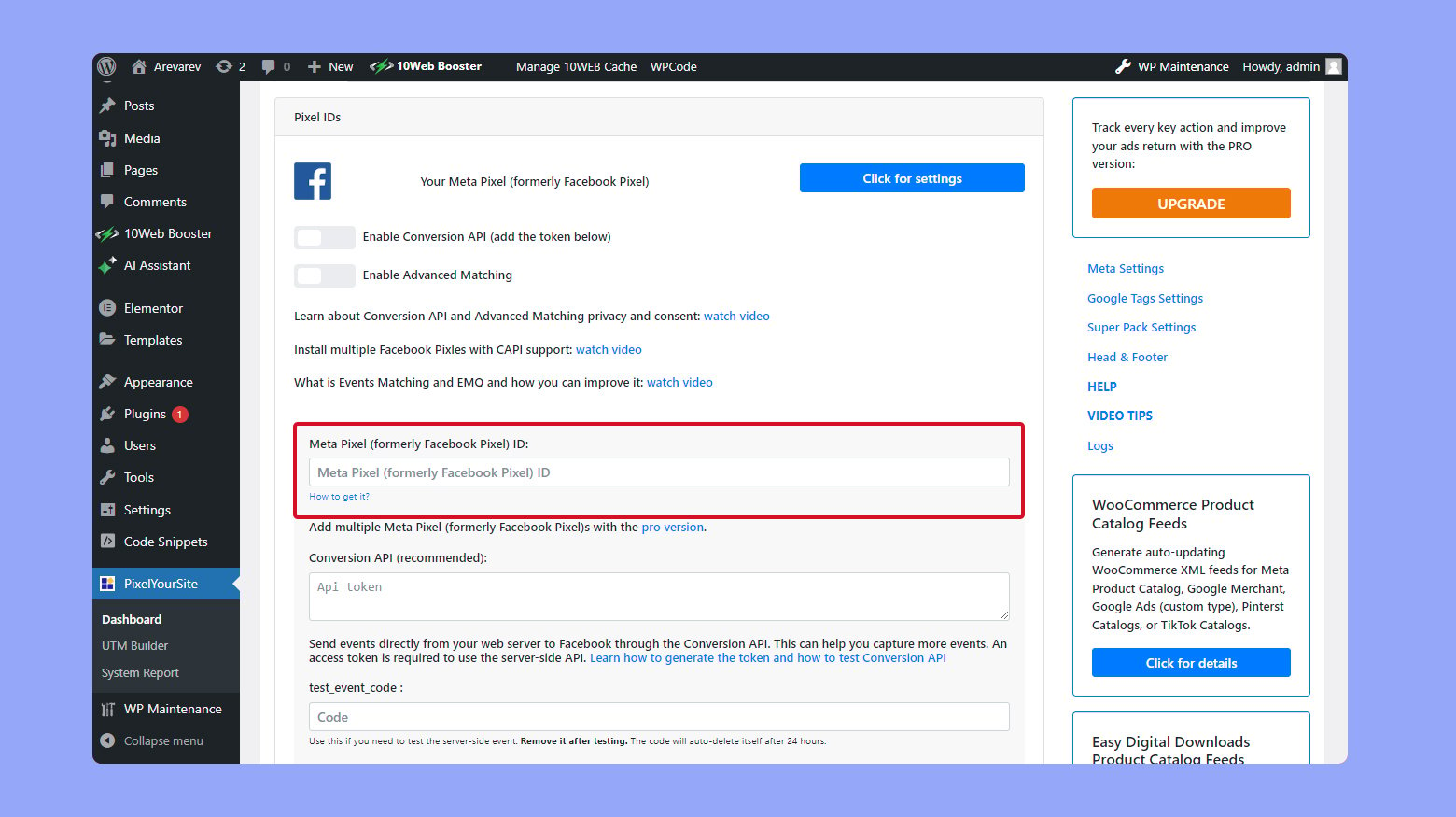
Plugins make adding the Facebook Pixel easy and fast. Find a plugin like “PixelYourSite” or “Facebook for WordPress.” Install and activate it from your WordPress dashboard. Enter your Facebook Pixel ID in the plugin settings. The plugin will add the pixel code to every page automatically. No coding needed. This method is good for beginners and saves time.
Manual Code Insertion
Manual insertion gives you full control over the pixel placement. Copy your Facebook Pixel base code from the Facebook Events Manager. In WordPress, go to Appearance > Theme Editor. Open the header.php file of your active theme. Paste the pixel code just before the closing tag. Save the changes. This method requires care to avoid errors. It works best if you know basic coding.
Credit: 10web.io
Setting Up Pixel Events
Setting up pixel events is key to tracking user actions on your WordPress site. Events help Facebook know when visitors take important steps. This lets you measure ad performance and improve marketing.
You can use standard events or create custom ones. Both types give useful data but serve different needs. Choose events that fit your business goals and website actions.
Standard Events
Standard events are predefined by Facebook. They cover common actions like purchases, sign-ups, and searches. These events are easy to set up and track essential user behavior.
To use a standard event, add the event code to the right page or button. Facebook recognizes the event name and logs it automatically. Examples include “Add to Cart,” “Lead,” and “Complete Registration.”
This method suits most websites. It tracks typical customer actions without extra coding. Use standard events to get clear insights fast.
Custom Events
Custom events track actions not covered by standard events. You create your own names and triggers. This allows detailed tracking tailored to your site’s unique features.
Custom events need more setup. You add specific code snippets to the site where the action happens. These events help track special interactions like video plays or button clicks.
Custom events offer flexibility. They provide deeper data for advanced marketing strategies. Use them to measure specific goals beyond standard options.
Testing Your Pixel
Testing your Facebook Conversion Pixel is a key step after installation. It ensures your pixel works correctly. Without testing, you might miss important data. This section guides you through simple ways to check your pixel’s performance.
Using Facebook Pixel Helper
Facebook Pixel Helper is a free browser tool. It helps find and diagnose pixel issues on your website. Install it from the Chrome Web Store. After installation, visit your WordPress site.
The tool icon will light up if the pixel is active. Click the icon to see details about pixel events. It shows errors or warnings if any exist. This tool makes pixel testing easy and clear.
Verifying Event Tracking
Events track user actions like purchases or sign-ups. Verify events to ensure accurate data collection. Use Facebook Events Manager to check event activity.
Trigger events on your site, such as clicking a button. Watch for these events in the Events Manager dashboard. Confirm each event fires as expected.
Correct event tracking helps optimize ad targeting. It improves campaign results and boosts website performance.
Credit: www.wpbeginner.com
Troubleshooting Pixel Issues
Adding the Facebook conversion pixel to WordPress helps track important actions on your site. Sometimes, the pixel might not work correctly. Troubleshooting pixel issues is key to accurate tracking and better ad results.
Understanding common problems helps solve errors fast. Fixing pixel errors ensures your data is reliable and complete.
Common Problems
One common problem is the pixel not firing at all. This happens if the pixel code is missing or placed incorrectly. Another issue is duplicate pixel fires, which cause wrong data. Pixel conflicts with other plugins or themes can also block tracking.
Slow website speed sometimes delays pixel loading. Browser settings or ad blockers may stop the pixel from working. Incorrect event setup leads to wrong conversion data. These problems affect your campaign performance and insights.
Fixing Pixel Errors
Check the pixel code placement inside the header or footer. Use Facebook’s Pixel Helper Chrome extension to spot errors quickly. Remove duplicate pixel codes to avoid double counting. Test pixel firing on different browsers and devices.
Clear website cache after adding or editing the pixel code. Disable plugins that conflict with the pixel temporarily. Adjust event parameters to match your tracking goals. Ensure no ad blockers are active during testing.
Regularly monitor pixel status in Facebook Events Manager. Fix errors shown there to keep data clean and useful.
Frequently Asked Questions
What Is A Facebook Conversion Pixel?
A Facebook Conversion Pixel is a code snippet that tracks user actions on your website. It helps measure ad effectiveness and optimize campaigns. Adding it to WordPress lets you monitor conversions like purchases or sign-ups accurately.
How To Install Facebook Pixel On WordPress?
To install Facebook Pixel on WordPress, copy your Pixel code from Facebook Ads Manager. Then, paste it into the header section of your WordPress site using a plugin or theme editor. This ensures the pixel tracks visitor activity correctly.
Can I Track Specific Actions With Facebook Pixel?
Yes, Facebook Pixel allows tracking specific actions called events. You can monitor purchases, leads, or page views by adding event code snippets. This helps improve ad targeting and measure campaign success precisely.
Is A Plugin Necessary To Add Facebook Pixel?
Using a plugin simplifies adding Facebook Pixel to WordPress. Plugins like “PixelYourSite” automate code insertion and event tracking. However, manual insertion is possible but requires editing theme files carefully.
Conclusion
Adding a Facebook Conversion Pixel to your WordPress site helps track visitor actions. It shows which ads bring real results. Setting it up is simple and takes just a few steps. Check your pixel regularly to ensure it works well.
This tool helps improve your marketing efforts. Start using it today to learn more about your audience. Small changes can make a big difference over time. Keep testing and adjusting for the best outcomes.


