
Want to make it super easy for visitors to chat with you right on your WordPress site? Adding Facebook Chat can boost your customer support and increase engagement without complicated steps.
You’ll discover simple, clear instructions to get Facebook Chat up and running quickly. By the end, you’ll have a powerful tool that keeps your visitors connected and ready to reach out whenever they need. Let’s dive in and make your website more interactive and user-friendly!
Credit: www.greengeeks.com
Benefits Of Facebook Chat On WordPress
Adding Facebook Chat to your WordPress site brings many benefits. It helps connect you with visitors quickly and easily. Visitors get answers fast, which improves their experience. This tool makes your website more interactive and personal.
Here are some key benefits of using Facebook Chat on WordPress.
Enhancing Customer Support
Facebook Chat allows instant communication with visitors. Customers can ask questions anytime and get quick replies. This reduces waiting time and frustration. Faster support leads to happier customers. It also helps solve problems before they grow bigger.
Increasing User Engagement
Chat keeps visitors active on your site longer. It encourages them to explore more pages. Visitors feel more connected to your brand through direct chat. This builds trust and loyalty over time. Engaged users are more likely to return and recommend your site.
Boosting Conversion Rates
Quick answers help visitors make buying decisions faster. Chat can guide users through product choices and checkout steps. This reduces cart abandonment and lost sales. Personal interaction creates confidence in your products. Higher conversion means more sales and revenue for your business.
Preparing Your Facebook Page
Preparing your Facebook page is the first step to add Facebook chat to WordPress. Your Facebook page must be ready to connect with your website. This involves setting up Messenger properly and checking the right permissions. These steps ensure smooth chat functionality for your visitors. Let’s break down the key tasks.
Setting Up Facebook Messenger
Start by enabling Facebook Messenger on your page. Open your Facebook page and go to the settings. Find the “Messaging” tab in the left menu. Turn on the option to allow people to contact your page privately. This activates the Messenger chat feature. Make sure your greeting message is clear and friendly. This message appears when visitors start a chat.
Checking Page Permissions
Your page must have the right permissions to connect with WordPress plugins. Confirm you are an admin of the Facebook page. Only admins can link the page with external tools. Go to the page roles section in settings. Check if your account has full admin access. Without this, the chat plugin will not work properly. Also, review the app permissions if you use third-party tools. Grant necessary permissions to avoid connection issues.
Using Facebook Plugin For WordPress
Using the Facebook plugin for WordPress makes adding chat easy. This plugin connects your website with Facebook Messenger. Visitors can chat with you directly from your site. It improves customer support and boosts engagement. The plugin is simple to install and set up.
Installing The Plugin
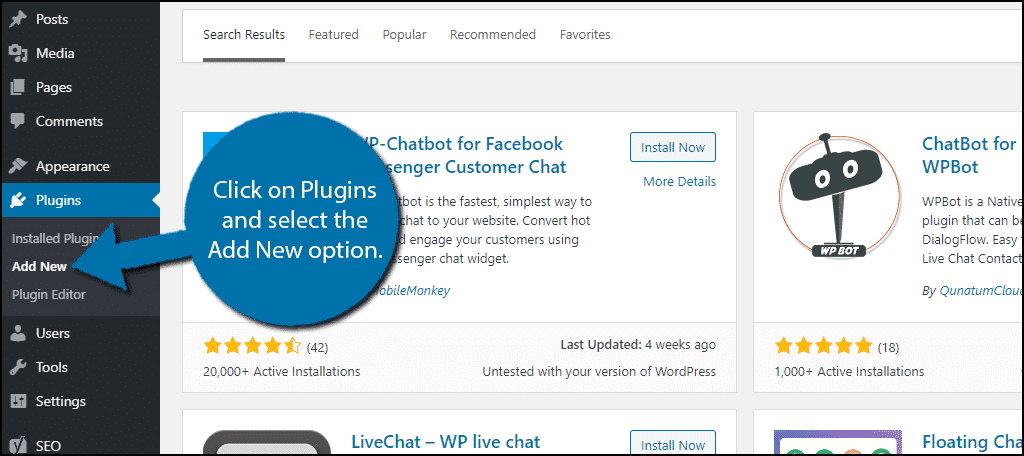
Go to your WordPress dashboard. Click on “Plugins” and then “Add New.” Search for the “Facebook Chat” plugin. Find the official plugin by Facebook and click “Install Now.” After installation, click “Activate” to enable the plugin on your site.
Configuring Messenger Settings
Open the plugin settings in your dashboard. Connect your Facebook page to the plugin. Choose the language for your chat window. Set the greeting message visitors will see. Adjust the chat availability based on your working hours. Save the settings to apply changes.
Customizing Chat Appearance
Customize the chat box colors to match your website. Choose the chat button style and position on the screen. Enable or disable sound notifications for new messages. Preview changes before saving them. A well-matched chat box improves user experience and engagement.

Credit: www.youtube.com
Adding Facebook Chat Manually
Adding Facebook Chat to your WordPress site manually gives you full control. It lets you place the chat exactly where you want. No plugins needed. This method uses Facebook’s official Messenger code. Follow the steps carefully to get it right.
Generating Messenger Code
First, go to the Facebook Page you own. Find the “Settings” tab. Click on “Messaging” from the menu. Scroll down to “Add Messenger to your website.” Click on “Get Started.”
Customize the greeting message and chat color. Facebook then generates a code snippet. Copy this code. It contains the script to show the chat on your site.
Inserting Code Into WordPress
Log in to your WordPress dashboard. Navigate to “Appearance” and select “Theme Editor.” Find the “header.php” file. Paste the Messenger code just before the closing tag.
Save the changes. Alternatively, use a plugin that allows custom code in the header. This helps avoid editing theme files directly.
Testing Chat Functionality
Open your WordPress site in a new tab. Look for the Facebook Chat icon at the bottom right. Click the icon to open the chat window. Send a test message to verify it works.
Check on different devices and browsers. Make sure the chat loads quickly and responds well. Fix issues by rechecking your code placement.
Optimizing Chat For Better Support
Optimizing Facebook chat on your WordPress site improves customer support. It helps answer questions fast and keeps visitors happy. A good chat setup makes your site more user-friendly and builds trust. Focus on clear, quick replies and available support times.
Setting Automated Responses
Automated responses give instant replies to common questions. They work 24/7, even when you are offline. Create simple messages for greetings and FAQs. This saves time and keeps visitors engaged. Keep answers short and helpful to avoid confusion.
Managing Chat Availability
Set clear hours when support is online. Let visitors know when to expect replies. Use status messages like “We are offline now.” This avoids frustration from waiting too long. Adjust availability during holidays or busy times for accuracy.
Analyzing Chat Performance
Track chat data to see how well support works. Check how fast replies are and common questions asked. Use insights to improve responses and chat setup. Regular analysis helps keep support efficient and useful.

Credit: smith.ai
Troubleshooting Common Issues
Adding Facebook Chat to your WordPress site is a great way to connect with visitors. Sometimes, problems can happen. These issues can stop the chat from working well. Knowing how to fix these common problems saves time and keeps your chat running smoothly.
Chat Not Displaying
Check if the Facebook Chat plugin is active. Make sure you entered the correct Facebook Page ID. Clear your browser cache to see recent changes. Disable any ad blockers that may block the chat widget. Test the chat on different devices and browsers.
Message Delivery Problems
Ensure your Facebook Page inbox is set to receive messages. Check your internet connection for stability. Verify that the user sending messages is not blocked. Look for any restrictions on the Facebook Page. Refresh the chat plugin or reinstall it if needed.
Plugin Conflicts
Deactivate other plugins one by one to find conflicts. Some plugins might stop Facebook Chat from working. Update all plugins and your WordPress version. Use a default WordPress theme to test for theme conflicts. Contact support if you cannot fix the issue yourself.
Frequently Asked Questions
How Do I Add Facebook Chat To WordPress?
To add Facebook chat, install a plugin like “Facebook Chat Plugin. ” Connect it with your Facebook page ID and configure settings. This enables live chat directly on your WordPress site, enhancing customer interaction and support.
Is Facebook Chat Plugin Free For WordPress?
Yes, most Facebook chat plugins for WordPress are free. Some offer premium features for better customization. The basic chat functionality usually comes at no cost, making it easy to start engaging visitors immediately.
Can I Customize Facebook Chat Appearance On WordPress?
Yes, you can customize chat colors, greetings, and positions. Most plugins allow you to match the chat widget with your website’s branding. Customization improves user experience and encourages visitors to start conversations.
Will Adding Facebook Chat Affect Website Speed?
Properly optimized Facebook chat plugins have minimal impact on speed. Choose lightweight plugins and limit other heavy scripts to maintain fast loading times. This ensures smooth user experience without slowing your WordPress site.
Conclusion
Adding Facebook Chat to your WordPress site boosts visitor interaction. It lets users ask questions quickly and get real-time answers. Setup is simple, and you can customize the chat to fit your website style. This tool helps build trust and keeps visitors engaged longer.
Try it out to make your site more friendly and helpful. Your visitors will appreciate the easy way to connect with you.


