
Are you eager to boost your website’s speed and enhance user experience? Adding expires headers in your Ocean WP WordPress theme might be the game-changer you need.
Imagine a faster website that not only keeps your visitors engaged but also pleases search engines. It’s all about making your site load quicker by telling browsers when to fetch new versions of your files. By adding expires headers, you ensure that static content like images, CSS, and JavaScript is stored on your visitors’ browsers.
This means faster loading times and a seamless experience for your users. Plus, a speedy website can lead to better SEO rankings and more satisfied visitors. Curious to learn how to implement this in your Ocean WP theme? Stick around, and you’ll discover step-by-step instructions that will transform your website into a lean, mean, performance-optimized machine. Let’s dive in and unlock the potential of your site!
Benefits Of Expires Headers
Expires headers make your website load faster. They tell browsers to save files. This means your site uses less bandwidth. Visitors will have a better experience. Faster pages keep them happy. They are more likely to stay longer. Search engines like fast websites too. They help your site rank higher. This can bring more visitors. It’s good for your business. You can save on server costs. Less loading means fewer requests. Your server will work less. This can be important if you have many visitors. You might also see fewer crashes. This makes everyone happy.
Understanding Ocean Wp Theme
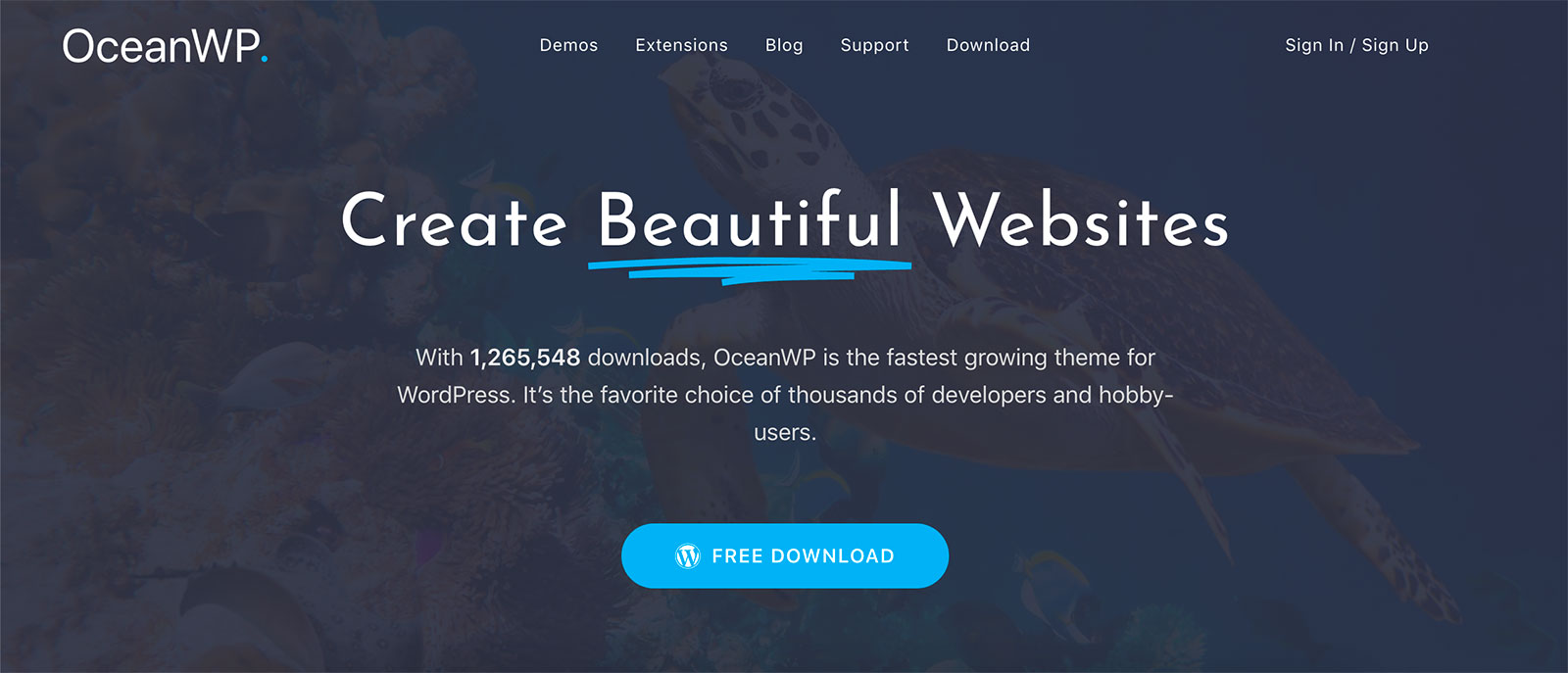
Ocean WP is a popular WordPress theme. It is known for its versatility and easy customization. Many people use it for their websites. It offers many features for designing. You can change the look of your site easily.
This theme works well with plugins. Plugins help add more functions to your site. Ocean WP supports responsive design. This means your site looks good on phones and computers. It is also fast and lightweight. This makes your site load quickly.
With Ocean WP, you can change colors and fonts. You can also add a logo. Many website owners like Ocean WP because it’s easy to use. It gives you freedom to design your site. Start with Ocean WP for a nice website.
Setting Up A Child Theme
A child theme is a safe way to modify your theme. First, create a new folder in your themes directory. Name it “oceanwp-child”. Next, create a style.css file in this folder. Add this code:
/ Theme Name: OceanWP Child Template: oceanwp /
This code links the child theme to the parent theme. Save the file and close it.
Go to your WordPress dashboard. Find “Appearance” on the left. Click “Themes”. You will see the OceanWP Child theme. Click “Activate”. Your child theme is now active. You can make changes without affecting the parent theme. Always use a child theme for customizations. It keeps your work safe when updates happen.

Credit: kinsta.com
Modifying .htaccess File
The .htaccess file is very important. It tells your server what to do. First, go to your website’s files. Use an FTP client like FileZilla. You will find the .htaccess file in the main folder. This folder is called the root directory. Sometimes, the file is hidden. Look for an option to show hidden files. This will help you see the .htaccess file. Now, you can change it.
Before editing, check if you have the right permissions. Permissions are like rules. They say who can change the file. Use your FTP client to change them. Right-click on the .htaccess file. Choose File Permissions. Set permissions to 644. This setting allows you to read and write. But others can only read. Now, you are ready to make changes.
Adding Expires Headers Code
Use this code to add Expires Headers to your Ocean WP theme. It helps make your site faster. Copy the following snippet:
                ExpiresActive On
                ExpiresByType image/jpg "access 1 year"
                ExpiresByType image/jpeg "access 1 year"
                ExpiresByType image/gif "access 1 year"
                ExpiresByType image/png "access 1 year"
                ExpiresByType text/css "access 1 month"
                ExpiresByType text/html "access 1 month"
                ExpiresByType application/pdf "access 1 month"
                ExpiresByType text/x-javascript "access 1 month"
                ExpiresByType application/x-shockwave-flash "access 1 month"
                ExpiresByType image/x-icon "access 1 year"
                ExpiresDefault "access 2 days"
Open your .htaccess file in the root directory. Paste the code snippet at the end of the file. Save the changes and close the file. Now, your site will load faster.

Credit: www.hosted.com
Testing The Implementation
Implementing expires headers in Ocean WP theme speeds up your WordPress site by reducing load times. Edit the. htaccess file to add code for expires headers. Test changes using browser developer tools to ensure successful implementation.
Using Browser Developer Tools
Open your browser and press F12. This opens the Developer Tools. Navigate to the Network tab. Refresh your webpage to see the requests. Click on a file you want to check. Look for the Response Headers section. Here, you should find Expires Headers. Ensure they show the correct dates.
Verifying With Online Tools
Visit websites that check Expires Headers. These sites are easy to use. Enter your website URL in the search box. Click Check to see results. The tool will show if Expires Headers work. Make sure the status is active and correct. If not, adjust your settings again.
Troubleshooting Common Issues
Adding expires headers in the Ocean WP WordPress theme improves loading speed. Navigate to your site’s. htaccess file. Insert code specifying expiration dates for static resources like images and scripts. This helps browsers cache files efficiently.
Common Errors
Many users face problems with expires headers in Ocean WP theme. A common error is missing or incorrect headers. This can slow down your website. Another issue is conflicting plugins. They may override your header settings. Browser caching problems can also arise. These might cause old files to load instead of new ones.
Solutions And Fixes
First, check your .htaccess file. Ensure headers are correctly set. Use a tool like GTmetrix to test your site. It helps identify missing headers. Deactivate conflicting plugins temporarily. See if they resolve the issue. Clear browser cache often. This ensures the latest files load. Regular updates can also prevent problems. Keep your theme and plugins up to date. This helps maintain compatibility with expires headers.
Best Practices For Performance
Boost website speed by adding expires headers in Ocean WP WordPress theme. This practice reduces load times and enhances user experience. Edit your. htaccess file to set expiration dates for static resources like images and CSS.
Leveraging Browser Caching
Browser caching helps websites load faster. It stores files in a user’s browser. This means fewer files need downloading each visit. To use this, add expires headers to your WordPress theme. Expires headers tell the browser how long to keep files. This can be images, scripts, or stylesheets. Adding them is simple. Go to your website’s .htaccess file. Find the right spot to insert the code. You can set different times for different files. Maybe a week for images. Maybe a month for scripts. Make sure to test your changes after. Ensure everything works well.
Regular Maintenance Tips
Regular checks keep your site running well. Update your theme and plugins often. This helps with speed and security. Check for broken links and fix them. They can slow down your site. Clean up unused plugins and themes. They take up space and slow things down. Back up your website regularly. This keeps your data safe if problems happen.
Credit: winningwp.com
Frequently Asked Questions
What Are Expires Headers In WordPress?
Expires headers specify when a resource should be considered outdated. They help reduce load times by allowing browsers to cache content. Implementing expires headers in WordPress can enhance site performance and improve user experience. This is crucial for faster page loading in themes like Ocean WP.
Why Use Expires Headers In Ocean Wp?
Expires headers improve your site’s speed by caching resources. Ocean WP benefits from faster loading times and enhanced performance. They reduce server load and improve SEO rankings. Implementing them ensures visitors have a smoother browsing experience, which can lead to higher engagement.
How Do I Add Expires Headers To Ocean Wp?
To add expires headers, edit the. htaccess file in your server. Add specific code snippets for each file type you want to cache. This process helps optimize Ocean WP’s performance. Always back up files before making changes to avoid potential errors.
Can Expires Headers Impact Seo?
Yes, expires headers can positively impact SEO. They improve site speed, a crucial ranking factor for search engines. Faster loading pages result in better user experience and reduced bounce rates. Implementing expires headers in Ocean WP can enhance your site’s visibility on search engine results pages.
Conclusion
Adding expires headers in Ocean WP is simple and beneficial. It improves your website’s loading speed. Also, it enhances user experience. Faster sites can lead to happier visitors. This small tweak can make your site more efficient. Just follow the steps mentioned earlier.
Your Ocean WP theme will be optimized in no time. Remember, a fast site is a successful site. So, take action today. Enjoy the benefits of a quick-loading website. Keep your visitors engaged and satisfied.


