
Are you struggling to add an excerpt to your WordPress page? You’re not alone.
Many WordPress users find this simple feature hidden and confusing. But adding an excerpt can make your site look cleaner, improve your SEO, and give your visitors a quick preview of your content. You’ll learn exactly how to add an excerpt to your WordPress page—step by step, without any technical hassle.
Keep reading, and you’ll have your pages looking sharp and professional in no time.
Why Add Excerpts To Pages
Adding excerpts to WordPress pages helps improve how your content appears on your site. Excerpts give visitors a quick preview of the page. This short summary can attract readers and keep them interested.
Excerpts also help search engines understand your content better. They show a clear and concise description of the page’s main idea. This makes your site easier to navigate and improves user experience.
Benefits Of Using Excerpts
Excerpts make pages easier to scan. Visitors see the key points without reading the full page. This saves time and boosts engagement. Search engines use excerpts to display summaries in search results. It can improve your page’s click rate. Excerpts also help organize content on archive and blog pages. They create a cleaner, more professional look.
Differences Between Posts And Pages
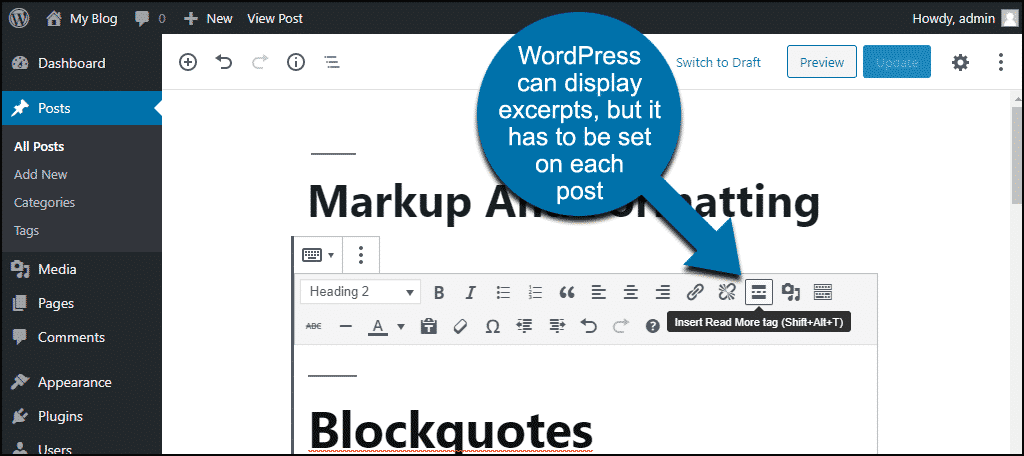
Posts are designed for timely content like news or blogs. Pages hold static content such as About or Contact information. Posts usually show excerpts by default. Pages do not show excerpts unless you enable them. Adding excerpts to pages gives you more control over how content appears. It helps create summaries even for static pages. This feature is useful for sites with many pages or complex navigation.
Credit: www.greengeeks.com
Enabling Excerpts For Pages
WordPress pages do not show excerpts by default. Excerpts help summarize page content. They improve user experience and SEO. Enabling excerpts for pages is simple and useful. It allows you to add a short summary on pages. This can be done in two ways: through Screen Options or by adding code.
Using Screen Options In WordPress Editor
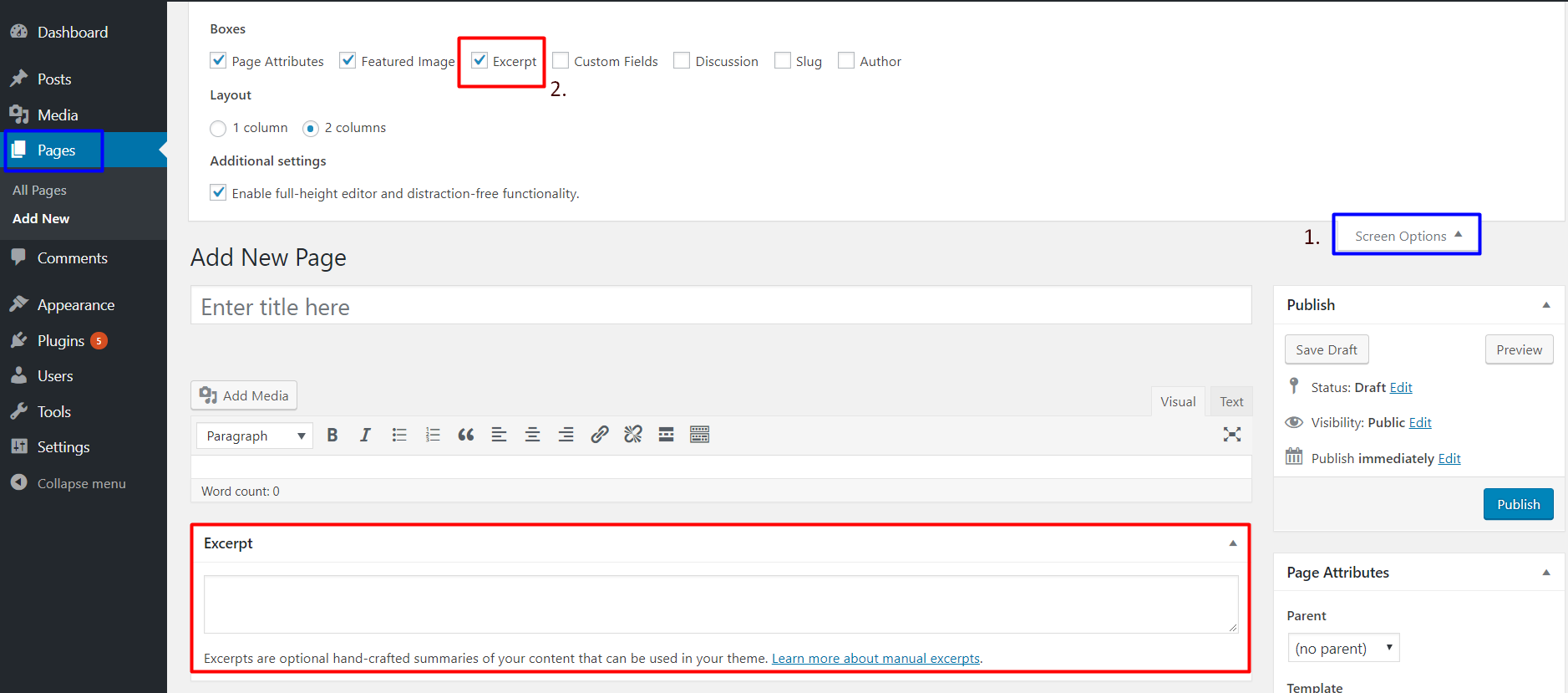
Open the WordPress page editor. Look at the top right corner for the Screen Options tab. Click it to open a menu. Find the checkbox labeled Excerpt. Check the box to enable excerpts. Scroll down the page editor. You will see a new excerpt box. Write your page summary here. This method is quick and needs no coding.
Adding Code To Functions.php
Open your theme’s functions.php file. Add the following code:
function add_excerpt_support_for_pages() { add_post_type_support( 'page', 'excerpt' ); } add_action( 'init', 'add_excerpt_support_for_pages' ); This code activates excerpt support for pages. Save the file and refresh your editor. The excerpt box now appears below the content editor. This method works even if Screen Options do not show excerpts. Always back up your file before editing.
Creating Excerpts In WordPress
Creating excerpts in WordPress helps summarize your content. It shows a brief part of your page or post. This makes your site easier to read. Visitors see a quick preview before clicking to read more. Excerpts improve user experience and site navigation.
WordPress allows you to write custom excerpts. These small summaries highlight the main points. They grab attention and encourage visitors to explore further. Crafting clear excerpts is simple with the right steps.
Writing A Clear And Concise Excerpt
Keep excerpts short and to the point. Aim for one or two sentences. Focus on the main idea of your content. Avoid adding too many details or complex words. Use simple language that anyone can understand. Clear excerpts help readers decide if they want to read more.
Using The Excerpt Box In The Editor
WordPress provides an excerpt box in the editor for easy input. Find the “Excerpt” field below the content area. If you don’t see it, enable it in the screen options. Type your summary directly into this box. WordPress will then display it instead of the automatic summary. This method gives full control over what readers see first.
Displaying Excerpts On Your Site
Displaying excerpts on your WordPress site helps visitors see a summary of your pages. Excerpts improve site navigation and make content easy to scan. Showing excerpts can also boost user engagement and keep your site tidy. You can show excerpts by changing your page templates or by using plugins. Both methods are simple and effective for most users.
Modifying Page Templates
To display excerpts, edit your WordPress theme’s page templates. Find the template file that controls page display, often named page.php. Replace the_content() function with the_excerpt() function. This change tells WordPress to show the excerpt instead of the full content.
Use a child theme to avoid losing changes after theme updates. You can also add custom code to control excerpt length and style. This method needs basic knowledge of PHP and HTML. It gives you full control over how excerpts appear on your site.
Using Plugins To Show Excerpts
Plugins offer an easy way to display excerpts without coding. Many plugins allow you to add excerpts to pages and customize their look. Search for “page excerpt” plugins in the WordPress plugin directory. Install and activate your chosen plugin, then follow its setup instructions.
Plugins often provide settings for excerpt length, read more links, and style options. This method is perfect for users who prefer a simple, code-free solution. Plugins keep your site flexible and easy to update.
Troubleshooting Common Issues
Troubleshooting common issues with excerpts on WordPress pages can save time and reduce frustration. Many users face problems with excerpts not appearing or showing strange formatting. These issues often stem from theme settings or content input. Understanding these common problems helps fix them quickly.
Excerpt Not Showing On Pages
WordPress does not show excerpts on pages by default. Many themes only support excerpts on posts. To display excerpts on pages, check your theme settings first. Some themes need extra code to enable excerpts for pages. Add this code to your theme’s functions.php file:
add_post_type_support( 'page', 'excerpt' );After adding this, the excerpt box appears on the page editor. If excerpts still don’t show on the front end, check the page template. Some templates do not call the excerpt function. Edit the template file and add the_excerpt() where needed.
Formatting Problems With Excerpts
Excerpts may show strange formatting or broken HTML. This happens if the excerpt is copied from another source. WordPress strips some HTML tags in excerpts for security. Use simple text for excerpts to avoid issues. If you want HTML, customize the excerpt length and allowed tags with a plugin or code.
Another cause is theme CSS affecting excerpt appearance. Inspect the excerpt area with browser tools. Adjust CSS to fix font size, color, or spacing. Clear your cache after changes to see updates.
Credit: www.acmethemes.com
Tips For Optimizing Excerpts
Optimizing excerpts in WordPress pages helps attract readers and improve search rankings. Short, clear excerpts make your content easy to understand and inviting. Focus on crafting excerpts that highlight key points and encourage clicks.
Seo Best Practices
Use keywords naturally in your excerpts. Avoid keyword stuffing. Keep the excerpt length between 40 to 60 words. Make sure each excerpt is unique for every page. This helps search engines recognize your content. Use active voice to make sentences clear and direct. Avoid duplicate content across your site.
Enhancing User Experience
Write excerpts that summarize the page clearly. Use simple words to reach more readers. Create curiosity without giving everything away. Use a call to action, like “Read more” or “Discover how.” Break long texts into short sentences. This keeps readers interested and improves readability. Ensure excerpts match the page content exactly.

Credit: afthemes.com
Frequently Asked Questions
How Do I Enable Excerpts On WordPress Pages?
By default, WordPress doesn’t show excerpts on pages. You can enable them using a plugin or by adding code to your theme’s functions. php file. This allows you to manually add and display excerpts on your pages for better content summaries.
Can I Add Excerpts Without Coding In WordPress?
Yes, you can add excerpts without coding by using plugins like “Advanced Excerpt” or “Page Excerpt. ” These plugins add an excerpt box to your page editor, making it easy to write and display custom excerpts on your WordPress pages.
Where Can I Display Excerpts On WordPress Pages?
Excerpts can be displayed on archive pages, search results, or custom templates. You need to edit your theme files or use page builder widgets to insert excerpts where you want summaries to appear, improving user experience and SEO.
Why Use Excerpts On WordPress Pages?
Excerpts provide concise summaries of your content. They improve readability, help visitors find relevant info quickly, and boost SEO by displaying keyword-rich snippets in search results and archives.
Conclusion
Adding an excerpt to your WordPress page helps summarize content clearly. It improves user experience and site navigation. You can easily enable excerpts with simple steps in WordPress settings. Excerpts also help search engines understand your page better. Take time to write short, clear summaries for each page.
This small change can make your website look more professional. Keep practicing, and your site will become easier to read and explore. Try it today and see the difference for yourself.


