
Ever find yourself staring at your WordPress site, wishing for a way to make your logo more dynamic and eye-catching? You’re not alone.
A static logo can sometimes feel out of place in an otherwise vibrant and interactive website. Imagine your logo responding to user interactions, adapting to different devices, or even changing with the seasons. Sounds exciting, right? In this guide, you’ll discover how to transform your logo from static to dynamic, breathing new life into your WordPress theme.
Get ready to captivate your audience and stand out in the crowded online space. Dive in, and let’s unlock the potential of your site together!
Setting Up Your WordPress Environment
Select a theme that supports custom logos. This makes it easy to add a dynamic logo. Always check the theme’s documentation. It should explain how to add logos. Some themes have built-in options. These options let you upload logos directly. Choose a theme that is responsive. This ensures your logo looks good on all devices. A good theme will make your site look great.
Child themes let you make changes without losing them during updates. First, create a folder in the themes directory. Name it after your parent theme with “-child” at the end. Inside, create a style.css file. Add basic information like the theme name and template. Next, create a functions.php file. This file can be used to enqueue styles and scripts. A child theme keeps your site safe and up-to-date.
Preparing Your Logo Files
Start with a simple design. This helps your logo look good on all screens. Choose colors that pop. Use shapes that are easy to see. Make sure your logo can shrink and grow. Test it on different devices. See how it looks on phones and computers. Adjust the design if needed. Keep it clean and clear. A responsive logo should be recognizable at any size. Try different versions. Find what works best for your brand.
Save your logo in the right format. PNG and SVG are best for web. Reduce file size to make loading fast. Use tools to compress images. Keep quality high while making files smaller. Test the logo on different browsers. Ensure it looks good everywhere. Add alt text for accessibility. This helps search engines and users. Rename files with clear names. Include keywords related to your brand. This helps with SEO.
Uploading The Logo
First, access the WordPress dashboard. Find the Media option and click on it. This is where all your files are stored. Click on Add New to upload your logo. Choose the logo file from your computer. Once uploaded, it will be in the media library.
Use the URL of the logo for dynamic features. Copy the URL from the media details. This URL will help in setting the logo dynamically.
Keeping your media files organized is important. It makes finding files easier later. Use folders to sort files by type or date. This way, the media library stays neat. A tidy library saves time when you need a file.

Credit: jameelevans.com
Incorporating Logo In Theme
First, open the WordPress dashboard. Click on Appearance. Then, select Editor. This will show the theme files. Find the file named header.php. This file controls the top of your site. Add the logo code here. Save changes to see your logo.
Navigate to the WordPress dashboard. Click on Appearance. Choose Customize. In the customizer, select Site Identity. Here, you can upload your logo. Click Publish to save. This method is easier for many users. It doesn’t need coding skills.
Adding Dynamic Functionality
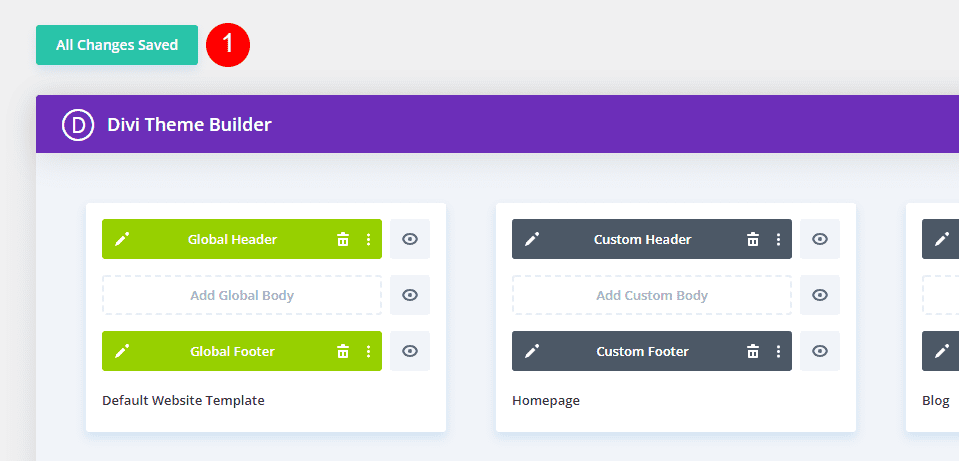
Dynamic logos make your site special. First, you need PHP code. This code tells WordPress what to do. It’s like giving instructions.
You write this code in your theme’s functions.php file. This file is important. It helps your site work right. Make sure the code is correct. Check for errors.
Put your PHP code in the right place. This makes your logo change. Use WordPress hooks to make it happen. Hooks are like magic words. They tell WordPress when to change your logo.
Hooks are in functions.php too. Some hooks run before pages load. Others run after. Choose the right hook for your logo. This helps your logo work well.
Test your site after adding hooks. Make sure your logo changes. If it’s wrong, fix the code. Check your hooks again.
Credit: www.elegantthemes.com
Customizing Logo Display
Customizing your logo size can make it fit better. Use your theme settings to change its dimensions. This helps your logo look clear and neat. A too-big logo can make the site look messy. A too-small logo might be hard to see. Balance is key.
Responsive logos adjust to different screens. This is very important. Test your logo on phones, tablets, and computers. Make sure it looks good everywhere. Your theme might have settings for this. Explore them. Keep logos flexible. They should adapt without losing quality. A responsive logo improves user experience. It makes your site look professional.
Testing And Troubleshooting
Enhancing your WordPress theme with a dynamic logo involves testing and troubleshooting to ensure seamless integration. Explore theme settings, upload your logo, and verify its responsiveness across devices for optimal appearance.
Checking Across Devices
Testing your logo on different devices is important. Your logo should look good on all screens. Computers, tablets, and phones display images differently. A logo might look great on a computer but blurry on a phone. Use online tools to see how your logo appears on various devices. This can help you identify any issues. Adjust the logo size if needed. A responsive logo ensures a consistent look everywhere.
Resolving Common Issues
Sometimes the logo doesn’t show properly. This could be due to caching problems. Clear your browser cache and check again. If the logo is missing, check the file path. It should be correct in your theme settings. Another issue is slow loading. Large image files cause this. Compress your logo image to make it smaller. This improves loading speed. Always ensure your theme supports dynamic logos. Update the theme if necessary.
Credit: www.elegantthemes.com
Advanced Tips And Tricks
Discover simple methods for adding a dynamic logo to your WordPress theme. Use custom code or plugins to achieve this feature. Enhance your site’s branding with ease and flexibility, ensuring your logo updates automatically.
Using Svg Logos
SVG logos are great for websites. They are scalable and look clear. SVG files are lightweight. This helps your site load fast. You can edit SVG files easily. Make sure your theme supports SVG format. Some themes need extra plugins for SVG. Always check theme settings first. SVGs keep the logo sharp on all devices. They are perfect for responsive designs. Use SVG for modern and clean logos.
Integrating With Page Builders
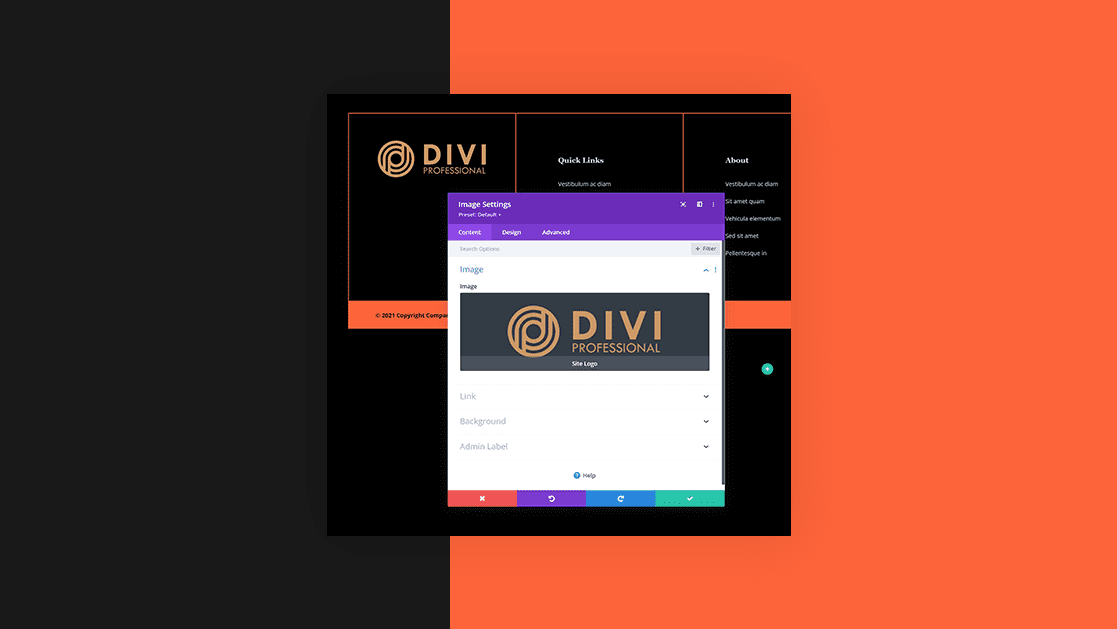
Page builders help design your site easily. They often support custom logos. Add logos in the header or footer. Check the builder’s settings. Some builders have drag-and-drop options. This makes logo placing simple. Adjust logo size and position with ease. Use page builders for unique layouts. They offer flexible design options. Builders work well with many themes.
Frequently Asked Questions
How To Change Logo Dynamically In WordPress?
To change your logo dynamically in WordPress, use a theme that supports custom logos. Go to the WordPress dashboard, click ‘Appearance’, then ‘Customize’. Navigate to ‘Site Identity’ and upload your logo. Save changes for immediate effect. Make sure your theme supports this feature for seamless integration.
Can I Add Multiple Logos In My Theme?
Yes, you can add multiple logos in your WordPress theme using plugins like WP Logo Showcase. These plugins allow you to display logos in various layouts. Customize the display options to match your theme’s design. Always check compatibility with your theme to ensure proper functionality.
What Plugins Support Dynamic Logo Changes?
Several plugins support dynamic logo changes in WordPress, such as WP Logo Showcase and Elementor Pro. These plugins offer customization options for displaying logos. They are user-friendly and integrate well with most themes. Ensure the plugin is compatible with your WordPress version for best results.
Do All Themes Support Dynamic Logos?
Not all themes support dynamic logos. Most modern themes do offer this feature, but it’s best to check the theme documentation. Look for themes with customization options in the ‘Appearance’ section. If unsure, consider using plugins for additional logo display capabilities.
Conclusion
Adding a dynamic logo in WordPress is simple. It enhances your site’s look. Follow the steps carefully for the best results. Consistency matters. A well-placed logo strengthens your brand identity. It helps visitors recognize your site quickly. You gain their trust faster.
Keep your logo clear and visible. Avoid clutter around it. Check your site’s mobile view too. Your logo should appear correctly there. Regular updates ensure your logo stays relevant. With these tips, your WordPress site will shine. Enjoy your improved site appearance!


