
Are you looking to make your WordPress site stand out? Adding a drop shadow to your text might be the perfect solution.
This subtle effect can transform plain text into eye-catching headlines, giving your site a polished, professional look. But how do you get started? The process might seem daunting, but don’t worry—it’s easier than you think. We’ll walk you through simple steps to add a drop shadow to your text in your WordPress theme.
Imagine the impact on your visitors as your content pops off the screen, capturing their attention and keeping them engaged. Ready to elevate your website’s design? Let’s dive in and enhance your site’s visual appeal effortlessly.
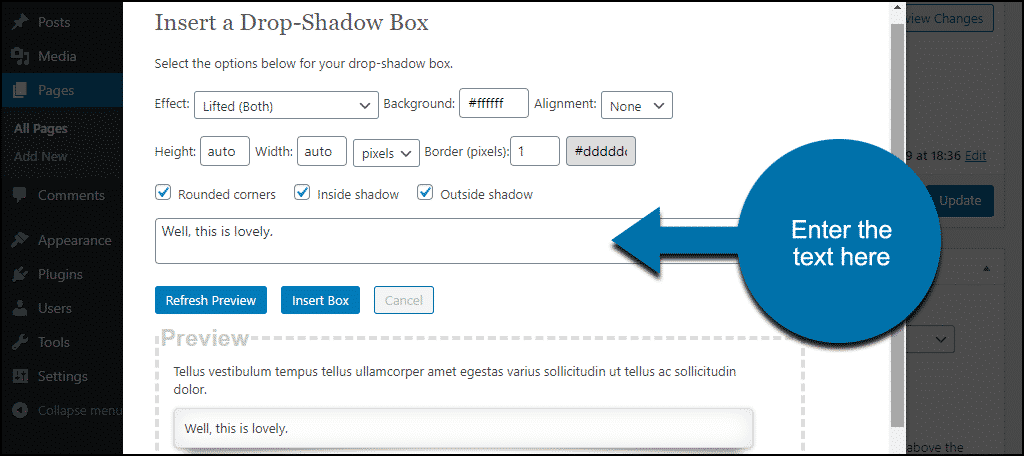
Credit: www.greengeeks.com
Why Use Drop Shadows
Drop shadows make text look 3D and stand out on the page. They add a touch of depth and make text easier to read. This helps to draw attention to important words or phrases. Shadows can also make a webpage look more professional and stylish. They give a design a modern touch.
Designers often use shadows to create a sense of hierarchy. This means showing which text is more important. Small changes can make a big difference. Shadows are a simple way to improve a website’s appearance. They are easy to add and adjust. This makes them a favorite tool for web designers.
Choosing The Right Theme
Selecting a theme is important for your website. Each theme has unique features. Some themes may support drop shadows on text. Others might not. Check the theme’s customization options. Look for themes that allow CSS changes. This helps in adding drop shadows.
Read user reviews before choosing. Many users share their experiences. This can help you understand the theme better. A good theme can make your site look nice. Always update themes for new features. Updates keep your site secure too.
Customizing Css For Drop Shadows
First, log into your WordPress dashboard. Next, find the Appearance tab. Click on the Theme Editor option. It will open the theme files. You will see a list on the right side. Select the file where you want to add the shadow.
Find the style.css file in the editor. This file controls how your site looks. Scroll down to the bottom. Add your custom CSS code there. Use the text-shadow property for drop shadows. For example:
    .your-text-class {
        text-shadow: 2px 2px 5px black;
    }
Save your changes. Refresh the page to see the effect. Your text should now have a shadow!
Using WordPress Plugins
Many people use WordPress plugins for text effects. They can make your text look special. Some plugins are very popular. Text Shadow Master is one of them. This plugin is easy to use. Another is CSS Hero. It helps change styles fast. Some plugins are free. Others might cost money.
First, go to your WordPress dashboard. Find the plugins section. Click on “Add New”. Search for the plugin name. Click “Install Now”. Then click “Activate”. Now the plugin is ready. It is important to keep plugins updated. This helps them work well. It also keeps your site safe.
Creating Shadows With Html And Css
To add a shadow to text, use the CSS property called text-shadow.
This property lets you add a shadow behind the text.
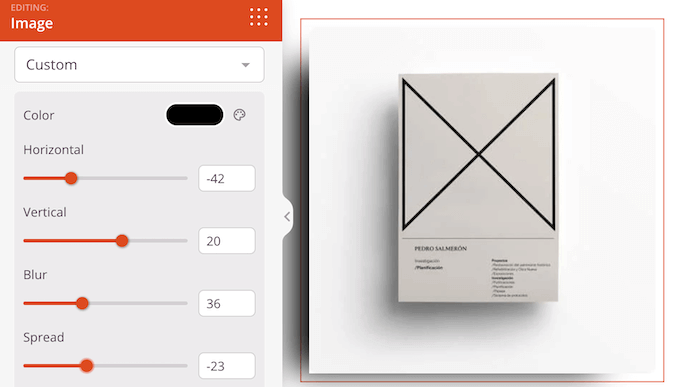
The syntax is text-shadow: x-offset y-offset blur-radius color;.
X-offset and y-offset set the position.
Blur-radius adds softness to the shadow.
The color defines the shadow’s look.
Shadows can be added to specific text elements in your theme.
For example, use a class or ID selector to target an element.
In your CSS file, write .your-class { text-shadow: 2px 2px 5px grey; }.
This will apply the shadow to text with the specified class.
Credit: www.wpbeginner.com
Testing And Adjusting Shadows
Preview your changes before finalizing. This helps in seeing how the shadows look on your page. Use the WordPress Customizer for quick previews. Make sure the shadow looks good with your theme’s colors. Adjust the blur and spread to get the desired effect.
Check on different devices. Shadows may appear different on phones and tablets. Adjust settings if needed to maintain readability.
Previewing Changes
After adding a shadow, preview it in real time. The Customizer lets you see changes instantly. This saves time and effort.
Ensuring Compatibility Across Browsers
Check your changes in different browsers. Use Chrome, Firefox, and Safari for testing. Some browsers may show shadows differently. Adjust your CSS for consistent appearance.
Troubleshooting Common Issues
Adding a drop shadow to text in WordPress can enhance its appearance. Adjust CSS styles in your theme to achieve this effect. Ensure compatibility across browsers for a consistent look.
Resolving Conflicts With Other Styles
Drop shadow might clash with theme styles. This can cause display problems. Some themes use custom CSS. This CSS might override the drop shadow. Check the theme’s CSS files. Look for any conflicting styles. Remove or adjust them as needed. Use browser developer tools. They help identify style conflicts. Modify the CSS with care. It ensures smooth display.
Fixing Display Problems
Sometimes, shadows appear uneven. This can happen due to display settings. Check the text size. Check the color too. Small text may need lighter shadows. Large text might need darker shadows. Adjust settings until it looks right. Test on different devices. Shadows might look different on phones. They might look different on tablets too. Ensure consistency across all devices.
Enhancing Text Readability
Drop shadows can make text stand out. They improve readability. Shadows add depth to words on the screen. You can use CSS to add shadows. This is simple and quick. First, find the text you want to change. Then, go to your theme editor. Look for the style sheet.
In the CSS file, locate the text class. Add this line: text-shadow: 2px 2px 5px gray; Adjust values for different effects. Try different colors for shadow. You can make it bold or soft. Test it and see what looks best. Shadows can be subtle or bold. They should match your theme’s style.

Credit: fullsiteediting.com
Frequently Asked Questions
How Do I Add Drop Shadow To Text In WordPress?
To add a drop shadow to text in WordPress, you can use custom CSS. Navigate to Appearance > Customize > Additional CSS. Add the CSS code `text-shadow: 2px 2px 5px #000;` to apply the shadow effect. Preview changes before saving to ensure the desired look.
Can I Use Plugins For Text Shadows In WordPress?
Yes, several plugins can add text shadows easily. Plugins like “Advanced WordPress Backgrounds” offer customization options without coding. Install and activate the plugin, then follow the plugin settings to apply shadows to text elements across your theme.
Why Should I Add Drop Shadows To Text?
Drop shadows enhance text readability and visual appeal. They create depth, making text stand out on busy backgrounds. Properly used, shadows can improve user experience and engagement, especially on mobile devices, where readability is crucial.
Will Text Shadows Affect My Site’s Performance?
Text shadows generally have minimal impact on performance. However, excessive use or complex shadows can slow down rendering. Use shadows sparingly and test your site’s loading speed after applying them to ensure optimal performance.
Conclusion
Adding drop shadows to text enhances its visual appeal. It creates depth and emphasis. In WordPress, achieving this effect is simple. Use CSS for customization. You can adjust size, color, and blur. Experiment with different styles. This makes your text stand out.
It’s an effective way to improve design. Readers will notice the difference. A polished look attracts more visitors. Your site becomes more engaging. Use these tips to boost your WordPress theme. Keep your design fresh and inviting. Happy designing!


