
Are you ready to give your WordPress site a fresh look? Adding a new theme can transform your website’s appearance, making it more appealing and engaging for your visitors.
But what if you’ve found the perfect theme outside of the WordPress theme repository? Don’t worry, adding downloaded themes to WordPress is easier than you might think. In this guide, you’ll discover the simple steps to upload and activate any theme you’ve downloaded, unlocking a world of customization possibilities.
Whether you’re new to WordPress or just looking to refresh your site, this step-by-step process will ensure your website stands out. Keep reading to learn how you can effortlessly elevate your site’s design today!
Preparing WordPress For A New Theme
Before changing themes, always backup your website. This keeps your data safe. Use plugins like UpdraftPlus or BackupBuddy. They are easy to use. Store backups on the cloud or computer. This way, you can restore your site if needed.
Always check if the new theme matches your WordPress version. Older themes might not work well. Visit the theme’s page for details. Look for phrases like “compatible with WordPress 6.1.” Keeping WordPress updated helps, too. It ensures the theme runs smoothly.
Finding And Downloading Themes
Easily enhance your WordPress site by downloading themes from the internet. Access your WordPress dashboard, then navigate to “Appearance” and select “Themes. ” Click “Add New,” upload your downloaded theme file, and activate it to transform your website’s look effortlessly.
Choosing The Right Theme
Picking the right theme matters. A theme makes your site look good. Check if the theme suits your website’s style. Some themes are for blogs, others for shops. Look at the demo to see how it works. Good themes load fast and fit all screens. Read reviews from other users. Reviews tell if the theme works well. Popular themes often have more updates. Updates fix bugs and add new features.
Trusted Sources For Theme Downloads
Always get themes from safe places. WordPress.org is a top choice. This site checks themes for safety. ThemeForest is another place with many themes. Look for themes with high ratings. Elegant Themes has nice designs. Their themes are easy to use. Avoid sites that look odd or ask for too much info. These sites might have bad themes or viruses. Pick sources others trust for safe and good themes.
Uploading Themes Via WordPress Dashboard
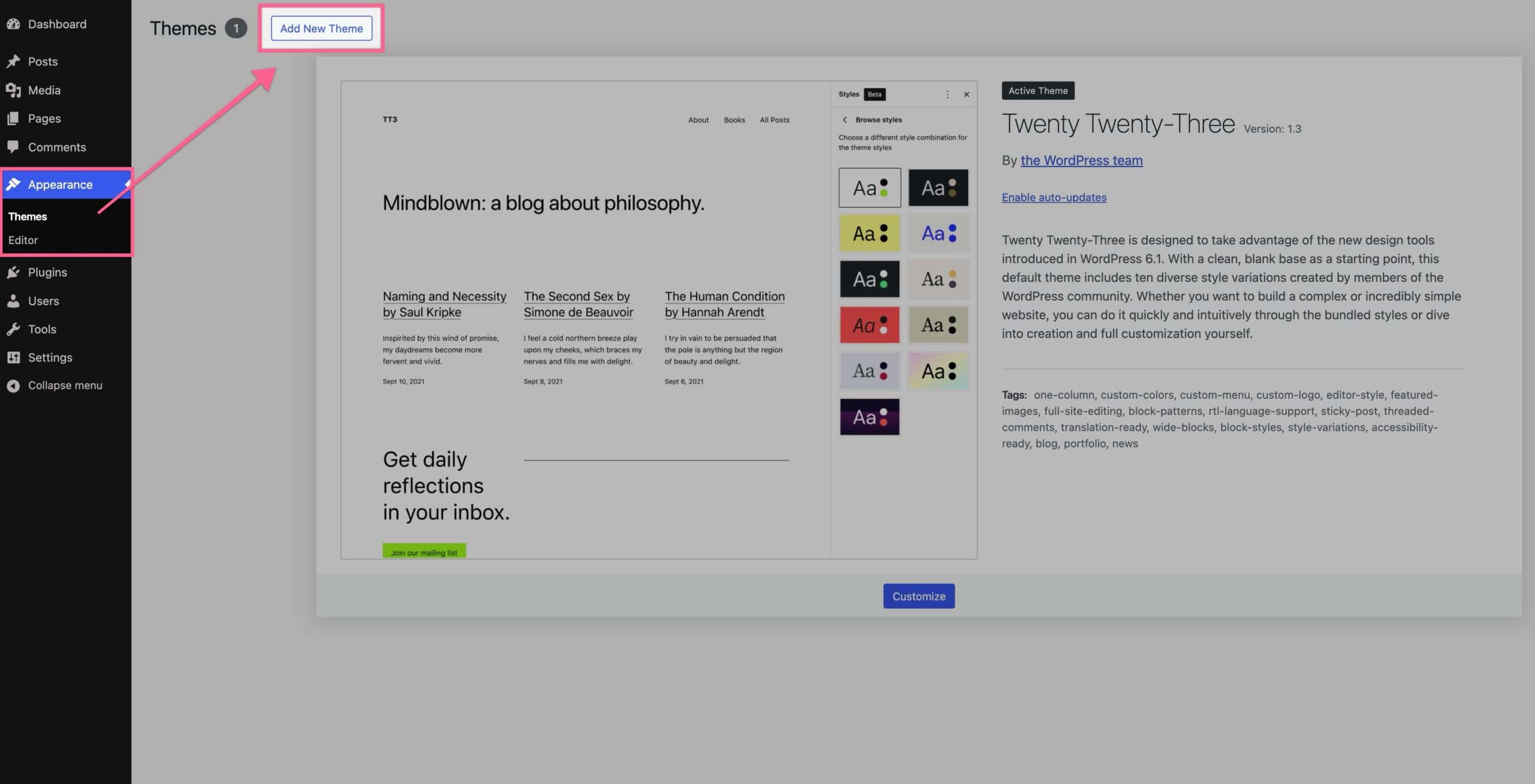
Accessing the Themes Section is easy. First, log into your WordPress dashboard. Look for the menu on the left side. Find the “Appearance” option. Click on it. Then, choose “Themes.” You will see a page with theme options. This is where you add new themes.
Using the Upload Feature is simple. At the top, find the “Add New” button. Click it. Next, look for “Upload Theme.” Click this button too. A box will appear. Click “Choose File.” Find your downloaded theme file on your computer. Make sure it is a .zip file. Select the file and click “Install Now.” Wait for it to finish. Once done, click “Activate.” Your theme is now live. Enjoy your new look!

Credit: themeforest.net
Uploading Themes Via Ftp
Adding downloaded themes to WordPress via FTP is straightforward. Connect to your server with an FTP client. Then, upload the theme folder to the “wp-content/themes” directory.
Setting Up An Ftp Client
FTP clients help you move files to your server. First, download an FTP client like FileZilla. Open the program and find the site manager. Enter your website’s FTP details. You can get these details from your hosting provider. They are often in the control panel. Make sure the port is set to 21. Click connect to access your server. Now you can see your website files.
Uploading Theme Files To The Server
Locate the theme files on your computer. Unzip the downloaded theme folder. Connect to your server using the FTP client. Navigate to the wp-content/themes directory. Drag and drop the theme folder into this directory. Wait until the upload is complete. You will see a progress bar in the FTP client. Check the WordPress dashboard to ensure the theme appears. Go to Appearance > Themes. The new theme should be listed.
Activating The New Theme
Activate the new theme in WordPress by first uploading it through the dashboard. Navigate to “Appearance,” then select “Themes,” and click “Add New. ” Once uploaded, locate your theme and click “Activate” to apply it.
Navigating To The Appearance Section
Find the dashboard on your WordPress site. Look for the Appearance section. It’s usually on the left side. Click on it. A new page will open.
Activating Your Theme
On the new page, see the Themes option. Click on it. You’ll see a list of themes. Find your downloaded theme here. Hover over it. Click Activate. Your new theme is now live.

Credit: www.greengeeks.com
Customizing Your Theme
Using the WordPress Customizer is fun. It helps change your site’s look. Go to the dashboard and click on Appearance. Choose Customize. You will see many options. You can change colors and fonts. You can also add a logo. Make sure to save your changes. The customizer makes it easy to see changes live.
Adding Widgets and Menus is easy too. Widgets are small blocks. They add extra features. Go to Appearance and click on Widgets. Drag and drop widgets where you want. For menus, go to Appearance and select Menus. You can add pages and links. Arrange them by dragging. Remember to save your menu changes. This helps users find things easily.
Troubleshooting Common Issues
Discovering how to add downloaded themes to WordPress can ease website customization. Start by accessing your WordPress dashboard, then navigate to “Appearance” and “Themes. ” Select “Add New” and upload your downloaded theme file to enhance your site’s look effortlessly.
Fixing Broken Themes
Broken themes can cause your site to look strange. First, check the theme files. Make sure they are complete. Missing files can break the theme. Always download themes from trusted sources. This helps avoid broken files.
If the theme still looks wrong, try resetting it. Go to your WordPress dashboard. Find the theme section. Click on the theme you need to reset. Choose “activate” again. This can fix small problems.
Resolving Theme Conflicts
Conflicts happen when two themes don’t work well together. Themes can fight for space or features. To solve this, deactivate one theme. Check if the site works better. Sometimes plugins cause conflicts too. Disable one plugin at a time. See if the site improves.
Updating themes can also help. Old themes may conflict with new ones. Go to your dashboard. Check for theme updates. Click “update” if available. This can fix many issues.
Credit: www.kadencewp.com
Frequently Asked Questions
How Do I Upload A Theme To WordPress?
To upload a theme, log into your WordPress dashboard. Navigate to “Appearance” > “Themes” and click “Add New. ” Select “Upload Theme,” choose your downloaded file, and click “Install Now. ” Once uploaded, click “Activate” to apply it.
Can I Install Themes Without Ftp?
Yes, you can install themes directly via your WordPress dashboard. Navigate to “Appearance” > “Themes,” click “Add New,” then “Upload Theme. ” Browse for your downloaded theme file, install it, and activate.
Why Is My Theme Not Installing?
Common issues include file size limits, incompatible formats, or missing files. Ensure your theme is in ZIP format and complete. Verify you’re using a compatible WordPress version. If problems persist, consult your hosting provider or theme developer for assistance.
How Can I Customize Installed Themes?
To customize, go to “Appearance” > “Customize” in your WordPress dashboard. Use the live preview to modify site elements like colors, fonts, and layouts. Save changes when satisfied. Some themes offer additional settings or plugins for more customization options.
Conclusion
Adding downloaded themes to WordPress is simple and rewarding. Enhance your site’s look with just a few clicks. First, ensure your theme is compatible with WordPress. Upload the theme file using the WordPress dashboard. Then, activate it to see the changes instantly.
Remember to customize it to match your brand. Regular updates keep themes secure and functional. Explore different styles to find the perfect fit. Experiment, learn, and transform your website’s design with ease. Now, you’re equipped to handle themes like a pro.
Happy theming!


