

Are you looking to share important files with your website visitors? Adding downloadable files in WordPress is easier than you think.
Whether it’s a PDF, an ebook, or a guide, giving your audience quick access to valuable content can boost your site’s engagement and trust. You’ll learn simple, step-by-step methods to upload and link files on your WordPress site. By the end, you’ll know exactly how to make your files available for download, helping you connect better with your visitors and grow your online presence.
Keep reading to discover the easiest way to get started!
Credit: wptrainingmanual.com
Prepare Your File
Preparing your file properly is the first step to offering downloads on your WordPress site. A well-prepared file ensures users can access and use it easily. It also helps your website load faster and keeps visitors happy. Two key parts of preparation include choosing the right format and optimizing the file size.
Choose The Right File Format
Select a file format that suits your content and audience. PDFs are common for documents, as they keep the layout consistent. Images work best in JPEG or PNG formats. Audio files often use MP3, while videos use MP4. Choosing the correct format ensures users can open the file without trouble.
Optimize File Size
Large files slow down your website and cause frustration. Compress files to reduce size without losing quality. Use tools to shrink images or documents before uploading. Smaller files load faster and save server space. Optimizing size improves user experience and keeps your site running smoothly.

Credit: www.youtube.com
Upload File To WordPress
Uploading files to WordPress is a basic skill for sharing downloadable content. You can upload files directly through WordPress or use FTP for larger files. Both methods are easy and useful for different needs.
Choosing the right method depends on your file size and access level. Let’s explore two common ways to upload files to WordPress.
Use The Media Library
Access the WordPress dashboard and go to Media > Add New. Click the “Select Files” button. Choose the file from your computer. Wait for the upload to finish.
The Media Library supports images, PDFs, audio, and video files. After uploading, copy the file URL. Use it to link your downloadable file anywhere on your site. This method is quick and works well for small to medium files.
Upload Via Ftp
FTP is useful for large files or bulk uploads. Use an FTP client like FileZilla to connect to your website. Enter your server details to log in.
Navigate to the “wp-content/uploads” folder. Upload your files here. After uploading, get the file URL by combining your site address and file path. Add this URL to your posts or pages.
FTP gives more control and bypasses WordPress size limits. It needs some technical knowledge but is reliable for heavy files.
Create A Download Link
Creating a download link in WordPress lets visitors save files easily. This feature works well for sharing PDFs, images, or documents. Visitors click the link and the file downloads to their device. Adding clear download options improves user experience and engagement.
Insert Link In Posts Or Pages
Open the post or page where you want the download link. Highlight the text that will serve as the link. Click the link icon in the editor toolbar.
Paste the file URL or upload the file to the media library. Select the file and click “Insert.” The text now links to your downloadable file.
To make the link open the download directly, add download attribute in the HTML mode. This forces the browser to download the file instead of opening it.
Add Download Button With Block Editor
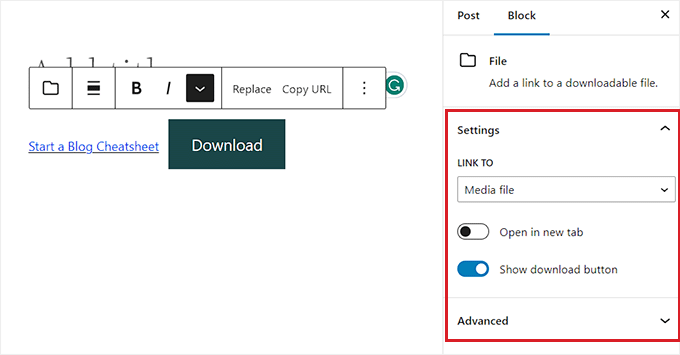
Go to the post or page editor and click the plus (+) button to add a new block. Search for the “Button” block and select it.
Type the button text, like “Download Now.” Click the button to set the link. Upload or select the file from the media library.
The button links to your file and stands out to visitors. It looks clickable and invites action. Use buttons for important or popular downloads.
Credit: www.wpbeginner.com
Manage File Permissions
Managing file permissions is key to control who can access your downloadable files. It helps keep sensitive content safe and ensures only the right people download your files. Setting clear rules for file access protects your website and improves user trust.
Set Access Restrictions
You can limit file access by user roles in WordPress. For example, allow downloads only for logged-in users or specific members. Use WordPress settings or custom code to restrict file visibility. This prevents unauthorized users from downloading your files. Keep your files safe by defining who sees what.
Protect Files With Plugins
Plugins offer easy ways to secure downloadable files. They add layers of protection without coding. Some plugins restrict downloads based on user roles or membership levels. Others hide file URLs from public view. Choose plugins that fit your site’s needs and keep files secure. Regular updates keep protection strong.
Track And Monitor Downloads
Adding downloadable files to WordPress is easy but problems can occur. Troubleshooting helps fix issues fast. This saves time and improves user experience. Below are common problems and how to solve them.
Fix Broken Download Links
Broken links stop visitors from getting files. Check the file URL carefully. Make sure the link matches the exact file location. Sometimes moving files breaks links. Upload files again if needed. Clear your website cache to update links. Test the link on different devices for accuracy.
Resolve Permission Errors
Permission errors block file access. These happen if your server settings are wrong. Set correct file permissions in your hosting panel. Usually, 644 works well for files and 755 for folders. Avoid giving full permissions like 777. Contact your hosting provider if errors persist. They can check server rules and fix problems fast.
Frequently Asked Questions
How Do I Upload A Downloadable File In WordPress?
To upload a downloadable file, go to your WordPress dashboard. Click on Media > Add New. Select the file from your computer and upload it. Copy the file URL to use in posts or pages for download links.
Can I Add Downloadable Files To WordPress Pages Or Posts?
Yes, you can add downloadable files easily to pages or posts. Use the Add Media button while editing. Insert the file link or use a download button plugin for better user experience.
What File Types Are Allowed For Download In WordPress?
WordPress supports common file types like PDF, DOCX, ZIP, JPG, PNG, and MP3. Some types may require plugin support. Always check your hosting limits and WordPress settings for allowed file uploads.
How To Create A Secure Downloadable File Link In WordPress?
To secure downloadable files, use plugins that restrict access or require login. Avoid direct file URLs. These plugins help protect files from unauthorized downloads and track file usage efficiently.
Conclusion
Adding a downloadable file in WordPress is simple and fast. Just follow the steps carefully. Upload your file, create a link, and test it. This lets visitors get your files easily. It improves your site’s usefulness and user experience. Keep your files organized for quick updates.
Regular checks help avoid broken links. Try it today to share resources with your audience. Easy and effective.


