

Are you struggling to test websites or block certain domains on your computer? Knowing how to add a domain in your host file can give you powerful control over your internet connections.
This simple trick helps you direct domain names to specific IP addresses, making tasks like website testing or blocking distractions easier than ever. In this guide, you’ll learn exactly how to do it step-by-step, so you can take charge of your online experience with confidence.
Keep reading—you’re just moments away from mastering a skill that can save you time and frustration.
What Is A Host File
The host file is a small text file on your computer. It helps your system find websites by matching domain names to IP addresses. This file acts like a phone book for the internet. It tells your computer where to go when you enter a website name.
The host file works before your browser asks the internet for a website. It helps speed up the process by providing direct answers. You can also use it to block websites or test new domains on your computer.
What Does The Host File Do?
The host file links domain names to IP addresses. IP addresses are numbers that identify computers on the internet. The file tells your system which IP address to use for a domain. This way, your computer knows where to find the website.
Where Is The Host File Located?
On Windows, the host file is in the system folder. Usually, you find it in C:\Windows\System32\drivers\etc. On Mac and Linux, it is in the /etc/ folder. You need special access rights to edit this file.
Why Edit The Host File?
You can add new domains or change existing ones. This helps test websites before going live. You can block ads or harmful sites by pointing them to a non-existent IP. Editing the host file gives control over domain name resolution locally.
Why Add A Domain To Host File
Adding a domain to the host file helps control how your computer finds websites. It tells your computer to look at a specific address before checking online. This process can speed up website loading and help test sites during development.
It also allows access to websites that may be blocked or redirected elsewhere. This is useful for troubleshooting or managing network issues. Changing the host file affects only your device, so it is safe to try.
What Is The Host File?
The host file is a small file on your computer. It matches domain names to IP addresses. This file helps your computer find websites quickly without asking the internet.
Improve Website Testing
Developers use the host file to test websites on their computers. They can point a domain to a local server. This way, they see changes without affecting live sites.
Block Or Redirect Websites
Changing the host file can block access to certain websites. It can also redirect domains to other addresses. This helps control web access on your computer.
Speed Up Website Access
By setting a domain’s IP in the host file, your computer skips DNS lookups. This reduces the time to open a site. It creates a faster browsing experience.
Locate The Host File
Locating the host file is the first step to add a domain manually. This file controls how your computer connects to websites. It maps domain names to specific IP addresses. Finding this file depends on your operating system. Below are simple steps for Windows, Mac OS, and Linux users.
Windows
On Windows, the host file is inside the System32 folder. Follow this path: C:\Windows\System32\drivers\etc\hosts. You need administrator rights to edit this file. Use Notepad or another text editor with admin access. Open the editor as administrator, then open the host file from the path.
Mac Os
Mac OS stores the host file in the /etc folder. Its full path is /etc/hosts. Use the Terminal app to access it. Open Terminal and type sudo nano /etc/hosts. This command opens the host file with editing rights. Enter your password if asked to proceed.
Linux
Linux systems keep the host file in the same place as Mac OS. The file is located at /etc/hosts. Open a terminal window. Type sudo nano /etc/hosts or sudo vim /etc/hosts to open the file. Use your admin password to edit the file.
Edit Host File Safely
Editing the host file requires care to avoid system issues. A small mistake can cause network problems. It is important to follow safe steps while editing this file. This ensures changes work correctly and your computer stays secure.
Backup The File
Create a copy of the host file before making changes. Save it in a different folder or drive. This backup helps restore the original file if something goes wrong. Always keep a backup to avoid losing important settings.
Use A Text Editor With Admin Rights
Open the host file using a text editor with administrator rights. This allows you to save changes without errors. On Windows, right-click the editor and select “Run as administrator.” On Mac, use the Terminal with sudo command. Editing without admin rights may block your changes.
Add Domain Entry
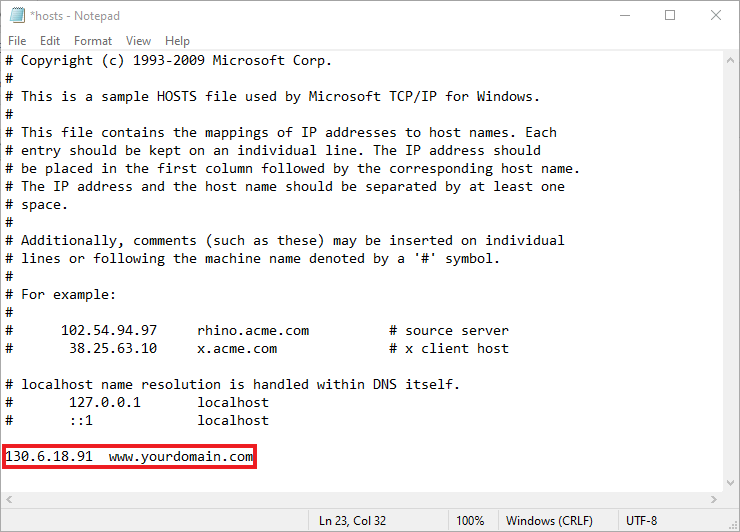
Adding a domain entry to the hosts file is a simple way to control how your computer finds websites. This method helps you test websites before they go live or block sites you do not want to visit. The hosts file links domain names to specific IP addresses on your device.
To add a domain entry, you need to write a line in the hosts file. This line tells your computer the exact IP address for the domain name you want to use. Each entry must follow a clear format to work correctly.
Format Of Domain Entry
The domain entry in the hosts file uses a simple structure:
Start with the IP address, then add a space or tab, followed by the domain name. You can add more domain names on the same line if needed. Comments can be added using the symbol.
Examples
Here are some examples of domain entries:
This entry points the domain “localhost” to your local machine.
This makes your computer use the IP 192.168.1.10 for the domain example.com.
This entry directs “testsite.local” to the IP 203.0.113.5 with a comment for clarity.

Credit: www.youtube.com
Save Changes And Flush Dns
After editing the host file, saving changes is crucial. Without saving, your edits won’t take effect. Next, clearing the DNS cache forces your system to use the updated host file. This step avoids old domain info from showing up. Below are simple steps for saving the file and flushing DNS on different systems.
Save The File
On Windows, use Notepad as administrator. Click “File” and then “Save.” On Mac and Linux, use the terminal editor like nano or vim. Press Ctrl + O to save, then Ctrl + X to exit. Always double-check the file saved properly.
Clear Dns Cache On Windows
Open Command Prompt as administrator. Type ipconfig /flushdns and press Enter. You will see a message confirming the cache is cleared. This refreshes DNS and applies your host file changes immediately.
Clear Dns Cache On Mac
Open Terminal from Applications. Type sudo killall -HUP mDNSResponder and press Enter. Enter your password if asked. This command resets the DNS cache quickly on most Mac versions.
Clear Dns Cache On Linux
Open the terminal window. Depending on your system, type sudo systemd-resolve --flush-caches or sudo /etc/init.d/nscd restart. Press Enter. This clears the DNS cache and forces your computer to use updated domain info.
Verify Domain Setup
After adding a domain to your host file, it is important to verify the setup. This step ensures the domain points correctly to the intended IP address. Verification helps avoid browsing errors and saves time troubleshooting later. Two simple methods help confirm your domain setup.
Ping The Domain
Ping the domain to test connectivity. Open the command prompt or terminal on your computer. Type ping yourdomain.com and press enter. The system sends packets to the domain and waits for a response.
If the ping returns the correct IP address, your domain setup works. No response or wrong IP means the host file entry might have errors. Double-check the domain and IP address in the file.
Check Via Browser
Another quick way to verify is by using a web browser. Open any browser and type the domain name in the address bar. Press enter to load the website.
If the website loads correctly, the domain setup is successful. If it does not load or shows errors, review your host file. Make sure the file saved properly and your browser cache is cleared.
Credit: www.vpsserver.com
Common Errors And Fixes
Editing the host file can cause some common errors. These errors stop your changes from working properly. Knowing these mistakes helps fix problems quickly. Avoiding these errors makes the process smooth.
Incorrect File Permissions
The host file needs special permissions to change. Without the right permission, your edits won’t save. Use administrator or root access to open the file. This lets you modify and save the host file correctly.
Wrong File Path
Many users edit the wrong file by mistake. The host file is in specific places depending on the system. Windows users find it in C:\Windows\System32\drivers\etc\hosts. Mac and Linux users look in /etc/hosts. Double-check the file path before editing.
Syntax Errors
The host file needs a clear format. Each entry must have an IP address followed by a domain name. Use spaces or tabs to separate them. Avoid extra characters or missing parts. Even small errors can break the changes.
Not Flushing Dns Cache
After editing, the system may still use the old DNS info. The new changes won’t show until you clear the DNS cache. Use commands like ipconfig /flushdns on Windows or dscacheutil -flushcache on Mac. This forces the system to use the updated host file.
Editing Without Backup
Not backing up the host file can cause trouble. If errors happen, you lose the original settings. Always save a copy before making changes. This helps restore the file if needed.
Credit: support.managed.com
Frequently Asked Questions
How Do I Add A Domain To The Host File?
To add a domain, open the host file with admin rights. Then, add a new line with the IP address followed by the domain name. Save the file. This redirects the domain to the specified IP on your local machine.
Why Edit The Host File For Domain Mapping?
Editing the host file allows local domain testing without changing DNS. It helps developers preview websites before making them live. This method is faster and avoids DNS propagation delays.
Can I Add Multiple Domains In One Host File?
Yes, you can add multiple domain entries. Each entry must be on a new line with the IP address first, then the domain. This lets you map various domains locally for testing or troubleshooting.
Is Admin Access Required To Modify The Host File?
Yes, admin or root privileges are needed. Without proper rights, you cannot save changes to the host file. This restriction protects system files from unauthorized edits.
Conclusion
Editing the host file helps you test websites quickly on your computer. It lets you link domains to specific IP addresses easily. Just follow the steps carefully to avoid errors. This method works well for developers and anyone testing sites locally.
Always back up your host file before making changes. Simple changes here can save time and effort later. Keep this guide handy whenever you need to add a domain in your host file. Practice makes it easier and faster each time.


