
Are you looking to enhance your WordPress website by adding a directory feature, but not quite sure where to start? You’re in the right place.
Adding a directory to your WordPress theme can significantly boost the functionality of your site, offering users a more interactive and resourceful experience. Whether you’re aiming to create a business directory, a local service list, or a niche-specific index, the process can be straightforward and rewarding.
This guide will walk you through each step, making it easy to transform your WordPress site into a comprehensive directory. By the end of this article, you’ll have the tools and knowledge to expand your website’s capabilities, attract more visitors, and keep them engaged. Ready to dive in and elevate your site’s potential? Let’s get started!

Credit: www.namecheap.com
Choosing The Right Directory Plugin
Adding a directory to your WordPress site is easy. You need a directory plugin. Many plugins are available. Each has its own features.
Some of the popular ones are Business Directory Plugin, GeoDirectory, and Connections Business Directory. These are well-loved by users. They offer a range of features. Some are free, while others are paid. Each plugin has its own strengths. Some focus on business listings. Others offer more customization.
Choose based on your needs. Look for ease of use. Check if it is mobile-friendly. Is support available? Consider the cost. Does it fit your budget? Read reviews. They help you decide. Try a demo if possible. It gives you a feel of the plugin.
Installing The Directory Plugin
Accessing the Plugin Repository is easy. First, log into your WordPress dashboard. Find the Plugins tab. Click on “Add New”. A search box will appear. Type “Directory Plugin” into the box. Press Enter. Browse the list of plugins. Choose a directory plugin. Click “Install Now” to begin the installation. Wait for the plugin to install. Click “Activate” once finished.
Uploading a Plugin is simple too. Download the plugin from a trusted source. Save it as a ZIP file. Go to your dashboard. Click on “Plugins”. Select “Add New”. Find “Upload Plugin” button. Click it. Choose the ZIP file from your computer. Click “Install Now”. Wait for installation. Click “Activate Plugin” to complete.
Configuring Directory Settings
Make your directory look just right. Choose colors and fonts you love. Keep it simple and clear for easy reading. Add your logo for a personal touch. Use images that match your brand. Make sure everything is easy to see and read. Organize the layout so visitors find things easily. Keep navigation straightforward and user-friendly. This keeps visitors happy and coming back.
Organize your directory with categories and tags. Categories are like big folders. Tags are small labels. They help sort information. Make a list of main topics. Use those as your categories. Add tags for more details. This helps users find what they need quickly. It’s like a map for your directory. Keep categories and tags simple and clear. This keeps your directory easy to use.

Credit: themeforest.net
Adding Directory Listings
Start with your WordPress dashboard. Find the directory plugin. Click “Add New Listing”. Fill in the important details. Add the name, address, and contact. You can also add a description. Use easy words. Make sure to include all details. Check everything is correct. Then, click “Save”. Your listing is now live!
Go to your dashboard. Find the listing you want. Click “Edit”. Check if details need updating. Change the name or address if needed. Update the description. Make sure all is right. Click “Update” to save changes. Your listing is now up-to-date. Keep your listings fresh and correct. It helps users find what they need.
Integrating Directory With Theme
Adding a directory to your WordPress theme can be easy. Shortcodes are helpful tools. They allow you to place a directory anywhere. Simply copy the shortcode. Paste it into the desired page. Your directory appears instantly. This method is flexible. It suits different layouts and designs.
Using Shortcodes
Shortcodes are tiny bits of code. They do big things. Embedding directories with shortcodes is simple. Locate the shortcode in plugin settings. Copy it. Paste it into a post or page. Your directory will show up. This is great for beginners. It requires no coding skills.
Embedding Widgets
Widgets are small tools. They enhance your WordPress site. Directory widgets can be added from the dashboard. Go to Appearance. Select Widgets. Drag and drop the directory widget. Place it in your sidebar or footer. Widgets are handy. They make navigation easy.
Enhancing Directory Functionality
A directory needs a good search. Users find items quickly this way. Filters help make searches better. They show only what the user wants. For example, filter by price or location. This makes the directory more user-friendly. Add these features to your theme with plugins. Plugins are tools that add features to WordPress. They are easy to use and set up.
Reviews help users make choices. They show what others think. This builds trust in the directory. Add review options to items in your directory. Users can rate and leave comments. Use review plugins for this. They are easy to install. Reviews make the directory interactive. They keep users coming back.
Optimizing For Seo
Choose URLs that describe your content well. Short and clear URLs are best. Always use keywords in your URLs. This helps search engines find your page. Avoid using numbers or special characters. Make sure your URLs are easy to read and type.
Meta tags tell search engines about your page. Use a title tag that describes your page. Keep it under 60 characters. Use a meta description for a short summary. It should be about 150 characters. Include important keywords in both tags. This will help improve your page’s visibility.
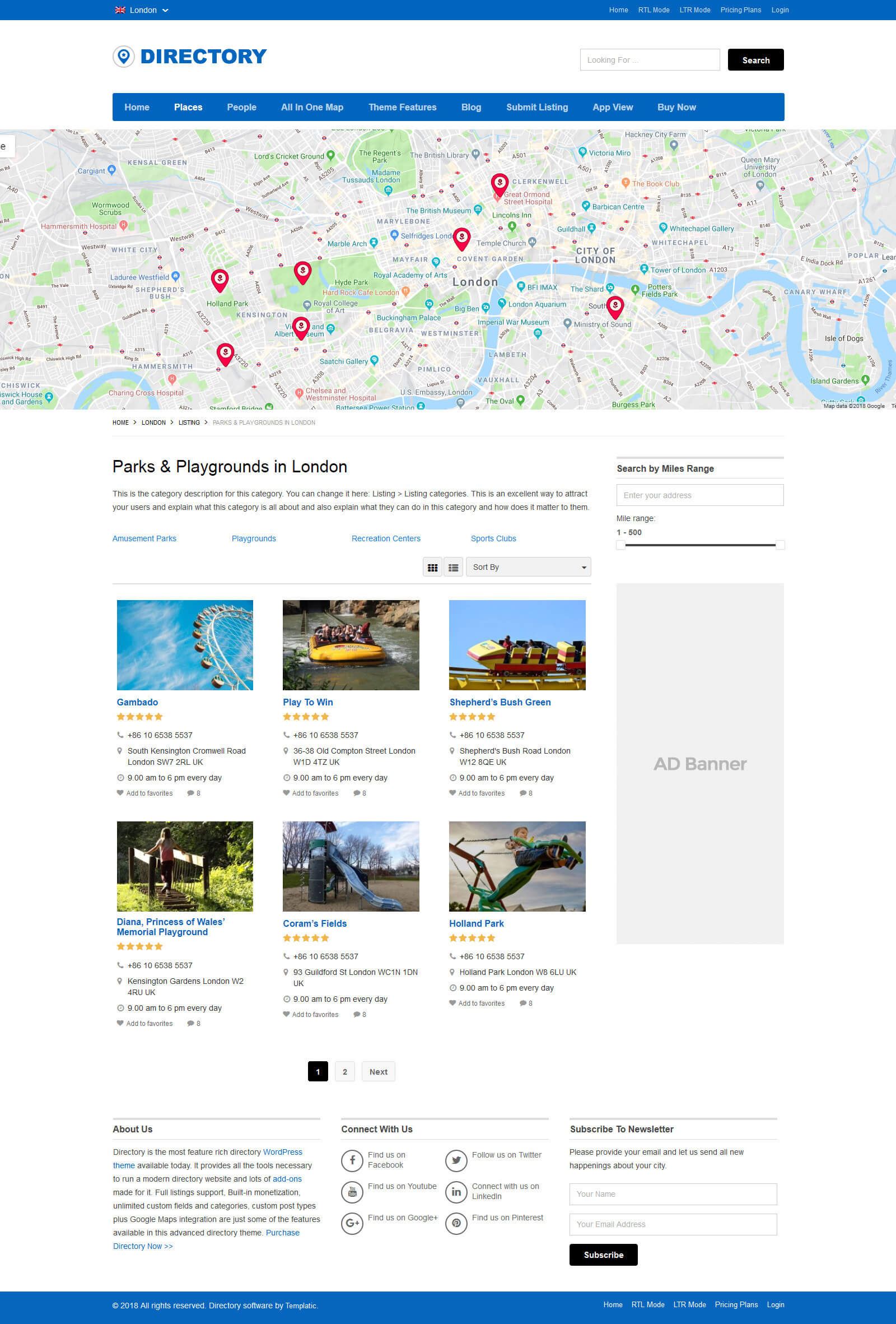
Credit: templatic.com
Testing And Troubleshooting
Learn how to add a directory to your WordPress theme with easy steps. Troubleshoot common issues to ensure smooth integration. Enhance your site’s functionality by organizing content effectively.
Checking For Compatibility Issues
Ensure the directory plugin works with your theme. Use the latest version of WordPress. Check if the theme supports custom directories. Update plugins and themes regularly. Review plugin documentation carefully. Some themes may have conflicts. Use a staging site for testing. Avoid making changes live. Test each feature thoroughly. Look for broken links or missing images. Compatibility ensures smooth operation. Always back up before testing.
Resolving Common Errors
Errors can occur unexpectedly. Check error logs for clues. A common issue is missing files. Ensure all files are uploaded. Reinstall the plugin if needed. Sometimes, themes lack support. Contact theme developers for assistance. Plugins may need specific settings. Adjust settings to fix errors. Check PHP version compatibility. Clear the cache to solve display issues. Update everything regularly to minimize errors.
Ensuring Mobile Responsiveness
Make sure your website looks good on all devices. Use flexible grids and layouts. Images should be flexible too. They must adjust based on screen size. Use CSS media queries for better control. They help change styles for different devices.
Test your site on various devices. Phones, tablets, and desktops are important. Each device shows your site differently. Try using emulators for testing. They mimic real devices. Check your site manually too. Touch each button and link. Ensure everything works smoothly.
Frequently Asked Questions
How Do I Add A Directory To A WordPress Theme?
To add a directory to your WordPress theme, use a plugin like GeoDirectory or Business Directory Plugin. Install and activate it, then configure settings as needed. Customize the directory layout and add listings directly from your WordPress dashboard. Ensure the directory aligns with your site’s design and functionality.
Can I Customize Directory Styles In WordPress?
Yes, you can customize directory styles using WordPress theme options or custom CSS. Many directory plugins offer built-in style settings. Use these to tailor the directory’s appearance. For deeper customization, you can edit CSS files or use a child theme.
Always preview changes to ensure compatibility with your overall theme design.
Is A Plugin Necessary For Directory Creation?
Using a plugin for directory creation is recommended for ease and functionality. Plugins offer pre-built features like search filters, user submissions, and listings management. This saves time and ensures your directory operates smoothly. While manual coding is possible, it requires advanced skills and can be more time-consuming.
How To Ensure Directory Seo Optimization?
Optimize your directory for SEO by using relevant keywords, meta tags, and clean URLs. Ensure each listing has unique titles and descriptions. Utilize image alt texts and internal linking. Regularly update content and monitor analytics to improve visibility. Plugins often provide SEO settings to assist with optimization efforts.
Conclusion
Adding a directory to your WordPress theme is straightforward. Follow the steps carefully. Customize to fit your needs. This enhances your site’s functionality and user experience. Remember to back up your site before changes. Experiment with different plugins and styles.
This keeps your site fresh and engaging. Regular updates ensure everything runs smoothly. Seek help from online forums if needed. Practice makes perfect. Enjoy your improved WordPress site. Your visitors will appreciate the added features. Happy designing!


